How to Fix Windows 11 26H2 Installation Failure?

5 mins read

Updated on 2026-07-15 18:48:18 to Windows Fix

A Windows 11 26H2 installation failure may occur when the update gets stuck, rolls back after restarting, displays an installation error, or does not appear in Windows Update. Don't worry. This guide explains the causes, and how to fix Windows 11 26H2 installation issues using compatibility checks, disk management, Windows troubleshooting tools, system file repair commands, and other targeted solutions.

1. Common Reasons for Windows 11 26H2 Installation Failure

Before changing system settings, identify the most likely cause. This prevents unnecessary troubleshooting and reduces the risk of making the installation problem worse.

  • Hardware incompatibility: Windows 11 requires a supported 64-bit processor, at least 4 GB of RAM, 64 GB of storage, UEFI firmware, Secure Boot capability, TPM 2.0, and DirectX 12-compatible graphics.
  • Insufficient system-drive space: Setup needs working space to download files, unpack the installation image, preserve rollback data, and complete servicing operations.
  • Corrupted update or system files: Damaged Windows Update components may cause error codes such as 0x80073712, repeated download failures, or the “We couldn’t complete the updates” message.
  • Driver or application conflicts: Errors beginning with 0xC1900101 commonly indicate driver problems, while 0xC1900208 may point to an incompatible application.
  • Third-party antivirus interference: Security suites can block setup files, services, or system changes during the upgrade process.

⚡ 2. How to Resolve Windows 11 26H2 Installation Failure?
Fix 1: Manually Install Windows 11 26H2

Use this method when Windows 11 version 26H2 is not showing in Windows Update, even though the PC is already running a supported Windows 11 version.

  • Go to Microsoft’s official Windows 11 download page. Locate the section for downloading the Windows 11 disk image.

    download win11 disk image
  • Select the Windows 11 26H2 ISO edition and click Download. Choose the required product language and download the 64-bit ISO file.

    choose iso language
  • After the download is complete, right-click the ISO file and select Mount. Open the newly mounted virtual drive in File Explorer.

    mount iso file
  • Double-click setup.exe to launch Windows Setup. Keep the computer powered on while Windows installs the update and restarts several times.

Fix 2: Check System Requirements for Windows 11 26H2 Installation Failure

When setup reports “This PC can’t run Windows 11,” manually checking TPM, Secure Boot, CPU support, disk type, memory, and storage can be time-consuming, especially on an older PC.

4DDiG Partition Manager provides a Windows 11 compatibility scan that presents the relevant checks in one place. This positioning makes it useful for Windows users who want to identify the blocking requirement.

  • Install and open 4DDiG Partition Manager. Enter Windows Download and Upgrade and choose Windows 11 Upgrade.

    FREE DOWNLOAD

    Secure Download

    windows 11 upgrade
  • Start the compatibility detection and review the results. Identify the failed requirement, such as TPM, Secure Boot, processor compatibility, partition style, memory, or storage.

    check the windows compatibility
  • Follow the steps to address the failed item. For example, enable TPM or Secure Boot in UEFI when the hardware supports it, or convert the system disk to GPT if the current layout prevents a UEFI-based installation.

    address windows restriction issue
  • After that, you can choose the system language and version, click Start to upgrade.

    click start
  • It will take some while to bypass Windows 11 requirements, just wait patiently. After completing these steps, you can proceed with the Windows 11 upgrade.

    Windows 11 Setup

Fix 3: Expand Disk Space When Windows 11 26H2 Update Failed

Windows needs room not only for the update package but also for temporary setup files and recovery data. Deleting personal files may provide temporary relief, but it does not solve an undersized system partition when another partition has plenty of unused capacity.

4DDiG Partition Manager can resize partitions through a visual disk map. It is most useful for users who find Windows Disk Management restrictive—for example, when available space is not arranged conveniently beside the C drive. The software supports resizing, moving, extending, splitting, and creating partitions through its partition-management interface.

  • Open 4DDiG Partition Manager again and select Partition Management. Choose your drive and select “Resize/Move”.

    resize partition
  • In the pop-up window, drag either edge of the selected partition to adjust its size. You can also enter the desired partition size manually in GB. After setting the new size, preview the updated partition layout. If everything looks correct, click OK to add the operation to the task queue.

    set the size of drive
  • Review the pending changes carefully. If the information is correct, click OK to begin resizing the partition.

    confirm changes
  • The partition resizing process will start immediately. The time required may vary depending on the amount of data and the size of the partition. Once the partition has been resized successfully, click Finish.

    resize successfully

This approach is intended for users whose C drive is full while another partition on the same disk still has substantial free space.

Do not shut down the computer while the system partition is being resized. Also confirm that your BitLocker recovery key is available before modifying an encrypted system disk.

Fix 4: Run the Windows Update Troubleshooter

Use the built-in troubleshooter when Windows Update repeatedly returns a generic download or installation error, but the PC meets the requirements and has enough disk space. It is designed to check common update-service and configuration problems without requiring command-line experience.

  • Open Settings > System > Troubleshoot > Other troubleshooters.

  • Find Windows Update and select Run.

    run windows update troubleshooter
  • Allow the troubleshooter to inspect the update components. Apply any recommended repair.

  • Restart the computer, return to Windows Update, and check again.

If the troubleshooter reports no problem but the same error returns, continue with the system-file repair method below.

Fix 5: Use DISM and SFC to Repair Corrupted System Files

DISM repairs the Windows component image used as the source for system servicing. SFC then checks protected system files and replaces damaged copies.

  • Search for Command Prompt. Right-click it and select Run as administrator.

  • Enter the following command and wait for it to finish:

    $ DISM.exe /Online /Cleanup-Image /RestoreHealth
  • Next, run:

    $ sfc /scannow
  • Keep the Command Prompt window open until verification reaches 100%. After completing, restart Windows and attempt the 26H2 installation again.

Fix 6: Temporarily Disable Third-Party Security Software

Use this option when setup fails after scanning or preparing files, especially if the antivirus displays a blocked-action notification. Microsoft notes that non-Microsoft antivirus software can sometimes interfere with a Windows upgrade.

First, disconnect unnecessary external devices and temporarily pause the third-party antivirus. Retry the installation while Microsoft Defender remains active. If merely pausing protection does not work:

  • Open security software and look for an option such as Disable Protection, Pause Protection, Turn Off, or Exit.

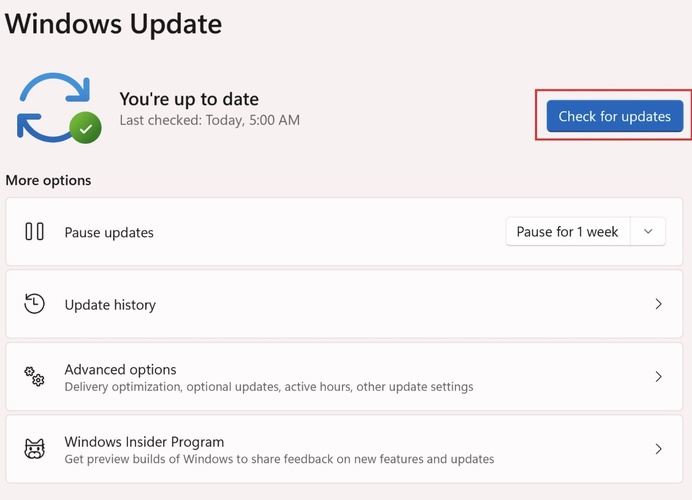
  • Open Settings > Windows Update and retry the Windows 11 26H2 installation.

Conclusion

A Windows 11 26H2 Installation Failure is usually linked to unsupported hardware, limited C-drive space, corrupted system components, or conflicting software. Start by confirming that the device has a valid 26H2 update path, then match the solution to the actual symptom instead of applying every method at once.

For users who need a clearer view of upgrade eligibility and disk layout, 4DDiG Partition Manager can scan Windows 11 restrictions and resize partitions through a visual interface. After addressing the detected blocker, restart the PC, install pending driver updates, and run the 26H2 installation again.

FREE DOWNLOAD

Secure Download

William Bollson (senior editor)

William Bollson, the editor-in-chief of 4DDiG, devotes to providing the best solutions for Windows and Mac related issues, including data recovery, repair, error fixes.

(Click to rate this post)

You rated 4.5 ( participated)