How to Upgrade to Windows 11 26H2 in 3 Methods?

5 mins read

Updated on 2026-07-02 12:06:26 to Windows Update

Windows 11 26H2 is expected to be one of Microsoft’s next major Windows 11 feature updates. In this guide, we will explain the basic information of this update and the safest ways to update from 25H2. You will also learn what to do when your PC does not meet the official Windows 11 26H2 requirements.

Part 1: What is Windows 11 26H2?

Windows 11 26H2 refers to a Windows 11 feature update planned around Microsoft’s annual update cycle. In the version name, “26” refers to the year 2026, while “H2” usually means the second half of the year.

Compared with regular monthly updates, a feature update usually brings broader system changes. These may include interface refinements, performance improvements, security upgrades, AI-related enhancements, File Explorer improvements, Settings app updates, and fixes for known issues.

windows 11 26h2

As of now, Microsoft has started testing Windows 11 version 26H2 through Insider preview channels. You can check the Preview Build to see what new features may be included.

Part 2: Windows 11 26H2 Requirements

To install Microsoft Windows 11 26H2, your PC generally needs to meet the standard Windows 11 system requirements. The main Windows 11 26H2 requirements include:

  • A compatible 64-bit processor with at least 1 GHz speed and 2 or more cores
  • 4 GB of RAM or more
  • 64 GB of available storage or more
  • TPM 2.0 support
  • UEFI firmware with Secure Boot support
  • DirectX 12-compatible graphics
  • A stable internet connection
  • A Microsoft account for certain editions and setup options

Before running the Windows 11 26H2 update, it’s better to clean up your system to make sure your device has enough free disk space. Low storage, unsupported hardware, disabled TPM, or Legacy BIOS mode may cause the update to fail.

Part 3: How to Update to Windows 11 26H2?

There are several ways to update to Windows 11 26H2. The easiest method is Windows Update, while manual installation methods are better for users who do not see the update yet or need installation media.

Method 1: Install the Windows 11 26H2 Update via Windows Update

For most users, Windows Update is the safest way to install Windows 11 26H2.

Follow these steps:

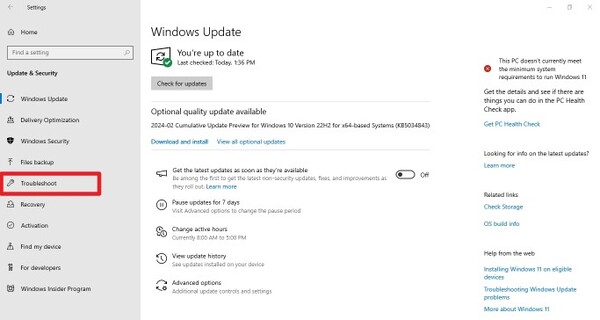
  • Open Settings on your PC. Go to Windows Update and click Check for updates.

    check for updates
  • When Windows 11 version 26H2 appears, click Download and install.

  • Wait for the download and installation to complete.

  • Restart your PC when prompted.

During the update, keep your PC connected to power and do not shut it down manually. The installation may take some time, and your computer may restart several times.

Method 2: Use a Windows 11 26H2 ISO

Some users may not receive the update immediately through Windows Update. In that case, you can download ISO from Microsoft’s official download page once the version becomes available.

  • Visit Microsoft’s official Windows 11 download page.

  • Find the Windows 11 Disk Image ISO download option. Select the correct edition, then click “Download Now.”

    download win11 26h2 iso
  • Use the ISO to create a bootable USB drive or mount it directly in Windows.

  • Run setup and follow the on-screen instructions.

After the update is complete, remember to restart your PC. A reboot helps apply the new system changes properly and ensures that all updated components run smoothly.

⚡ Part 4: How to Update to Windows 11 26H2 on an Unsupported PC?

If your device fails the compatibility check but you still want to update, 4DDiG Partition Manager can help simplify the process.

4DDiG Partition Manager includes a Windows upgrade feature designed to help users bypass certain Windows 11 requirement checks and upgrade to a newer Windows version more easily. This is especially helpful for users who are not familiar with BIOS settings, TPM checks, Secure Boot configuration, or manual installation steps.

  • Download and install 4DDiG Partition Manager on your PC. Launch it, and choose Windows 11 Upgrade in Windows Download and Upgrade section.

    FREE DOWNLOAD

    Secure Download

    win11 upgrade
  • The software will check whether your PC meets the upgrade requirements. After the scan, click Next to continue bypassing unsupported items.

    check pc compatibility
  • Choose the Windows version and language you need. Click Start and confirm the operation.

    click start to proceed process
  • Once it completes, you can upgrade to Windows 11 26H2.

    upgrade to win11 26h2

FAQs about Windows 11 26H2

1.Should I install Windows 11 26H2?

Yes. In general, it is recommended to update to the latest official version of Windows 11, as it usually includes security improvements, performance optimizations, bug fixes, and new features.

2.How to upgrade Windows 11 25H2 to 26H2?

Go to Settings > Windows Update and click Check for updates. If Windows 11 26H2 is available for your device, select Download & install, then restart your PC after the update is complete. If it does not appear, wait for Microsoft’s official rollout instead of using an unofficial ISO.

Conclusion

Windows 11 26H2 is expected to bring new features, security improvements, and a smoother update experience for Windows 11 users. Before upgrading, it is important to understand the Windows 11 26H2 system requirements and available download methods.

For most users, the best way to update is through Windows Update. But you should update to Windows 11 25H2, if you are the older version. If your PC does not meet the official requirements, 4DDiG Partition Manager offers a more beginner-friendly way to handle the Windows 11 upgrade process and bypass certain compatibility checks. It can help users move forward with the upgrade without dealing with complicated manual steps.

FREE DOWNLOAD

Secure Download

William Bollson (senior editor)

William Bollson, the editor-in-chief of 4DDiG, devotes to providing the best solutions for Windows and Mac related issues, including data recovery, repair, error fixes.

(Click to rate this post)

You rated 4.5 ( participated)