BitLocker Recovery Screen after 26H2 Update? Solved!

5 mins read

Updated on 2026-09-28 18:23:04 to Windows Fix

Seeing the BitLocker recovery screen after the Windows 11 26H2 update can be alarming. BitLocker may request recovery because the update—or another change made around the same time—altered the trusted startup environment that it checks before unlocking the encrypted drive.

The first step is to record the Recovery Key ID shown on the screen and determine whether the PC uses a personal Microsoft account or a work or school account. This guide explains why the BitLocker recovery screen appears, how to get past it safely, and what to do if the key cannot be found. Start with the least destructive option below.

1. Why Does the BitLocker Recovery Screen Appear After Windows 11 26H2 Update?

If the trusted boot configuration changes, BitLocker may require additional verification instead of unlocking the system automatically. The update may be the trigger, but it is not necessarily the only cause.

The Trusted Boot Environment Changed

A major Windows update can replace boot components, update drivers, and modify system security settings. If those measurements no longer match the values protected by the TPM, Windows can display a BitLocker recovery screen during the next startup.

TPM or Secure Boot Settings Changed

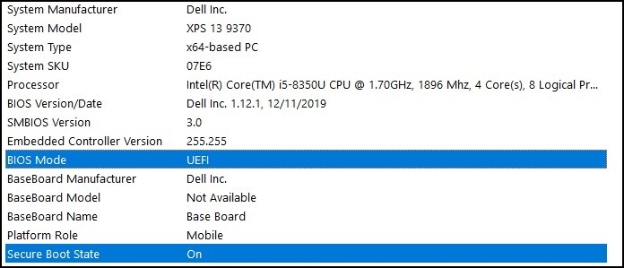
A reset or configuration change involving the TPM or Secure Boot can also trigger recovery. The same can happen after a BIOS/UEFI update, a switch between UEFI and Legacy/CSM mode, or a change to the boot order.

Hardware, Firmware, or Boot Files Were Modified

Replacing a motherboard or system drive, connecting a different boot device, repairing the boot configuration, or changing EFI system-partition files may cause BitLocker to request its recovery key. A failed update or unexpected shutdown can make startup problems appear at the same time.

2. How to Get Past the BitLocker Recovery Screen After Windows 11 26H2?

If your PC is stuck on the BitLocker recovery screen after installing Windows 11 26H2, the quickest way to get past it is by entering the correct 48-digit recovery key. Follow these steps to retrieve and use the key:

  • Use another phone, tablet, or computer to open https://aka.ms/myrecoverykey.

  • Sign in with the Microsoft account associated with the locked PC.

  • Find the entry whose Recovery Key ID matches the ID on the screen.

    find bitlocker recovery key
  • Enter the matching 48-digit key on the locked computer and press Enter.

For a work or school device, open https://aka.ms/aadrecoverykey or contact the organization’s IT administrator. If the key is stored in Microsoft Intune, an administrator or authorized user may be able to retrieve it from the Company Portal. Microsoft recommends matching the Key ID rather than trying keys at random.

⚡ 3.What to Do If You Cannot Find the BitLocker Recovery Key?

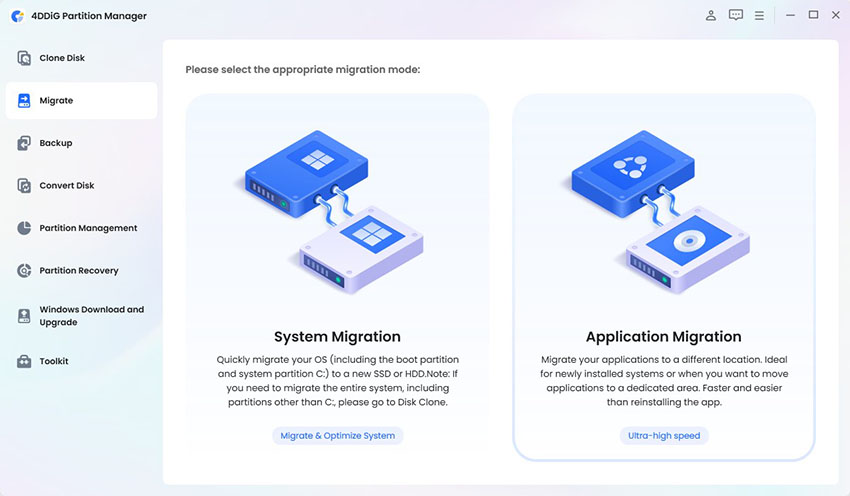
If the key is still unavailable, you can try 4DDiG Partition Manager’s Remove BitLocker feature on an authorized device. Depending on the drive state and the available permissions, the tool can help detect BitLocker information, retrieve an available recovery key.

  • Launch 4DDiG Partition Manager. To unlock a BitLocker-protected partition or remove BitLocker when you do not have the password, open Toolkit and select Remove BitLocker.

    FREE DOWNLOAD

    Secure Download

    remove bitlocker
  • Select the BitLocker-encrypted disk or partition, then click Unlock.

    select the drive
  • Once the key is located, 4DDiG Partition Manager unlocks the selected partition. You can copy and securely save the recovery key.

    save the key

More FAQs

1. What is BitLocker recovery?

BitLocker recovery is an additional authentication process used when Windows detects that the normal trusted startup conditions have changed. It asks for a saved 48-digit recovery key before unlocking the encrypted drive.

2. How do I find the BitLocker recovery key?

On another device, visit https://aka.ms/myrecoverykey, sign in with the Microsoft account linked to the PC, and match the listed key to the Recovery Key ID shown on the screen. For work or school devices, contact the administrator or use the organization’s approved recovery-key portal.

3. Can I bypass the BitLocker recovery screen without a key?

There is no legitimate supported method to bypass BitLocker encryption without authorized recovery credentials. Do not trust tools or websites that claim to generate or crack a recovery key.

Conclusion

A BitLocker recovery screen after a Windows 11 26H2 update usually means that BitLocker detected a startup change, not that your drive has failed. Use the Recovery Key ID to find and enter the correct 48-digit key first. If the prompt persists, review recent system or firmware changes before attempting major repairs.

For a non-booting PC, 4DDiG Partition Manager can provide a bootable environment and supported BitLocker-management options for authorized drives.

FREE DOWNLOAD

Secure Download

William Bollson (senior editor)

William Bollson, the editor-in-chief of 4DDiG, devotes to providing the best solutions for Windows and Mac related issues, including data recovery, repair, error fixes.

(Click to rate this post)

You rated 4.5 ( participated)