How to Fix BitLocker Waiting for Activation?

5 mins read

Updated on 2026-04-08 17:08:14 to Windows Fix

If you see BitLocker waiting for activation, it means BitLocker is enabled but hasn’t fully started encrypting your drive yet. In this guide, you’ll learn the common causes and follow step-by-step solutions, including enabling Secure Boot, resuming encryption, and completing activation.

1. What Does "BitLocker Waiting for Activation" Mean?

When you see the BitLocker waiting for activation message, it means that BitLocker Drive Encryption has been partially configured on your drive but has not yet been fully enabled or activated.

bitlocker waiting for activation

In practical terms, the BitLocker drive encryption status is in a suspended or pending state. Your drive may have been prepared for encryption, but the actual process of locking the drive with a full encryption passphrase or recovery key has not been completed.

2. Why is BitLocker Waiting for Activation?

Several factors can trigger this status. Understanding the root cause is key to applying the right fix:

  • TPM not enabled or misconfigured: BitLocker relies on the Trusted Platform Module (TPM) chip to store encryption keys securely. If TPM or Secure Boot is disabled, BitLocker cannot complete activation and will remain in the BitLocker is waiting for activation state.
  • Group Policy or Intune enforcement: In corporate or school environments, IT administrators often push BitLocker policies through Microsoft Intune or Group Policy Objects (GPOs). If the policy is applied but the device hasn't completed the required configuration steps, the BitLocker waiting for activation status can appear.
  • Encryption was manually suspended: BitLocker can be suspend during firmware updates or BIOS changes, and then forgotten. If it was never resumed, it stays in the pending state.
  • Windows Update interference: Certain Windows updates temporarily suspend BitLocker as a precaution. If the suspension was never lifted after the update, the BitLocker drive encryption status remains stuck at "waiting for activation."
  • Missing or unsupported hardware: Older devices without a TPM 2.0 chip, or systems where Secure Boot isn't supported, may be unable to complete BitLocker activation without additional configuration.

3. How to Fix BitLocker Waiting for Activation?
Below are three proven methods to resolve the BitLocker waiting for activation issue. Start with Fix 1 and work through them in order until the problem is resolved.

Fix 1: Enable TPM and Secure Boot

Enabling TPM and Secure Boot is the most common solution for users whose BitLocker status waiting for activation is caused by a hardware configuration issue. Below are the steps:

  • Restart your computer and enter BIOS/UEFI settings. On most systems, press F2, F10, Del, or Esc immediately after powering on. If you don’t know, check your manufacturer's documentation for the exact key.

  • Once inside BIOS, navigate to the Security or Advanced tab, then look for "TPM," ensure TPM is set to Enabled.

    enable tpm
  • Next, locate Secure Boot settings and make sure it is also Enabled. Save changes and exit BIOS.

    enable secure boot

After Windows restarts, open File Explorer, right-click your drive, and select Manage BitLocker. Check if the BitLocker waiting for activation status has been resolved.

Fix 2: Resume Encryption via Command Line

If TPM is already enabled and BitLocker is simply suspended, you can use the Command Prompt to resume encryption. This is one of the fastest ways to turn off BitLocker waiting for activation.

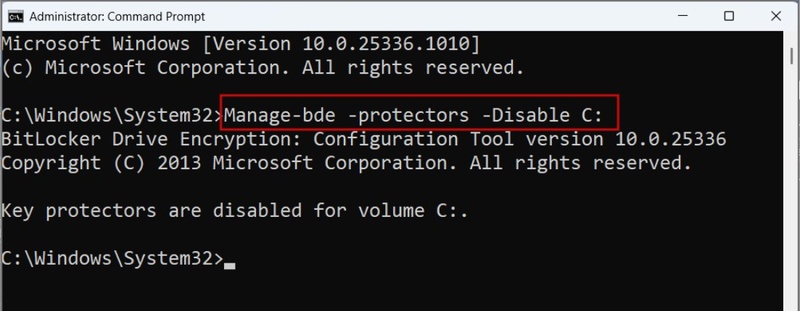
  • Press Win + S and type cmd. Right-click Command Prompt and select Run as administrator. Check the current BitLocker status first: manage-bde -status.

  • If it says "Encryption Paused", type the following command and press Enter:

    manage-bde - resume C:

    (Replace C: with the drive letter of your encrypted drive if it's different.)

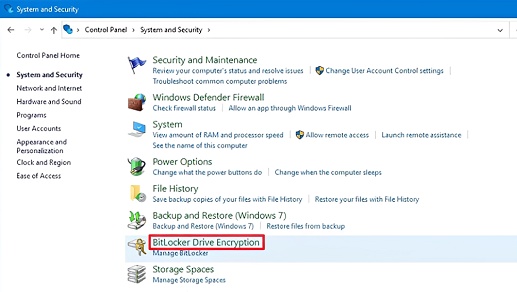
  • Once the command runs successfully, restart your computer and verify the BitLocker drive encryption status in Control Panel > System and Security > BitLocker Drive Encryption.

This method directly disable BitLocker waiting for activation for users.

Fix 3: Finalize BitLocker Activation

If you'd prefer a graphical interface, you can finalize BitLocker activation directly through the Windows Settings app or Control Panel. This method is especially useful for users wondering how to remove BitLocker waiting for activation.

  • Press Win + I to open Settings. Go to Privacy & Security > Device Encryption > BitLocker Settings.

    bitlocker settings
  • If Device Encryption shows as "Off" or incomplete, toggle it On and follow the on-screen prompts.

    turn on bitlocker
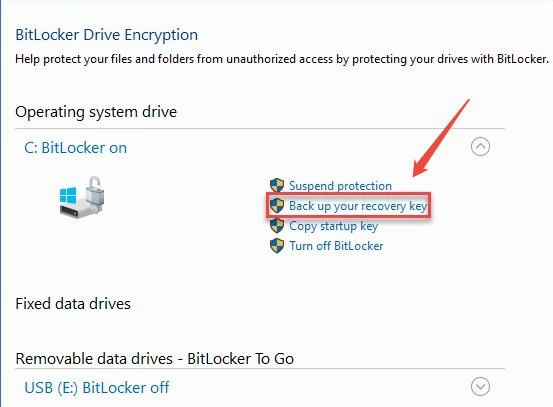
  • When prompted, backup BitLocker Recovery Key to your Microsoft account, a USB drive, or print it. This step is mandatory to complete activation.

  • Wait for encryption to complete. Depending on your drive size, this can take anywhere from a few minutes to several hours.

This approach is the most user-friendly solution for those who want to disable BitLocker waiting for activation without using command-line tools.

⚡ Bonus: How to Remove BitLocker Safely?

If you're looking for a safe way to remove BitLocker without risking your data, following the right method is essential. Many users struggle with locked partitions or missing passwords, but you can unlock and disable BitLocker safely and smoothly with 4DDiG Partition Manager. Here’s how to do it step by step.

🎉 Key Features of 4DDiG Partition Manager

  • Disk Partition Management: Easily create, delete, resize, merge, split, or format partitions without data loss.
  • OS Migration to SSD/HDD: Migrate your operating system to a new SSD or HDD without reinstalling Windows.
  • Disk Cloning: Clone your entire disk or specific partitions to another drive for backup or hardware upgrades.
  • Convert Disk Between MBR and GPT: Quickly convert disks between MBR and GPT formats without losing data.
  • Open 4DDiG Partition Manager. If you want to unlock a BitLocker-encrypted partition or remove BitLocker without a password, navigate to the Toolkit section and select Remove BitLocker.

    FREE DOWNLOAD

    Secure Download

    remove bitlocker
  • Choose the BitLocker-protected disk or partition, then click Unlock.

    select protected disk
  • Click Sure to allow 4DDiG Partition Manager to locate the BitLocker recovery key.

    clilck sure
  • The software will automatically find the recovery key and unlock the partition. You can either copy the recovery key for future use or click Disable BitLocker to remove encryption.

    find key and unlock partition

Wait while the program decrypts the partition. This may take some time depending on the size of the drive.

More FAQs about BitLocker

1. How do I get my computer out of BitLocker mode?

Open Control Panel > System and Security > BitLocker Drive Encryption. Next to your drive, click Turn off BitLocker and confirm when prompted. Alternatively, you can use tool 4DDiG Partition Manager. Note that disabling BitLocker removes all encryption from the drive, so only do this if you intentionally want to leave the drive unprotected. If you just want to pause protection temporarily, you can suspend BitLocker instead.

2. Why is my computer suddenly asking for a BitLocker key?

That's because Windows has detected a change in the system's hardware, firmware, or boot configuration that could indicate tampering or unauthorized access. And BitLocker treats these changes as potential security threats and locks the drive as a precaution.

Conclusion

The BitLocker waiting for activation status is more common than most users realize, and it's almost always fixable without data loss. The three fixes outlined above cover the most frequent scenarios for both BitLocker waiting for activation Windows 11 and Windows 10. If you want to remove BitLocker or bypass BitLocker recovery screen, 4DDiG Partition Manager is a good tool.

FREE DOWNLOAD

Secure Download

William Bollson (senior editor)

William Bollson, the editor-in-chief of 4DDiG, devotes to providing the best solutions for Windows and Mac related issues, including data recovery, repair, error fixes.

(Click to rate this post)

You rated 4.5 ( participated)