How to Backup Your PC Before Upgrading to Windows 11 26H2

5 mins read

Updated on 2026-09-21 16:20:24 to Windows Fix

Before you install Windows 11 26H2, creating a reliable computer backup is the most effective way to protect your system. Feature updates can fail, leave the PC in a boot loop, or alter configurations in ways that make files inaccessible.

A proper backup lets you roll back cleanly instead of spending hours troubleshooting. This guide explains why protection matters, exactly what data to save, four practical, and how to recover missing files if something still goes wrong after the upgrade.

1. Why Should You Back Up Before Updating?

Windows feature updates, including the 26H2 enablement package expected in the second half of 2026, are designed to be low-disruption. They still carry real risks:

  • Installation failures caused by insufficient free space, incompatible drivers, or third-party software conflicts
  • Boot loops or startup problems that force recovery-mode troubleshooting
  • File corruption or unexpected configuration changes, especially on BitLocker-protected drives or systems with customized registry settings

Another practical reason is the limited rollback window. A properly stored system image remains available indefinitely and can be restored even months later if a latent compatibility issue appears.

2. What Should You Back Up Before Installing Windows 11 26H2?

  • Personal files: Documents, Desktop, Pictures, Videos, Downloads, and any project folders outside the user profile.
  • System image Backup: A complete snapshot of the operating system, installed programs, drivers, and settings so the entire machine can be restored if the upgrade fails.
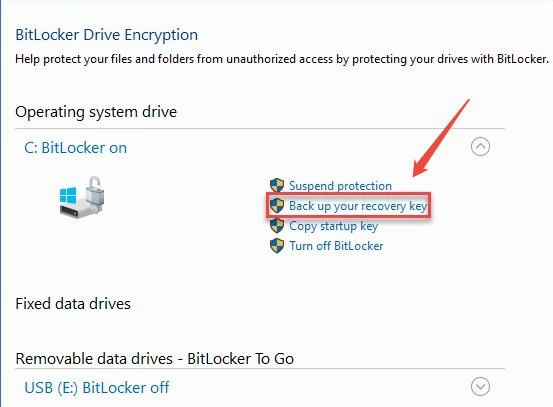
  • Backup BitLocker recovery key: Required to unlock encrypted drives after a failed update or hardware change.
  • License keys for paid software and any local game saves not stored in the cloud.

A combination of a full system image plus selective file copies gives the strongest protection. Cloud sync alone is useful for documents. Treat the BitLocker recovery key as critical infrastructure: store a printed copy or a secure offline digital copy in addition to any Microsoft account backup.

⚡ 3. How to Back Up Before Upgrading to Windows 11 26H2?

Four practical approaches cover different needs and skill levels. Choose at least one full-image method and one file-level method for redundancy.

Method 1: Use 4DDiG Windows Backup

Dedicated windows backup software such as 4DDiG Windows Backup simplifies full computer protection. It creates complete PC images that include the system partition, installed programs, and user data, and it supports selective partition restore plus a rescue USB for unbootable machines. The workflow is straightforward and does not require advanced technical knowledge.

  • Download and install 4DDiG Windows Backup, then connect an external hard drive with enough free space.

    FREE DOWNLOAD

    Secure Download

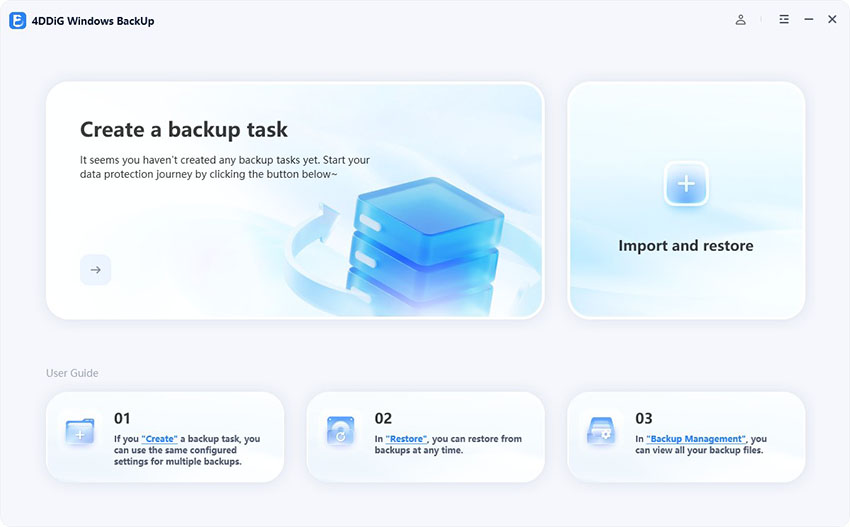
  • Launch the program and choose “Create a backup task.”

    create a backup task
  • Select the partitions you want to include. Click the folder icon to set the external drive as the destination. Click “Start backup” and confirm.

    click start backup
  • Wait for the process to finish. You can enable the option to shut down the PC automatically once the backup completes.

    complete backup

After backup, keep the external drive in a safe place. If the 26H2 upgrade later causes problems, you can restore the entire system or individual partitions from this backup.

Method 2: Create a System Image with Built-in Tools

Windows still includes the classic Backup and Restore (Windows 7) tool that can generate a full system image. Although Microsoft no longer actively develops new features for it, the function continues to work on Windows 11 and remains a free option for many users.

  • Connect an external NTFS-formatted hard drive.

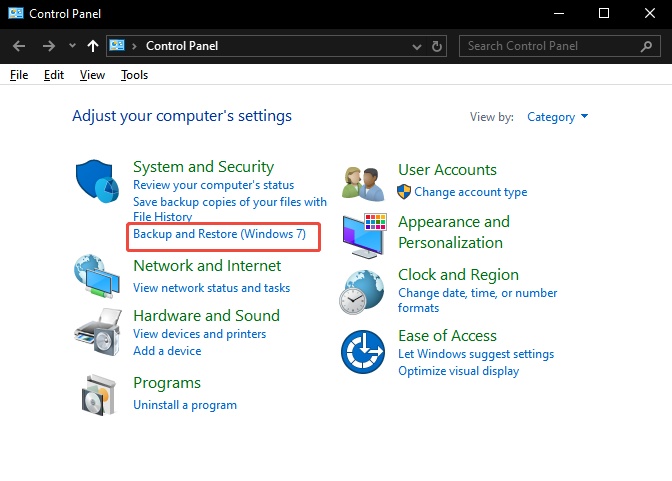
  • Open Control Panel, go to System and Security > Backup and Restore (Windows 7).

  • Click “Create a system image” on the left.

    create a system image
  • Select the external drive as the destination and confirm the partitions to include.

  • Click “Start backup” and wait for completion. Optionally create a system repair disc or recovery USB afterward.

Method 3: Cloud Backup with OneDrive

The OneDrive folder backup protect personal documents and selected settings without extra hardware. This method is ideal for continuous protection of files you edit daily, though it does not replace a full system image.

  • Sign in with your Microsoft account and open OneDrive settings from the system tray.

  • Go to Sync and backup > Manage backup and turn on Desktop, Documents, and Pictures.

    manage backup in onedrive
  • In Settings > Accounts > Windows backup, enable backup of settings, apps, and credentials if available.

  • Allow the initial sync to finish completely before starting the Windows 11 26H2 update.

Method 4: Manual Copy to External HDD/SSD

For a quick, no-software approach, simply copy critical folders to an external drive. This method is fast for personal files but does not capture installed programs or system state.

  • Connect an external HDD or SSD. Open File Explorer and navigate to your user profile folders.

  • Select the folders, copy them, and paste them onto the external drive. Also export browser bookmarks and note any software license keys.

  • Verify that the copied files open correctly before proceeding with the upgrade.

4. Troubleshoot Missing Data After Windows 11 26H2 Update

If files disappear or become inaccessible after the update, you can still recover them. 4DDiG Windows Data Recovery is designed for exactly this scenario: scanning local disks, external drives, and even lost partitions to retrieve photos, documents, videos, and other file types.

  • Download and install 4DDiG Windows Data Recovery. Launch the program.

    FREE DOWNLOAD

    Secure Download

  • Select the local disk that previously contained the missing files and click Start. You can optionally filter by file type before scanning.

    select disk
  • Allow the deep scan to finish. Results appear in Path View or Type View; use the search or filter tools to locate specific items.

    locate missing files
  • Preview files to confirm they are intact, select the ones you need, and click Recover. Save them to a different drive or partition to avoid overwriting remaining recoverable data.

    save missing files

This process works for deleted files, formatted volumes, and many cases of system-update-related data loss. Always recover data to a different physical drive to avoid overwriting remaining recoverable sectors.

Conclusion

Preparing a solid computer backup before the Windows 11 26H2 update is simple insurance against installation failures, boot problems, and unexpected file loss. Create a full system image with 4DDiG Windows Backup or the built-in tool, keep important documents synchronized via OneDrive or copied to external storage, and store your BitLocker recovery key offline.

If data still goes missing after the upgrade, 4DDiG’s recovery function can often retrieve it. Taking these steps once protects hours of work and gives you confidence to install the next feature update as soon as it arrives. Start your backup today so the upgrade itself becomes the only thing you need to worry about.

FREE DOWNLOAD

Secure Download

Ehtsham Ahmed (senior editor)

Ehtsham Ahmed, the content writer for 4DDiG, is dedicated to offering workarounds for Windows Data Recovery, Windows Troubleshooting, iDevices System Repair, etc.

(Click to rate this post)

You rated 4.5 ( participated)