How to Use Media Creation Tool Windows 10/11 to Create Bootable USB?

5 mins read

Updated on 2025-12-23 19:05:01 to Windows Fix

Whether you’ve just built a new machine without an OS, or you’re helping a friend do a clean Windows 11 install, creating a bootable USB is usually the first step. That’s where Microsoft’s Media Creation Tool comes in.

In this guide, we’ll cover the entire process: grabbing the tool, picking the right version and language, and safely creating a USB that works on modern UEFI systems or older BIOS machines—so you can reinstall, repair, or set up a new PC without hassle.

use media creation tool to creat bootable usb

1.What is the Windows Media Creation Tool, and when do you need it?

The Windows Media Creation Tool is Microsoft’s official and all-in-one utility designed to download the latest Windows system files and turn them into installation media. It automatically fetches the correct ISO, verifies its integrity, and prepares a USB drive that can install or repair Windows without requiring any additional software.

When do you need media creation tool?

You need this tool to create Windows 11 bootable USB drive when install Windows on a new system, or perform a clean upgrade to resolve performance issues.

It also helps when Windows Update fails, or when you need to reinstall Windows 10 safely using the Windows 10 media creation utility. Whether you’re troubleshooting or upgrading, this tool ensures the installation process remains secure, dependable, and up to date.

2. How to Create Windows 11/10 Bootable USB?

Before we start, it’s important to understand that Windows installation requires fully prepared bootable media. This ensures compatibility with UEFI systems, GPT partition schemes, and modern hardware requirements. Below are two safe and widely used methods to create a Windows bootable USB.

Method 1: Create a Windows Bootable USB via the Media Creation Tool

Creating a bootable USB with the Media Creation Tool is the official Microsoft-approved way to install or reinstall Windows 10 or Windows 11. This method is ideal for users who prefer a clean installation, need to repair their operating system, or want to upgrade without waiting for Windows Update.

If you are wondering, how do I make a bootable USB drive for Windows 10, just follow the detailed steps below, and you’ll have a fully functional Windows 10/11 USB installer ready to use.

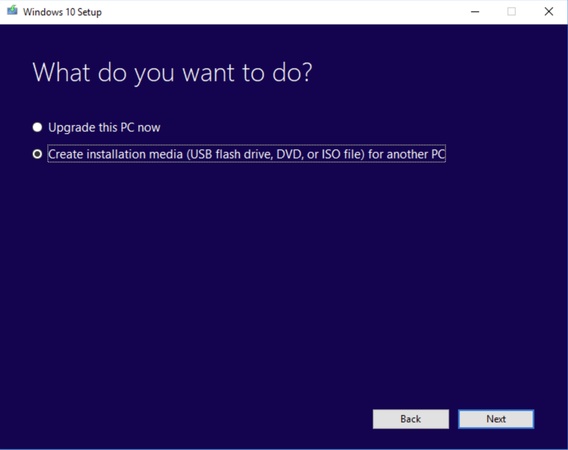
  • Download the Windows Media Creation tool from Microsoft’s official website and run the “.exe” file, and click “Accept” to start the tool. Choose the option “Create installation media” and click “Next.”

    choose create installation media
  • Now, you need to choose the “Language” along with “Windows Edition” and your desired “Architecture”. You may also check mark the “use the recommended options for this PC” and click “Next”.

    click use the recommended for pc
  • Now, choose the option “USB flash Drive” and connect your USB disk to the computer that has at least 8GB total space. Also, remember that this process will erase everything from your USB, so having a backup of important files is a must. Click “Next” and “Finish” to create your bootable USB for Windows installation.

    choose usb flash drive

Method 2: Create a Windows Bootable USB via 4DDiG Partition Manager

Some users prefer a simpler, faster, and more automated option than Microsoft’s Media Creation Tool. 4DDiG Partition Manager offers an all-in-one “Download & Create Windows Installation Disk” feature that handles everything automatically. It simplifies everything from downloading the stable Windows ISO and formatting the USB to creating bootable media in minutes.

This tool is very helpful for users upgrading older systems because it can bypass Windows 11 25H2 hardware requirements (e.g., TPM, Secure Boot). It also provides a failure-proof writing method, reducing the risk of corrupted USB installers. Its main advantage is simplicity. Instead of downloading an ISO manually and configuring the USB, the tool completes the entire process with easy steps.

  • Download and install 4DDiG Partition Manager software and connect your USB to the computer, then launch this software. Click the “Windows Download and Upgrade” option from the left menu and select the “Windows Download” option.

    FREE DOWNLOAD

    Secure Download

    click windows download
  • Now, choose your desired Windows version and select the “System Language” as well. Choose the USB disk connected to your computer that you want to make bootable and click “Start”. Click “Sure” to begin, and note that this process will erase everything from your USB, so have a backup of anything important beforehand.

    create windows bootable disk
  • Now, wait patiently as 4DDiG does everything for you, and once the operation is completed successfully, click “Finish,” and your bootable USB is ready.

    create windows installation disk successfully
Note:

If you want to install Windows 11 25H2 on unsupported hardware, please check these articles:


More FAQs about Media Creation Tool Windows 11

1. Is the Windows Media Creation Tool still available?

Yes. The Windows Media Creation Tool is still officially available from Microsoft for both Windows 10 and Windows 11.

2. How to create a bootable USB for Windows 11?

To create a Windows 11 bootable USB, download the Media Creation Tool from Microsoft, run it, select “Create installation media,” choose your edition, and write it to a USB drive. Afterward, boot your PC from the USB to install Windows and follow the on-screen steps.

3. Can I install Windows 11 with a Media Creation Tool?

Yes. The Media Creation Tool allows you to install Windows 11 via an in-place upgrade or a clean installation using a bootable USB. It automatically fetches the latest official build available and handles formatting and setup for you.

4. Is the Windows Media Creation Tool legit?

The Media Creation Tool is 100% legitimate when downloaded from Microsoft’s official website. It is the safest way to obtain Windows installation files, avoiding the risks of corrupted ISOs, malware-modified builds, or unofficial third-party downloads.

Conclusion

Creating a Windows bootable USB is essential for clean installations, repairs, and system upgrades. Whether you choose the Microsoft Media Creation Tool or prefer the faster, fully automated method provided by 4DDiG Partition Manager, both options ensure a smooth installation process.

If you want a safer and easier experience, especially bypassing Windows 11 hardware restrictions or downloading official ISO files, 4DDiG Partition Manager offers the most reliable solution. It simplifies every step as compared to the Media Creation tool for Windows 10 and guarantees compatibility across devices.

FREE DOWNLOAD

Secure Download

William Bollson (senior editor)

William Bollson, the editor-in-chief of 4DDiG, devotes to providing the best solutions for Windows and Mac related issues, including data recovery, repair, error fixes.

(Click to rate this post)

You rated 4.5 ( participated)