How to Change Desktop Icon Size in Windows 10/11

5 mins read

Updated on 2026-08-12 16:26:58 to Windows Fix

To know how to change desktop icon size in Windows 10 or 11, right-click an empty area of the desktop, select View, and choose Large icons, Medium icons, or Small icons. For finer control, hold Ctrl and scroll the mouse wheel up or down. Both methods work on Windows 10 and 11.

This guide also explains how to restore default sizes, fix unexpected changes, and recover missing desktop files.

how to change desktop icon size

How to Change Desktop Icon Size in Windows 10/11?

Windows provides two built-in ways to resize desktop icons. Both methods work on Windows 10 and Windows 11, so the steps are nearly identical regardless of which version you use.

Method 1. Change Desktop Icon Size from the Right-Click Menu

The right-click menu is the simplest option because it provides three predefined sizes. It is useful when you want a quick change without adjusting display settings or using keyboard shortcuts.

  • Go to the Windows desktop and right-click an empty area where there is no icon.

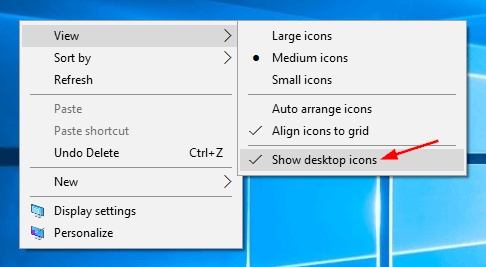
  • Move your pointer over "View," and you will see three options: "Large icons", "Medium icons", and "Small icons".

    right click to change desktop icon size
  • Select the size you want, and Windows will immediately resize the desktop icons.

You do not need to restart Windows after changing the setting.

💡 Which Size Should You Choose?

  • Small icons: Useful when you have many shortcuts and want more space on the desktop.
  • Medium icons: The default choice for most Windows installations and a good balance between visibility and space.
  • Large icons: Better for high-resolution displays, touchscreens, or users who want icons to be easier to identify.

Method 2. Resize Desktop Icons with Ctrl + Mouse Wheel

The Ctrl-and-mouse-wheel method provides more control than the three preset options. Instead of switching between only Small, Medium, and Large, you can select several intermediate sizes. Here's how to change the size of desktop icons:

  • Go to the desktop and click an empty area to make sure the desktop has focus.

  • Press and hold the "Ctrl" key and scroll the mouse wheel "up" to make icons larger or scroll the wheel "down" to make icons smaller.

    change desktop icon size with ctrl mouse
  • Release Ctrl when you reach the preferred size.

This method is useful when the standard View options do not give you the exact size you want.

What to Do on a Laptop Without a Mouse Wheel

A laptop touchpad may not have a physical scroll wheel, but you can still adjust the size. The easiest option is to use the scroll gestures to change the size of icons on the desktop:

  • Click an empty area of the desktop.

  • Hold the "Ctrl" key and scroll up or down with the swipe gestures on your touchpad.

If your laptop supports two-finger scrolling, you can try this method while scrolling with two fingers on the touchpad. The available touchpad behavior depends on the laptop and its touchpad driver.

How to Reset Desktop Icons to the Default Size?

If the icons became unusually large or small, Windows lets you return them to the standard setting. You can also restore a more organized desktop arrangement if icons have been moved around.

Method 1. Restore the Default Medium Icon Setting

For most Windows installations, Medium icons provide the standard desktop icon size. Selecting this option to adjust desktop icon size quickly returns the icons to a familiar size.

  • Right-click an empty area of the desktop.

  • Select "View" and click "Medium icons".

  • Check the desktop to confirm that the icons have returned to the desired size.

This changes the icon size but does not alter your display resolution or Windows scaling.

Method 2. Reset the Desktop Icon Arrangement

If icons are moved out of position, you can restore a more organized arrangement. Windows can automatically arrange the icons into a grid.

  • Right-click an empty area of the desktop and select "View".

  • Click "Auto arrange icons" if you want Windows to organize them automatically.

    reset the desktop icon arrangement
  • You can also enable "Align icons to grid" to keep icons positioned evenly.

  • Move icons manually afterward if you prefer a custom arrangement.

Note:

Auto arrange changes the position of desktop icons. It does not change their size.

Why Desktop Icons Suddenly Become Larger or Smaller, and How to Fix It?

A sudden icon-size change does not always mean that the desktop icon setting itself was changed. Mouse input, display scaling, Windows updates, and graphics drivers can all affect how the desktop appears. Common causes include:

  • Accidentally Changed Icon Size with Mouse Wheel: Holding Ctrl while scrolling over the desktop can resize icons without opening any settings.
  • Display Scaling Settings Were Changed: Windows scaling changes the size of interface elements, which can make desktop icons appear different from before.
  • Windows Update or Graphics Driver Changed Display Settings: A major update or graphics driver change can sometimes modify resolution or scaling settings.

If the icons changed after one of these events, check the following solutions.

Method 1. Restore the Recommended Display Scale and Resolution

Incorrect display scaling or resolution can make desktop elements appear unusually large or small. Returning both settings to Windows’ recommended values can correct the appearance without changing individual icon settings. Here's how to reduce desktop icon size in Windows 11 to the recommended size:

  • Right-click the desktop and select “Display settings”.

  • Under "Scale & layout", find "Scale," then select the option marked "Recommended" when available.

  • Find "Display resolution" and select the resolution marked "Recommended".

    recommended display resolution
  • Confirm the change if Windows asks you to keep it.

Afterward, check whether the desktop icons look normal and if this method for to increase the desktop icon size worked.

Method 2. Restart Windows Explorer

Windows Explorer controls the desktop, taskbar, File Explorer windows, and other parts of the Windows interface. If Explorer stops responding correctly, desktop icons may display incorrectly or fail to refresh.

  • Press "Ctrl + Shift + Esc" to open Task Manager and stay on the "Processes" tab.

  • Find "Windows Explorer" and right-click it.

  • Select Restart, then wait a few seconds while Windows refreshes the desktop.

    restart windows explorer in task manager processes
  • Check the icon size again.

Your open File Explorer windows and taskbar may briefly disappear while Explorer restarts.

Method 3. Update or Roll Back the Graphics Driver

Graphics drivers control how Windows communicates with your display hardware. If icon or display changes started immediately after a driver update, updating or rolling back the driver can help determine whether the driver is responsible.

To update the driver:

  • Press "Windows + X" and select "Device Manager".

  • Expand "Display adapters" and right-click your graphics adapter.

  • Select "Update driver" then choose "Search automatically for drivers".

    update graphic drivers
  • Install an available update and restart Windows.

To roll back a recent driver:

  • Open "Device Manager" and expand "Display adapters".

  • Right-click your graphics adapter and select "Properties".

    roll back to the previous driver
  • Open the "Driver" tab and if "Roll Back Driver" is available, select it.

  • Follow the instructions and restart the computer.

Only use rollback when the problem began after a recent driver change.

How to Recover Missing Desktop Files After Changing Icon Settings?

Changing icon size normally does not delete files. However, if shortcuts, documents, photos, or other files are missing afterward, the issue may be related to accidental deletion, a system problem, a temporary user profile, or another storage issue.

If the missing files cannot be found in the Recycle Bin or through File Explorer search, 4DDiG Data Recovery can scan the affected drive for recoverable data.

FREE DOWNLOAD

Secure Download

FREE DOWNLOAD

Secure Download

Steps to Recover Missing Desktop Files with 4DDiG:

  • Download and install 4DDiG. Launch the program and select the drive where your Desktop folder is stored.

    launch 4ddig and enter interface
  • 4DDiG will start a scan of the selected location, and you can filter the results by file type, such as documents, photos, or videos.

    click type to see all files 4ddig
  • Use the preview feature to check whether the required files are the ones you need.

    preview and recover the files
  • Select the files you need and click "Recover," then save the recovered files to a different drive or storage location by clicking "Save Now".

    save the recoverable files

FAQs

Can you change the size of one desktop icon?

No. Windows’ standard desktop settings change the size of all desktop icons together. You can change the visual icon itself for an individual shortcut, but Windows does not provide a built-in setting to give one desktop icon a different size.

What is the default desktop icon size in Windows 10/11?

Medium icons are the standard desktop icon-size option. If your icons look unusually large or small, right-click the desktop, select View, and choose Medium icons.

Why can’t I change my desktop icon size?

First, make sure you are right-clicking an empty area of the desktop and opening View. If the setting does not respond, restart Windows Explorer and check whether display or graphics-driver problems are affecting the desktop.

Do Windows 10 and Windows 11 use the same icon size settings?

Yes. Both versions provide Small icons, Medium icons, and Large icons through the desktop’s right-click View menu. The Ctrl-and-mouse-wheel method is also available for finer adjustment.

Conclusion

Knowing how to change desktop icon size helps you adjust Windows to suit your screen, workflow, and visual preferences. You can use the desktop View menu for preset sizes or Ctrl plus the mouse wheel for finer control.

If icons change unexpectedly, check display scaling, restart Windows Explorer, or review the graphics driver. If files disappear during troubleshooting, 4DDiG provides a practical way to scan and recover missing desktop data.

FREE DOWNLOAD

Secure Download

FREE DOWNLOAD

Secure Download

William Bollson (senior editor)

William Bollson, the editor-in-chief of 4DDiG, devotes to providing the best solutions for Windows and Mac related issues, including data recovery, repair, error fixes.

(Click to rate this post)

You rated 4.5 ( participated)