How to Download Windows 11 Update KB5066131?

5 mins read

Updated on 2025-11-26 17:57:51 to Windows Fix

Microsoft continues to refine Windows 11 with new security, reliability, and performance improvements. KB5066131 is one of the most important patches for version 24H2. If you’re unsure what KB5066131 does or how to download it, you’re in the right place.

This guide breaks down everything: from what’s included in the patch to all possible installation methods. Whether you’re a home user or IT admin, understanding this update ensures your Windows stays stable, secure, and ready for the future.

windows update kb5066131

1. What is Windows Update KB5066131?

Windows Update KB5066131 is a cumulative update for .NET Framework 3.5 and 4.8.1 on Windows 11 version 24H2 and Windows Server 24H2. Released in October 2025, this update focuses on improving the performance, stability, and overall reliability of the .NET runtime and libraries.

The update primarily enhances how Windows apps interact with the .NET Framework, ensuring smoother execution and better resource management. It includes performance optimizations, bug fixes, and enhanced diagnostic reliability.

What’s New in KB5066131

According to the official Microsoft support page, the KB5066131 update provides:

  • Stability enhancements for the .NET Framework to reduce application crashes.
  • Security improvements that mitigate potential vulnerabilities in framework execution.

Essentially, KB5066131 ensures that your Windows environment and NET-based applications run efficiently and securely.

2. How to Download Windows Update KB5066131?

Not every user receives KB5066131 automatically. Depending on your device configuration or network policy, you may need to install it manually. Below are three official and reliable methods to get the update.

Method 1: Download KB5066131 via Windows Update

The most straightforward way to install KB5066131 is through Windows Update, which automatically checks for and installs the latest Microsoft patches. It's ideal for most users who want a seamless, secure, and automated update experience.

  • Open "Settings" and go to "Windows Update", then click "Check for Updates".

    check for windows update
  • If the update is available, then you need to click "Download and Install"; otherwise, you can move to the next method.

Method 2: Download KB5066131 via Microsoft Update Catalog

For users who prefer manual control or need to update multiple PCs, the Microsoft Update Catalog offers a direct way to download and install KB5066131. It’s a trusted source that hosts official Microsoft update packages, including standalone installers for different Windows versions.

This approach is particularly useful for IT administrators or those working in offline environments.

  • Go to Microsoft Update Catalog and search for “KB5066131”

    search for kb5066131
  • Choose the file that matches your operating system and click “Download” against it.

  • Once the file is downloaded, you can double-click the “.msu" file to begin the installation manually by following the on-screen steps.

Method 3: Download KB5066131 via Windows Server Update Services (WSUS)

Enterprise users managing several systems can use Windows Server Update Services (WSUS) to deploy KB5066131 efficiently across all devices in a network. WSUS centralizes update management, helping administrators maintain version consistency and compliance.

  • Install, then open WSUS Console on your server and go to “Updates", then click "New Update View".

  • Select the “Updates are in a specific classification” checkbox and “Updates are for a specific product” checkbox as well.

    update view in wusa console
  • Now, click "Any Classifications" and uncheck all options apart from "Upgrades" and click "OK".

  • Now click "Any Product" and uncheck all apart from "Windows 11" and "Windows 10", then click "OK"

  • Set a name for your “View” and click “OK”. Right-click on this view in the menu and click "Approve".

  • Click the dropdown against “Broad” group and choose “Approved for install” and click the dropdown again to set “Deadline” to “One Week”.

    approved for install
  • Finally, click "OK" and then close to install the upgrade.

After synchronization, WSUS will automatically push the update to all approved systems. This ensures consistent patch management and compliance in enterprise environments.

Bonus: Get Windows 11 25H2 Now--Bypass with 4DDiG Partition Manager!

If you’re looking to upgrade beyond 24H2, 4DDiG Partition Manager offers an easy way to bypass hardware restrictions and install Windows 11 25H2 early. Some PCs fail Microsoft’s official compatibility checks due to TPM or Secure Boot requirements.

4DDiG’s Bypass Windows 11 Upgrade feature helps you install the Windows 11 version 25H2 even on unsupported hardware safely and without data loss. Beyond upgrading, the tool also provides powerful partition management features. You can clone disks, resize partitions, and back up critical data before major updates like KB5066131.

FREE DOWNLOAD

Secure Download

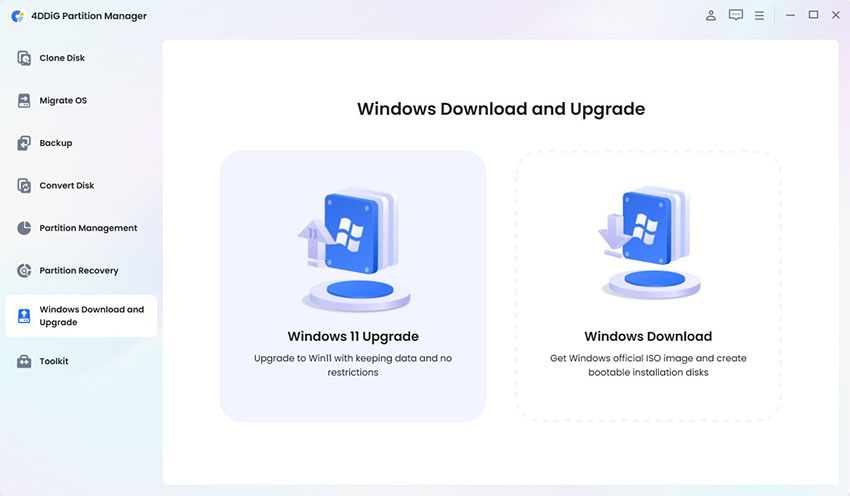
  • Download and install 4DDiG Partition Manager software. Launch it and click the "Windows Download and Upgrade" feature, then select "Windows 11 Upgrade".

    windows 11 upgrade
  • Click the “Detect and Upgrade” button to see if your computer meets the minimum system requirements for installing Windows 11.

    windows 11 upgrade check
  • Now, you will get a list of the requirements that your computer meets and does not meet. You can bypass these requirements instantly by clicking "Next".

    windows 11 upgrade tpm bypass
  • Set the system language for your computer and click "Start Upgrading", then confirm by clicking "Sure". 4DDiG will take a moment to process the update, and you can click "Next" and follow the on-screen steps to complete your installation.

    windows 11 setup

More FAQs about Windows Update KB5066131

Q1: Is Windows 10 22H2 obsolete?

Windows 10 22H2 remains supported until October 2025, but after that, it will no longer receive major feature updates. Users are strongly encouraged to migrate to Windows 11 24H2 or later to maintain security and feature compatibility.

Q2: How do I fix a stuck cumulative update?

If KB5066131 or any Windows update gets stuck, restart your system and run the Windows Update Troubleshooter. Alternatively, reset the SoftwareDistribution and Catroot2 folders to clear the update cache, then recheck for updates.

This error often indicates corruption in update files. Run the SFC /scannow and DISM /Online /Cleanup-Image /RestoreHealth commands from Command Prompt to repair system integrity, then try installing the update again.

Conclusion

The Windows 11 24H2 KB5066131 update is crucial for maintaining a secure and efficient system. Whether you install it through Windows Update, Microsoft Catalog, or WSUS, keeping your system up to date ensures stability and improved performance.

If you’re planning to upgrade to Windows 11 25H2, 4DDiG Partition Manager makes the process seamless, bypassing upgrade restrictions safely. With regular updates and smart partition management, your Windows system will remain optimized, secure, and ready for the latest software.

FREE DOWNLOAD

Secure Download

William Bollson (senior editor)

William Bollson, the editor-in-chief of 4DDiG, devotes to providing the best solutions for Windows and Mac related issues, including data recovery, repair, error fixes.

(Click to rate this post)

You rated 4.5 ( participated)