How to Disable Sticky Keys on Windows & Mac?

5 mins read

Updated on 2026-04-08 17:08:13 to Windows Fix

While Sticky Keys is an accessibility feature designed to help users who have difficulty holding down multiple keys simultaneously, most everyday users find it more of an annoyance than a help. Whether you're looking to stop sticky keys from interfering with your workflow, or simply want to disable sticky keys once and for all, this guide covers everything you need to know, for both Windows and Mac.

Part 1: Why People Want to Disable Sticky Keys?

Why users seek to deactivate sticky keys ? Here are the most common reasons:

  • Accidental activation during gaming: Gamers who press Shift repeatedly for sprinting or abilities frequently trigger the Sticky Keys dialog, breaking immersion and causing in-game mistakes.
  • Interruption during fast typing: Programmers, writers, and data-entry professionals find that the popup disrupts their flow, especially when using keyboard shortcuts heavily.
  • No accessibility need: Many users simply don't require this feature and prefer a clean, distraction-free experience.
  • Annoying notification sound: The beep that accompanies Sticky Keys activation can be startling and unprofessional in quiet environments.
  • Conflict with custom shortcuts: Power users who rely on multi-key shortcuts may find Sticky Keys interferes with their preferred workflow.

If any of the above resonates, read on to learn how to cancel sticky keys step-by-step on your device.

Part 2: How to Disable Sticky Keys Step-by-Step?

💡 For Windows

Method 1: Turn Off Sticky Keys via Windows Settings

This is the fastest way to permanently disable sticky keys on Windows 10 and Windows 11.

  • Press Windows + I to open Settings. Navigate to Accessibility or Ease of Access.

    ease of access
  • Click Keyboard from the left-hand menu. Under the Sticky Keys section, toggle off Use Sticky Keys.

    disable sticky keys
  • To prevent future accidental activation, also uncheck the shortcut option that says "Allow the shortcut key to start Sticky Keys."

Method 2: Turn Off Sticky Keys via Control Panel

In Windows, the Control Panel gives you additional control to completely disable sticky keys and its related settings.

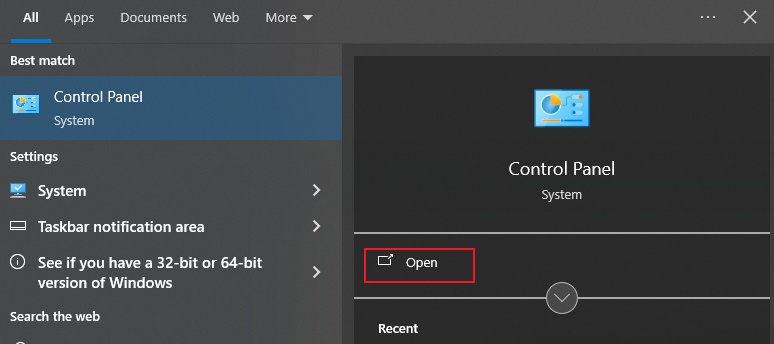
  • Open Control Panel. Go to Ease of Access > Ease of Access Center.

    ease of access in control panel
  • Click "Change how your keyboard works."

    Change how your keyboard works
  • Uncheck the box next to "Turn on Sticky Keys".

    undo sticky keys
  • Click "Set up Sticky Keys" for advanced settings, where you can also disable the keyboard shortcut and the notification sound. Hit Apply, then OK to save your changes.

🎵 For Mac

Method 1: Cancel Sticky Keys via Accessibility

Here's how to disable sticky keys on Mac through System Settings:

  • Click the Apple menu and select System Setting s or System Preferences.

  • Go to Accessibility. Select Keyboard from the left panel.

  • Toggle off Sticky Keys.

    stop sticky keys

Once disabled, the Sticky Keys feature will no longer respond to keyboard inputs, giving you a smooth, uninterrupted typing experience.

Method 2: Cancel Sticky Keys by Pressing the Shift Key Five Times

Mac also offers a quick toggle to undo sticky keys activation:

  • If Sticky Keys is currently active, simply press the Shift key five times in quick succession.

  • A prompt will appear asking whether you want to turn off Sticky Keys. Click Turn Off.

Note:

This shortcut must first be enabled in the Accessibility settings. It serves as a convenient way to

⚡ Extra Tip: Upgrade to Windows 11 Without Limits with 4DDiG

Many users find their devices blocked due to TPM, Secure Boot, or hardware limitations. That’s where 4DDiG Partition Manager comes in. This tool also offers a complete toolkit for managing your disks and optimizing your system.

Whether you need to convert disks between MBR and GPT, migrate your OS to SSD, or resize and manage partitions with ease. With its user-friendly interface and powerful features, the entire process become much simpler and more flexible.

  • Install and open 4DDiG Partition Manager. Go to Windows Download and Upgrade, then select Windows 11 Upgrade.

    FREE DOWNLOAD

    Secure Download

    select windows 11 upgrade
  • The software will automatically check whether your system is compatible with Windows 11. After the scan, you’ll see whether your PC meets the upgrade requirements.

    windows requirements
  • If it doesn’t, follow the on-screen guidance to either create a bootable installer or convert your disk to GPT format.

    guidance for bypass windows 11 requirements
  • Next, select your preferred system language and Windows version, then click Start to begin the upgrade.

    select language then click start
  • The program will take some time to bypass Windows 11 requirements, please wait patiently. Once the process is complete, you can proceed with upgrading to Windows 11.

    upgrade to windows 11

More FAQs about Sticky Keys

1. How to Disable Sticky Keys Notification?

On Windows, go to Settings > Accessibility > Keyboard, click "Set up Sticky Keys", and uncheck "Make a sound when modifier keys are pressed". This will disable sticky keys notification without turning off the feature entirely. On Mac, the notification is controlled through Accessibility > Keyboard settings as well.

2. What Is Sticky Keys?

Sticky Keys is a Windows and macOS accessibility feature that allows modifier keys (such as Shift, Ctrl, Alt, and the Windows key) to remain active after being pressed once, so users don't need to hold them simultaneously with another key.

Conclusion

Whether you're a gamer, a developer, or just someone tired of unexpected interruptions, knowing how to disable sticky keys on Windows and Mac is a simple but impactful tweak. With the step-by-step methods above, you can disable sticky keys in under a minute. While you're at it, consider using 4DDiG Partition Manager to keep your Windows system running efficiently. Meanwhile, its intuitive partition recovery and disk management tools are the perfect complement to a well-optimized Windows setup.

FREE DOWNLOAD

Secure Download

William Bollson (senior editor)

William Bollson, the editor-in-chief of 4DDiG, devotes to providing the best solutions for Windows and Mac related issues, including data recovery, repair, error fixes.

(Click to rate this post)

You rated 4.5 ( participated)