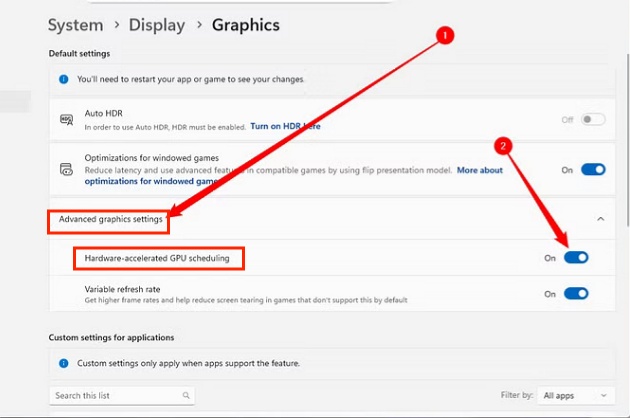
How to Disable Hardware Acceleration in Chrome/ Firefox/ Discord/ Opera GX
Is your browser crashing unexpectedly? Are you experiencing screen flickering, black screens, or sluggish performance while browsing? The culprit might be hardware acceleration. If you're wondering how to disable hardware acceleration in browsers like Chrome, Firefox, Opera GX, or apps like Discord, you're in the right place.
This comprehensive guide will walk you through the exact steps to turn off hardware acceleration on different platforms, helping you resolve those annoying display issues and crashes. Let's dive in!
1.What is Hardware Acceleration?
Hardware acceleration is a technology that offloads certain computing tasks from your computer's CPU to specialized hardware components, primarily your GPU (Graphics Processing Unit). In the context of web browsers and applications, hardware acceleration leverages your graphics card to handle graphics-intensive operations like rendering videos, animations, and complex web pages.
The main role of hardware acceleration is to improve performance and reduce CPU load. When enabled, your GPU takes over tasks it's better equipped to decode video streams, render 3D graphics, and smooth scrolling animations.
However, hardware acceleration doesn't always work perfectly. Outdated graphics drivers, incompatible hardware, or software bugs can cause hardware acceleration to backfire. This is also why people ask how do I turn off hardware acceleration.
2.How to Turn off Hardware Acceleration in Chrome?
Google Chrome is the world's most popular browser, and while it generally handles hardware acceleration well, some users experience issues with it enabled. If you're facing problems, here's how to disable hardware acceleration in Chrome with a detailed step-by-step guide:
-
Launch Google Chrome and click the three vertical dots (menu icon) in the top-right corner of the browser window. From the dropdown menu, select Settings.
-
Navigate to System in the left sidebar. In the System section, you'll find an option labeled “Use graphics acceleration when available ”. Click the toggle switch to disable it, then the hardware acceleration is turned off.
disable graphics acceleration
-
After you uncheck hardware acceleration, Chrome will prompt you to relaunch the browser for changes to take effect. Click the Relaunch button that appears. Make sure you've saved any important work in open tabs before relaunching.
3. How to Disable Hardware Acceleration in Opera GX ?
Opera GX is a gaming-focused browser built on the same Chromium engine as Google Chrome. If you're experiencing performance issues or visual glitches while gaming and browsing, disabling hardware acceleration might help.
-
Launch Opera GX and click the Opera GX menu and select Settings from the dropdown.
-
In the Settings page, scroll down to find Advanced in the left sidebar. Find the System section in the Browser settings. This is where Opera GX stores performance-related settings including hardware acceleration.
-
Look for the checkbox next to “Use hardware acceleration when available ”. Click to turn off hardware acceleration.
Close Opera GX completely and reopen it. Unlike Chrome, Opera GX may not show a relaunch prompt, so you need to manually close and restart the browser for the changes to apply.
Opera GX shares many features with standard Opera browser. If you're using regular Opera, the steps are virtually identical.
4. How to Turn off Hardware Acceleration in Firefox?
Mozilla Firefox handles hardware acceleration differently than Chromium-based browsers, but the option is just as accessible. If you need to disable hardware acceleration in Firefox, follow these straightforward instructions:
-
Open Firefox and click the three horizontal lines in the top-right corner. Select Settings from the menu .
-
By default, Firefox opens to the General settings page. If it doesn't, click General in the left sidebar.
-
Find the Performance section. You'll see a checkbox labeled “Use recommended performance settings”. Once unchecked it, additional performance options will appear, including the hardware acceleration setting. Then uncheck “Use hardware acceleration when available.”
Close all Firefox windows and reopen the browser. Firefox requires a complete restart for hardware acceleration changes to take effect. Simply closing and reopening one window isn't sufficient.
Extra Tip: Boost PC Performance by Migrating Windows to an SSD
While disabling hardware acceleration can resolve browser-related issues, it's not a comprehensive solution for overall system performance. If your computer feels sluggish beyond just browser problems, one of the most effective upgrades you can make is migrating your OS from a traditional hard drive (HDD) to SSD.
SSDs offer dramatically faster read and write speeds compared to HDDs, resulting in faster boot times, quicker application launches, and improved system responsiveness. However, manually migrating Windows to an SSD can be complex and time-consuming. That's where 4DDig Partition Manager comes in.
-
Visit the official website to download 4DDig Partition Manager. Launch the tool and click on the Clone OS Disk option from the main interface.
FREE DOWNLOADSecure Download
-
Choose the destination disk where you want to copy data from the original disk, then click Next.
-
A preview screen will appear displaying how the cloned disk will look. You can adjust the cloned partition size by dragging the handles on either side. Once you've verified the preview looks correct, click Start to begin cloning.
-
Be aware that cloning will erase all existing data on the destination disk. After double-checking everything, click Sure to proceed.
Allow time for the disk cloning process to finish. You have now successfully copied all data from the original disk to the destination disk.
5. How to Disable Hardware Acceleration in Discord
Discord is a popular communication platform for gamers and communities, but hardware acceleration can sometimes cause issues like screen sharing problems, video call crashes, or application freezes. Here's how to turn it off:
-
Launch Discord and click the gear icon next to your username at the bottom-left of the Discord window to open the User Settings.
-
Scroll down to the App Settings section. Click on Advanced section to access advanced configuration options. Then, click the toggle to turn off hardware acceleration.
-
Discord will display a warning that the app needs to restart for changes to take effect. Click Okay when prompted to restart Discord. The application will close and reopen automatically.
However, sometimes we also need to enable hardware acceleration to fix errors, like Discord Stream Error 2015 and Paramount error code 3005.
More FAQs about Turning off Hardware Acceleration
1. Is it okay to turn off hardware acceleration?
Yes, it's perfectly okay to turn off hardware acceleration. While hardware acceleration is designed to improve performance by utilizing your GPU, it's not essential for basic browsing or application use. Disabling it is often recommended when you encounter problems like crashes, screen flickering, black screens, or video playback issues.
2. How do I force Chrome to use GPU?
To force Chrome to use your GPU, you need to enable hardware acceleration (if it's disabled) and verify GPU usage. To verify GPU is being used, type chrome://gpu/ in the address bar. Check the 'Graphics Feature Status' section, most items should show 'Hardware accelerated' if GPU is active
3. Where is hardware acceleration in PC settings?
Hardware acceleration isn't typically found in Windows PC settings, it's controlled individually by each application. Different programs have their own hardware acceleration settings located in their respective preferences or settings menus.
Conclusion
Knowing how to disable hardware acceleration is an essential troubleshooting skill for anyone who spends significant time browsing the web or using applications like Discord. In this comprehensive guide, we've walked you through the exact steps to disable hardware acceleration in each platform.
Beyond browser settings, we also explored how migrating your Windows installation to an SSD can dramatically boost overall PC performance. 4DDig Partition Manager makes this process simple and safe, offering one-click system migration, comprehensive partition management, and built-in data recovery features.
Secure Download
💡 Summarize with AI:
You May Also Like
- Home >>
- Windows Fix >>
- How to Disable Hardware Acceleration in Chrome/ Firefox/ Discord/ Opera GX
ChatGPT
Perplexity
Grok