What Is an MD File? How to Open, Edit, and Recover MD Files

5 mins read

Updated on 2026-10-20 18:35:27 to Wiki

An MD file is a text file commonly used to write and organize content with Markdown. If you're wondering what is an MD file, you'll often find one in software projects or digital notes. This guide covers how to open, edit, and convert MD files, along with ways to troubleshoot issues and recover deleted files.

what is an md file

What Is an MD File?

An MD file is typically a plain-text document written in Markdown, a lightweight markup language. Markdown uses simple characters to organize text without requiring complex formatting tools. The .md extension is commonly used for Markdown files, although some applications may use the same extension for other formats.

Unlike a Word document, an MD file stores content as readable text with formatting markers. You can open it in a basic text editor, while a Markdown editor can also display a formatted preview.

For example, an MD file might contain:

# Project Notes

This is **important**.

- First task
- Second task

The symbols indicate how the text should appear when rendered. Markdown files work across different platforms and can be tracked with version control tools such as Git.

What Are MD Files Used For?

MD files are commonly used for documentation, note-taking, and web content.

  • Project documentation: Developers often use README.md files to explain a project's purpose, setup, and usage. Platforms such as GitHub can display Markdown content as formatted pages.
  • Technical documentation: Teams use MD files for installation guides, API documentation, and changelogs.
  • Notes and knowledge management: Apps such as Obsidian use Markdown files to store notes and link related information.
  • Websites and AI workflows: Static site generators can turn Markdown into web pages. Files such as AGENTS.md can also provide instructions for AI coding tools.

How to Open an MD File on Windows and Mac

You can open an MD file in a text editor or use a Markdown editor to preview its formatting.

1 Use a Basic Text Editor

A plain-text editor lets you read and edit the Markdown source directly.

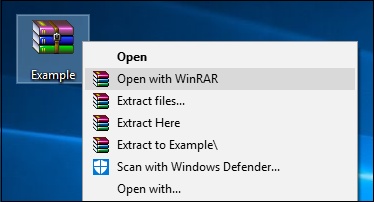
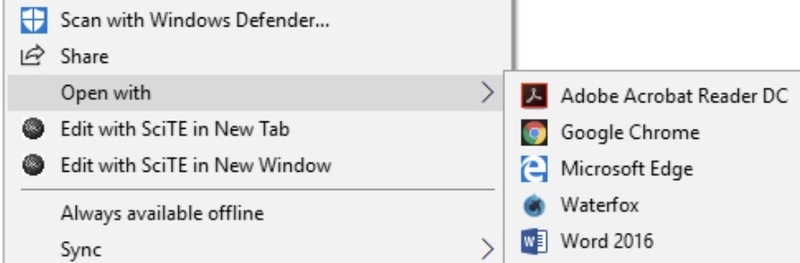
  • Windows: Right-click the MD file, choose "Open with", and select Notepad.
  • Mac: Open the file with TextEdit. If necessary, switch to plain-text mode before editing.

You can edit the text and save the file with the .md extension. A basic editor displays Markdown symbols as text rather than rendering them as headings or lists.

2 Use a Markdown Editor

Markdown editors let you edit the source text and preview the formatted result.

open md file in vscode

  • Visual Studio Code: Open the MD file and use its Markdown preview to see how the content will look when rendered.
  • Obsidian: Open or create Markdown files in a vault to edit notes and connect related documents.

If you only need to read or make simple changes, a basic text editor is usually enough. For longer documents or formatted previews, a Markdown editor is more convenient.

What Is the Difference Between MD and TXT Files?

MD and TXT files both store plain text, but they serve slightly different purposes.

Feature MD File TXT File
Main purpose Plain text with Markdown formatting markers Plain text without a standard markup format
Formatting markers May contain symbols for headings, lists, links, and emphasis Usually contains text without Markdown formatting
Formatted preview Markdown tools can render its syntax Usually displays the text as written
Common uses Documentation, notes, and web content Simple notes, logs, and text records

Both formats work in basic text editors, but MD files can also be rendered as formatted content using Markdown tools.

How to Convert an MD File to PDF, Word, or HTML

You can convert an MD file to share a formatted document or use its content in another application. The steps depend on the format you need.

  • MD to PDF: Open the file in a Markdown editor that supports PDF export, such as Typora. You can also use the editor's export options to save the document as a PDF.
  • MD to Word (DOCX): Use Pandoc to convert the file to Word format. For example, run pandoc input.md -o output.docx in a terminal if Pandoc is installed.
  • MD to HTML: Use a Markdown editor or processor to convert the source into HTML. Pandoc can do this with pandoc input.md -o output.html.
  • MD to TXT: Open the file in a text editor and remove Markdown markers, such as # for headings or ** for bold text, if you want plain text without the formatting syntax.

Simply changing .md to another file extension does not convert the content. Use an export option or conversion tool to create a file in the format you need.

How to Fix an MD File That Won't Open

If an MD file won't open or its contents look incorrect, try these checks before assuming the file is damaged.

  • Check the file extension. Confirm that the filename ends in .md and that the file came from a source you recognize.

  • Try another text editor. Open the file in Notepad, TextEdit, or a Markdown editor to check whether the problem is specific to one application.

  • Check the text encoding. If characters appear garbled, try an editor that lets you inspect or change the encoding. UTF-8 is common for Markdown files, but changing the encoding without checking the original may make the text harder to read.

  • Check the file size and contents. A file that is empty, unusually small, or incomplete may have been saved incorrectly.

  • Look for an earlier version. If the file was recently changed, check your backup or version history for a usable copy.

If the file has been deleted rather than merely failing to open, follow the recovery steps below.

How to Recover Accidentally Deleted MD Files

Before recreating a missing MD file, check the Recycle Bin or Trash, Git history, and available backups. If the file was permanently deleted or the drive was formatted, 4DDiG Data Recovery can scan the affected drive for deleted or lost MD files.

It also supports other file types, including DOCX, XLSX, PPTX, TXT, CSV, JSON files. You can preview recoverable files before restoring the ones you need.

FREE DOWNLOAD

Secure Download

FREE DOWNLOAD

Secure Download

  • Install and launch 4DDiG. Select the drive or location where your deleted or lost MD file was originally stored.

    launch 4ddig
  • The scan will start automatically. Filter the results by file type or search for .md to locate your missing Markdown files.

    filter scan results
  • Preview the found MD files to check their contents. Select the files you want to restore and click "Recover".

    preview recoverable md files before recovery
  • Save the recovered MD files to a different drive or storage location, not the original one, to reduce the risk of overwriting other lost data.

    save recovered md files

FAQs About MD Files

Can I open an MD file in Word?

Yes. For the most consistent results, convert the MD file to DOCX first using a tool such as Pandoc. Direct support for Markdown varies by Word version.

Can I edit an MD file in Notepad?

Yes. Notepad lets you edit an MD file as plain text. To preview its formatted content, use a Markdown editor.

Is an MD file the same as a Markdown file?

Usually. The .md extension is commonly used for Markdown files, which contain plain text with formatting markers.

Conclusion

Understanding what an MD file is helps you choose the right way to open, edit, or convert it. Most MD files contain Markdown text and work with ordinary text editors or Markdown tools. If you accidentally delete one, check your backups first; if no copy is available, 4DDiG can help you look for recoverable files.

William Bollson (senior editor)

William Bollson, the editor-in-chief of 4DDiG, devotes to providing the best solutions for Windows and Mac related issues, including data recovery, repair, error fixes.

(Click to rate this post)

You rated 4.5 ( participated)