What Is Bit Rot? How to Check and Protect Your Files on Windows

5 mins read

Updated on 2026-10-28 18:38:30 to Wiki

Bit rot is the deterioration or unintended corruption of stored digital data. An old photo can remain listed in a folder even though its contents have changed or become unreadable. For Windows users protecting family photos, documents or external-drive archives, the useful questions are how to detect a change, where to find a usable copy, and how to keep backups trustworthy.

What Is Bit Rot? Check and Protect Your Files on Windows, 4DDiG editorial illustration

What Is Bit Rot, and What Causes It?

Bit rot, also called data rot, describes damage to stored information, often without an obvious warning. A changed bit can affect part of a file or make an application reject it. The drive may still appear in File Explorer while individual files have problems.

Storage-media deterioration and errors in the hardware or data-transfer path can affect stored contents. HDDs and SSDs can both experience data errors; an SSD's lack of moving parts does not make every saved file immune. There is no single age at which all drives or files develop bit rot.

However, a file that will not open is not automatically evidence of bit rot. An unsupported format, missing codec, interrupted save or application problem can produce similar symptoms. Here, bit rot concerns stored data integrity, rather than old software becoming incompatible with a newer system.

How Can You Check for Bit Rot on Windows?

Comparing a file with a trusted earlier reference can reveal changes. A checksum is useful for this because it represents the file's contents rather than its name.

Compare File Checksums with PowerShell

Start with a hash recorded when the file was known to be good, or a verified good copy of the same file version. On a readable, stable drive, open Start, type PowerShell, and launch Windows PowerShell. Calculate the file's SHA-256 hash:

Get-FileHash -LiteralPath 'D:\Archive\photo.jpg' -Algorithm SHA256

Replace the example path with your file's actual location. The screenshot shows a vendor's example file; your path and hash will differ.

Windows PowerShell showing a vendor example file and its SHA256 hash

Compare the complete Hash value with the saved reference. If you have a verified backup copy instead, calculate its hash using the same algorithm:

Get-FileHash -LiteralPath 'E:\VerifiedBackup\photo.jpg' -Algorithm SHA256

Matching values support unchanged contents relative to that reference. Different values mean different contents, but do not identify the cause: an intentional edit also changes the hash. Hashing two already damaged copies does not prove that either is good.

What If You Have No Original Checksum?

A hash created today establishes a baseline for future checks, not the file's past condition. Look for an earlier backup or version, open it, and check whether it contains what you need. A file's normal size or familiar name alone cannot establish its integrity.

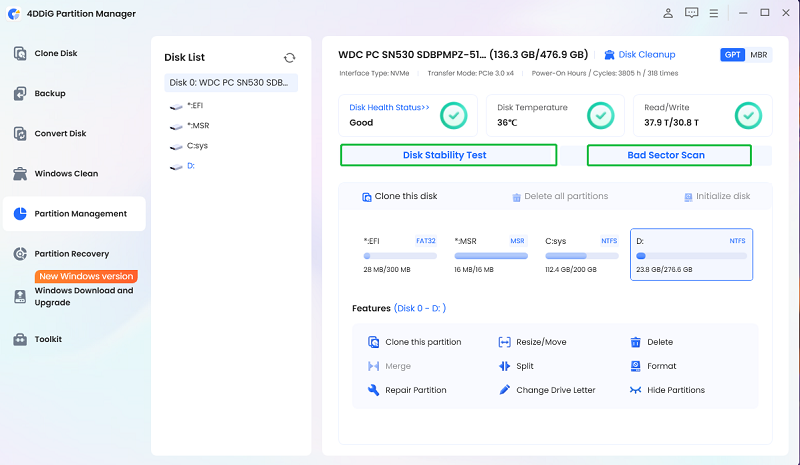
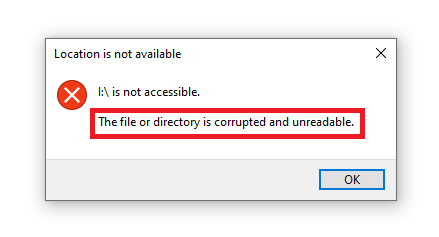
For a specific file or directory is corrupted and unreadable error, use its dedicated troubleshooting guide. If errors keep appearing, check the storage device separately. A drive that disconnects or reports read errors needs preservation or specialist assessment before repeated scans.

ℹImportant:

A checksum detects differences from a reference. It does not repair a file or prove that bit rot caused the change.

Can Bit Rot Be Fixed or Lost Files Be Recovered?

Sometimes a usable version can be restored, or supported damaged files can be repaired. The route depends on what information remains. A checksum alone does not contain the original file's contents.

Restore a Verified Copy from Backup

If File History already backed up the relevant folder, right-click that folder in File Explorer and select Restore previous versions. Choose a version from before the problem, then use Open in File History from the Open menu to inspect it.

Windows folder properties showing the Previous Versions tab and restoration options

Use the arrow beside Restore and choose Restore to… to save it elsewhere without replacing the current version. Open the restored files and check their contents. Turning on File History now cannot create a backup of an earlier state.

Recover Files from an Affected Drive with 4DDiG

When corruption leaves files missing or inaccessible, 4DDiG Data Recovery for Windows can scan a drive it can read, filter results and preview supported files. It also includes repair functions for corrupted photos and videos, giving those files another possible recovery path.

FREE DOWNLOAD

Secure Download

FREE DOWNLOAD

Secure Download

The distinction matters: recovering accessible file data and repairing a supported photo or video are useful capabilities, but neither guarantees that arbitrary bit-rot damage can be restored byte for byte. Check the actual preview and exported result rather than relying on a filename.

Install 4DDiG on a different physical drive from the affected one, and prepare separate storage for recovered files. For missing files, follow this recovery workflow:

  • Select the Original Location

    Choose the drive or location where the files became inaccessible or disappeared, then start scanning.

    4DDiG Windows location selection before a recovery scan
  • Scan and Find Your Files

    Use the tree or file view and filters to locate candidates. Preview supported files to assess the contents before recovering them.

    4DDiG Windows scan results with file type filters
  • Recover to Other Storage

    Select the files and save them to the separate destination. Open the saved copies to verify the result.

    Windows dialog for choosing a different recovery destination

For an existing damaged photo or video, the Windows recovery guide also explains Photo Repair and Video Repair. Work with copies, use the matching repair function, and inspect the preview before exporting. These are distinct from the scan-and-recover steps above.

ℹImportant:

If the original information is unavailable and no usable copy or suitable repair data remains, a recovery scan cannot guarantee reconstruction of the original contents.

How Can You Protect Your Files from Bit Rot?

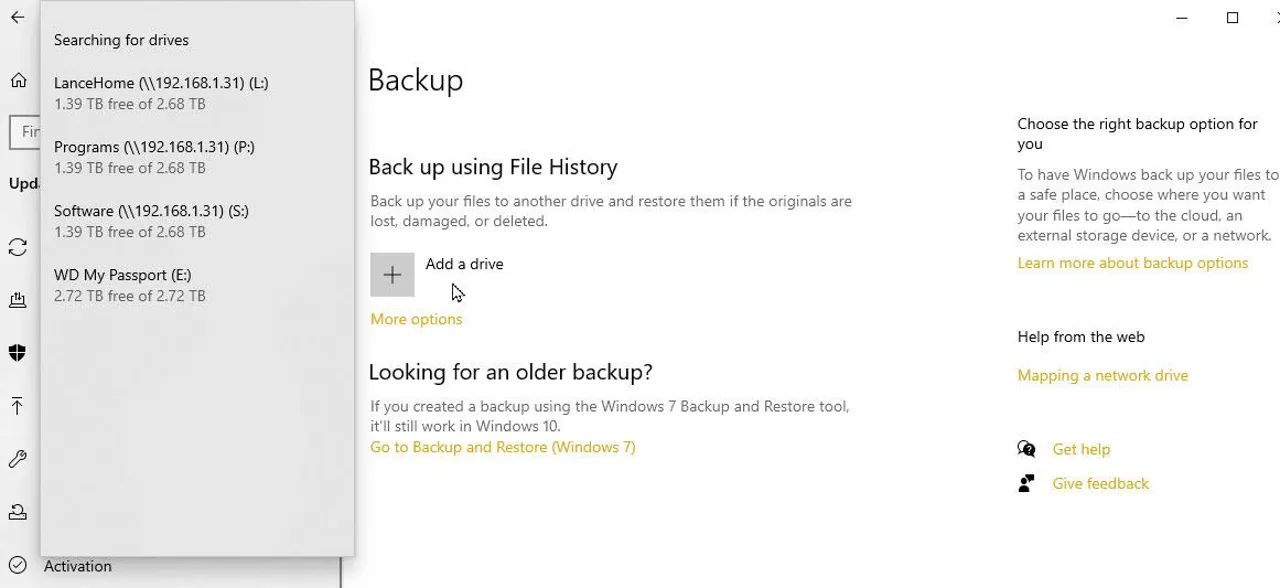
Keep usable versions on independent storage, then verify that you can restore them. A practical starting point is the 3-2-1 backup arrangement: three copies, on two types of storage media, with one copy offsite. It reduces reliance on a single device; it is not a guarantee against corruption.

After copying important archives, compare them against trusted checksums. Keep the checksum records separately, and retain older versions so a newly damaged file does not immediately replace every good copy. A synchronized folder alone may propagate an unwanted change.

Check representative restored files as well as the backup job's completion status. Set verification frequency around how valuable the files are and how often they change, rather than assuming one universal interval suits every archive. Follow the storage manufacturer's handling and storage guidance.

FAQs About Bit Rot

Can CHKDSK Fix Bit Rot?

CHKDSK checks file-system structures and disk errors. It does not use your saved file hash to recreate unknown original contents. Preserve important data before attempting repair operations on a problem drive.

Does a Healthy Drive Status Mean My Files Are Intact?

No. Device-health information and file-content verification answer different questions. A trusted checksum reference and a tested backup provide evidence about the files themselves.

Keep a Verified Copy You Can Restore

Bit rot is a reason to verify archives and preserve usable versions. Compare trusted references, check backups, and choose recovery based on the actual problem. If files are lost or supported photos and videos are damaged, 4DDiG Data Recovery for Windows offers recovery and repair options worth assessing through previews and saved results.

FREE DOWNLOAD

Secure Download

FREE DOWNLOAD

Secure Download

Ehtsham Ahmed (senior editor)

Ehtsham Ahmed, the content writer for 4DDiG, is dedicated to offering workarounds for Windows Data Recovery, Windows Troubleshooting, iDevices System Repair, etc.

(Click to rate this post)

You rated 4.5 ( participated)