How to Open an MD File on Windows, Mac and Online

5 mins read

Updated on 2026-10-20 18:34:25 to Wiki

MD files contain Markdown text, which you can read in a basic text editor or display as formatted content in a Markdown editor. The right method depends on whether you want to edit the source text or preview its formatting. This guide explains how to open an MD file on Windows and Mac, view it online, and fix common display issues.

how to open an md file

How to Open an MD File on Windows

Windows users can open MD files with Notepad or a Markdown editor such as Visual Studio Code. Use Notepad for simple text editing, or choose a Markdown editor when you need a formatted preview.

1 Open an MD File in Notepad

Notepad is a convenient option for opening an MD file without installing additional software. It displays the Markdown source as plain text.

  • Locate the MD file.

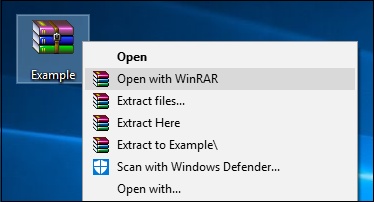
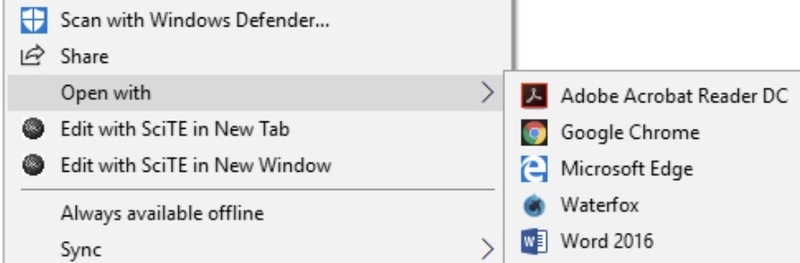
  • Right-click the file and select "Open with".

    open md file with notepad
  • Choose Notepad from the list of available apps.

You can now read or edit the file's contents. Markdown markers such as # and ** remain visible because Notepad does not render Markdown formatting.

2 How to View an MD File in VS Code

Visual Studio Code (VS Code) lets you edit Markdown source text and preview the formatted result in the same application. To open an MD file in VS Code and view the formatted content:

  • Launch VS Code and select "File > Open File".

  • Locate your MD file and open it.

    open md file in vscode

How to Open an MD File on Mac

On a Mac, you can open an MD file in TextEdit for basic editing or use a Markdown editor to preview its formatting.

1 Open an MD File in TextEdit

TextEdit is a built-in Mac app for reading and editing Markdown source text.

  • Open Finder and locate the MD file.

  • Control-click the file, or right-click it, and select "Open With > TextEdit".

  • Read or edit the file. If the content does not display as expected, check whether the document is using plain-text mode.

TextEdit does not automatically render Markdown syntax as formatted headings or lists. Keep the .md extension when saving the file to preserve its file type.

2 Preview an MD File in a Markdown Editor

You can also use VS Code to preview an MD file on Mac.

  • Launch VS Code and open the MD file.

  • Open the Command Palette by pressing Ctrl + Shift + P on Windows or Command + Shift + P on Mac.

  • Search for "Markdown: Open Preview" and select the command to view the formatted document.

    preview markdown file in vscode
  • Review the formatted content in the preview pane.

The preview displays headings, lists, links, and bold text without the Markdown markers. This makes it easier to check the document's layout.

How to View an MD File Online

You can open an MD file directly in a browser to read its source text, or use an online Markdown viewer to see the formatted content.

1 Open an MD File Directly in a Browser

Some browsers, including Google Chrome, can display an MD file as plain text when you drag it into a browser window. Markdown symbols such as # and ** remain visible because the browser does not render the Markdown formatting.

  • Open Google Chrome or another browser that supports displaying local files.

  • Locate the MD file in File Explorer or Finder.

  • Drag and drop the file into the browser window to view its contents.

    open an md file in browser

2 Use an Online Markdown Viewer

An online Markdown viewer converts Markdown syntax into formatted content in your browser. Tools such as StackEdit and lets you work with Markdown online.

  • Open StackEdit and click "Start Writing".

    click start writing stackedit
  • Select "Toggle side bar" in the top-right corner, then choose "Import/export" to upload your MD file.

    import md file to stackedit
  • View the formatted content in the preview pane.

Markdown support varies across online viewers, so complex formatting may look different. For private documents or files containing sensitive information, use a local editor instead of uploading the file to a third-party website.

How to Change the Default App for MD Files

If the MD file keeps opening in an app you do not prefer, change the default app for the .md file type. The steps differ between Windows and Mac.

1 Change the Default App on Windows

  • Open "Settings" and go to "Apps > Default apps".

  • Find the "Choose dafault apps by file type" setting.

    choose dafault apps by file type
  • Locate .md, select the current default app and choose the app you want to use for MD files.

    change the default app for md files windows

After changing the default, double-clicking an MD file should open it in your selected app. The exact settings layout may vary by Windows version.

2 Change the Default App on Mac

  • In Finder, right-click or Control-click an MD file and choose "File > Get Info".

    change the default app for md files mac
  • Expand the "Open With" section and select your preferred application.

  • Click "Change All" to use that app for all MD files.

How to Recover Deleted or Lost MD Files

Markdown files may go missing after accidental deletion, drive formatting, or storage device errors. Check the Recycle Bin or Trash first, along with any available Git history or backups.

If you cannot find your MD file, 4DDiG File Recovery can scan the original drive or storage device for recoverable files. It also supports other formats, including TXT, CSV, JSON, XML, DB, DOCX, XLSX, and PPTX files. Its easy-to-follow recovery process helps even first-time users recover lost files efficiently.

FREE DOWNLOAD

Secure Download

FREE DOWNLOAD

Secure Download

  • Install and launch 4DDiG. Select the drive or location where your deleted or lost MD file was originally stored.

    launch 4ddig
  • The scan will start automatically. Filter the results by file type or search for .md to locate your missing Markdown files.

    filter scan results
  • Preview the found MD files to check their contents. Select the files you want to restore and click "Recover".

    preview recoverable md files before recovery
  • Save the recovered MD files to a different drive or storage location, not the original one, to reduce the risk of overwriting other lost data.

    save recovered md files

FAQs About Opening MD Files

Can I open an MD file in Word?

Yes, but Microsoft Word does not consistently support Markdown files across versions and workflows. For more reliable results, convert the MD file to DOCX using a tool such as Pandoc, then open the converted file in Word.

Can I open an MD file without installing software?

Yes. Notepad on Windows and TextEdit on Mac let you read MD files as plain text. To view formatted headings, lists, and other Markdown elements, use an online Markdown viewer in your browser.

Conclusion

Learning how to open an MD file is easy with the right app. Use a text editor to read or edit the source text, or choose a Markdown editor to preview the formatted content. If an MD file is accidentally deleted or lost, 4DDiG can help you find and recover it.

William Bollson (senior editor)

William Bollson, the editor-in-chief of 4DDiG, devotes to providing the best solutions for Windows and Mac related issues, including data recovery, repair, error fixes.

(Click to rate this post)

You rated 4.5 ( participated)