What Does Format SD Card Mean? Here's What You Need to Know!
If you’re trying to understand what does format SD card mean, you’re not alone. Many users wonder why formatting is necessary and what actually happens to their data.
Whether you use SD cards, USB sticks, or external storage drives, knowing how formatting works helps you avoid mistakes and protect important files. This guide breaks down the concept in simple terms so you can manage your storage devices confidently and safely.
What Does It Mean to Format an SD Card?
It’s important to understand the meaning of formatting because the process works similarly across all portable storage devices, including SD cards and other drives. When you format a memory card, you’re preparing it for use by erasing its file system and replacing it with a new one.
Formatting does not physically destroy the storage hardware; instead, it resets the structure that organizes data, allowing the SD card to function like new. This process is often used when a card becomes unreadable, infected by corruption, or needs to be prepared for a new device.
Understanding what does format memory card mean helps you know that you’re using storage safely and correctly.
What Does Format SD Card Do?
When you perform a format, several actions occur behind the scenes. Here’s what happens when you format an SD card.
- Erases the File System: The existing file structure is removed and rebuilt.
- Deletes All Visible Data: All accessible files are cleared instantly.
- Fixes Minor File System Errors: Issues caused by improper removal or corruption may be repaired.
- Prepares the Card for a New Device: Cameras, drones, and phones often require their preferred file system.
- Improves Read/Write Efficiency: A fresh start can boost performance.
- Clears Fragmentation: Eliminates scattered data for smoother operation.
How to Format an SD Card for Different Purposes?
If you want to format an SD card, you have multiple options to do it, and each method comes with its unique benefits.
Here we will explain what each method is, along with its detailed steps.
Method 1: Format SD Card via File Explorer
For most users, this is the fastest and easiest way. File Explorer provides a simple graphical interface suitable for healthy SD cards.
-
Insert the SD card into your PC using a built-in reader or USB adapter and search for “File Explorer to open it. Then right-click the “SD card” under “This PC”.
-
Select “Format” then choose a file system (FAT32, exFAT, NTFS) and click “Start” to begin.
Best For:
- Ideal for healthy, readable SD cards that only need a quick refresh.
- Perfect for basic users who just want to erase data and start clean.
- Suitable for preparing SD cards for everyday device use.
Method 2: Format SD Card Using Disk Management
Disk Management is useful when File Explorer detects the card but fails to format it. It is because the Disk Management utility has better control over the SD card, and here is how you can format your card:
-
Press “Win + X” and choose “Disk Management," then find your SD card in the drive list.
-
Right-click the card’s partition and choose “Format", select the “file system”, and confirm.
-
If the card shows unallocated space, right-click and pick “New Simple Volume”, then format it.
Best For:
- Helpful when File Explorer can detect the card, but cannot complete formatting.
- Fixing partition-related issues.
- Managing SD cards with multiple or corrupted partitions.
Method 3: Format SD Card Using DiskPart
DiskPart is a command-line tool that forces Windows to perform deeper formatting operations. It is ideal for corrupted or stubborn SD cards.
A. Formatting Healthy SD Cards
If you have a healthy and working SD card, then the following method will be useful with the fs=fat32 command.
-
Open Command Prompt as Administrator and run the following commands:
- diskpart
- listdisk
- select disk x
- list partition
- select partition
- format fs=fat32 quick
-
This format fs=fat32 prompt is used for standard formatting of healthy cards.
B. Formatting Corrupted SD Cards (Clean All Method)
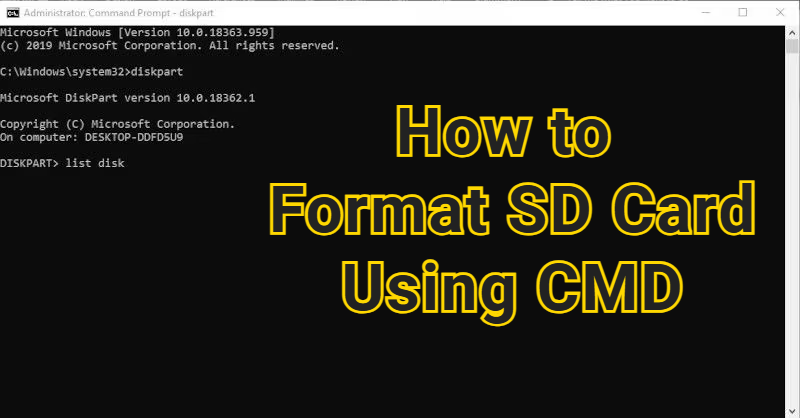
Use this only for severely corrupted cards or those showing the wrong capacity. Here is how to format corrupted SD card with DiskPart.
Search for "CMD" and right-click Command Prompt to "Run As Administrator", then run the following commands:
diskpart
list disk
select disk X (replace X with your SD card number)
clean all
create partition primary
-
format fs=fat32 quick (use fs=exfat quick for cards >32GB)
assign
-
exit
Best For:
- Repairing stubborn SD cards that won’t be formatted through normal GUI tools.
- Fixing wrong-size or corrupted partitions.
- Remove malware or deep-level file system damage.
How to Recover Data After Formatting an SD Card?
Formatting can sometimes happen accidentally, leaving users desperate to restore lost files. Fortunately, you can often recover formatted photos, videos, and documents with professional tools. This is where 4DDiG Windows Data Recovery becomes extremely helpful.
Secure Download
Secure Download
Unlike basic system tools, 4DDiG specializes in recovering files from formatted, corrupted, or unreadable SD cards. When formatting removes the file system, your actual data usually remains hidden beneath the surface until overwritten. 4DDiG scans these sectors to reconstruct and recover them.
Here's how to use 4DDiG Windows Data Recovery for recovering files from a formatted SD card:
-
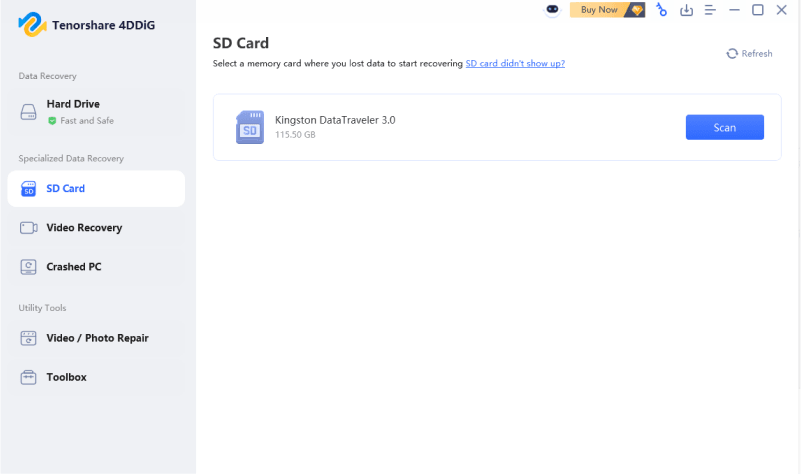
Download and install 4DDiG Windows Data Recovery Software on your PC and ensure that your SD card is connected securely. Launch the software and click "SD Card," then select your card and click "Scan," and choose the file types you want to scan.
-
4DDiG will automatically scan the whole card, and you can use the "Filters" and search options to quickly narrow down the search results.
-
Click on a recoverable file to check its preview, and once you are satisfied with its contents, you may click the “Recover” button.
-
Finally, select a storage to save the file and click “Save Now”. You may choose between cloud and offline storage options depending on your preferences.
Tips to Avoid Data Loss Before Formatting
Formatting always carries some risk, so adopt these habits to protect your information:
Tips 1. Back Up Data
Take a backup of your files to avoid any data loss. Copy all photos, videos, documents, and important files to your PC, cloud storage, or another external drive.
Tips 2. Check for Viruses First
Malware can force you to format unnecessarily. Always scan the card before taking drastic steps.
Tips 3. Try Quick Format Instead of Full Format
A quick format retains more recoverable data.
Tips 4. Use the Right Card Reader
Faulty or cheap readers can cause logical damage that leads to forced formatting.
Tips 5. Avoid Interrupting Transfers
Removing a card during file movement raises the risk of corruption.
Conclusion
Now that you understand what does format SD card mean, you can manage SD cards and other storage devices with greater confidence. Formatting is useful, but it also carries the risk of losing valuable files.
If you ever format a drive by accident or discover missing data afterward, Tenorshare 4DDiG offers a safe and reliable way to retrieve photos, documents, and other important files with ease.
Secure Download
Secure Download
ChatGPT
Perplexity
Grok