[2026] How to Format an SD Card on PC/Mac/Android/Camera?

5 mins read

Updated on 2026-02-10 19:41:20 to SD Card

Knowing how to format an SD card correctly is essential for maintaining storage performance, fixing errors, and ensuring compatibility across devices. Whether you’re preparing a new card, resolving file system issues, or optimizing it for a camera or phone, formatting is often the safest solution.

This guide explains how to format an SD card on Windows, macOS, Linux, Android, and cameras step by step. It also covers recovery options if you accidentally format important data.

how to format an sd card

How to Format an SD Card on a PC?

Formatting an SD card on a Windows computer is one of the most common and flexible approaches. Below are four reliable ways to format an SD card on Windows 10 and Windows 11.

1Format via File Explorer

Formatting an SD card through File Explorer is the simplest and fastest option for most users. This method is ideal when the SD card is recognized normally and does not have serious errors.

It allows you to choose a file system such as FAT32 or exFAT without advanced configuration. For routine formatting, File Explorer is often more than sufficient.

  • Insert the SD card into your PC using a card reader.

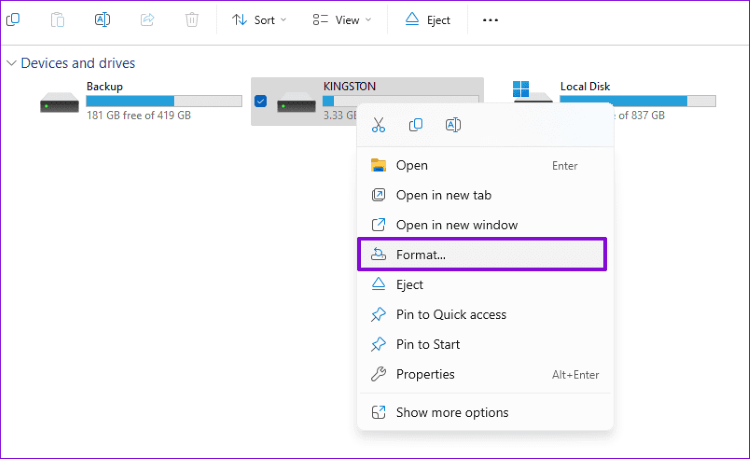
  • Open File Explorer and locate the SD card under This PC. Right-click the SD card and select “Format".

    format sd card via file explorer
  • Choose a file system and click “Start”, and confirm to begin formatting.

    quick format sd card via file explorer

2Format via Disk Management

Disk Management offers more control than File Explorer and is useful when the SD card is not showing properly. This tool allows you to create, delete, and format partitions manually.

It is especially helpful if the SD card has multiple partitions or unallocated space. Users who need visibility into disk structure often prefer this method.

  • Press “Win + X” and select “Disk Management," then locate your SD card in the disk list.

    open the disk management window
  • Right-click the SD card partition and choose “Format”.

    format sd card via disk management
  • Select the desired file system and allocation unit size, then click "OK" to begin.

3Format via DiskPart

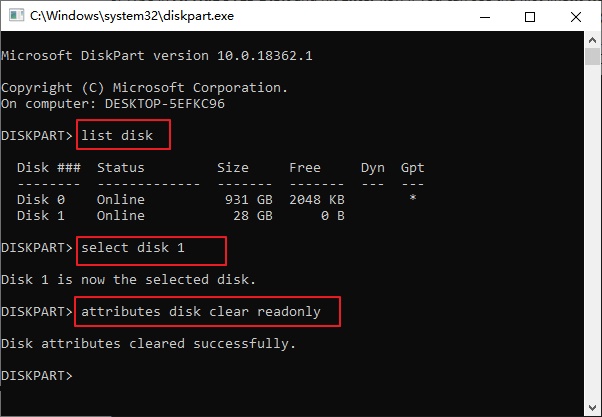
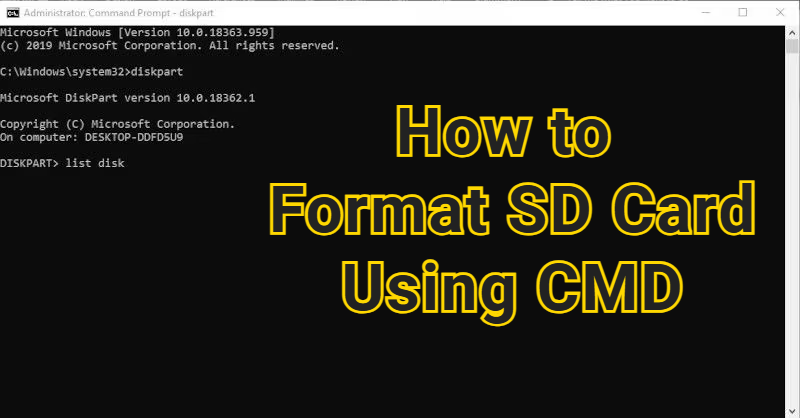
DiskPart is a command-line utility designed for advanced disk operations. It is effective when the SD card is write-protected, corrupted, or inaccessible through graphical tools.

This method completely resets the card’s structure, so it should be used carefully. DiskPart is powerful but also can be a trouble if the wrong disk is selected.

  • Open Command Prompt as administrator by searching for it and choosing “Run as administrator” after connecting the SD card to your computer.

  • Type “diskpart” and press “Enter," then enter “list disk” to identify the SD card.

  • Type “select disk X” (replace X with the SD card number).

  • Enter “Clean”, then “create partition primary”.

    clean format sd card  in diskpart
  • Format with “format fs=ntfs” and finally “assign drive letter X.

  • Type exit to finish.

4Format via Windows Settings

Newer Windows 11 builds include disk formatting options directly within the Settings app. This method is convenient for users who prefer modern system interfaces over legacy tools. However, it is not available on older Windows versions. It works best for healthy, recognized SD cards. Here is how to format an SD card on a computer via Settings:

  • Go to “Settings", then choose “System” and go to “Storage”.

  • Click “Advanced storage settings” then open “Disks & volumes”.

  • Select your SD card and click “Properties”, then “Format”. Choose the file system and confirm.

    format sd card via windows settings

How to Format an SD Card on Mac?

macOS offers multiple ways to format SD cards, ranging from user-friendly options to command-line tools. These methods work across MacBook Pro, MacBook Air, and iMac systems. Choosing the right method depends on whether you want simplicity or deeper control. Below are three reliable approaches for macOS users.

1Format via Finder

Finder provides a straightforward way to erase external storage devices. This method is suitable when the SD card mounts correctly and does not show disk errors. It integrates seamlessly with macOS and requires minimal steps. Finder formatting is ideal for everyday use.

  • Insert the SD card into your Mac, then open “Finder” and select the SD card from the left side.

  • Right-click and choose “Erase Disk," then select a file system and set the name of your SD card. Click “Erase” to begin.

    format an sd card via finder on mac

2Format via Disk Utility

Disk Utility is macOS’s primary disk management tool. It provides more advanced formatting options and better error handling than Finder.

This method is recommended when preparing SD cards for cameras or cross-platform use. Disk Utility also allows you to repair disks before formatting.

  • Open Disk Utility from Applications and select the SD card from the sidebar.

  • Click the "Erase” option from the top, then choose the format and click “Erase” again.

    erase sd card via disk utility on mac

3Format via Terminal

Terminal formatting is suitable for advanced users who prefer command-line control. It allows precise configuration and works even when graphical tools fail.

However, it requires careful disk identification to avoid data loss. This method is powerful but not recommended for beginners. Here is how to format a memory card on Mac Terminal:

  • Open “Terminal” after connecting the SD card to your Mac.

  • Type “diskutil list” and run this command to locate the SD card.

  • Type “Sudo diskutil eraseDisk exFAT SDCard /dev/diskX” and replace diskX with the correct SD card identifier, then press “Enter” to format.

How to Format an SD Card in Linux?

Linux users often rely on terminal commands for disk operations. Formatting an SD card in Linux requires identifying the correct device and selecting an appropriate file system. While the process is more manual, it offers full control over the disk. This method works across Ubuntu, Debian, Fedora, and other distributions.

  • Connect the SD card to the system running Linux and open Terminal.

  • Run "lsblk" to identify the SD card.

    format an sd card in linux
  • Unmount the SD card using “sudo umount /dev/sdX”. Replace "X" with your card's name.

  • Format with “sudo mkfs.ext4 /dev/sdX”. Once again, replace your card’s name with “X” and wait for the process to complete.

How to Format an SD Card for a Camera?

Formatting an SD card directly in the camera ensures maximum compatibility and stability. Cameras often create specific folder structures and file systems that computers may not replicate correctly.

This method is strongly recommended for DSLR, mirrorless, and action cameras. It also reduces the risk of recording errors.

  • Insert the SD card into the camera and power on the camera, then make sure that its battery is fully charged.

  • Open the camera’s "Menu", then go to “Settings or Setup menu”.

  • Select “Format” then press the "Set" button, and confirm the action by choosing "OK", and wait for completion.

    format an sd card on camera

Note that these steps are for Canon cameras, and the steps/buttons may slightly vary for other camera brands.

How to Format an SD Card on Android?

Android devices allow users to format SD cards directly through system settings. This method is useful when the card is primarily used on a phone or tablet. Android offers options to format as portable storage or internal storage.

Formatting removes all existing data, so backups are recommended, and here is how to completely format an SD card on Android:

  • Insert the SD card into your Android device.

  • Open “Settings" on your Android, then go to "Storage”.

    format an sd card on android directly
  • Select the SD card, then tap the "Format” or “Erase & Format” option, and confirm to complete the process.

⚡ How to Recover Data from a Formatted SD Card?

Accidentally formatting an SD card does not always mean permanent data loss. When an SD card is formatted, the file system is reset, but the actual data often remains until overwritten. This makes recovery possible if you act quickly and avoid further use of the card. In such situations, professional recovery software becomes essential.

Compatible with Windows and Mac, 4DDiG Data Recovery is designed to retrieve lost data from formatted SD cards, including photos, videos, documents, and audio files. It supports deep scanning across various file systems and works even when the SD card shows an incorrect size or appears empty. Its intuitive interface makes it accessible to both beginners and advanced users.

FREE DOWNLOAD

Secure Download

FREE DOWNLOAD

Secure Download

Unlike basic recovery tools, 4DDiG can recover data from full formats, accidental deletion, and corrupted partitions. It also supports SD cards used in cameras, phones, drones, and other devices. This makes it a reliable solution when formatting goes wrong.

You can download and install 4DDiG to your computer first, then follow our steps to recover lost data from the formatted SD card.

  • Connect your SD card to your computer and launch the software. Now, go to the “SD Card” option from the left menu pane and click “Scan”.

    click sd card tab
  • After 4DDiG scans your SD card, you can shortlist the search results by using the “Filters” and “Search” features from the top.

    click type to see all files 4ddig
  • Double-click a file to check its preview, and if you want to recover it, click "Recover”.

    preview and recover the files
  • Now, you just need to select a storage location for that file and click "Save Now."

    save the recoverable files

Formatting vs Reformatting

Formatting refers to preparing an SD card for first-time use or resetting its file system. Reformatting involves formatting a card that has already been used, often to fix errors or change file systems. While both processes erase data, their purposes differ slightly. Here’re some examples:

  • Format a new SD card before first use.
  • Reformat an SD card when switching between camera brands.
  • Reformat to fix file system errors or corruption.
  • Format before selling or giving away the card.

FAQs

Q1: How long does it take to format an SD card?

Usually, it takes a few seconds to quick format an SD card; full format may take a few minutes.

Q2: Will formatting an SD card delete everything?

Yes, all files are removed if you try to format an SD card, but recovery may still be possible with tools like 4DDiG.

Q3: Do new SD cards need to be formatted?

No, new SD cards usually come ready to use. However, it’s a good idea to format the card in your device before using it. This helps make sure it works properly and avoids possible problems. Formatting ensures compatibility and performance.

Q4: Can you format an SD card without a computer?

Yes, you can format an SD card without a computer but via cameras or Android devices.

Q5: Is it better to format the SD card in the camera or on the computer?

For cameras, formatting in-camera is recommended because it sets the file system type according to the camera automatically.

Q6: What happens if you don't format an SD card for a camera?

You may encounter recording errors or corrupted files, especially when the SD card storage is full.

Q7: What are the risks of formatting an SD card?

One of the biggest risks of formatting an SD card is data loss if backups are not made.

Q8: Can I recover data after formatting an SD card?

Yes, it is possible to recover data after formatting an SD card with tools like 4DDiG Windows Data Recovery.

Conclusion

Learning how to format an SD card correctly helps prevent errors, improve performance, and ensure device compatibility. Whether you’re using Windows, macOS, Linux, Android, or a camera, the right method depends on your device and purpose.

If data is lost during formatting, recovery is often possible with professional tools. For reliable recovery from formatted SD cards, Tenorshare 4DDiG provides a safe and effective solution.

FREE DOWNLOAD

Secure Download

FREE DOWNLOAD

Secure Download

William Bollson (senior editor)

William Bollson, the editor-in-chief of 4DDiG, devotes to providing the best solutions for Windows and Mac related issues, including data recovery, repair, error fixes.

(Click to rate this post)

You rated 4.5 ( participated)