[2026 New] How to Format a Write Protected SD Card?
Running into a write-protected SD card can be frustrating, especially when you urgently need to format it for reuse. Many users encounter this issue while using cameras, phones, or card readers, only to find that Windows or macOS refuses to make any changes.
If you’re searching for how to format a write-protected SD card correctly, this guide walks you through what write protection means, whether formatting is possible, and the most reliable methods to resolve the issue safely in 2026.
What Does Write Protection on an SD Card Mean?
Write protection on an SD card is a safety mechanism that prevents any changes to the data stored on the card. When an SD card is write-protected, the system allows you to read files but blocks actions such as deleting, copying, modifying, or formatting data.
This protection can be triggered in several ways. Some SD cards have a physical lock switch that enables write protection manually, while others activate it automatically due to file system corruption, bad sectors, firmware issues, or aging flash memory. When enabled, the operating system treats the SD card as read-only, which is why formatting attempts often fail.
Can I Format a Write-Protected SD Card?
The short answer is yes, but only under certain conditions.
You can format a write-protected SD card if the protection is logical or software-based. However, if the write protection is enforced by hardware failure or firmware-level restrictions, formatting may not be possible.
Why Format SD Card When It Is Write Protected?
Formatting is often necessary when the SD card shows file system errors, displays the wrong capacity, becomes unreadable by cameras or phones, or contains corrupted data that cannot be deleted manually.
In these cases, users search for how to format an SD card that is write-protected to restore usability. However, formatting only works after the write protection is removed or bypassed. If the card remains locked, even advanced formatting tools will fail. So, knowing how to format an SD card that is write-protected becomes crucial.
How to Format a Write-Protected SD Card?
Before trying any formatting method, it is critical to check the SD card’s physical write-protect switch. Many full-size SD cards have a small sliding lock on the side. If this switch is in the “Lock” position, no software solution will work. Make sure it is fully unlocked before proceeding.
Once the physical lock is disabled, you can try the following formatting methods depending on your operating system and situation.
1Format via DiskPart CMD
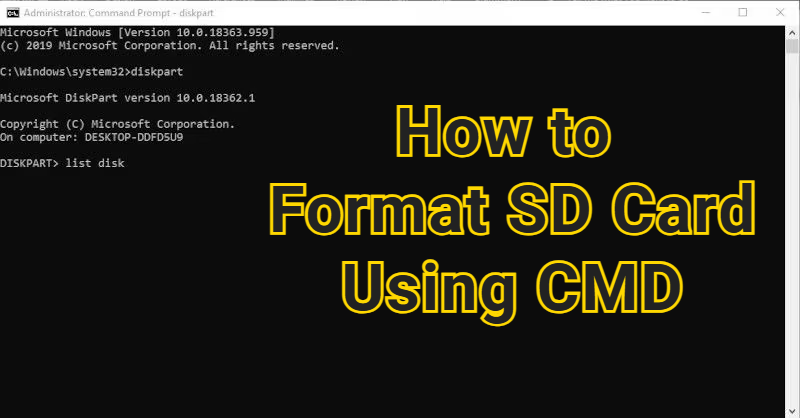
DiskPart is a powerful Windows command-line utility that can remove read-only attributes and format storage devices at a deeper level than standard tools. This method is effective when the write protection is caused by software-level restrictions. Learn how to format an SD card write-protected using CMD:
-
Insert the SD card into your computer using a card reader. Press Windows + R, type cmd, and run Command Prompt.
Type diskpart and press Enter.
Run “list disk” to view all connected disks.
-
Identify your SD card by its size and type “select disk X” (replace X with the correct disk number).
Run “attributes disk clear readonly”.
-
Run “clean” to remove existing partitions, then run “create partition primary”.
Format the card by running “format fs=fat32”.
-
Assign a drive letter by running “assign letter x," and you are done.
2Format via Windows Disk Management
If command-line tools feel overwhelming, Windows Disk Management offers a visual alternative. While it cannot override all write-protection scenarios, it works well when the SD card is readable but not writable due to partition issues.
Right-click “Start ” and “Disk Management” from the list.
-
Locate your SD card in the disk list. Right-click the SD card partition and choose “Delete Volume”.
-
Right-click the unallocated space and select “New Simple Volume," then assign a letter to your SD card and click “Next”.
-
Select "Format this volume with the following settings" and choose "NTFS" as your file system while leaving other settings to default, and click "Next" to proceed. Click “Finish” when the process is complete.
This method is quite useful when you want to format an SD card when it is write-protected without using CMD.
3Erase and Format Using macOS Disk Utility
Mac users can use Disk Utility to erase and reformat SD cards, including micro-SD cards that appear locked on macOS. This method is effective when macOS reports permission-related write protection.
-
Insert the SD card into your Mac and open “Disk Utility” from Applications.
-
Select the SD card from the left side and click “Erase” from the top.
-
Choose a Format such as ExFAT or FAT32 and set a name for your SD card, then click "Erase" and “Done” when the process is complete.
If Disk Utility fails, the SD card may be physically damaged or firmware-locked.
4Format Using SD Card Formatter
SD Card Formatter is an official utility developed by the SD Association and is specifically designed for SD and micro SD cards. It follows SD standards and can sometimes format cards that Windows tools cannot.
-
Download and install SD Card Formatter on your computer. Insert the SD card, launch the tool, and select the SD card.
-
Choose “Quick Format” or “Overwrite Format” and click “Format," then wait for completion. Click “OK” when the process is complete.
Why All Methods Fail to Format a Write-Protected SD Card?
Sometimes, none of the formatting methods work. This usually means the write protection is permanent or enforced by hardware-level issues. Common reasons include:
- The SD card’s internal controller has locked the memory permanently.
- Severe physical damage or worn-out NAND flash.
- Firmware corruption that forces read-only mode.
- Manufacturer-enforced protection to prevent data loss.
- Fake or low-quality SD cards with limited rewrite cycles.
In these cases, users often see errors like cannot format SD card write-protected, indicating the card can no longer be reused.
How to Access Files from a Write-Protected SD Card?
When formatting fails but the data on the SD card is still important, the priority should shift from formatting to data access and recovery. This is where professional recovery software becomes essential.
4DDiG Windows Data Recovery is designed to access data from SD cards that are write-protected, corrupted, or displaying an incorrect size.
Secure Download
Secure Download
Instead of trying to modify the card, it scans the storage in read-only mode, which avoids triggering further protection mechanisms. This makes it especially useful when the SD card cannot be formatted or written to, but still contains recoverable files.
-
Install and launch 4DDiG Windows Data Recovery on your PC. Insert the write-protected SD card into your computer, then select the “SD card” and choose your card from the drive list, then click "Scan”.
-
4DDiG will automatically scan the whole card, and you can use the "Filters" and search options to quickly narrow down the search results.
-
Click on a recoverable file to check its preview, and once you are satisfied with its contents, you may click the “Recover” button.
-
Finally, select a storage to save the file and click “Save Now”. You may choose between cloud and offline storage options depending on your preferences.
This approach allows you to safely retrieve data before deciding whether to replace the SD card.
How to Avoid SD Card Write Protection Error
Preventing write protection issues is easier than fixing them. Following best practices can significantly extend the lifespan of your SD card.
- Always eject SD cards safely before removal.
- Avoid using the same SD card across too many devices.
- Do not fill SD cards to 100% capacity.
- Use reputable brands and avoid counterfeit cards.
- Keep backups of important data regularly.
- Replace SD cards showing frequent read-only behavior.
Conclusion
Understanding how to format a write-protected SD card requires knowing whether the protection is physical or software-based. While tools like DiskPart, Disk Management, macOS Disk Utility, and SD Card Formatter can solve many cases, some SD cards cannot be formatted due to hardware-level restrictions.
When formatting fails, recovering your data should be the priority. In such situations, 4DDiG Data Recovery for Windows offers a reliable way to access files safely before replacing the card.
Secure Download
Secure Download
ChatGPT
Perplexity
Grok