Erase Partition on USB Stick [Complete Guide]

5 mins read

Updated on 2026-03-23 17:31:37 to External Hard Drive

After using a USB for different tasks, you may notice that it contains multiple partitions. These partitions can limit available storage or prevent the drive from working normally. In such cases, many users want to erase partition on USB stick and restore it to a single usable volume.

In this guide, we’ll explain how to delete partitions on a USB drive using several safe and effective methods in Windows. By following the steps below, you can regain full control of your USB storage.

⚡ 1. How to Erase a Partition on a USB Stick?

There are several ways to remove partition from USB drive. Windows offers built-in tools like Disk Management and Diskpart, while third-party software can simplify the process even further. Below are three reliable solutions that help delete USB partitions and restore the flash drive to a single partition.

Method 1: Delete USB Drive Partitions via Disk Management

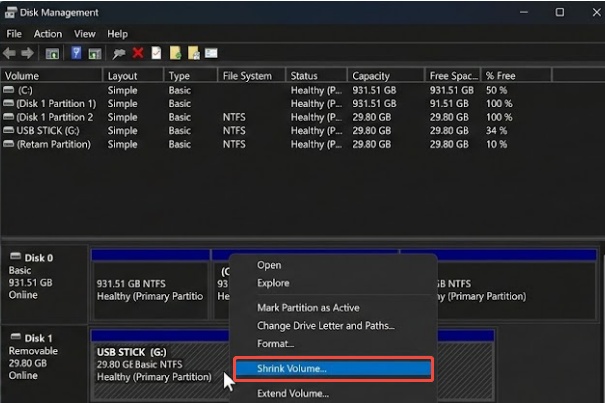
Disk Management is a built-in Windows utility that allows users to manage storage devices, including hard drives and USB flash drives. It provides a graphical interface that makes it relatively easy to remove partition on a USB flash drive without using command-line tools.

  • Insert the USB flash drive into your computer and press Windows + X, then select “Disk Management” from the menu.

  • Locate your USB drive in the list of available disks and right-click the partition you want to remove, then select “Delete Volume”.

    delete volume
  • Confirm the action if prompted and repeat the process until all partitions are removed.

Once the partitions are deleted, the space on the drive will appear as Unallocated. You can then create a new partition if needed.

When to Use Disk Management?

Disk Management works well when you want to:

  • Remove the partition from the USB drive quickly
  • Delete one or multiple partitions on a flash drive
  • perform basic partition removal operations on the USB drive operations

However, this tool may not work in certain situations, such as when users can’t delete the EFI partition created by bootable operating systems. In those cases, another method may be required.

Method 2: Delete USB Drive Partitions via Partition Manager

While Windows tools can perform partition removal, many users prefer a simpler and safer approach. 4DDiG Partition Manager provides an intuitive interface for managing storage devices. This tool is especially useful for beginners who want to erase partition on USB stick without dealing with complex commands.

It also include advanced disk management features that allow users to handle more complicated tasks, such as resizing, formatting partitions and converting NTFS to FAT32. In addition, the tool boasts other useful features:

clone disk
  • Install and open 4DDiG Partition Manager on your computer. Connect the USB flash drive to the system. Go to the "Partition Management” feature and in the interface, locate the USB device in the disk list. Select your USB and click the “Delete" option from the right side menu.

    FREE DOWNLOAD

    Secure Download

    click the delete option
  • Confirm the changes and apply the operation by clicking “Yes” in the pop-up menu.

    click yes to confirm
  • 4DDiG will now add a new task to its Task list. Here, you need to click the "Execute Task" button from the bottom right and confirm by clicking "OK" after verifying the details.

    click execute task and ok button
  • Just wait as 4DDiG does all the complex work for you, and once it is complete, click "Done".

    delete successfully

After completion, the removed partitions will appear as unallocated space, allowing you to create a new volume.

For users who frequently manage storage devices, tools like this make deleting partitions on a USB drive much easier and safer.

Method 3: Delete USB Drive Partitions via Diskpart Command

Diskpart is a powerful command-line tool included with Windows. It allows users to perform advanced disk management tasks, including removing partitions from usb drive, even when graphical tools fail. This method is particularly useful when Disk Management cannot remove certain protected or hidden partitions.

  • Connect the USB flash drive to your computer, then press Windows + R, type “cmd”, and right-click Command Prompt to choose “run as administrator”.

  • Type the following command and press Enter:

    • diskpart
    • list disk
    • select disk N (N is the number of your USB drive)
    • list partition
    • select partition 0 (0 is the number of your partition)
    • delete partition
    • Exit
    delete partition command line

Benefits of Using Diskpart

Diskpart can handle situations where users:

  • Remove the pen drive partition created by bootable systems
  • perform deeper partition removal
  • Fix cases where you can’t delete the EFI partition on the USB

Because Diskpart uses direct commands, it is very powerful. However, users should be careful when selecting disks and partitions, as deleting the wrong partition can result in data loss.

FAQs about Flash Drive Partition Removal

1. How to remove all partitions from a hard drive?

You can use tools like Diskpart or partition management software. One common method is using Diskpart with these commands:

  • diskpart
  • list disk
  • select disk #
  • clean

This command will erase all partitions on the hard drive by deleting every partition table entry. Be careful when using this command, as it permanently removes all partitions and stored data.

2. How to remove a partition on a USB drive on a Mac?

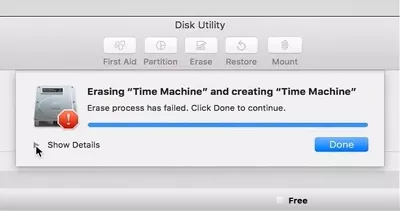
Mac users can delete usb drive partitions using the built-in Disk Utility tool. Connect the USB drive to your Mac and open Disk Utility. Select the USB drive from the left panel. Click the Partition option. Select the partition you want to remove and click the minus (-) button. Lastly, apply the changes. This process performs partition removal from the USB drive.

3. How to clean a USB partition?

Cleaning a USB partition means deleting existing partitions and resetting the drive. You can use Disk Management or partition manager and Diskpart’s clean command

Conclusion

In this guide, we explained several methods for how to erase the partition on the USB stick, including Disk Management, Diskpart commands, and third-party tools. While built-in Windows utilities can handle basic tasks, dedicated software often provides a simpler and more reliable experience.

If you frequently manage storage devices or want an easier way to perform flash drive partition removal, tools like 4DDiG Partition Manager offer a convenient solution. It simplifies partition management and helps users safely erase partitions without complicated commands.

FREE DOWNLOAD

Secure Download

William Bollson (senior editor)

William Bollson, the editor-in-chief of 4DDiG, devotes to providing the best solutions for Windows and Mac related issues, including data recovery, repair, error fixes.

(Click to rate this post)

You rated 4.5 ( participated)