Windows 11 26H2 Update Glitch: Main Issues and How to Fix

5 mins read

Updated on 2026-09-15 16:33:56 to Windows Fix

A Windows 11 26H2 update glitch can appear in several ways: the update may not show in Windows Update, the download may stop progressing, or installation may fail and roll back with an error code.

This guide explains the most common symptoms, identifies their likely causes, and provides fixes ranging from a simple restart to Windows Update repair, system-file checks, and an ISO-based upgrade. Start by matching your symptom to the section below, then apply the least disruptive fix first.

1. Main Glitches When Updating to Windows 11 26H2

26H2 Does Not Appear in Windows Update

If 26H2 doesn’t show up in Windows Update, it doesn’t mean your PC is incompatible. Microsoft uses staged rollouts and may place temporary compatibility holds. Your current Windows version, update policy, drivers, and hardware can all affect when the update becomes available.

Windows 11 26H2 Download Stuck or Not Progressing

The Windows 11 26H2 download may freeze at a certain percentage and stop making any further progress for an extended period. In some cases, the progress bar remains completely unchanged even after waiting for a long time.

26H2 Installation Fails With Error Codes

An installation failure may end with “We couldn’t complete the updates” or roll back after reboot. Codes such as 0x80073712, 0x800f081f, and 0x80070002 can point to missing update files, component-store damage, or incorrect cached data.

2. Why Windows 11 26H2 Update Glitches Happen?

Most update failures have a specific trigger rather than one universal cause. Common possibilities include:

  • Low free space on C:, especially when Windows needs room for temporary installation and rollback files.
  • Corrupted content in the Windows Update cache or interrupted downloads.
  • Damaged Windows components caused by an earlier failed update, forced shutdown, or disk error.
  • Outdated storage, chipset, graphics, or network drivers that conflict with the upgrade process.
  • Third-party antivirus, system-tuning utilities, or encryption software interfering with servicing.
  • A device that does not meet requirements such as supported CPU, TPM 2.0, or Secure Boot configuration.
  • A staged rollout or temporary compatibility hold that prevents Windows Update from offering 26H2.

⚡ 3. How to Fix Windows 11 26H2 Update Glitches?

Method 1: Restart Your PC and Run Windows Update Again

Restarting clears temporary processes and can complete pending servicing actions.

  • Save your work, choose Restart rather than Shut down, and wait until Windows loads completely.

  • Then open Settings > Windows Update, select Check for updates, and retry the installation. Disconnect unnecessary USB devices and keep a laptop connected to power during the update.

    check for updates

Method 2: Free Up Disk Space

For a deeper cleanup, 4DDiG Partition Manager includes a Windows Clean function that can scan common temporary files, caches, logs, and other removable data.

  • Download and install 4DDiG Partition Manager from the official website. Launch it and go to the Windows Clean module. Select the types of junk files you want to clean and click Start Scan button to begin scanning.

    FREE DOWNLOAD

    Secure Download

    windows clean
  • After scanning, the tool will display temporary files, system caches, log files, and other junk that can be safely removed. Select the file categories you want to delete and click Clean to proceed.

    select items to clean
  • Once complete, the tool will confirm how much space has been freed.

    clean successfully

Check the available C: space afterward and restart before upgrading to 26H2 again. Back up important files first, and avoid manually deleting unknown folders inside Windows.

Method 3: Run the Windows Update Troubleshooter

  • Open Settings > System > Troubleshoot > Other troubleshooters.

  • Find Windows Update, select Run, and allow Windows to detect or apply available repairs.

    windows update troubleshooter
  • Restart the PC after the process finishes, then check for updates again.

This method is most useful for service configuration and straightforward update-detection problems; it may not repair a severely damaged component store.

Method 4: Clear Windows Update Cache

A damaged download can cause the same update to fail repeatedly.

  • To rebuild the cache, open Services as an administrator, stop the Windows Update service, and navigate to C:\Windows\SoftwareDistribution.

    stop windows update service
  • Delete the contents of the folder, not the folder itself.

  • Return to Services, start Windows Update, restart the PC, and check for updates. Windows will recreate the required cache files.

Method 5: Repair System Files with DISM and SFC

Use these tools when error codes suggest missing or corrupted system components.

  • Open Command Prompt as administrator and run the following command:

    $ DISM.exe /Online /Cleanup-Image /RestoreHealth
  • After DISM completes, run:

    $ sfc /scannow
  • Allow each scan to finish, even if progress pauses. Restart the computer and retry the update.
    If either command reports errors it cannot repair, save the result and consider an in-place repair or 26 H2 ISO installation rather than repeating the same failed attempt.

Method 6: Update Using an ISO File

When Windows Update continues to fail but the PC is compatible, an official Windows 11 ISO can provide an alternative upgrade path.

  • Download the correct ISO from Microsoft, mount it, open the virtual drive, and run setup.exe.

    mount win11 iso
  • Follow the installation wizard and choose the option to keep personal files and apps when available.

  • Confirm the selection carefully: a clean-install option can erase the existing Windows environment.

Do not interrupt the computer while setup is applying changes. If the ISO method also fails, review the setup error logs and check for driver, partition, or hardware problems instead of trying random workarounds.

More FAQs About Windows 11 26H2 Update

1. Can I Install 26H2 on a PC That Doesn't Meet the Requirements?

A PC that fails the official requirements may not receive 26H2 through Windows Update. If the device is unsupported, consider bypassing the 26H2 requirements or staying on a supported version.

2. How Do I Free Up Space on C: for the 26H2 Update?

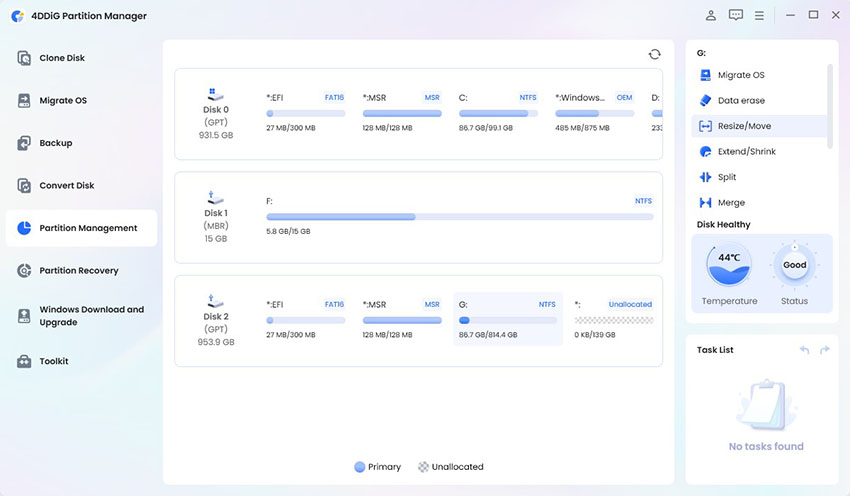
Start with Storage settings or Disk Cleanup, then uninstall large unused apps and move personal files. If C: is permanently undersized but another partition has spare capacity, resize the partition layout only after backing up important data.

Conclusion

A Windows 11 26H2 update glitch may involve availability, downloading, installation, or rollback, so the right fix depends on the symptom. First restart the PC and check available storage. Next, run the Windows Update troubleshooter, rebuild its cache, or repair system files with DISM and SFC.

For storage-related problems, 4DDiG Partition Manager’s Windows Clean function can help identify removable system clutter before you retry the update. Always back up important data and confirm compatibility before making major changes.

FREE DOWNLOAD

Secure Download

William Bollson (senior editor)

William Bollson, the editor-in-chief of 4DDiG, devotes to providing the best solutions for Windows and Mac related issues, including data recovery, repair, error fixes.

(Click to rate this post)

You rated 4.5 ( participated)