How to Fix Windows Update Error 0x800703f1 in 7 Proven Ways

5 mins read

Updated on 2026-09-04 18:08:34 to Windows Fix

Windows Update error 0x800703f1 can appear when Windows 11 or Windows 10 fails to install an update. You may see "Install error - 0x800703f1" in Windows Update, or the update may download but fail during installation.

If the update keeps failing after a restart or another attempt, the next step is to identify what the error means and choose the right fix. This guide explains error code 0x800703f1 and walks you through the solutions from basic troubleshooting to more advanced system repair.

windows update error 0x800703f1

What Is Windows Update Error 0x800703f1?

Error code 0x800703f1 appears when Windows cannot complete an update properly. It may be related to system files, Windows Update components, drivers, or registry data.

The cause can vary. If you also see DISM Error 1009 or "The configuration registry database is corrupt," the problem may involve deeper system or registry corruption.

Use the symptoms below to help identify the possible cause:

What You See Possible Problem
Windows Update fails with 0x800703f1Update or system component issue
SFC cannot complete or repair filesSystem file corruption
DISM returns Error 1009Possible registry database corruption
Audio, Bluetooth, or another device stops workingPossible driver or registry-related issue
Updates repeatedly fail after downloadingDamaged Windows Update components

Not every case of Windows Update error 0x800703f1 is caused by registry corruption. Start with the simpler fixes below before moving to system recovery options.

Why Does Windows Update Error 0x800703f1 Occur?

Several problems can prevent Windows from completing an update and trigger error code 0x800703f1.

  • Corrupted system files: If important Windows system files are damaged or missing, an update may fail to install.
  • Damaged Windows Update components: Problems with the Windows Update cache, SoftwareDistribution folder, Catroot2 folder, or related services can prevent updates from installing correctly.
  • Corrupted registry data: Windows may be unable to access registry data needed for the update.
  • Driver problems: A corrupted, incompatible, or failed driver update can interfere with Windows Update. You may also notice missing or malfunctioning devices.
  • Third-party software conflicts: Antivirus programs, optimization utilities, and background services can sometimes interfere with the update process.

The best fix depends on the underlying cause, so work through the methods below in order.

How to Fix Windows Update Error 0x800703f1?

Before making major system changes, back up important files. Microsoft also recommends protecting personal files before troubleshooting Windows Update problems.

Fix 1. Run the Windows Update Troubleshooter

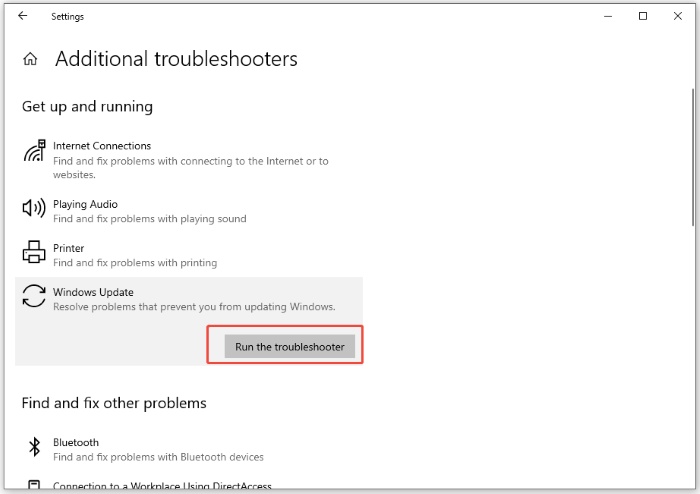
Start with the built-in Windows Update troubleshooter. It can detect common problems with Windows Update and attempt to correct them automatically.

On Windows 11:

  • Press Windows + I to open Settings.

  • Go to "System > Troubleshoot > Other troubleshooters".

  • Find "Windows Update" and click "Run".

    run the troubleshooter windows update
  • Follow the instructions shown on the screen.

  • Restart the PC when troubleshooting is complete.

  • Go to "Settings > Windows Update" and click "Check for updates".

Microsoft recommends the Windows Update troubleshooter as one of the first steps when an error code appears while downloading or installing updates. If the update still fails with 0x800703f1, check the Windows system files next.

Fix 2. Repair System Files with DISM and SFC

Corrupted Windows files or component store data can prevent updates from installing. DISM and System File Checker can repair many of these problems.

  • Type "cmd" in Windows Search.

  • Right-click "Command Prompt" and select "Run as administrator".

  • Enter the following command: DISM.exe /Online /Cleanup-Image /RestoreHealth

  • Wait for DISM to complete. The process may take some time.

  • Then run: sfc /scannow

    run the sfc command
  • Wait until the scan reaches 100%.

  • Restart your computer and try Windows Update again.

📝 Note:

If DISM fails with "Error 1009" and reports that "The configuration registry database is corrupt," the problem may involve deeper registry or system corruption. Instead of running the same commands again, try System Restore or a Windows repair reinstall later in this guide.

Fix 3. Reset Windows Update Components

Windows stores temporary update files in folders such as SoftwareDistribution and Catroot2. If these files become corrupted, Windows may repeatedly download an update but fail to install it.

Resetting the Windows Update components forces Windows to rebuild this update data.

  • Open "Command Prompt as administrator".

  • Stop the Windows Update-related services:

    net stop wuauserv
    
    net stop bits
    
    net stop cryptSvc
    use prompt to reset windows update components
  • Rename the existing update folders:

    ren %windir%\SoftwareDistribution SoftwareDistribution.old
    
    ren %windir%\System32\catroot2 catroot2.old
  • Start the services again:

    net start cryptSvc
    
    net start bits
    
    net start wuauserv
  • Restart your computer.

  • Open Windows Update and check for updates again.

This method is useful when the update cache or related components are damaged. It does not repair a corrupted registry hive, so continue to the later recovery methods if you also see registry-related errors.

Fix 4. Update, Roll Back, or Reinstall Problematic Drivers

Driver problems can sometimes cause Windows Update error 0x800703f1. Check your drivers if Bluetooth, audio, graphics, Wi-Fi, or another device stopped working around the same time.

Right-click the Start button and select "Device Manager". Look for devices with warning icons or drivers that were recently updated.

Depending on when the problem started, try one of these options:

update graphics driver

  • Update the driver: Right-click the device > "Update driver".
  • Roll back the driver: Open "Properties > Driver > Roll Back Driver" if the issue started immediately after a driver update.
  • Reinstall the driver: Select "Uninstall device", restart Windows, and then install the appropriate driver again.

For hardware-specific drivers, you can also get the latest compatible version from the PC or hardware manufacturer's official support site.

Restart the PC after making the change and try Windows Update again.

Fix 5. Perform a Clean Boot

If Windows Update still fails, a third-party service or startup program may be interfering with the installation.

A clean boot starts Windows with a limited set of services and startup programs. This makes it easier to determine whether background software is causing the update failure.

  • Press Windows + R, type msconfig, and press Enter.

    open system configuration
  • Open the "Services" tab.

  • Select "Hide all Microsoft services".

  • Click "Disable all".

    check hide all microsoft services
  • Open the "Startup" tab and select "Open Task Manager".

    click open task manager
  • Disable enabled startup apps.

  • Restart the computer and try installing the Windows update again.

If the update works in a clean boot environment, re-enable services and startup apps gradually to identify the conflicting program. Remember to return Windows to its normal startup configuration afterward.

Fix 6. Use System Restore

If 0x800703f1 started after a driver installation, system change, or previous Windows update, restoring Windows to an earlier point may undo the change that caused the problem.

To use System Restore:

  • Press Windows + R.

  • Type rstrui.exe and press Enter.

  • Click "Next".

  • Choose a restore point created before error 0x800703f1 started.

    restore system files and settings
  • Select "Scan for affected programs" if you want to check what will change.

    confirm system restore
  • Click "Next > Finish" to begin the restore.

You can also access recovery options from Windows Recovery Environment if Windows is not working normally.

After Windows restarts, check whether the failed update can now be installed.

Fix 7. Reinstall the Current Version of Windows

If Windows Update error 0x800703f1 continues after the above fixes, damaged Windows components may require a more complete repair.

On supported Windows 11 systems, Microsoft provides a repair option that reinstalls the current version of Windows through Windows Update.

Go to:

"Settings > System > Recovery > Fix problems using Windows Update > Reinstall now".

reinstall kb update

Follow the prompts and keep the PC connected to power and the internet during the process.

This option reinstalls the same version of Windows and repairs system files and components while keeping your apps, personal files, and settings.

This makes it a better option to try before Reset This PC or a clean installation. If this option is unavailable or also fails, consider Windows recovery or reset options as a last resort.

How to Recover Files Lost After a Failed Windows Update?

If important files disappear after a failed Windows update and you cannot find them in the Recycle Bin, OneDrive, or a backup, 4DDiG Data Recovery can help recover lost data from HDDs, SSDs, USB drives, and other storage devices.

It can recover photos, videos, documents, audio files, archives, and more lost due to a failed or interrupted update, accidental deletion, formatting, system crash, or other data loss situations.

FREE DOWNLOAD

Secure Download

FREE DOWNLOAD

Secure Download

To recover lost files with 4DDiG:

  • Launch 4DDiG and select the drive or partition where the missing files were stored before the Windows update. Then start scanning the selected location.

    launch 4ddig and enter interface
  • While scanning, use "File Type" or "Search" to find the missing files faster. For example, you can filter photos, videos, documents, or other files that disappeared after the update.

    click type to see all files 4ddig
  • Select the files you want to restore and preview them when available. Once you confirm the files are intact, click "Recover".

    preview and recover the files
  • Choose another drive or a safe location to save the recovered files. Avoid saving them back to the affected drive until the recovery is complete.

    save the recoverable files

FAQs About Error Code 0x800703f1

What does error code 0x800703f1 mean?

Error code 0x800703f1 is an error that can occur when Windows fails to install an update. It may be caused by damaged system files, Windows Update components, drivers, or registry data.

Can a corrupted registry cause error 0x800703f1?

Yes. Registry corruption can cause 0x800703f1 in some cases, especially when the error appears with DISM Error 1009 or a message saying the configuration registry database is corrupt. However, registry corruption is not the cause of every 0x800703f1 update failure.

Why does DISM show Error 1009 with 0x800703f1?

DISM Error 1009 indicates a problem with the configuration registry database. If DISM cannot complete because of this error, repeatedly clearing the Windows Update cache may not be enough. System Restore or a repair reinstall may be a better next step.

Can I fix 0x800703f1 without reinstalling Windows?

Yes. Start with the Windows Update troubleshooter, DISM and SFC, and a Windows Update component reset. You can also check problematic drivers and software conflicts. Reinstalling Windows should only be considered when these less disruptive fixes do not resolve the problem.

Conclusion

Windows Update error 0x800703f1 can usually be fixed by repairing system files, resetting Windows Update components, or using the recovery options above.

If files are lost during a failed update or system repair, 4DDiG Hard Drive Recovery can help scan the affected drive and recover your important data.

FREE DOWNLOAD

Secure Download

FREE DOWNLOAD

Secure Download

William Bollson (senior editor)

William Bollson, the editor-in-chief of 4DDiG, devotes to providing the best solutions for Windows and Mac related issues, including data recovery, repair, error fixes.

(Click to rate this post)

You rated 4.5 ( participated)