How to Bypass Windows 11 26H2 Requirements?

5 mins read

Updated on 2026-07-02 12:06:26 to Windows Update

In Windows 11 26H2, system requirements such as TPM 2.0 and compatible CPUs are still required to improve security and performance. However, many users still cannot upgrade to Windows 11 26H2 in the normal way because their CPU is not supported or TPM 2.0 is not available.

This article explains how to bypass the requirements for Windows 11 26H2 and check the system requirements. It also introduces five methods for bypassing restrictions such as TPM, Secure Boot, and CPU checks so that unsupported PCs can be upgraded to Windows 11 26H2.

1. Can You Upgrade to Windows 11 26H2 on an Unsupported PC?

Yes. It is possible to perform an upgrade on unsupported PCs. Windows 11 26H2 requires TPM 2.0, Secure Boot, a compatible CPU, and other prerequisites. Therefore, PCs that do not meet these requirements cannot install Windows 11 26H2 in the normal way.

However, with tools such as 4DDiG Partition Manager, Rufus, and Flyby11, or by editing the registry, you can bypass the TPM and CPU checks and install Windows 11 26H2. In the next section, you will learn how to check whether your PC meets the system requirements for Windows 11 26H2.

⚡ 2. How to Check Whether Your PC Meets the Requirements for Windows 11 26H2

For a simple check, we recommend 4DDiG Partition Manager. It automatically diagnoses requirements such as CPU, TPM 2.0, Secure Boot, and disk partition table type.

In addition, it provides solutions for the specific causes if the requirements are not met. For example, if the system disk is in MBR format, it supports converting to GPT, and if there are issues with TPM or CPU requirements, it allows Windows 11 to be installed by bypassing the requirements.

  • After downloading and installing, launch 4DDiG Partition Manager and select “Windows Download and Upgrade.”

    FREE DOWNLOAD

    Secure Download

  • Click “Windows 11 Upgrade.” The detection process will begin to check whether your current PC meets the requirements.

    windows 11 upgrade
  • Review the check results and, if necessary, run the displayed solutions.

    check results

4. How to Bypass the System Requirements of Windows 11 26H2 with 5 Methods?

There are several ways to install Windows 11 26H2 on an unsupported PC, but editing the registry or using commands requires a certain level of technical knowledge. Therefore, beginners or users who want to bypass the requirements as easily as possible are advised to use a dedicated tool.

Method 1: Use 4DDiG Partition Manager

The 4DDiG Partition Manager is a partition management software with functions for checking and bypassing Windows 11 system requirements. You can use this tool to bypass the system requirements for Windows 11 26H2 and perform an upgrade or a clean installation.

Since no manual changes to the PC settings are required, this is a suitable method if you want to bypass the requirements for Windows 11 26H2 as easily as possible.

  • Select “Upgrade to Windows 11” again. The tool will check the compatibility of your PC.

    windows 11 upgrade
  • A list will then show whether your PC can be upgraded to Windows 11. If your PC does not meet the system requirements, click “Next” to bypass them.

    click next
  • After completing, select the system language and region, then click “Start” and confirm to continue.

  • Bypassing the Windows 11 requirements will take some time, so please be patient. Once the process is complete, you can upgrade to Windows 11 26H2.

    upgrade successfully

Method 2: Use Commands

By running commands during the installation of Windows 11 26H2, you can bypass system requirement checks such as TPM 2.0 and CPU checks. This method is suitable for users who want to bypass the requirements using only standard Windows functions, since no additional tools need to be installed.

  • Download the ISO file for Windows 11 26H2 from the official Microsoft website.

    download iso
  • Double-click the downloaded ISO file to mount it, or create USB installation media.

  • Do not run “setup.exe” directly from the virtual drive or USB media. Instead, start Command Prompt with administrator privileges.

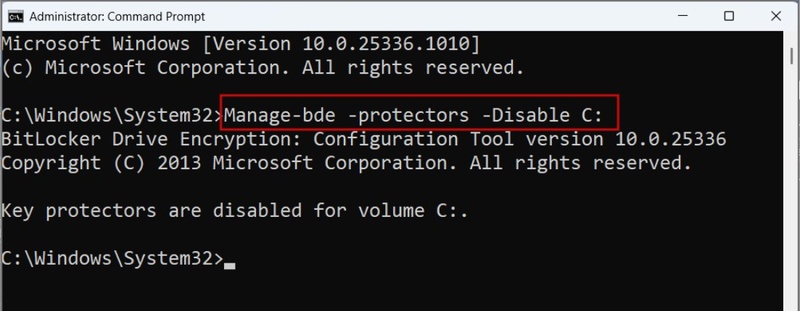
  • Enter the following command and press Enter. Replace X with the drive letter where the ISO is mounted:

    X:\setup.exe /product server

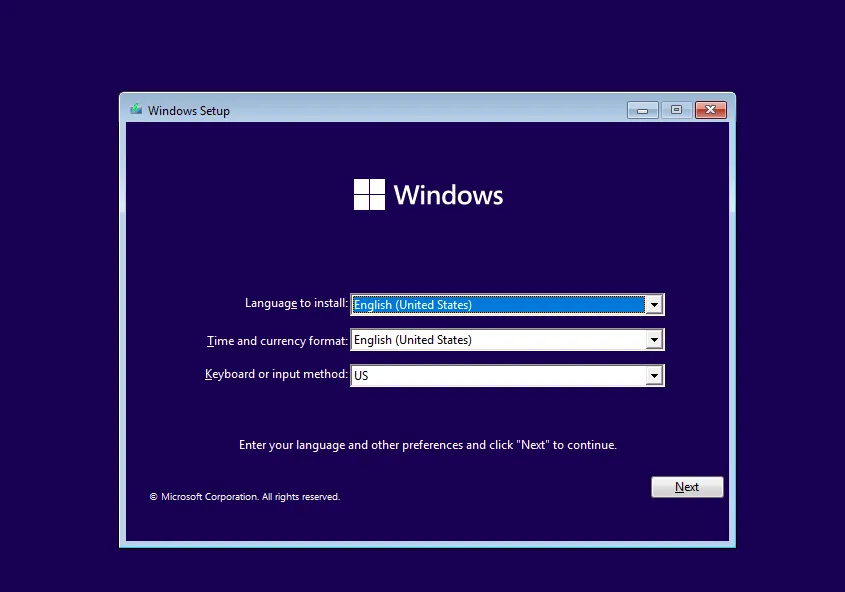
  • Once Windows Setup starts, follow the on-screen instructions to continue the installation. Under “Download updates,” select “Not right now,” and choose “Keep files, settings, and apps” to complete the upgrade.

With this method, you can use the Windows Server setup mode to bypass some Windows 11 system requirement checks and upgrade to Windows 11 26H2.

Method 3: Edit the Registry

By editing the registry, you can bypass Windows 11 26H2 system requirement checks. This method does not require additional software and uses registry settings published by Microsoft to perform the upgrade.

However, incorrect registry changes can cause system issues, so please back up important data before you begin.

  • Press Windows + R to open the Run dialog box. Type “regedit” and press Enter to launch Registry Editor.

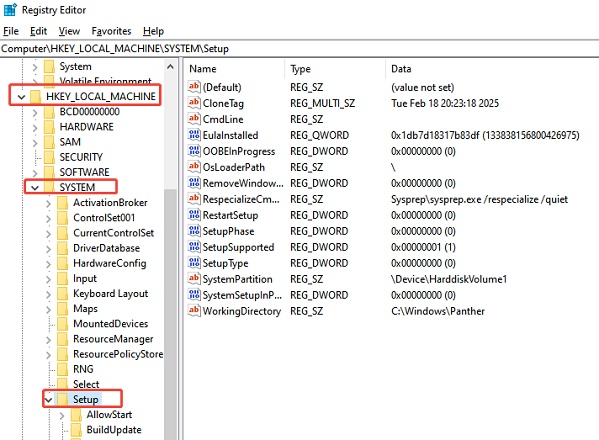
  • Navigate to the following key: HKEY_LOCAL_MACHINE\SYSTEM\Setup\Setup. If the “Setup” key does not exist, right-click “Setup,” select “New” > “Key,” and create it.

    find the key
  • Right-click an empty area on the right, select “New” > “DWORD (32-bit) Value.” Create the following DWORD (32-bit) values and change each value to 1:

    • BypassTPMCheck

    • BypassSecureBootCheck

    • BypassRAMCheck

    • BypassCPUCheck

      bypass check
    change value to1
  • Close Registry Editor and restart the PC. Mount the Windows 11 26H2 ISO file and run “setup.exe” to start the upgrade.

After completing the configuration, you may be able to upgrade to Windows 11 26H2 even on PCs that do not meet the TPM 2.0 or CPU requirements.

Method 4: Use Flyby11

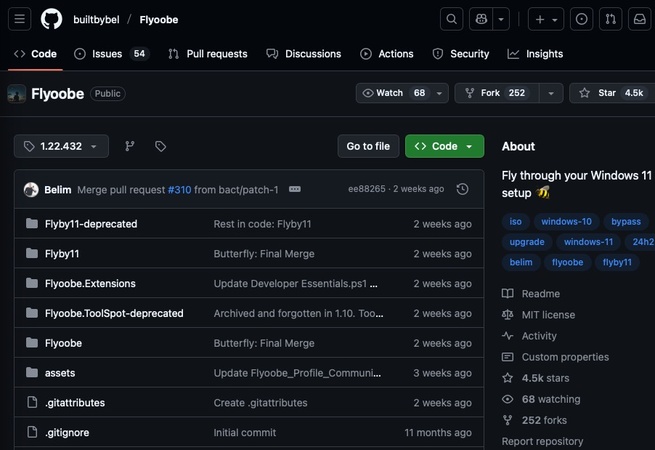
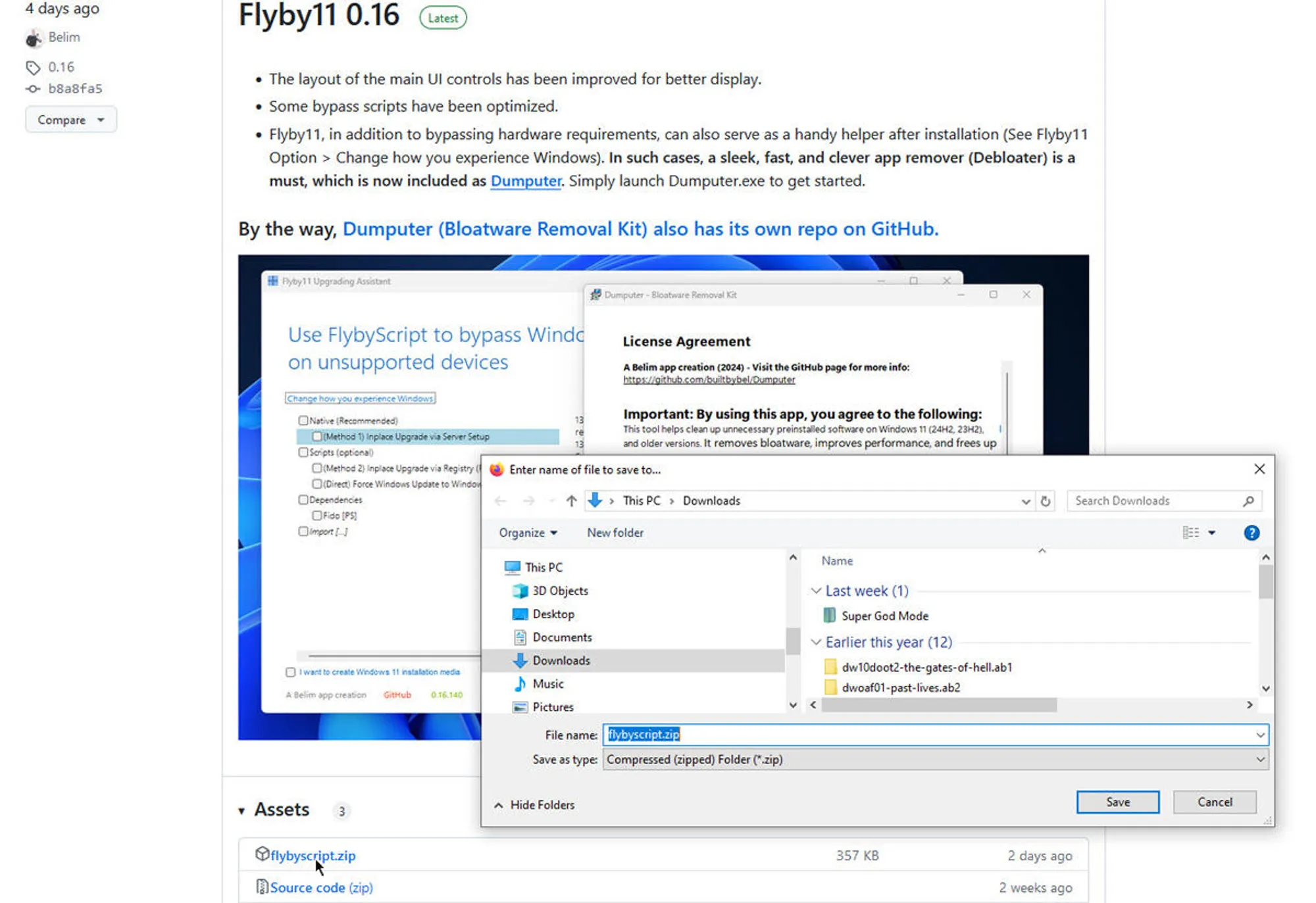
Flyby11 is a free tool for bypassing Windows 11 system requirements. It eliminates the need for complex registry editing or command input and allows Windows 11 26H2 to be installed in just a few clicks.

  • Download Flyby11 and install it on your PC. Download the ISO file for Windows 11 26H2 from the official Microsoft website.

    download flyby11
  • Launch Flyby11 and specify the downloaded ISO file. Click “Start Upgrade” or a similar button to begin the upgrade.

  • The tool automatically bypasses the Windows 11 requirement check and starts Setup.

  • Follow the on-screen instructions to continue the installation. After the installation is complete and the PC restarts, check whether the upgrade to Windows 11 26H2 was successful.

Flyby11 has the advantage of requiring little configuration effort and is relatively easy for beginners who want to bypass the requirements for Windows 11 26H2.

Method 5: Use Rufus to Upgrade

Rufus is a free tool for creating bootable USB installation media for Windows. It includes a feature for bypassing Windows 11 requirements, allowing you to create an installation USB drive that skips checks for requirements.

  • Download the ISO file for Windows 11 26H2 from the official Microsoft website.

  • Download Rufus, launch it, and connect a USB drive to the PC.

    launch rufus
  • Under “Device,” select the USB drive you want to use.

  • Click “Select” and specify the downloaded Windows 11 26H2 ISO file. Then, click “Start.”

  • When the “Windows User Experience” screen appears, enable options such as “Remove requirement for TPM 2.0” and “Remove requirement for Secure Boot.”

Rufus is particularly suitable if you are planning a clean installation, because it makes it easier to create an installation USB drive that bypasses the requirements.

More FAQs about Windows 11 26H2

1. Is it safe to install Windows 11 26H2 on an unsupported PC?

Yes, Windows 11 26H2 can be installed and used normally on many unsupported PCs. However, if system requirements such as TPM 2.0 or a compatible CPU are not met, you may not receive official Microsoft support.

2. Can I use Windows Update if I bypass the TPM 2.0 or CPU requirements?

Yes, in most cases you can continue to use Windows Update after installing Windows 11 26H2. However, because installation on an unsupported PC is not officially recommended by Microsoft, some updates may no longer be provided in the future.

3. What is the easiest way to bypass the requirements for Windows 11 26H2?

For beginners, using dedicated tools such as 4DDiG Partition Manager or Flyby11 is the easiest method. In particular, 4DDiG Partition Manager allows you to perform Windows 11 compatibility checks, bypass requirements, and convert MBR to GPT within a single piece of software, without complex command input or registry editing.

Conclusion

Windows 11 26H2 has system requirements such as TPM 2.0, Secure Boot, and a compatible CPU, but there are methods to perform an upgrade or clean installation even on unsupported PCs.

This article introduced five methods for bypassing the Windows 11 26H2 requirements, including using 4DDiG Partition Manager, commands, registry editing, Flyby11, and Rufus. For beginners in particular, 4DDiG tool is recommended because it offers an easy way to handle everything from requirement checks to bypassing the restrictions.

FREE DOWNLOAD

Secure Download

William Bollson (senior editor)

William Bollson, the editor-in-chief of 4DDiG, devotes to providing the best solutions for Windows and Mac related issues, including data recovery, repair, error fixes.

(Click to rate this post)

You rated 4.5 ( participated)