Minimum Requirements for Windows 10 & Upgrade Guide

5 mins read

Updated on 2026-07-10 10:28:28 to Windows Fix

Thinking about installing Windows 10 but not sure whether your computer can handle it? Checking the minimum requirements for Windows 10 before you install or upgrade can save you time and prevent performance problems later.

In this guide, you’ll know the official Windows 10 system requirements, the difference between minimum and recommended specifications, how to check your PC’s hardware, and what you can do if your computer doesn’t meet the requirements.

Part 1. What Are the Minimum Requirements for Windows 10?

Before installing Windows 10, make sure your computer meets the official minimum system requirements for Windows 10.

  • Minimum Requirement
  • Processor
  • 1 GHz or faster processor or SoC
  • RAM
  • 1 GB for 32-bit, 2 GB for 64-bit
  • Storage
  • 32 GB or larger hard drive
  • Graphics Card
  • DirectX 9 or later with WDDM 1.0 driver
  • Display
  • 800 × 600 resolution

They allow the operating system to install and run, but they are only the starting point. If your PC only meets these minimum specifications, you may notice slower startup times and reduced performance when running multiple applications.

Part 2. Minimum vs Recommended Windows 10 Requirements

Modern web browsers, office applications, antivirus software, and Windows updates use much more memory and storage than they did when Windows 10 was first released.

  • Recommended Specification
  • CPU
  • Dual-core processor, 2 GHz or faster
  • RAM
  • 8 GB (4 GB minimum for light use)
  • Storage
  • SSD with at least 128 GB of free space
  • Graphics
  • DirectX 12 compatible graphics card
  • Display
  • 1920 × 1080 (Full HD)

If you want your computer to run smoothly, it’s worth aiming for the Windows 10 recommended system requirements instead of the minimum.

Part 3. Windows 10 32-bit vs 64-bit Requirements

When installing Windows 10, you’ll need to choose between the 32-bit and 64-bit versions.

Windows 10 32-bit

The minimum requirements for Windows 10 32 bit include just 1 GB of RAM, making it suitable for older computers with limited hardware. However, a 32-bit operating system can only use around 4 GB of memory, which limits its ability to run modern applications efficiently.

Windows 10 64-bit

The minimum requirements for Windows 10 64 bit include at least 2 GB of RAM, although using 4 GB or more is highly recommended. A 64-bit version can use much more memory, making it better for multitasking, gaming, and running newer software.

For most users, Windows 10 64-bit is the better choice if the processor supports it. It offers improved performance, better security, and compatibility with today’s applications.

⚡ Bonus: The One-Click Solution to Leap from Old OS Directly to Windows 11 Safely

Meeting the minimum specs for Windows 10 will keep your computer running, but with Windows 10 moving closer to its end of support, you are essentially investing time in a temporary fix. Instead of upgrading twice, you can bypass hardware barriers to get Windows 11.

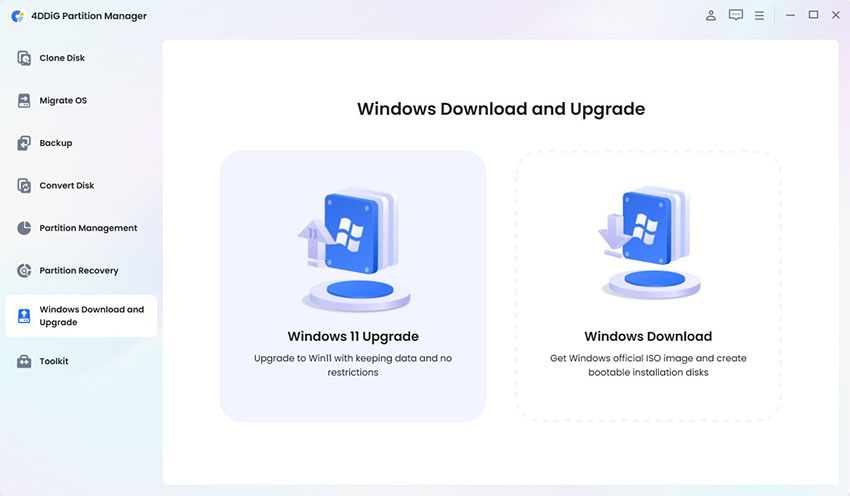
  • After downloading and installing, launch 4DDiG Partition Manager and select Windows Download and Upgrade. Click “Windows 11 Upgrade.” The detection process will begin to check whether your current PC meets the requirements.

    FREE DOWNLOAD

    Secure Download

    windows 11 upgrade
  • A list will then show whether your PC can be upgraded to Windows 11. If your PC does not meet the system requirements, click “Next” to bypass them.

    click next
  • After completing, select the system language and version, then click “Start” and confirm to continue.

    select language and version
  • Bypassing the Windows 11 requirements will take some time. Once the process is complete, you can upgrade to Windows 11.

    upgrade successfully

Part 4. How to Check If Your PC Meets Windows 10 Requirements

Before installing Windows 10, it’s a good idea to compare your computer’s specifications with the required hardware.

Method 1. Check System Information

  • Press Windows + R, type msinfo32, and press Enter.

  • Review your processor, installed RAM, and system type.

    check system info

This lets you quickly check whether your computer meets the minimum processor requirements and other requirements for Windows 10.

Method 2. Check Storage Space

  • Open File Explorer and click This PC.

  • Check the available space on your system drive (usually it’s the C drive).

Make sure you have at least the minimum storage required for Windows 10, along with additional free space for updates and applications. If it doesn’t meet, you can free up your storage by extending C drive or cleaning temporary files.

Method 3. Check Graphics and DirectX Version

  • Press Windows + R, type dxdiag, and press Enter.

  • Check your DirectX version and graphics device information.

    directx information

Confirm that your graphics hardware supports DirectX 9 or later with a WDDM driver.

FAQs About Windows 10 Minimum Requirements

1. Can an old PC run Windows 10?

Yes. Many older computers can install Windows 10 if they meet the minimum hardware requirements. However, upgrading components such as RAM or replacing a hard drive with an SSD can significantly improve performance.

2. Is Windows 10 still safe in 2026?

Windows 10 reached the end of mainstream support, so keeping it fully updated and protected with reliable security software is important. If your hardware supports it, upgrading to Windows 11 is recommended for ongoing security updates.

3. Is Windows 10 still free to upgrade to Windows 11?

If your PC meets Windows 11 compatibility requirements and has a valid Windows license, you may still be able to upgrade without purchasing another license.

4. Can You Still Install Windows 10 after End of Support?

Yes. You can still install Windows 10 using official installation media. However, after support ends, you may no longer receive regular security updates, making it a good idea to plan for a future upgrade.

Conclusion

Understanding the minimum requirements for Windows 10 helps you decide whether your computer is ready for installation or if it would benefit from a hardware upgrade first. While Windows 10 can run on modest hardware, using the recommended specifications provides a much smoother experience for everyday tasks.

Before installing or upgrading, remember to check your processor, RAM, storage, and graphics capabilities. If you’re preparing your drive for Windows 10 or planning a future move to Windows 11, 4DDiG Partition Manager offers an easy way to manage partitions and organize your storage before installation.

FREE DOWNLOAD

Secure Download

William Bollson (senior editor)

William Bollson, the editor-in-chief of 4DDiG, devotes to providing the best solutions for Windows and Mac related issues, including data recovery, repair, error fixes.

(Click to rate this post)

You rated 4.5 ( participated)