Windows Server 2025: New Features, System Requirements &Install Guide

5 mins read

Updated on 2025-12-23 19:05:02 to Windows Fix

AI inference, virtualization, cloud-hybrid deployments, and advanced security requirements have become standard in modern IT infrastructure. Microsoft's answer to this evolving environment is Windows Server 2025, a major release packed with significant architectural upgrades.

It comes with enhanced security frameworks, GPU virtualization improvements, and features designed to simplify on-premises and hybrid cloud management. The Windows Server 2025 release date is November 1, 2024. Windows Server 2025 introduces the biggest leap forward since Server 2022. This guide walks you through everything you need to know, from new features to installation steps and ISO download instructions.

windows server 2025

1. What’s New in Windows Server 2025?

Before diving into installation or upgrade paths, it’s important to understand what sets Windows Server 2025 apart. This version introduces several major improvements in performance, security, and scalability.

Major New Features in Windows Server 2025

This upgrade brings multiple new features in the latest version of Windows Server, as explained below:

1. Native Sudo for Windows

With a highly requested feature, you can now elevate terminal commands using sudo, just like Linux. This reduces privilege escalation risks and simplifies cross-platform administration.

2. Hot Patching Now in Standard Edition

Previously, exclusive to Azure Edition, hot patching is now available in both Standard and Datacenter editions. This allows installation of security patches without rebooting, minimizing downtime.

3. GPU Partitioning (GPU-P) Support

Organizations running AI, ML, and VDI workloads benefit from improved GPU virtualization, enabling multiple VMs to share a physical GPU with hardware isolation.

4. Enhanced SMB over QUIC + Alternative Ports

SMB over QUIC now supports custom ports, giving admins more flexibility for secure file sharing, especially across firewalls and complex networks.

5. ARM64 Server Support

Windows Server 2025 expands platform support by enabling ARM64 architecture, targeting energy-efficient and cost-optimized server environments.

6. Improved Storage Performance & ReFS Changes

Storage enhancements include faster ReFS performance, improved deduplication, and better resiliency for virtualization.

Different Versions of Windows Server 2025

Windows Server 2025 comes in the following versions:

  • Standard
  • Datacenter
  • Datacenter: Azure Edition
  • Essentials (for small businesses)

Windows Server 2025 vs Windows Server 2022

Feature Windows Server 2025 Windows Server 2022
General Availability November 1, 2024 October 2021
Hot Patching Standard & Datacenter Datacenter Azure Edition only
Built-in Sudo Yes No
GPU Partitioning Supported Not Supported
ARM64 Support Yes x64 Focused Only
SMB over QUIC (Alternative Ports) Yes No

2.What are the Windows Server 2025 System Requirements?

Windows Server 2025 is more resource-intensive than its predecessors, especially due to AI-centric and virtualization-oriented features. Here are the Windows Server 2025 minimum requirements:

Component Requirement
CPU 1.4 GHz 64-bit processor (x64 or ARM64), 2+ cores recommended
RAM Minimum 2 GB (Desktop Experience requires 4 GB or more)
Storage Minimum 32 GB; 60+ GB strongly recommended
Network 1 Gigabit Ethernet adapter

3. Moving to Windows Server 2025 without Data Loss? Clone Your Old Disk First

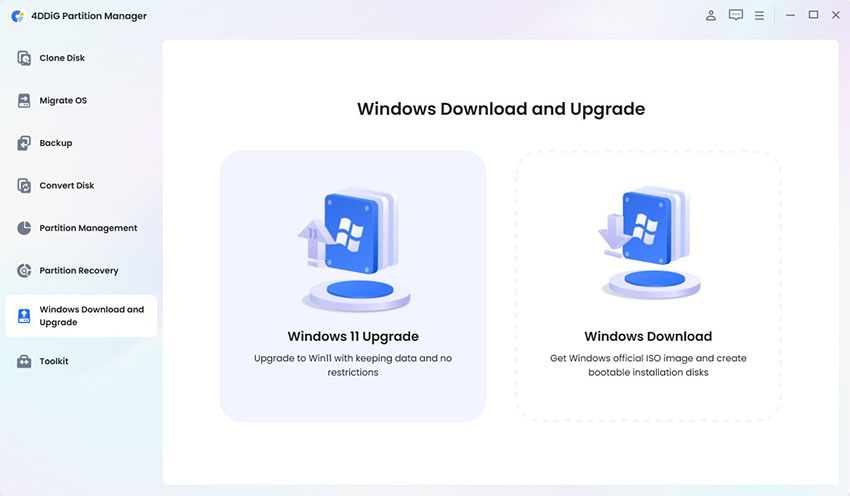
Upgrading an active server is always risky; corrupted files, partition errors, or misconfigured drives can cause downtime. Before installing Windows Server 2025, you should clone your existing system's disk. The easiest method is using 4DDiG Partition Manager, which provides a clean, safe disk-to-disk clone without complex commands.

It stands out as a reliable, high-precision tool designed for smooth disk migration and server upgrades. It offers safe, sector-by-sector cloning to accurately replicate your entire drive without data loss, whether you’re moving from HDD to SSD, SSD to SSD, or even NVMe to NVMe.

  • Download and install 4DDiG Partition Manager on your computer and connect to your external drive before launching the software. Launch the software and go to "Clone Disk," then choose what type of disk you want to clone.

    FREE DOWNLOAD

    Secure Download

    choose clone disk
  • Select the target disk on which you want to clone your data. By default, the external drive you connected will be your target disk, and you may click “Next” to proceed.

    select clone os target disk
  • Use the slider interface to resize the partitions for your drive to manage the cloned partition efficiently. Once the preview looks fine, click “Start” to begin and click “Sure” to authenticate.

    click start to clone
  • Once the screen says, "Cloned Successfully," you may click "Finish" and close the software, then remove your external drive.

    clone os successfully

4.How to Install Windows Server 2025?

Below is the complete installation workflow, including downloading the ISO, preparing the USB, and running the installation.

Step 1: Create Bootable USB Flash Drive

Before installing Windows Server 2025, you first need a bootable USB created from the official ISO file. This ensures that your system can load the installer directly from external media.

  • You need to start downloading the Windows Server 2025 ISO from the official Microsoft Page.

  • Now open Rufus on your computer and connect the USB to the PC.

    open rufus
  • Click the "Device" dropdown and choose your USB of 8GB or larger size, and click "Download" to select your ISO and click "Continue".

  • Choose your preferred file system and click “Start” to begin the process.

Note:

Additionally, creating a bootable USB flash drive can be a useful tool for downloading Windows 11 25H2, even on unsupported PC configurations. If you want to explore more, please click: Install Windows 11 25H2 on Unsupported Hardware [Complete Guide].

Step 2: Configure BIOS Settings

Once your bootable USB is ready, adjust your BIOS settings so the server can detect and prioritize the USB drive. This step ensures the installation process starts smoothly without boot errors.

  • Restart the system and enter the BIOS settings using the "DEL or Designated Function key (F2-F12)."

  • Go to the “Boot” tab and change the Boot Order to boot from the USB first. Save and exit.

    change boot drive order

Step 3: Installation Process

With your boot media and BIOS configured, you can proceed with the actual installation of Windows Server 2025. This final stage walks you through setting up partitions, selecting the edition, and completing the setup wizard.

  • Connect the USB to your computer and reboot it so that it boots from the USB this time.

  • Once you get to your Installation Media screen, set basic settings like time, date, etc., and click "Next”.

  • Follow the on-screen instructions to go through the installation steps and provide the licensing option to continue.

    select windows server
  • After licensing your product, select your “Windows Server Image” and the location to install it, then click “Next” and “Install”. Accept any license or installation terms, and once the installation is complete, click “Finish”.

More FAQs about Windows Server 2025

1. Is Windows Server 2025 a free upgrade?

No. Windows Server 2025 is not a free upgrade. You must purchase a new license unless you are covered under Software Assurance.

2. When did Windows Server 2025 come out?

Windows Server 2025 was released on November 1, 2024.

3. Is Windows Server 2025 free? How much is Windows Server 2025?

The evaluation version is free for 180 days. Windows Server 2025 price starts from $1,176 for the Standard Edition to $6,771 for the Datacenter Edition.

4. Is Windows Server 2025 stable?

Yes. Windows Server 2025 is considered fully stable for enterprise production workloads.

Conclusion

Windows Server 2025 introduces some of the best upgrades in Microsoft’s server ecosystem, focusing on security, virtualization, GPU acceleration, ARM64 support, and modernized administrative tools. Whether upgrading from 2016, 2019, or 2022, it offers a future-proof platform with long-term support until 2034.

Before upgrading, ensure your data is fully protected. 4DDiG Partition Manager is the safest and most user-friendly tool for cloning your disk, migrating data. With powerful cloning, partitioning, and disk-management tools, it keeps your server migration secure and efficient.

FREE DOWNLOAD

Secure Download

William Bollson (senior editor)

William Bollson, the editor-in-chief of 4DDiG, devotes to providing the best solutions for Windows and Mac related issues, including data recovery, repair, error fixes.

(Click to rate this post)

You rated 4.5 ( participated)