How to Fix Marvel Rivals Crashing?

5 mins read

Updated on 2026-07-27 18:51:59 to Windows Fix

Marvel Rivals crashing can quickly ruin an otherwise enjoyable gaming session. Some players experience crashes at startup, while others run into problems during shader compilation, after installing an update, or in the middle of intense multiplayer matches. In some cases, the game closes without an error message, making the issue even more frustrating.

Fortunately, most crashes can be fixed. In this guide, we will explain why Marvel Rivals crashes on PC and walk you through several proven solutions to help you get back into the game with greater stability.

1. Why Does Marvel Rivals Keep Crashing?

There isn’t a single reason why Marvel Rivals crashes. Some of the most common causes include:

Corrupted or Missing Game Files

Missing or corrupted files may prevent Marvel Rivals from launching properly or cause random crashes during gameplay.

Low System Drive Space

Marvel Rivals uses your Windows system drive for temporary files, shader caches, and virtual memory. If the C: drive is nearly full, the game may become unstable, especially during loading screens or shader compilation.

💡 Extend C Drive Easily without Data Loss

Outdated or Faulty Graphics Drivers

Graphics drivers act as the bridge between your GPU and the game. If they're outdated, corrupted, or incompatible with the latest game version, you may encounter frequent crashes, graphical glitches, or performance issues.

BIOS Compatibility Issues

An outdated BIOS can sometimes cause compatibility problems with newer processors, memory, or graphics hardware. This may lead to random game crashes or overall system instability, particularly on recently upgraded PCs.

Problems Introduced by Recent Updates

Some players report that crashes begin immediately after installing a game patch or graphics driver update. There have been reports of Marvel Rivals constant crashing after 595 update, suggesting that certain updates may introduce temporary stability issues until a newer patch is released.

Integrated and Dedicated GPU Conflicts

On some AMD-based systems, Windows may incorrectly switch between the integrated Radeon graphics and a dedicated graphics card while the game is running. This graphics conflict can result in unexpected crashes or poor performance.

⚡ 2. How to Fix Marvel Rivals Crashing?
Before trying the fixes below, verify that your computer meets Marvel Rivals’ minimum or recommended system requirements. Running the game on unsupported hardware or outdated drivers may cause frequent crashes regardless of your settings.

marvel rivals minimum requirements

Once compatibility has been confirmed, work through the following solutions in order.

Marvel Rivals Crashing on Startup

Fix 1: Allow Marvel Rivals Through Antivirus and Firewall

Windows Security or third-party antivirus programs may mistakenly block certain game files, preventing Marvel Rivals from launching properly.

  • Click the Start button, search and go into Windows Security > Firewall & network protection, and click Allow an app through firewall.

    allow an app through firewall
  • Now choose Change settings and click Allow another app.

  • After that, browse through the list, go to the Marvel Rivals installation folder, and select the executable.

  • Ensure both Private and Public networks are checked. Save the changes and restart your PC.

Note:

If you’re using third-party antivirus software, add the Marvel Rivals installation folder to its exclusions list before launching the game again.

Fix 2: Close Unused Background Apps

If Marvel Rivals constantly crashing occurs only while multitasking, reducing background activity often improves stability.

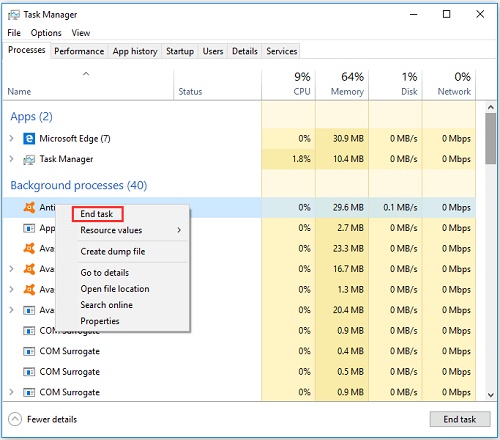
  • Press Ctrl + Shift + Esc to open Task Manager and go to the Processes tab.

  • Sort applications by CPU or Memory usage and close programs you don’t currently need.

    close program in task manager
  • Leave essential Windows processes running. Then, launch Marvel Rivals again.

Fix 3: Free Up System Drive Space

Marvel Rivals relies on Windows for temporary files, shader caches, and virtual memory. If your C: drive is nearly full, the game may fail to launch or crash unexpectedly.

Instead of manually hunting down junk files, you can use the Windows Clean feature in 4DDiG Partition Manager to safely remove unnecessary system files and recover valuable storage space.

  • Open 4DDiG Partition Manager and click Windows Clean from the left menu. Select your Windows system drive and start the scan. The tool will look for temporary files, caches, logs, and other junk files that can be removed safely.

    FREE DOWNLOAD

    Secure Download

    windows clean
  • When the scan is complete, you'll see a list of junk files. Review the results and keep the selected items, or choose the files you want to delete.

    select items to clean
  • Click Clean to remove the selected files. After the cleanup is finished, restart your PC. Then launch Marvel Rivals again and check if the crashing issue has been fixed.

    clean successfully

Marvel Rivals Crashing Mid Game

If the game launches successfully but crashes during matches, the problem is often related to corrupted files, graphics hardware conflicts, or firmware compatibility.

Fix 1: Verify Integrity of Game Files

Game files can become corrupted after interrupted downloads or updates. You can automatically replace corrupted files by verifying the integrity of the game files, resolving random Marvel Rivals game crash caused by missing assets.

  • Open your Steam Library. Right-click Marvel Rivals, select Properties, and open Installed Files.

  • Click Verify integrity of game files.

    verify integrity of game files
  • Now wait for Steam to replace any damaged files. Once the process is completed, restart Steam and launch the game.

Fix 2: Disable AMD Radeon™ Graphics from Device Manager

Some users with AMD processors and dedicated graphics cards have reported that Windows incorrectly switches between the integrated Radeon graphics and the dedicated GPU. Disabling the integrated Radeon graphics has resolved crashes for some affected players.

  • Right-click the Start menu and open Device Manager. Expand Display adapters and locate AMD Radeon™ Graphics (the integrated GPU).

    locate amd radeon graphics
  • Right-click it and select Disable device. After that, restart your computer.

  • Finally, launch Marvel Rivals and test gameplay.

Fix 3: Update Your BIOS

If crashes continue despite updated drivers, your motherboard BIOS may need an update.

  • In order to update your BIOS, visit your motherboard manufacturer’s support page.

  • Download the latest BIOS version for your exact model, and carefully follow their official update instructions.

    update bios

Since BIOS updates modify your motherboard firmware, avoid interrupting the process or shutting down your computer while the update is in progress.

Marvel Rivals Crashing After Update

If crashes started immediately after installing a game patch, Windows update, or GPU driver, reverting recent changes may solve the problem.

Fix 1: Roll Back Graphics Driver

  • Right-click the Start button and open Device Manager.

  • Now expand Display adapters. Double-click your graphics card; this will open the Driver tab.

  • Click Roll Back Driver and wait for the process to be completed.

    roll back driver

After that, restart your PC. If rollback isn’t available, install an earlier stable version from NVIDIA, AMD, or Intel’s official website.

Note:

If you’re also wondering how to fix Marvel Rivals crashing with frame generation, try disabling Frame Generation or DLSS Frame Generation temporarily after rolling back your graphics driver, as newer driver releases occasionally introduce compatibility issues with these features.

Fix 2: Install All Windows Updates

Keeping Windows fully updated ensures your PC has the latest security patches, DirectX components, and system improvements.

  • Open Settings, select Windows Update, and click Check for updates. And install all available updates.

    check for updates
  • Open Advanced options and check for optional driver updates if available.

  • If the updates are available, install them, and once the process is finished, restart your computer.

Conclusion

Marvel Rivals crashing can result from several different issues, including corrupted game files, graphics driver conflicts, limited system storage, outdated BIOS firmware, or Windows compatibility problems. By working through each solution in this guide, you can identify the cause and significantly improve game stability.

If your system drive is running low on space, 4DDiG Partition Manager provides an easy way to clean unnecessary Windows files, helping Windows manage temporary files, shader caches, and virtual memory more effectively. Combined with updated drivers and a properly maintained system, these fixes should greatly reduce crashes and provide a smoother Marvel Rivals experience.

FREE DOWNLOAD

Secure Download

William Bollson (senior editor)

William Bollson, the editor-in-chief of 4DDiG, devotes to providing the best solutions for Windows and Mac related issues, including data recovery, repair, error fixes.

(Click to rate this post)

You rated 4.5 ( participated)