How to Fix Marvel Rivals Error Code 5?
5 mins read

Updated on 2025-11-26 17:57:52 to Windows Fix

Nothing ruins a multiplayer match faster than getting stuck behind an error screen. Players frequently face the Marvel Rivals Error Code 5, an issue known to interrupt matchmaking, block session launches, or stop the game from connecting to online services altogether.

Whether you’re on Steam, PS5, or PC, this error can be frustrating, but the good news is that it’s solvable with the right steps. In this guide, we’ll walk through why this issue happens, how to fix “failed to connect to Steam Marvel Rivals Error Code 5.” With clear instructions, you’ll be back in the fight quickly.

marvel rival error code 5

1.What is Marvel Rivals Error Code 5?

Before rushing to the fixes, it’s important to understand what is error code 5 on Marvel Rivals. Marvel Rivals Error Code 5 usually appears when the game is unable to authenticate your connection with its online servers. This issue leads players to wonder why am I getting a login error for Marvel Rivals?

Common Causes of Marvel Rivals Error Code 5:

  • DNS resolution failure: Device or network DNS cache errors prevent proper resolution of game server addresses.
  • Server overload or maintenance: Temporary issues with Marvel Rivals or Steam servers, especially during updates or peak hours.
  • Local network instability: Internet jitter, high latency, ISP caching problems, or abnormal router configuration.
  • Platform authentication failure: Interrupted communication between Steam/console and game servers, often due to lingering background processes.
  • Corrupted files or cache: Damaged local game files, launcher cache, or brief firewall interference.

2.How to Fix Marvel Rivals Error Code 5?
There are different ways to fix the Marvel Rivals error code 5 on PC and Console, and we will discuss the 5 most effective options you can try.

Fix 1: Restart the Router & Reconnect to the Internet

A temporary network glitch is one of the most common triggers of Marvel Rivals Error Code 5 across all platforms. This simple reset resolves many internet connectivity issues that block login or matchmaking.

  • Turn off your router and modem and wait at least 30 seconds. Then turn them back on and allow the network to fully initialize.

  • Reconnect your PC/Console to Wi-Fi or Ethernet by going into “Network Settings” and launching Marvel Rivals again.

    network settings

If Marvel Rivals error code 5 was caused by temporary network instability, this quick reboot will often resolve it instantly.

Fix 2: Change Wi-Fi Frequency & DNS Settings

Incorrect Wi-Fi frequency or faulty DNS can create conflicts between your device and the Marvel Rivals authentication servers. Switching to a stable frequency (preferably 5GHz) and using trusted DNS addresses improves both speed and reliability.

Many players report that this fix resolves the failed to connect to Steam Marvel Rivals Error Code 5 and prevents future login drops even on PS5.

  • Open "Settings" on your PS5 and go to "Network", then "Settings", and choose "Set up Internet Connection".

  • Choose your Wi-Fi network and change its “Wi-Fi Frequency Band” from Automatic to “2.4” or “5” GHz based on your router specifications.

    set wifi frequency band
  • Now, go to “Advanced Settings” and change your “DNS Settings” to “Manual”. Set your primary DNS to "1.1.1.1" and your Secondary DNS to "1.0.0.1”.

  • Save changes and ensure proper internet connection, then restart the PS5 and launch Marvel Rivals.

Updated DNS and a cleaner Wi-Fi signal remove most routing conflicts that cause Marvel Rivals error code 5.

Fix 3: Restart Your Console/ Steam

Sometimes Marvel Rivals fails to authenticate due to cached session tokens or app-level connection errors. Restarting your console or Steam forces the system to clear temporary network and login states. A clean relaunch refreshes your online authorization and helps eliminate Code 5 failures.

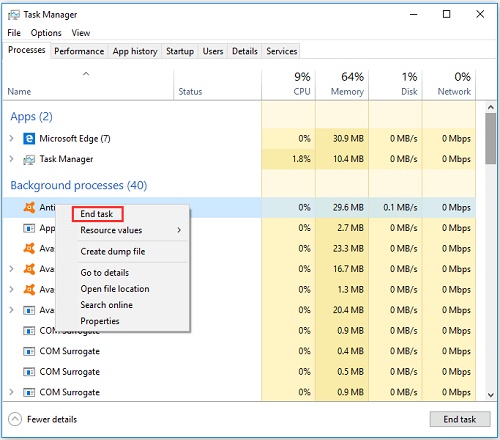
  • Close Steam and open "Task Manager", then go to its "Processes Tab".

  • Locate any "Steam" processes and right-click them, then click "End Task".

    end steam task
  • Restart your computer and launch “Steam” again after starting and connecting to the network.

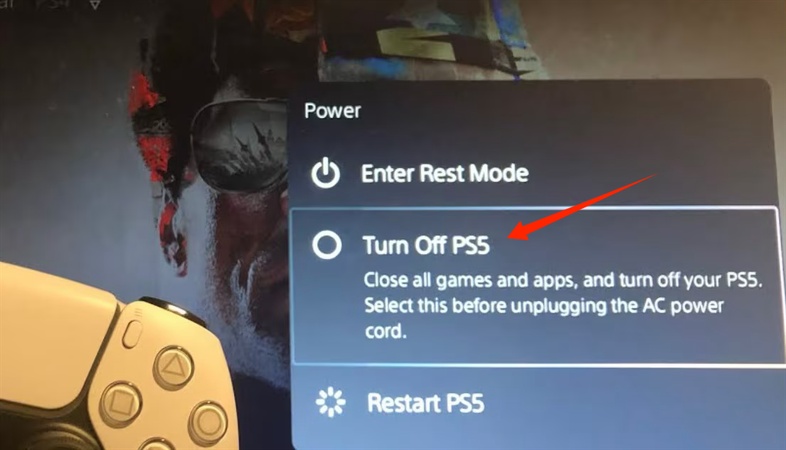
  • If you are on a console, simply go to “Power Options” and choose the “Restart” option to close everything and restart from scratch.

This reset removes corrupted session data that may be blocking your login or matchmaking attempt.

Fix 4: Run Marvel Rivals as Administrator

Permission issues can disrupt the game’s ability to access certain network functions or system files. Running the game as an administrator ensures that Marvel Rivals has full privileges to connect through Steam or the PSN equivalent. This method especially helps fix Marvel Rivals Error Code 5 on PC.

  • Right-click the Marvel Rivals shortcut and select “Run as Administrator”.

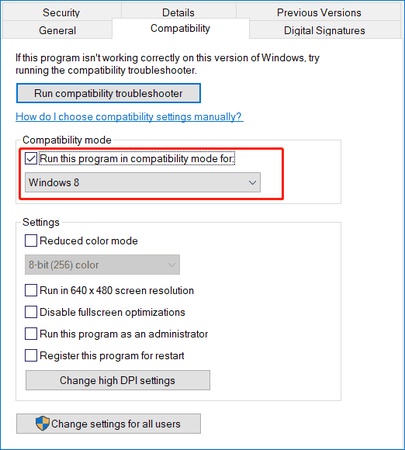
  • If this works, set it permanently by right-clicking the shortcut and going to “Properties”. Choose “Compatibility” and check the “Run this Program as an administrator” option.

    run the program as administrator
  • Click "Apply" and "OK" to save it, and now your Marvel Rivals will always run with Admin permissions.

Fix 5: Verify Game Files

If some of the game files are corrupted or missing, Steam may fail to authenticate your online connection. Verifying your files ensures that all components required for server communication are intact. This fix often resolves persistent Marvel Rivals login error code 5 issues.

  • Open Steam and go to "Library," then right-click "Marvel Rivals" and choose "Properties."

  • Select the “Installed Files” option and click “Verify Integrity of Game Files," then wait as Steam verifies your game files.

    verify integrity of files

A file integrity check repairs any damaged components that might be triggering Connection Error.

3. Beyond Network Troubles: Disk Repair Might Be the Missing Solution to Marvel Rivals Error Code 5

Most players assume Marvel Rivals Error Code 5 is a pure network problem, but disk issues can also disrupt how the game loads authentication libraries. If partitions are damaged or your storage contains bad sectors, Marvel Rivals may struggle to read key files needed for online login. In these cases, repairing corrupted partitions becomes just as important as adjusting your network.

That’s where 4DDiG Partition Manager becomes a powerful solution. It can repair disk errors, rebuild partitions, and restore healthy disk structures that games rely on to launch properly.

FREE DOWNLOAD

Secure Download

  • Download and install the 4DDiG Partition Manager software on your computer and launch it. Now, click "Toolkit" from the left menu and go to the “Repair Partition(s)” function.

    repair partitions
  • Click the partition that you want to repair to select it and click the “Repair Now" button in the bottom right.

    repair partitions now
  • 4DDiG will only take a moment to repair your partition. Once it is complete, you will see a "Repair Successful" message. When you see this message, click “Finish” to end the process.

    repair successfully

More FAQs about Marvel Rivals Error Code 5

1. What is error code 5 access denied?

It usually means your game client lacks permission to access certain files or services needed for authentication. Running the game as admin often fixes this.

2. What does Marvel Rivals error code 4 mean?

Error Code 4 means there is some network-related issue preventing login or server authentication.

3. Is error code 5 a server-side issue?

Sometimes, yes. If server traffic is unusually high, you may receive Error Code 5 even if everything at your end is correct.

Conclusion

Marvel Rivals Error Code 5 may look frustrating, but most players can resolve it through simple steps like restarting the router, fixing DNS settings, verifying game files, or resetting Steam/PS5 session data. For players whose issues come due to internal storage corruption, using 4DDiG Partition Manager provides a deeper fix.

It works by repairing damaged partitions and restoring proper disk function. With the right combination of network and disk-level repairs, you can eliminate Error Code 5 permanently and jump back into action without interruptions.

FREE DOWNLOAD

Secure Download

William Bollson (senior editor)

William Bollson, the editor-in-chief of 4DDiG, devotes to providing the best solutions for Windows and Mac related issues, including data recovery, repair, error fixes.

(Click to rate this post)

You rated 4.5 ( participated)