How to Solve Marvel Rivals Laggy?

5 mins read

Updated on 2026-06-18 18:51:49 to Windows Fix

Is Marvel Rivals laggy on your PC? High ping, stuttering, and sudden frame drops can instantly cost you a match in this fast-paced hero shooter.

To help you get back to buttery-smooth gameplay, this guide provides quick, actionable solutions to eliminate performance drops. We will cover the best in-game graphics settings for maximum FPS, essential network tweaks to lower your ping, and quick Windows optimization tips to stop back-end lag for good. Let’s get started.

1. Why is Marvel Rivals So Laggy?

High Ping

High ping is one of the most common reasons. If your ping is too high, your actions may register late, enemies may appear to teleport, and skills may feel delayed.

Packet Loss

Packet loss happens when some of the data sent between your PC and the game server fails to arrive. Even if your ping looks normal, packet loss can still make Marvel Rivals lag badly. Common signs include rubberbanding, delayed abilities, sudden freezes, or characters moving inconsistently.

Outdated Graphics Drivers

Outdated GPU drivers can also make Marvel Rivals lag, stutter, or crash. Graphics drivers affect how your GPU handles the game’s visuals, shaders, frame pacing, and performance optimization. NVIDIA says Game Ready Drivers are designed to provide better performance, stability, and functionality for games, while AMD notes that driver updates can include bug fixes and game performance optimizations.

Incorrect Graphics Settings

Using graphics settings that are too high for your PC can make Marvel Rivals laggy. Settings such as shadows, textures, effects, anti-aliasing, resolution, V-Sync, and frame generation can put extra pressure on your GPU and CPU.

CPU/GPU Bottlenecks

If your CPU, GPU, RAM, or storage is close to the minimum requirement, the game may lag when the system cannot process frames fast enough. A CPU bottleneck may cause unstable FPS and input delay, while a GPU bottleneck usually causes low FPS, frame drops, and visual stutter.

Corrupted Game Files

Corrupted or missing game files can also make Marvel Rivals lag, crash, freeze, or behave abnormally. This may happen after an interrupted update, failed download, disk error, or launcher issue.

Some players even report that Marvel Rivals game stuttering after update becomes noticeable after new patches introduce optimization issues.

2. How to Identify What’s Causing Marvel Rivals Stuttering?

Check if Marvel Rivals Servers are Having Issues

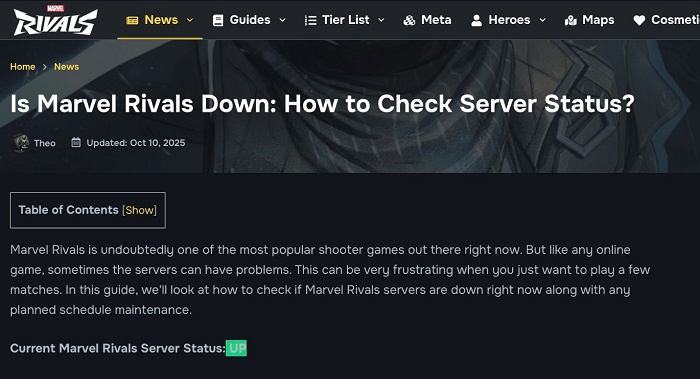
If many players suddenly report Marvel Rivals lagging out, server maintenance or outages may be responsible. You can check official Marvel Rivals social channels, community forums or server status pages. If servers are experiencing issues, you’ll need to wait until they stabilize.

See Whether the Problem Started after an Update

Many users report Marvel Rivals game stuttering after update. If you are experiencing this as well, the latest patch may be the cause.

Monitor Your Ping and Packet Loss

Network problems often cause this issue and delayed gameplay. Look for:

  • Ping below 50ms (ideal)
  • Ping above 100ms (noticeable delay)
  • Packet loss greater than 1%

Compare Your PC Specs with Marvel Rivals Requirements

If Marvel Rivals runs bad, compare your hardware with the game’s recommended requirements. Pay speci attention to CPU/GPU, RAM and SSD storage. Running the game on older hardware may cause Marvel Rivals unplayable lag and severe frame drops.

3. How to Fix Marvel Rivals Lag Step-by-step?

Fix 1: Use a Wired Connection

Wi-Fi is convenient, but it can be unstable during online gaming. Using an Ethernet cable often reduces ping spikes, packet loss and random disconnects.

  • Connect your PC directly to the router using an Ethernet cable.

  • Restart your router. Launch Marvel Rivals again to check whether gameplay feels smoother.

Fix 2: Configure DNS Settings

A faster DNS server may improve connection stability.

  • Open Network Settings. Select your active internet connection.

  • Open IPv4 properties. Choose manual DNS settings. Enter:

    o Preferred DNS: 8.8.8.8

    o Alternate DNS: 8.8.4.4

  • Save the changes. Then, restart your connection.

This can sometimes help players experiencing Marvel Rivals lagging out during online matches.

Fix 3: Select the Best Server Region

  • Open Marvel Rivals and go to server settings. Select the region closest to your location.

    change marvel rivals server
  • After confirming and saving changes. Restart matchmaking.

ower ping often improves responsiveness immediately.

⚡ Extra Tip: Improve Your PC Environment for Smoother Marvel Rivals Gameplay

Even if your hardware meets the requirements, temporary files, update leftovers, logs, and junk data may consume valuable disk space and affect system performance over time.

A simple way to clean your system is by using 4DDiG Partition Manager’s Windows Clean feature.

  • First, install and open 4DDiG Partition Manager. Click Windows Clean from the left menu. Select the types of files you want to remove and start the scan. The software will search for temporary files, update leftovers, caches, and other unnecessary data.

    FREE DOWNLOAD

    Secure Download

    windows clean
  • After the scan finishes, you’ll see a list of files that can be removed. Review the categories and keep anything you still need.

    select items to clean
  • Click Clean and confirm the action. The software will remove unnecessary files and free up storage space on your drive.

    click sure to confirm
  • Once the cleanup is complete, restart your computer. A cleaner system can help reduce performance issues and keep your PC running smoothly.

    clean successfully

Fix 4: Lower Graphics Settings

High graphics settings can overwhelm your hardware. If Marvel Rivals keeps stuttering, reducing visual settings can help stabilize FPS.

  • Open Marvel Rivals settings and go to Graphics.

  • Now change these settings one by one:

    • ower Shadow Quality.
    • ower Effects Quality.
    • Reduce View Distance.
    lower graphics settings
  • Relaunch the game to fully apply the updated graphics settings.

Fix 5: Update Graphics Drivers

  • Open NVIDIA App, GeForce Experience, or AMD Adrenalin. Check for available driver updates.

  • Download the latest version and install the update.

  • After installation, restart your PC.

New drivers often include game-specific optimizations and fixes.

Fix 6: Enable DLSS or FSR

  • Launch Marvel Rivals and open the Settings menu. Click on the Graphics tab.

  • Scroll down until you find DLSS (for NVIDIA graphics cards) or FSR (for AMD and supported GPUs). Turn the feature on.

    enable fsr
  • Select Balanced mode first, as it offers a good mix of image quality and performance.

  • Apply the changes and restart the game if prompted.

  • Play a few matches and check whether the stuttering or FPS drops have improved.

Fix 7: Disable Overlays

  • Close Marvel Rivals completely. Open Discord, Steam, Xbox Game Bar, or any other app running in the background.

  • Go to the application's Settings menu.

  • Look for an option called In-Game O verlay, Game Overlay, or something similar.

    disable  overlay
  • Turn the overlay feature off. Save the changes and close the application.

  • aunch Marvel Rivals again and test the game's performance.

Many players have reported that this helps fix Marvel Rivals stuttering and reduces random freezes.

Conclusion

A Marvel Rivals laggy experience can be caused by several factors. The key is to diagnose the issue first and then apply the correct fix. Whether you’re dealing with Marvel Rivals stuttering, FPS drops, or network lag, the solutions above can help restore smooth gameplay.

To keep your system running efficiently, it’s also worth regularly removing junk files and unnecessary data. Tools like 4DDiG Partition Manager can help maintain a cleaner PC environment and reduce performance issues.

FREE DOWNLOAD

Secure Download

William Bollson (senior editor)

William Bollson, the editor-in-chief of 4DDiG, devotes to providing the best solutions for Windows and Mac related issues, including data recovery, repair, error fixes.

(Click to rate this post)

You rated 4.5 ( participated)