Install Error 0x80070306: How to Resolve It Quickly
Do you see install error 0x80070306 when installing your Windows 11 PC updates? You are not alone, but many users report this problem when attempting to install "Windows 11 25H2 update" or other Windows Updates. While this can be annoying, especially when all you want is for your computer to stay updated, don't panic. This article will tell you what this error means, why it happens, and how to resolve it step by step.
Part 1: What is Install Error 0x80070306?
The install error 0x80070306 is a Windows Update installation failure code, which occurs when the system is not able to complete the installation of the respective update. This error often occurs when Windows 11 cumulative updates or major version upgrades, for instance, 25H2, are used.
In simple terms, this code means Windows tried to apply an update but failed due to a problem with files, components, or services. You may see this error with updates such as KB5062553, KB5063060, or KB5063878, which then roll back instead of completing successfully.
🎯 Common Causes of Install Error 0x80070306
There's no single cause of this error; it can result from several system issues. Here are the most common ones:
- Corrupted or missing system files: Important files required for Windows Update may be damaged or lost.
- Broken Windows Update components: Outdated or malfunctioning update services and cache can trigger installation failures.
- Incomplete or interrupted update downloads: If previous update files were not downloaded properly, Windows might get stuck.
- Conflicts with third-party software or drivers: Security tools, antivirus programs, or incompatible drivers can interfere with updates.
- Low system resources: Limited disk space or temporary file overload can cause Windows to stop the update.
- Network instability: A weak or unstable internet connection might interrupt the update process.
Understanding these possible causes will make it easier to choose the right solution in the next part of the guide.
Bonus: Keep Your Data Safe before Fixing Install Error 0x80070306
Before you start fixing the problem, it's smart to protect your data. Some troubleshooting steps involve scanning or resetting system files, and there's always a small chance of data loss. A simple way to stay safe is to use 4DDiG Partition Manager to back up your important files. This tool helps you clone disks, create partitions, and back up data easily, no technical skills required.
Why Choose 4DDiG Partition Manager?
- Quick and safe backup: Back up your entire system or selected partitions with one click.
- Disk cloning feature: Easily copy your system disk to another drive without losing data.
- Beginner-friendly design: Easy to navigate, even for users with no technical background.
- Full Windows 11 support: Works perfectly with the latest Windows 11 updates.
Secure Download
-
Install and launch 4DDiG Partition Manager on your PC. Navigate to Backup and choose File Backup.
-
A new backup task will be created. Select the files you want to include, then click Next.
-
Set your preferred storage location, and once everything is configured, click Start to begin the backup.
-
After a while, the backup process completes successfully.
Once the process finishes, your system and data are safely backed up. Now you can move on to fixing install error 0x80070306 with peace of mind.
Part 2: How to Fix Install Error 0x80070306?
If your Windows update keeps failing with install error 0x80070306, here's how you can easily fix it:
Method 1: Run the Windows Update Troubleshooter
The built-in Windows Update Troubleshooter can automatically find and fix common update problems.
-
Open Settings > System > Troubleshoot > Additional troubleshooters.
-
Find Windows Update and click Run. Let the tool detect and fix issues automatically.
-
After that, restart your computer and check if the update installs successfully.
If the troubleshooter finds and fixes something, try updating Windows again. If the error remains, continue to the next method.
Method 2: Repair System Files with SFC/DISM
Corrupted or missing system files can trigger update errors like install error 0x80070306. Windows provides two built-in repair tools: SFC and DISM.
-
Type cmd in the search bar, right-click Command Prompt, and choose Run as administrator.
-
Type the following command and press Enter: sfc /scannow
-
Wait for the scan to finish. After that, type: DISM /Online /Cleanup-Image /RestoreHealth and press Enter and let the process complete.
Restart your PC and try running the Windows update again.
Method 3: Use "Fix Problems Using Windows Update" Tool
Microsoft includes a special recovery option for update issues.
-
Go to Settings > System > Recovery. Under Advanced startup, click Restart now.
-
When your PC restarts, select Troubleshoot > Advanced options > Startup Repair.
-
Let the tool scan and fix any Windows Update issues automatically.
This method is useful when normal troubleshooting doesn't resolve deeper system-level update problems.
Method 4: Install Updates in Safe Mode
Some third-party apps or drivers may block updates. Safe Mode runs Windows with only the essential services.
-
Open Settings > System > Recovery > Advanced startup > Restart now.
-
Select Troubleshoot > Advanced options > Startup Settings > Restart.
-
When your PC restarts, press 4 or F4 to boot into Safe Mode.
-
Once in Safe Mode, go to Settings > Windows Update and try installing the update again.
If the update installs successfully, a background service or app may have been the cause of the error.
Method 5: Manually Install Updates via Microsoft Update Catalog
If automatic updates keep failing, you can install the update manually using the Microsoft Update Catalog.
-
Check which update failed. Note its KB number (for example, KB5063060 or KB5062553). Search for that KB number in the Microsoft Update Catalog.
-
Download the correct version for your Windows 11 build (x64 or ARM64).
-
Run the downloaded file and follow the setup prompts. Then restart your PC once the installation completes.
Manual installation helps when specific update packages fail repeatedly through the normal update process.
Method 6: Manually Install Updates via Windows 11 ISO
If none of the above methods work, performing a repair installation using the Windows 11 ISO can fix the problem without losing your data.
-
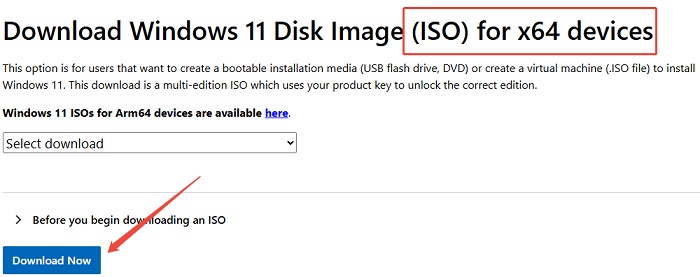
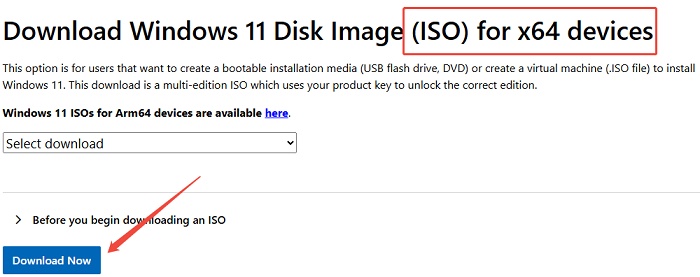
Download the latest Windows 11 ISO from Microsoft's official website.
-
Double-click the ISO file and run setup.exe. Choose Upgrade this PC now and keep personal files and apps.
Follow the on-screen instructions to reinstall Windows.
This method replaces damaged system components and ensures all updates are installed properly.
More FAQs about Install Error 0x80070306
1. How to fix "Installer has stopped working"?
This problem usually happens when system files are damaged or programs conflict with each other. Restart your PC in Safe Mode and run the SFC /scannow command to repair broken files. You can also try reinstalling the program or using the Windows Troubleshooter to find and fix the issue.
2. How to fix "Installation failed with error 0x80070002"?
Error 0x80070002 means that some update files are missing or corrupted. To fix it, stop the Windows Update service, delete the SoftwareDistribution folder, and then restart the service. After that, check for updates again.
3. How to fix Windows Update error 0x800703e6?
This error often happens when system files or registry entries are damaged. Run both SFC and DISM commands to repair them. Also, make sure your antivirus isn't blocking the update.
4. How do I fix error code 0x80070643?
Error 0x80070643 usually appears when a system update or .NET Framework installation fails. Restart your PC, run the Windows Update Troubleshooter, and reinstall the .NET Framework if needed.
Conclusion
Fixing install error 0x80070306 in a Windows 11 update can be annoying, but it's not too hard once you know what to do. Using tools like the Windows Troubleshooter, SFC/DISM commands, or manually installing updates can usually solve the problem.
Before you try any fix, back up your important files with 4DDiG Partition Manager. It's a simple and safe way to protect your data in case something goes wrong. After that, you can update Windows smoothly and keep your PC running well.
Secure Download
ChatGPT
Perplexity
Grok