How to Fix Windows Mouse Cursor Glitch?

5 mins read

Updated on 2026-03-30 17:48:09 to Windows Fix

A Windows mouse cursor glitch can quickly turn a smooth computing experience into a frustrating one. Whether your cursor is flickering, freezing, or jumping randomly, these issues can interrupt work, gaming, and everyday tasks.

The good news is that most cursor issues can be fixed with simple troubleshooting. In this guide, we’ll explain why your mouse is glitching and walk you through proven fixes for both Windows 10 and Windows 11.

fix windows cursor glitch

1. Why Windows Mouse Cursor Glitch?

Before applying fixes, it’s important to understand the root causes behind a mouse cursor bug. Identifying the correct reason helps you avoid unnecessary troubleshooting and solve the issue faster.

  • Outdated or Corrupted Drivers: A faulty graphics driver can lead to a cursor glitch in Windows 10/11. Since the cursor interacts with both input devices and display rendering, any inconsistency can result in erratic behavior.
  • Hardware-related Problems: Such as loose USB connections or faulty ports. If your mouse is sticking or lagging, the issue might be as simple as a bad connection or damaged cable. Wireless mice may also experience interference or battery-related issues.
  • System Conflicts: Background applications, especially overlays or screen recording tools, can cause a mouse pointer glitch Windows 10. Similarly, enabling touch screen features on non-touch systems can interfere with cursor behavior.
  • In-game Settings/Hardware Acceleration Conflicts: This is especially common in modern games where GPU rendering interacts directly with cursor positioning.

After understanding why is my mouse glitching, let’s apply the right solution quickly.

2. How to Solve Windows Mouse Cursor Glitch on Windows 11/10?

If you’re dealing with a persistent Windows cursor glitch, there are several effective fixes you can try. Each method below targets a specific cause, from hardware conflicts to driver issues. Follow these solutions step by step until your cursor issues are resolved.

Fix 1: Disable HID-compliant Touch Screen

Sometimes, Windows mistakenly prioritizes touch input over mouse input, which can cause cursor flickering or erratic movement. This often results in a mouse issues unexpectedly. Disabling the touch screen driver can eliminate this conflict. This fix is especially helpful for laptops that support touch but are primarily used with a mouse.

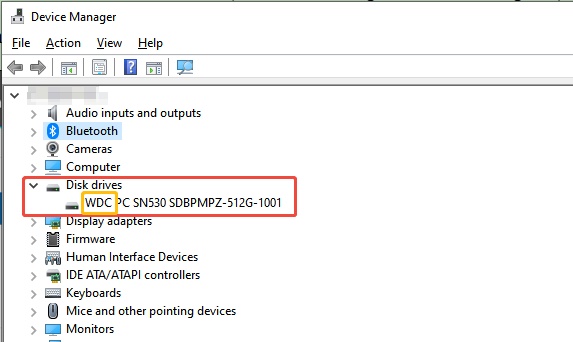
  • Press “Win + X” and open “Device Manager”.

  • Expand “Human Interface Devices” and locate “HID-compliant touch screen”.

  • Right-click and select “Disable device” then restart your computer.

    disable hid compliant touch screen

Disabling the touch screen removes input conflicts and often resolves cursor flickering or random movement issues.

Fix 2: Try Another USB Port

A faulty USB port can lead to unstable connections, causing mouse glitching or delayed response. If your mouse pointer is blinking or freezing, the issue may be hardware-related rather than software-based. Switching ports helps rule out connection problems quickly. This is one of the simplest ways to fix basic mouse issues.

  • Unplug your mouse from the current USB port.

  • Plug it into a different USB port on your computer.

  • Wait for Windows to reinstall the device automatically.

  • Test your mouse movement.

Changing the USB port can instantly fix connection-related cursor problems without any advanced troubleshooting.

Fix 3: Update Graphics Driver

An outdated or corrupted driver can cause Windows cursor glitch, flickering pointer, or lagging cursor movement. Keeping your driver updated ensures compatibility with the latest Windows updates. This fix is particularly useful if your mouse pointer is blinking or behaving inconsistently.

  • Press “Win + X” and select “Device Manager” then expand “Display Adapters”.

  • Right-click your GPU and choose “Update Driver” then select “Search automatically for drivers”.

    update graphics driver
  • Restart your computer after installation.

Updating your graphics driver can resolve display-related cursor issues, such as Battlefield 6 black screen, and improve overall system stability.

Fix 4: Disable Hardware Acceleration

Hardware acceleration can sometimes conflict with cursor rendering, especially in games. This may cause cursor flashing, lag, or a flickering pointer during gameplay. Disabling this feature can reduce GPU conflicts and stabilize cursor behavior.

  • Right-click on your desktop and go to "Display Settings", then open "Graphics”.

  • Choose “Change Default Settings” and turn off “Hardware-Accelerated GPU Scheduling” option, restart the game, and test.

    disable hardware accelerated gpu scheduling

This method often eliminates cursor flickering during gameplay and ensures smoother performance.

⚡ Bonus: Still Facing Cursor Glitch? A System Upgrade Could Be Worth Trying

If none of the above fixes resolve your cursor issues, your system may have deeper software problems. Corrupted system files, outdated Windows versions, or improper installations can cause persistent Windows cursor glitch. In such cases, upgrading or reinstalling Windows can provide a clean and stable environment.

4DDiG Partition Manager offers a streamlined way to reinstall or upgrade Windows using its upgrade Windows feature. Instead of manually creating bootable drives or dealing with complex setups, this tool simplifies the process while ensuring your system is properly configured. It also supports disk management, cloning, and partition optimization, making it a complete solution for maintaining system health.

3 day free trial

  • Download and open 4DDiG Partition Manager. Go to Windows Download and Upgrade, then select Windows 11 Upgrade.

    windows 11 upgrade
    FREE DOWNLOAD

    Secure Download

  • The program will automatically scan your system to check if it’s compatible with Windows 11. After the scan, you’ll see whether your PC supports the upgrade. If it doesn’t meet the requirements (such as TPM), click Next to bypass the Windows 11 requirements.

    detect your pc
  • You can also follow the prompts to perform a bootable installation or convert your disk to GPT if needed.

    bootable installation
  • Finally, select your preferred system language and version, then click Start to begin the upgrade.

    select system language

A Windows upgrade can eliminate persistent cursor bugs caused by deep system conflicts or corrupted files.

More FAQs about Mouse Cursor Bug

1. Why is my cursor not moving?

It may not move due to hardware issues, outdated drivers, or system conflicts. Try reconnecting your mouse, updating drivers, or restarting your system to restore normal functionality.

2. How to fix a mouse that is not working?

To fix a non-working mouse, check connections, replace batteries (for wireless devices), and update drivers. You can also try using another USB port or testing the mouse on a different computer.

3. Why is my mouse not responding?

A non-responsive mouse can result from driver issues, USB port failure, or software conflicts. Restarting your system and reinstalling the mouse driver often resolves the problem quickly.

Conclusion

A windows mouse cursor glitch can be caused by anything from simple hardware issues to deeper system conflicts. Fortunately, most problems can be fixed by disabling conflicting devices, updating drivers, or adjusting system settings.

If the issue persists, using tools like 4DDiG Partition Manager to reinstall or upgrade Windows can provide a long-term solution. By following this guide, you can eliminate cursor problems and restore smooth, accurate mouse performance on your PC.

FREE DOWNLOAD

Secure Download

William Bollson (senior editor)

William Bollson, the editor-in-chief of 4DDiG, devotes to providing the best solutions for Windows and Mac related issues, including data recovery, repair, error fixes.

(Click to rate this post)

You rated 4.5 ( participated)