[7 Methods] How to Check BitLocker Status on Windows 10/11?

5 mins read

Updated on 2026-03-10 11:26:02 to Windows Update

BitLocker is a built-in Windows encryption feature designed to protect your data from unauthorized access. Whether you’re troubleshooting encryption issues or verifying drive protection, knowing how to check BitLocker status is essential.

Windows 10 and Windows 11 provide several ways to view encryption details, ranging from simple graphical tools to advanced command-line utilities. This guide explains all available methods clearly and step by step.

How to Check BitLocker Status via Control Panel

If you prefer a simple and visual method, Control Panel is the easiest way to check BitLocker status. It requires no technical knowledge and works perfectly for most users. Not only is this the easiest method, but it also gives you quick and accurate results without tweaking many settings.

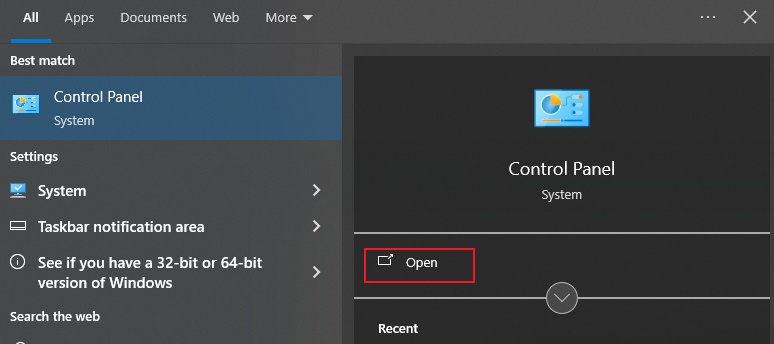
  • Press Windows + R, type "control panel", and press Enter.

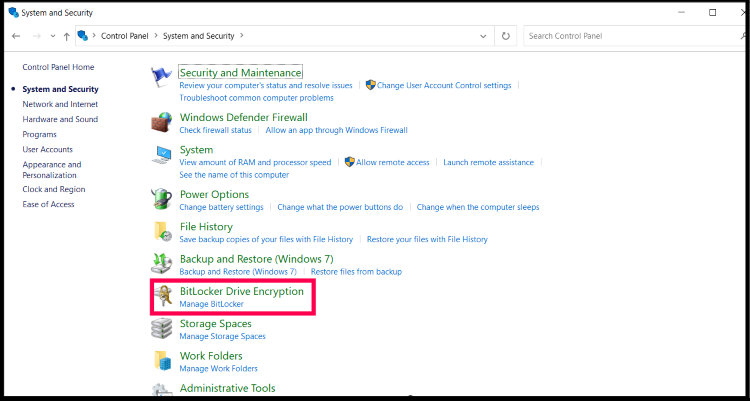
  • Click "System and Security" and select "BitLocker Drive Encryption."

  • You will see BitLocker status written next to the drive letter under the “BitLocker Drive Encryption” section.

    check bitlocker status via control panel

In this window, you can see different statuses such as:

  • BitLocker On
  • BitLocker Off
  • Encrypting / Decrypting
  • Locked

This method is the most straightforward way to check BitLocker status on Windows 10 and Windows 11 without using commands.

How to Check BitLocker Status via File Explorer

File Explorer offers a quick way to see whether a drive is encrypted, although it does not provide detailed encryption statistics. This is also a good method for users who want to stay away from the complex methods and want an easy experience.

  • Open "File Explorer" and click "This PC".

  • Click on the drive you want to check BitLocker status for and then click the "View" tab from the top.

  • Click the "Details Pane" option to enable it, and now you will see the "BitLocker Status" for your drive under it.

    check bitlocker status via file explorer
  • If BitLocker is enabled, you’ll see a padlock icon on the drive. A locked drive will display a closed padlock, while an unlocked encrypted drive shows an open padlock.

This is a fast method to check BitLocker encryption status, but it does not show technical details like encryption percentage or protection state. For deeper insights, you’ll need to use Command Prompt or PowerShell.

How to Check BitLocker Status Using Command Prompt

For users who want detailed encryption information, Command Prompt provides powerful capabilities. This method is ideal when you need to check BitLocker status via CMD or verify encryption progress.

  • Press Windows + S and search for "Command Prompt".

  • Right-click it and select "Run as administrator".

  • Run the command: manage-bde –status to check BitLocker decryption status.

    manage bde status command

From the window, you’ll see detailed information, including:

  • Conversion Status
  • Percentage Encrypted
  • Protection Status
  • Lock Status
  • Encryption Method

This is the most comprehensive way to check BitLocker status using the command line. Many IT professionals rely on this check BitLocker status command line approach because it provides precise encryption and decryption details.

How to Check BitLocker Status Using PowerShell

PowerShell offers even more structured output compared to CMD. It’s especially useful for administrators managing multiple systems. Below are the steps to check BitLocker status via PowerShell:

  • Press Windows + X.

    get bitlocker volume command
  • Select Windows Terminal (Admin) or PowerShell (Admin) and type Get-BitLockerVolume, then press Enter key.

  • Via PowerShell window, you can see the detailed info of your BitLocker drive status,

This method is ideal for IT admins or advanced users who want structured data and scripting capabilities. It works perfectly for those needing to check BitLocker status Windows 10 or check BitLocker status Windows 11 in enterprise environments.

How to Check BitLocker Status via Settings

Windows 11 offers a simplified version of BitLocker called Device Encryption, accessible through Settings. This method is easy but limited in functionality.

  • Open "Settings", then go to "Privacy & Security".

  • Click "Device Encryption" and view the encryption status.

    check device encryption on windows 11

This option to check BitLocker encryption status for Windows 11 does not work on Windows 10 devices that support Device Encryption. It provides basic protection status but lacks advanced technical details found in CMD or PowerShell.

How to Check BitLocker Status Remotely

In business environments, administrators often need to check encryption status on remote machines. Windows provides built-in tools to check BitLocker status remotely using command-line utilities.

Method 1: Using Remote PowerShell

Remote PowerShell allows administrators to query BitLocker status from another machine. However, certain requirements must be met before using this method.

Requirements:

  • You must have administrator credentials.
  • PowerShell Remoting must be enabled on the remote PC.
  • Both machines must be on the same network or VPN.

Steps on how to check BitLocker status remotely via PowerShell:

  • Open PowerShell as Administrator.

  • Enter the command “Invoke-Command -ComputerName REMOTE-PC -ScriptBlock {Get-BitLockerVolume}”, replacing REMOTE-PC with the actual computer name, and press “Enter”.

    check bitlocker status using command line on powershell
  • If PowerShell remoting isn’t enabled, you can enable it on the remote PC using: Enable-PSRemoting -Force.

This method works best for IT administrators managing multiple systems and is highly efficient for enterprise monitoring.

Method 2: Using manage-bde Remotely

You can also use the built-in Windows encryption management tool to check BitLocker status remotely via CMD. Below are the quick steps:

  • Open Command Prompt as Administrator.

  • Type the command “manage-bde -status -computername REMOTE-PC”, replacing REMOTE-PC with the name of the PC you want to connect with, then press Enter.

    manage bde status computername remote pc

This method requires administrator privileges and network access. It is particularly useful for quickly verifying encryption, checking BitLocker decryption status, or confirming encryption progress across remote machines.

Using either approach allows you to check BitLocker status remotely or execute the proper command to check BitLocker status from a centralized location.

How to Recover Data from a BitLocker-Encrypted Drive

Sometimes users need more than just checking encryption; they need to recover data from a locked or damaged BitLocker drive. In such cases, a professional recovery tool can help restore important files safely.

4DDiG Windows Data Recovery is designed to recover data from encrypted drives, including BitLocker-protected volumes. It supports multiple unlocking options and can scan encrypted drives efficiently before recovery.

FREE DOWNLOAD

Secure Download

FREE DOWNLOAD

Secure Download

  • Choose the Encrypted Drive to Scan

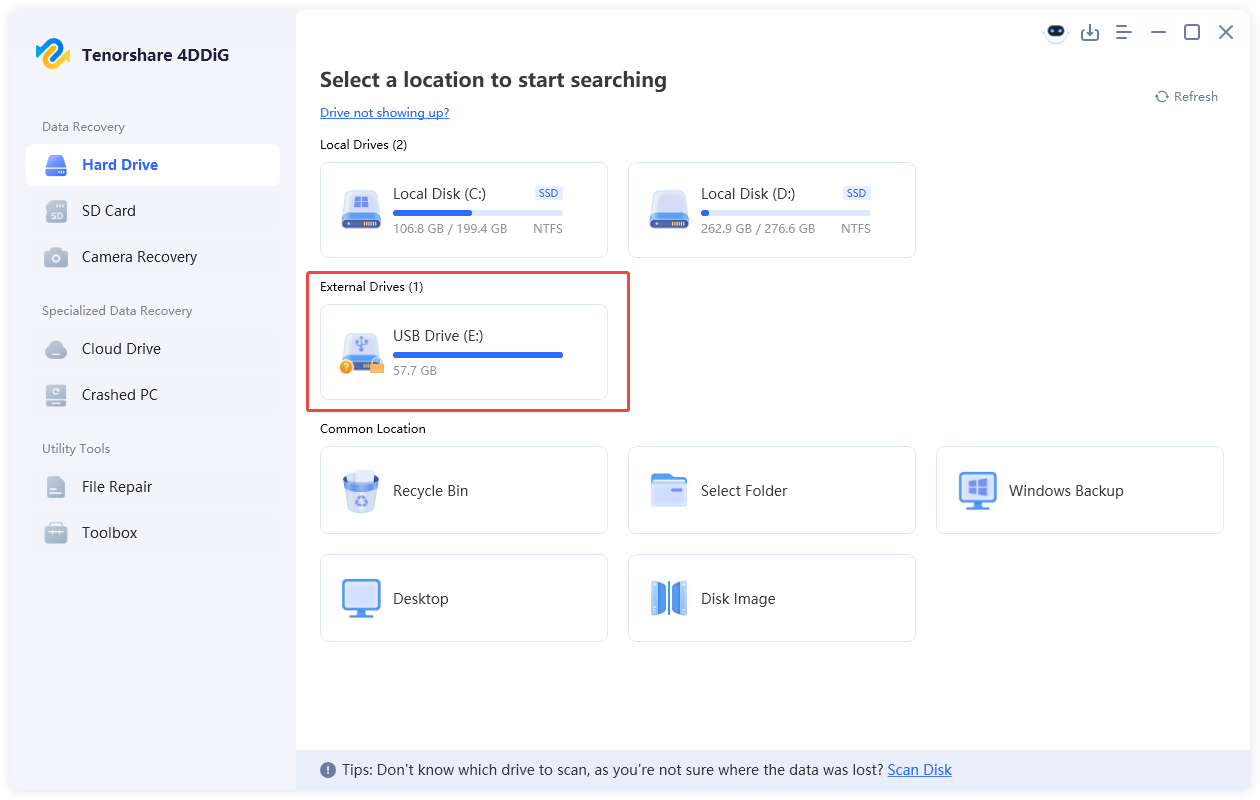
    Download and install the 4DDiG Windows Data Recovery software on your computer. Launch 4DDiG and select the BitLocker-encrypted drive.

    4ddig bitlocker encrypted drive interface
    Note:

    Before scanning, you can attempt one of the following methods:

    • Unlock BitLocker with password or recovery key
    • Use the Automatic Unlock feature
    • Scan and recover the BitLocker drive without unlocking choose scan without unlocking option

    After trying any of these methods, proceed with scanning the drive.

  • Scan the Drive

    Click the file types you want to scan to start scanning the encrypted drive. The software will search for lost or deleted files. When the scanning finishes, you can use the Search or Filter features to find the exact files you are looking for.

    locate files you want to recover
  • Recover Files from BitLocker-Encrypted Drive

    Once the scan is complete, preview recoverable files such as documents, photos, videos, and more. Click any file to see its preview and click the "Recover" button.

    click recover button
  • Save the Recovered Files

    Select desired files and save them to a different location (not the encrypted drive). Click the "Save Now" button, and your file will be successfully saved to a secure location.

    click save now button

Conclusion

Knowing how to check BitLocker status is essential for protecting and managing your encrypted drives. Whether you use Control Panel, File Explorer, Command Prompt, PowerShell, or remote commands, Windows offers multiple reliable methods.

For situations involving inaccessible or encrypted drives, 4DDiG Data Recovery provides a secure way to restore lost data. By understanding these tools, you can confidently monitor and manage BitLocker protection on Windows 10 and Windows 11.

FREE DOWNLOAD

Secure Download

FREE DOWNLOAD

Secure Download

William Bollson (senior editor)

William Bollson, the editor-in-chief of 4DDiG, devotes to providing the best solutions for Windows and Mac related issues, including data recovery, repair, error fixes.

(Click to rate this post)

You rated 4.5 ( participated)