How to Fix AMD Error 182 Step-by-Step?
AMD Error 182 is a frustrating issue that many users encounter while updating graphics drivers. Fortunately, it’s not a hardware failure, but rather a compatibility or configuration problem that can often be resolved. In this article, we’ll cover everything about AMD Error 182, including what it is, why it occurs, and, most importantly, how to fix it step by step and you can also learn some other AMD errors. Let’s dive in.
Part 1. What is AMD Error 182?
What does error 182 mean? In short, AMD Error 182 means the installer cannot detect a compatible AMD graphics configuration on your computer. To prevent instability or system crashes, the installation process stops automatically. And you may see this error with message “Error 182 AMD software installer detected AMD graphics hardware in your system configuration that is not supported.”
Importantly, AMD Error 182 does not mean your GPU is broken. It almost always points to a compatibility issue that the version of AMD software is not compatible with your system. Understanding this distinction is critical because it helps you choose the correct fix instead of reinstalling drivers repeatedly without success.
Part 2: Why Does AMD Error 182 Occur?
At its core, AMD Error 182 happens when there is a mismatch between your system configuration and the AMD driver package. Here are the most common causes:
- Hardware and Driver Mismatch: Laptop manufacturers often customize AMD drivers for power management and thermal control. Installing generic AMD drivers on such systems frequently leads to AMD Error 182.
- OEM-Customized Graphics Drivers: Many laptop manufacturers (HP, Dell, Lenovo, ASUS) customize AMD drivers specifically for their devices. Installing generic AMD drivers on these systems often results in AMD Error 182, even though the GPU is technically supported.
- Legacy or Unsupported AMD GPUs: Older AMD graphics cards may no longer support the latest Adrenalin releases. Attempting to install modern drivers on legacy hardware often results in this error.
- Corrupted or Leftover Driver Files: Failed installations or incomplete removals can leave behind registry entries and driver files. These remnants confuse the AMD installer and cause compatibility detection to fail.
- Windows Version or Architecture Issues: If your Windows build, system architecture (32-bit vs 64-bit), or WDDM version does not meet driver requirements, the installer displays AMD Error 182.
⚡ Part 3: How to Fix AMD Error 182 Step by Step?
Resolving AMD Error 182 requires systematic troubleshooting to address compatibility issues. Here are practical solutions that can help fix this error without further complications.
Fix 1: Download the Correct Drivers
This error often appears when you install the wrong driver for your GPU or Windows version. Using AMD’s official auto-detect tool ensures the driver matches your hardware, preventing the version of AMD software that is not compatible error.
-
Visit AMD's official driver support page. Use the auto detect tool or manually choose your product.
-
Ensure you choose drivers that match your specific hardware model. Then, download and install the recommended version.
Fix 2: Check Windows Update
Some users report that AMD Error 182 still appears even after downloading drivers directly from the AMD official website. This usually happens because certain AMD APUs are supported only through Microsoft, not AMD’s standalone driver installer. In such cases, the AMD installer cannot properly identify the hardware, resulting in Error 182.
-
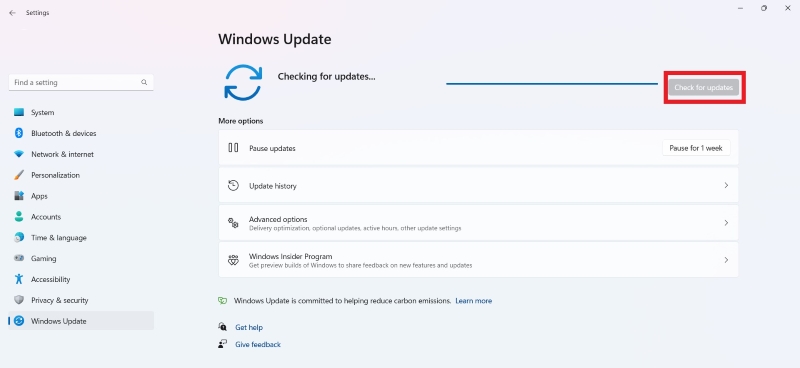
Press Win + I to open "Settings." Click "Update & Security". Under Windows Update, click "Check for updates."
-
If updates are available, then click on "Download and install." Then, restart your computer after installation to check if the error is resolved.
Essential Precaution: Back Up Your Windows System Before Removing Old Drivers
Before you remove old AMD drivers to fix AMD Error 182, it is very important to protect your system first. Driver removal can sometimes lead to black screens, boot failure, or unexpected crashes. A full system backup ensures you can quickly restore Windows if anything goes wrong.
This is where 4DDiG Windows Backup becomes a smart and safe choice. 4DDiG Windows Backup is a reliable Windows backup tool designed for both beginners and advanced users.If you are going to change drivers or adjust system settings, this tool provides a safe, convenient way to protect your data.
Why Choose 4DDiG Windows Backup?
- Comprehensive Backup Capabilities: It lets you create full backups of your system, partitions, or entire disks in one place. This means you can protect everything from critical system files to personal documents without juggling multiple tools.
- Flexible Restore Options: Not only can you back up your data, you can restore just what you need, or perform a full restore when a crash or system failure occurs, saving time and reducing complexity.
- Rescue Tools for Disaster Recovery: If your computer won’t boot, 4DDiG can create a Rescue USB drive that lets you restore from your backup even when Windows won’t start.
- Proven User Satisfaction: With millions of downloads and positive user reviews, many users emphasize how simple yet reassuring the experience is, especially for protecting against accidental deletion or system crashes.
-
Download and install 4DDiG Windows Backup on your computer. Connect an external hard drive or USB to store the backup safely. Open the software and click “Create a Backup Task.”
FREE DOWNLOADSecure Download
-
Choose the system drive (usually C:) or select all partitions for full protection. Then click the folder/file icon to choose where the backup file will be saved.
-
Click “Start Backup”, then confirm the action. The tool will begin backing up your Windows system automatically.
-
Wait for the computer backup program to complete backup. The backup time depends on your data size and disk speed. Once finished, your system is fully protected and ready for safe driver removal.
You can now remove old drivers and fix AMD Error 182 with confidence, knowing your system can be restored anytime if needed. This tool offers comprehensive backup options, scheduled backups, and simple restore functionality.
Fix 3: Remove Old Installations
Old or corrupted driver files can confuse the AMD installer and cause Error 182. Completely removing previous AMD drivers helps the system recognize the new compatible version correctly.
-
Press Win + X, then select "Device Manager." Expand Display adapters.
-
Right-click your "AMD GPU," then click "Uninstall device."
-
Check "Delete the driver software for this device." Then, restart your PC. Reinstall the correct AMD driver.
Fix 4: Disable the Integrated GPU
Many computers, especially laptops and pre-built PCs come with both a dedicated graphics card and an integrated GPU. When this happens, Windows may use the integrated graphics instead of the dedicated one. This can confuse AMD Software and trigger errors like “the version of AMD software is not compatible.”
Disabling the integrated GPU forces your system to use the dedicated graphics card only, which often fixes driver detection and installation problems.
Only disable the integrated GPU if you have a dedicated graphics card (such as NVIDIA or AMD). Otherwise, the screen will go black and nothing will be displayed!
-
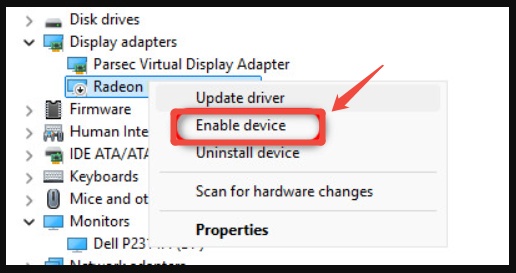
Right-click the Start button and choose "Device Manager." Expand the "Display adapters ” section.
-
Right-click “Integrated GPU” (Intel UHD, Iris, etc.) and choose "Disable device."
-
Click "Yes" when asked to confirm. After that, restart your computer.
Fix 5: Update Drivers through Windows Update
Some AMD APUs (Advanced Processing Units) are not supported by AMD Adrenalin or standard AMD Software. For these models, drivers are delivered only through Windows Update, and attempting to install AMD Software may result in compatibility errors.
-
open Settings > Update & Security > Windows Update. On Windows 7. In the Windows Update, click “Check for updates.”
-
Install all available updates, including AMD driver updates. Restart your computer to apply the changes.
Updating drivers through Windows Update ensures compatibility and stability for older or Windows-managed AMD APUs.
Other AMD Errors & its Common Solutions
Beyond Error 182, AMD users might encounter several other error codes during software installation or updates. Each error has specific causes and solutions worth understanding for comprehensive troubleshooting.
These errors usually relate to corrupted files or network issues, unlike AMD Error 182 which focuses on compatibility.
More FAQs about AMD Error
1. How do I use AMD Cleanup Utility?
Download it from the AMD website and run the executable file. Choose Yes to restart in Safe Mode (for better cleanup). Then, the tool will automatically remove old drivers. Restart when finished, then install the latest AMD drivers. Use only if standard uninstall fails.
2. How to resolve AMD driver timeout?
Use AMD Cleanup Utility to fully uninstall drivers, then reinstall the latest (or a known stable) version from the AMD site. In AMD Adrenalin software: Go to Settings > Graphics and disable Hardware-accelerated GPU scheduling. Update Windows and chipset drivers.
3. What causes AMD drivers to crash?
AMD drivers crash mainly due to buggy/outdated/corrupted drivers, overclocking or undervolting, insufficient PSU power, software conflicts (overlays, anti-cheat, MPO), overheating, or incompatible hardware/RAM. Clean reinstall usually fixes it.
Conclusion
AMD Error 182 can be intimidating, especially when repeated attempts fail because the version of AMD software is incompatible. Fortunately, it is almost always a fixable driver issue. You can resolve the AMD Error 182 safely and effectively by installing the correct drivers, using Windows Update, removing old installations, and protecting your system with 4DDiG Windows Backup. With the right approach, AMD Error 182 becomes a temporary inconvenience rather than a permanent problem.
Secure Download
ChatGPT
Perplexity
Grok