Hulu Error Code P-DEV320: Troubleshooting Tips
Nothing kills a great movie night faster than seeing Hulu error code P-DEV320 flash on your screen. This frustrating error can interrupt streaming on devices from smart TVs to consoles and streaming sticks, leaving you stuck staring at an unhelpful message instead of watching your show.
Fortunately, this guide breaks down exactly what the error means, why it happens, and how you can fix it step by step, no confusing tech jargon, just clear solutions you can try right now. So, let’s get started.
1. What is Hulu Error Code P-DEV320?
Hulu is a popular streaming platform offering movies, TV series, and live TV channels across a wide range of devices. Hulu Error Code P-DEV320 is a common playback error that appears when the Hulu app on your device has trouble communicating with Hulu’s servers. Basically, your device can’t connect properly to the streaming service, so the content fails to load.
🔍 Common Causes of Hulu Error Code P-DEV320
Now you must be wondering “why do I keep getting error code p-DEV320 on Hulu.” Here are the most frequent reasons you might keep seeing this error:
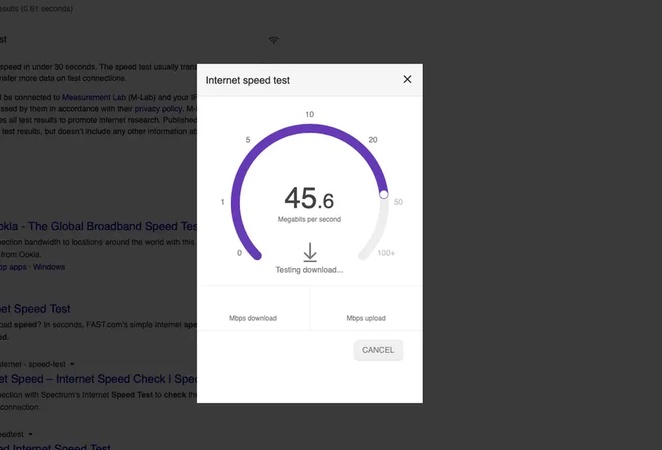
- Unstable or Weak Internet Connection: A slow or unstable internet connection can prevent your device from properly communicating with Hulu’s servers, often causing playback interruptions and triggering error code P-DEV320.
- Outdated Hulu App or Device Software: Running an older version of the Hulu app or outdated device software can lead to compatibility issues, which often result in the P-DEV320 error.
- Corrupted App Cache or Data: Temporary files and cached data can become corrupted over time, interfering with Hulu’s normal operation and causing persistent error code P-DEV320 during streaming.
- Server-Side Issues: Hulu’s servers may occasionally experience downtime or technical difficulties, which can lead to error code P-DEV320 appearing on your device even if everything else is working.
- Device-Specific Glitches or Settings: Certain device settings, such as WiFi roaming or HDCP configurations, can trigger Hulu error code P-DEV320, requiring adjustments to restore proper streaming functionality.
2. How to Fix Hulu Error Code P-DEV320?
Here’s a detailed, research-backed troubleshooting guide with reliable fixes for Hulu error code P-DEV320, covering everything from basic restarts to network and app-level solutions.
Fix 1: Try Another Device
If the error persists on one device but Hulu works on another (like your phone, tablet, or laptop), that tells you the problem is likely device-specific, not a Hulu outage or account issue.
-
Launch Hulu on a different device and see if the content plays.
-
If it does, focus your troubleshooting on the original device (such as restarting it, updating software, or clearing app data). Testing on another device helps isolate the cause quickly.
Fix 2: Turn Off WiFi Roaming & Power Cycle Router
Several users have reported that toggling Wi-Fi roaming settings and power cycling their router can eliminate connectivity issues that cause P-DEV320.
-
Disable Wi-Fi roaming or similar network optimization features on your device.
-
Unplug your modem/router for 20–30 seconds. Plug it back in and wait for it to fully reboot.
This forces a new session with your ISP and often resolves transient network conflicts that block Hulu’s communication.
Fix 3: Use a Wired Connection
Using a wired Ethernet connection can help fix internet problems that Wi-Fi sometimes causes. Connecting your TV, console, or streaming device directly to your router with an Ethernet cable gives a stronger, more stable connection. This makes Hulu run smoother, reduces buffering, and often fixes Hulu error code P-DEV320.
-
Plug one end into your router/modem's LAN port. Plug the other end into your computer's Ethernet port .
-
Return to the setup screen. The network should now appear automatically. Select your wired connection and connect to the internet. After that, relaunch Hulu to check if the issue is resolved.
Avoid Problems: Back Up Your Important Files First
Before you clear the Hulu cache or make changes on your Windows PC, it’s smart to back up your files. 4DDiG Windows Backup is a simple tool that helps you save important files so you don’t lose anything during troubleshooting.
Secure Download
Why Use 4DDiG Windows Backup?
- Flexible Backup Options: Back up your entire system or choose specific files and folders that matter most to you. This flexibility ensures your important data is always protected without taking up unnecessary space.
- Simple and User-Friendly: Designed with ease of use in mind, it works smoothly even if you have little to no technical experience. Just a few clicks are enough to complete a backup.
- Reliable Recovery When Things Go Wrong: If clearing the cache or making system changes causes unexpected issues, you can quickly restore your files and get everything back to normal—saving time, stress, and potential data loss.
-
First, connect an external hard drive to your computer. Open 4DDiG Windows Backup and click “Create a backup task” to get started.
-
Select the drives or partitions you want to back up. Then click the file icon to pick a location where your backup will be saved.
-
Click “Start Backup” and then confirm when prompted. This will start the backup process immediately.
-
Wait for the backup to finish. When the process is done, your files are safely backed up, so you can make changes to your system or clear app caches without worrying about losing data.
Fix 4: Clear Hulu App Cache
Corrupted cache and temporary data are well-known causes of streaming errors. Clearing the Hulu cache often fixes this error. Here are the steps for how do I clear my Hulu cache.
-
Android: Settings > Apps > Hulu > Storage > Clear cache (and optionally Clear data).
-
Fire TV: Settings > Applications > Manage Installed Applications > Hulu > Clear cache.
-
iPhone/iPad: There’s no direct cache option, uninstall and reinstall Hulu instead (this clears all app data).
Clearing the cache forces the app to rebuild its local data, often resolving playback communication errors. And sometimes it also works for Google error 400 and HTTP error 429.
Fix 5: Change the HDCP Setting to 1.4
On some devices, especially gaming consoles and certain TVs, HDCP (High-bandwidth Digital Content Protection) settings can create handshake issues that block playback. Switching HDCP to 1.4 instead of 2.2 may avoid the error.
-
Go to your device’s display or HDMI settings. Change HDCP mode to 1.4 if available.
Restart the device and relaunch Hulu.
This can fix errors related to digital rights management or odd HDMI handshake problems.
Fix 6: Update the Hulu App
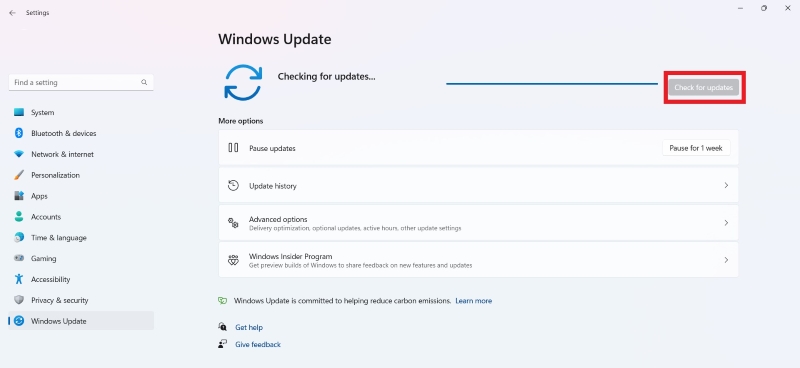
Outdated app versions can lose compatibility with Hulu’s services and trigger P-DEV320. Updating to the latest version ensures you have the current playback engine and communication protocols.
- Android: Open Google Play > Manage apps > Update Hulu.
- iOS: App Store > Updates > Update Hulu.
- Smart TVs/Streaming Devices: Go to your device’s app store and check for updates.
After updating, restart Hulu and test playback again.
More FAQs about Hulu Error Code P-DEV320
1. How do I clear my Hulu cache?
To clear your Hulu cache, go to Settings > Apps > Hulu > Storage > Clear Cache on Android or Fire TV. On iPhone, iPad, or smart TVs, uninstall and reinstall Hulu. This removes temporary files that may cause the P-DEV320 error.
2. What happens if I clear my Hulu cache?
Clearing the cache deletes temporary files and fixes errors. You might need to log in again, but your account and subscription will be safe. It often makes the app run smoother and fixes the P-DEV320 error.
3. Is my internet causing the Hulu problem?
Yes. A slow or unstable internet connection can cause Hulu to show error P-DEV320. Hulu needs at least 3 Mbps for standard video and 8 Mbps for HD. Weak Wi-Fi or network issues can stop the app from connecting to Hulu servers.
4. How do I refresh Hulu on my TV?
To refresh Hulu, close the app and restart your TV or streaming device. You can also restart your router. This helps the app reconnect to Hulu and often fixes error P-DEV320.
Conclusion
Hulu error code P-DEV320 happens when your device can’t connect properly to Hulu’s servers. It can be caused by slow internet, an old app, corrupted cache, or device settings. Most of the time, you can fix it by following the steps above, like clearing the cache, updating the app, using a wired connection, or changing settings.
Before you do anything major, it’s smart to back up your Windows files using 4DDiG Windows Backup. This keeps your important data safe. After these steps, you should be able to watch Hulu without seeing the P-DEV320 error.
Secure Download
ChatGPT
Perplexity
Grok