How to Fix AMD Driver Timeout Error?
5 mins read

Updated on 2026-08-13 18:44:06 to Windows Fix

If your screen suddenly goes black, a game freezes, or AMD Software says AMD software detected that a driver timeout, Windows has likely reset the graphics driver after it stopped responding. The problem can appear while gaming, watching video, browsing in Chrome, or even sitting on the desktop.

An occasional timeout may be temporary, but repeated crashes usually point to a driver regression, unstable memory settings, a power or temperature problem, or a Windows graphics conflict. This guide explains what an AMD driver timeout means and walks through practical fixes from safest to more advanced.

amd driver timeout

1. What is an AMD Driver Timeout?

An AMD driver timeout happens when Windows decides the graphics processor or display driver has taken too long to respond. Windows uses Timeout Detection and Recovery, or TDR, to reset the graphics stack instead of immediately crashing the whole PC. During that reset, the display may flicker or go black, and the game or browser using the GPU may close.

After recovery, AMD Software may open the Bug Report Tool. That does not automatically mean the GPU is failing. A timeout can come from a bad driver build, a game-specific issue, unstable overclocking, memory errors, power delivery, overheating, or another Windows graphics feature.

2. Why Does AMD Driver Timeout Happen?

There is no single cause behind an AMD constant driver timeout. Common possibilities include:

  • A recent AMD driver introduced a regression for your GPU, game, or Windows build.
  • The graphics driver installation is damaged or conflicts with remnants of an older package.
  • XMP/EXPO, GPU overclocking, undervolting, or aggressive tuning is unstable.
  • Multi-Plane Overlay or browser hardware acceleration triggers a display-composition conflict.
  • The GPU overheats, the PSU is insufficient, or PCIe power cables are not connected correctly.
  • The C drive is critically low on free space, limiting temporary files and automatic pagefile growth.
  • Windows triggers TDR because the GPU remains busy longer than the recovery threshold.

That is why an AMD driver timeout windows 11 issue may appear only in one game, only after an update, or only under heavy load.

⚡ 3. How to Fix “AMD Software Detected That a Driver Timeout”?

Start with the fixes below in order. Test the PC after each change so you know which one solved the problem.

Fix 1: Roll Back the AMD Graphics Driver

If the timeout started immediately after a driver update, rollback is one of the best first tests.

  • Press Windows + X and open Device Manager.

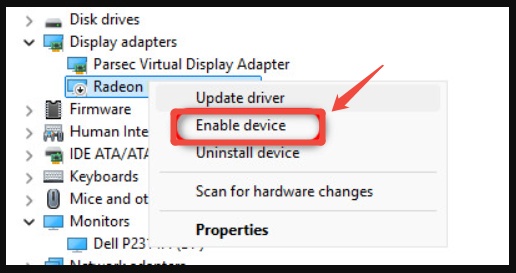
  • Expand Display adapters, right-click your AMD Radeon GPU, and choose Properties.

    locate amd driver
  • Open the Driver tab and select Roll Back Driver if available.

  • Restart Windows and test the same workload again.

If Roll Back Driver is unavailable, download an earlier compatible package from AMD's Previous Drivers section for your exact GPU. If the current installation appears corrupted, AMD Cleanup Utility can remove existing AMD graphics and audio driver components before you reinstall.

Fix 2: Disable Multi-Plane Overlay

Multi-Plane Overlay, or MPO, lets Windows display multiple visual layers through hardware planes. On some systems, disabling it is a useful test for flicker, browser glitches, or graphics-driver resets.

  • Press Windows + R, type regedit, and press Enter.

  • Go to HKEY_LOCAL_MACHINE\SOFTWARE\Microsoft\Windows\Dwm.

  • Create a new DWORD (32-bit) Value named OverlayTestMode. Set its value data to 5.

    create new value in dwm
  • After saving the changes, restart the PC.

If there is no improvement, delete OverlayTestMode and reboot. Create a restore point before editing the registry.

Fix 3: Disable XMP/EXPO Temporarily

XMP and EXPO raise memory speed using a performance profile. Borderline RAM or memory-controller stability can surface during GPU-heavy games even if normal desktop use looks fine.

  • Enter BIOS/UEFI, find XMP, EXPO, DOCP, or the memory profile setting, and switch it to Disabled or Auto.

  • Save changes, boot into Windows, and reproduce the same workload.

If the timeout disappears, keep the profile disabled while troubleshooting instead of changing several voltages at once.

🎉 Bonus: Prevent GPU Crashes Caused by Pagefile Bottlenecks on Low C Drive Space

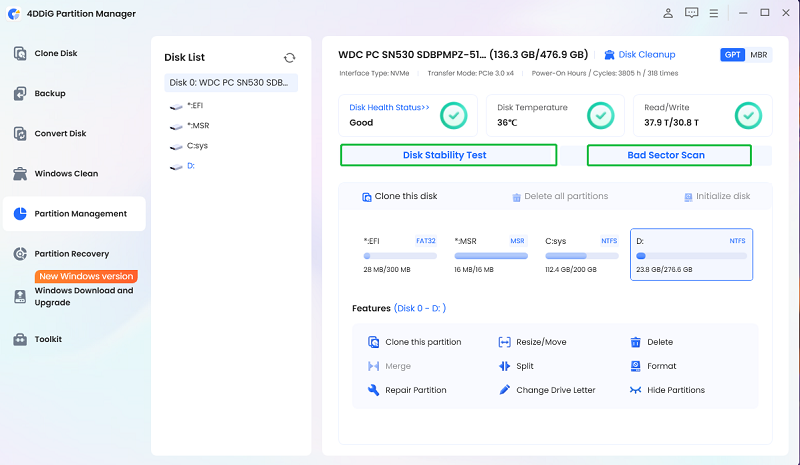
Low disk space on the C drive is not a universal cause of GPU timeouts, but it can reduce headroom for the pagefile, shader caches, crash dumps, updates, and temporary game data. If C is nearly full, adding capacity is worth doing before deeper troubleshooting.

4DDiG Partition Manager can resize or move partitions so more capacity becomes available to the system drive.

  • Open 4DDiG Partition Manager and enter Partition Management. Select the partition you want to resize or move. Click "Resize/Move" in the below menu.

    FREE DOWNLOAD

    Secure Download

    choose resizing partition
  • Next, drag the borders to change its size. Alternatively, you can enter a specified partition size in GB. Once the partition size is set, you can preview the result of the changes you made. If you are satisfied with it, click OK to proceed.

    resize partition
  • Let the operation finish without interruption and click Finish.

    finish resizing partition

Afterward, keep reasonable free space on C and leave the Windows pagefile system-managed unless you have a specific reason to change it.

Fix 4: Inspect Hardware, Power and GPU Tuning

If software changes do not help:

  • Confirm GPU power connectors are fully inserted and use the recommended PCIe cabling.
  • Monitor GPU and hotspot temperature while reproducing the crash.
  • Return any GPU overclock or undervolt to defaults.
  • If practical, reseat the graphics card.
  • As a diagnostic test, slightly lower the maximum GPU clock or power limit.

If stability improves only after underclocking, investigate cooling, power delivery, or GPU stability rather than treating the lower clock as the permanent fix.

Fix 5: Raise the TDR Timeout Value Only as an Advanced Test

Some guides suggest increasing the TDR delay so Windows waits longer before resetting the graphics driver. Microsoft documents these registry values for driver testing and says end users should not normally manipulate them, so use this only after driver, memory, and hardware checks.

If you understand the risk and have backed up the registry:

  • Open Registry Editor. Go to HKEY_LOCAL_MACHINE\SYSTEM\CurrentControlSet\Control\GraphicsDrivers.

  • Create a DWORD (32-bit) value named TdrDelay.

    create tdrdelay
  • Select Decimal and set a modest value such as 8.

  • Restart Windows and test again.

If the problem remains, remove the value and reboot. Never disable TDR completely; a longer delay can hide a symptom without correcting the underlying instability.

More FAQs About AMD Driver Timeout

1. Why does AMD have so many driver timeouts?

Windows reports many different GPU stalls through the same recovery mechanism. A game bug, driver regression, unstable memory, overheating, power instability, or corrupted driver package can all end with a similar message. AMD release notes also periodically list driver-timeout fixes or known issues for particular games and hardware, so the warning is not always proof of a bad GPU.

2. How do I fix the AMD driver timeout error in Chrome?

If the problem happens mainly in Chrome, update Chrome first, then go to Settings > System and turn off Use graphics acceleration when available. Restart the browser. If that helps, update or reinstall the AMD driver and test MPO as described above. If several apps are crashing, focus on the broader AMD driver timeout fix steps instead of treating it as a Chrome-only problem.

Conclusion

When AMD software detected that a driver timeout appears repeatedly, troubleshoot in layers: test a stable AMD driver, disable MPO, return XMP/EXPO and GPU tuning to defaults, check power and temperatures, and only then consider advanced TDR changes.

Also make sure the Windows system drive is not critically low on free space. If C needs more room, 4DDiG Partition Manager provides a visual way to resize and reorganize partitions without rebuilding the entire disk layout manually. The goal is not to suppress the warning, but to remove the condition that keeps making the graphics driver stop responding.

FREE DOWNLOAD

Secure Download

William Bollson (senior editor)

William Bollson, the editor-in-chief of 4DDiG, devotes to providing the best solutions for Windows and Mac related issues, including data recovery, repair, error fixes.

(Click to rate this post)

You rated 4.5 ( participated)