How to Disable BattlEye in GTA 5?
5 mins read

Updated on 2026-09-04 10:10:40 to game

BattlEye is the kernel-level anti-cheat system used to protect GTA Online on PC. If it conflicts with a Story Mode mod, graphics tool, or offline setup, you can disable it for single-player without uninstalling the game. This guide explains how to disable BattlEye GTA 5 through Rockstar Games Launcher, Steam, and Epic Games Launcher, when it is safe, and how to turn it back on before entering GTA Online. Do not use these instructions to bypass protection on official online servers: BattlEye is required to play GTA Online.

1. What is BattlEye in GTA 5?

BattlEye monitors GTA Online sessions for suspicious software, protected-code manipulation, and other activity that could harm online play. The BattlEye service starts with the BattlEye-enabled GTA executable and can inspect game-related processes, drivers, memory, and files. Rockstar states that it only needs to be active for online sessions. Story Mode can run without it, and supported community RP launchers may manage the setting automatically.

Players usually ask how to turn off BattlEye GTA 5 because a single-player script, ReShade-style visual tool, or modded Story Mode installation fails to launch. Disabling the service is a mode choice, not a repair for every crash. If an unmodified game fails, verify files and troubleshoot BattlEye before turning it off.

2. Is It Safe to Disable BattlEye in GTA 5?

Yes, disabling BattlEye is generally safe when you stay in GTA 5 Story Mode. Rockstar explicitly allows platform settings or launch options to disable it for offline play. The practical risk comes from taking modified files or prohibited tools into official GTA Online, not from switching BattlEye off for a private single-player session.

  • Use mods only in Story Mode and keep a clean backup of the game folder.
  • Do not select GTA Online while BattlEye is disabled; official servers will reject the session.
  • Remove or disable incompatible mods and enable BattlEye GTA 5 before returning online.
  • Launch the game from the correct platform rather than an old desktop shortcut with hidden arguments.

3.How to Disable BattlEye in GTA 5 Step by Step?

Close GTA 5 before changing anything. The setting affects how the next session launches, so choose the method that matches the store where you own the PC version.

Method 1: Disable BattlEye via Rockstar Games Launcher

  • Open Rockstar Games Launcher and sign in to the account linked to GTA 5.

  • Select Settings, then choose Grand Theft Auto V under My installed games.

  • Find the BattlEye option and clear the Enable BattlEye checkbox.

    disable battleye on rockstar games launcher
  • Launch GTA 5 from the launcher and choose Story Mode. To go online later, close the game and select the checkbox again.

Method 2: Disable BattlEye in GTA 5 on Steam

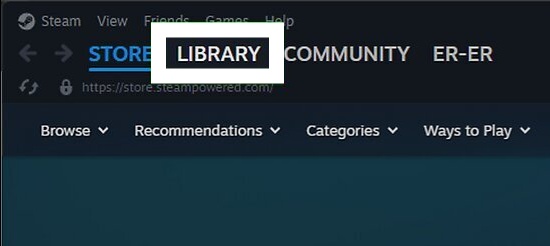
  • Open Steam Library, right-click Grand Theft Auto V, and select Properties.

  • On the General tab, find Launch Options and enter -nobattleye.

    disable battleye on steam
  • Close Properties, start GTA 5, and remain in Story Mode.

  • Before GTA Online, exit the game, delete -nobattleye from Launch Options, and confirm BattlEye is enabled in Rockstar Games Launcher.

Method 3: Disable BattlEye on Epic Games Launcher

  • Open Epic Games Launcher and select Library.

  • Click the three dots beside Grand Theft Auto V and choose Manage.

  • Enable Launch Options, enter -nobattleye, and close the panel.

    disable battleye on epic games launcher
  • Start Story Mode. When you want GTA Online again, remove the argument and re-enable BattlEye in Rockstar Games Launcher.

⚡ Extra Tip: Running Out of Space After Installing GTA 5 Mods?

Large texture packs, replacement vehicles, backups, and duplicated mod folders can consume tens of gigabytes. Low free space can also interrupt updates and make it harder to keep a clean copy for online play. Check the GTA drive before adding another pack.

Fix 1: Extend the GTA 5 Game Partition

If another partition on the same disk has spare capacity, you can use 4DDiG Partition Manager to extend partition space for the GTA partition and resize the layout without reinstalling the game. Make sure to back up important data and maintain a stable power connection before starting.

  • Install and launch 4DDiG Partition Manager. Select "Partition Management". Then select the GTA partition. Click "Resize/Move" in the below menu.

    FREE DOWNLOAD

    Secure Download

    resize partition
  • In the pop-up window, drag and drop the borders of the selected partition to change its size. Alternatively, you can enter a specified partition size in GB. Once the partition size is set, you can preview the result of the changes you made. If you are satisfied with it, click OK to proceed.

    set size of partition
    Note:

    To move a partition, drag the whole partition handle towards unallocated space or manually define the amount of unallocated space in the front or rear part of the partition.

  • Apply the pending operation without interrupting the PC.

    start resizing partition
  • Wait until the partition size is adjusted as expected and click Finish. Then confirm the new free space in File Explorer.

    complete resizing

Fix 2: Clean Up Unnecessary Files

If the drive only needs a few extra gigabytes, cleaning temporary Windows data is faster than changing partitions. Avoid manually deleting unknown files from the GTA directory, because a missing archive can trigger a full download.

  • Open 4DDiG Partition Manager and select Windows Clean. Select the junk file types to clean and click Start Scan to begin scanning.

    FREE DOWNLOAD

    Secure Download

    windows clean
  • Scan the system drive and review the detected temporary files, caches, and update leftovers. Keep any item you are unsure about, then clean only the selected safe categories.

    select items to clean
  • After cleaning, By cleaning up unnecessary files, you can free up valuable storage space and ensure a smoother GTA 5 modding experience.

    clean successfully

More FAQs About BattlEye GTA 5

1. How do I start GTA with no BattlEye?

Disable the launcher checkbox or use -nobattleye in the Steam/Epic launch options, then open Story Mode only.

2. Can you play GTA Online without BattlEye?

Not on official PC servers. BattlEye is required to play GTA Online; supported community RP launchers may use a separate process.

3. How do I uninstall BattlEye?

For Story Mode, disabling it is safer than deleting service files. Verification or an update may reinstall missing components, and online play still requires them.

4. What games use BattlEye?

BattlEye is used by multiple online games, including GTA Online, Rainbow Six Siege, PUBG: Battlegrounds, and ARK titles; implementation varies by game.

Conclusion

Disabling BattlEye GTA 5 is simple: turn it off only for Story Mode, keep mods out of official online sessions, and reverse the setting before GTA Online. Rockstar users can clear the launcher checkbox, while Steam and Epic users can temporarily apply a no-BattlEye launch option. If a growing mod library leaves the drive nearly full, use 4DDiG Partition Manager to clean safe temporary data or resize the game partition after creating a backup. That keeps the offline setup usable without confusing a storage problem with an anti-cheat problem.

FREE DOWNLOAD

Secure Download

William Bollson (senior editor)

William Bollson, the editor-in-chief of 4DDiG, devotes to providing the best solutions for Windows and Mac related issues, including data recovery, repair, error fixes.

(Click to rate this post)

You rated 4.5 ( participated)