6 Proven Methods to Fix White Spots on Mac Screen

5 mins read

Updated on 2026-09-17 17:29:04 to Mac Problems

If you notice white spots on Mac screen, the cause may range from a simple surface mark to a display hardware issue. Before trying to fix the problem, it helps to identify what the spot looks like and whether it also appears in screenshots or on an external display. This guide explains the common causes, how to narrow them down, and what you can do next.

white spots on mac screen

What Do White Spots on a Mac Screen Mean?

White spots on a Mac screen can appear as small bright dots, cloudy patches, or larger areas that look lighter than the surrounding display. They may stay in the same position while you move windows or change the content on the screen.

The size, shape, and behavior of the spot can provide an early clue. A tiny, fixed dot may involve a pixel or subpixel, while a larger or irregular patch may point to display-layer damage.

However, white spots are not always caused by dead pixels. The checks below can help you narrow down the likely cause before deciding whether your Mac needs service.

What Causes White Spots on a Mac Screen?

  • Pressure or Physical Damage: Pressure, drops, impacts, or objects between the keyboard and display can cause white spots on a MacBook display.
  • Backlight or Display-Layer Damage: Damage inside the display can create larger bright areas or a white patch on a MacBook screen.
  • Stuck or Bright Pixels: A faulty pixel or subpixel can appear as a tiny, fixed white spot on your MacBook screen.
  • Dust or Foreign Material: Dust, fingerprints, or other material on the surface can look like a white mark on a MacBook screen.
  • Liquid Damage: A spill or moisture reaching the display can cause white spots and other display or hardware problems.
  • Software or Graphics Issues: Temporary macOS or graphics-rendering problems can sometimes make part of the screen appear abnormally bright.

How to Tell What Is Causing the White Spots on Your Mac Screen

Before replacing the display or arranging a repair, try these checks. They can help determine whether the problem is related to the displayed image, the built-in screen, or another hardware component.

1 Screenshot Test

Take a screenshot while the white spot is visible, then open the screenshot on another device.

If the screenshot looks normal but the white spot remains visible on the Mac's physical screen, the issue is more likely related to the built-in display. If the white spot also appears in the screenshot, check for software or graphics-related issues before assuming the display is damaged.

2 Different Backgrounds Test

Open solid-color backgrounds such as white, black, red, green, and blue, and compare how the spot looks against each background.

Pay attention to whether the spot:

  • Remains in exactly the same physical location
  • Becomes more or less visible
  • Changes in brightness or apparent color
  • Looks like a tiny dot or a larger patch
  • Becomes especially noticeable on light or dark backgrounds

A tiny fixed point may suggest a pixel anomaly, while a larger patch may point to a display-area issue. This test does not provide a definitive diagnosis, but it gives you useful information to share with Apple or a repair provider.

3 External Display Test

Connect your Mac to an external monitor or display and compare the image on both screens.

If the external display looks normal while the built-in Mac screen still shows the white spot, the issue is more likely limited to the built-in display. If the same visual problem appears on both displays, investigate the software or graphics output as well.

How to Fix White Spots on a Mac Screen?

The right fix depends on what the checks above show. A surface mark may need only cleaning, while physical display damage generally requires professional service.

1 Clean the Screen

If the white mark may be dirt, dust, or another surface mark, clean the screen before trying anything more complicated.

Shut down the Mac and unplug the power adapter. For a standard MacBook display, Apple recommends a soft, lint-free cloth dampened with water. Do not spray liquid directly onto the screen or use abrasive materials or excessive wiping.

If your Mac has a nano-texture display, follow Apple's specific cleaning instructions. If the spot remains after proper cleaning, do not press or rub it.

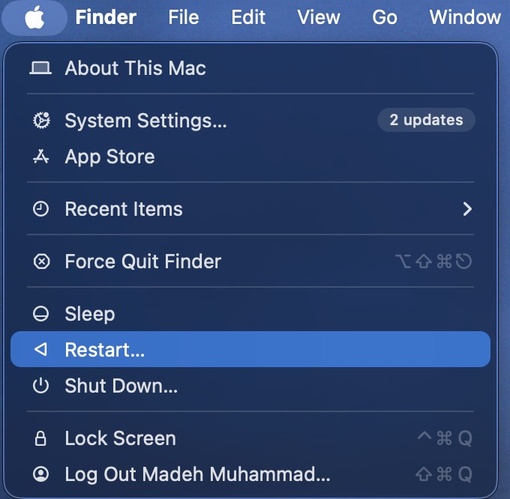
2 Restart Your Mac

Restarting your Mac is a simple way to rule out a temporary software or graphics-rendering problem.

restart mac directly

After restarting, check the same area using different backgrounds. If the problem disappears, appears only in one app, or changes with the displayed content, a software-related issue may be involved.

3 Update macOS

Checking for available macOS updates is another solution.

An update may address system-level display problems, but it will not repair a damaged panel, backlight layer, or physically damaged pixel.

update mac to the latest version

Before a major system update, make sure important files are backed up.

4 Run Apple Diagnostics

If the white spot remains after restarting and cleaning, run Apple Diagnostics to check for possible hardware problems.

On newer versions of macOS, including macOS Tahoe 26 and macOS Golden Gate 27, Apple Diagnostics can offer a built-in display test. If the diagnostic provides a reference code, save it for service.

run apple diagnostics

5 Check AppleCare or Warranty Coverage

If the problem persists, check your current Apple warranty or AppleCare coverage before paying for a repair.

Apple's standard limited warranty does not cover accidental damage. Coverage can differ with an AppleCare plan, so check your specific coverage rather than assuming that a damaged display will be repaired for free.

6 Repair or Replace the Display

If the white spot is caused by physical damage to the display, software troubleshooting usually will not remove it. A service provider may need to inspect the Mac to determine whether the display assembly needs to be repaired or replaced.

Apple recommends using Apple or an Apple Authorized Service Provider for repair services. Repair options and costs can vary depending on the Mac model, location, coverage, and cause of the damage.

Can You Fix White Spots on a Mac Screen Without Replacing the Display?

Sometimes, but it depends on what caused the spot. Dirt or another surface mark may disappear after cleaning, while temporary software or graphics issues may improve after restarting or updating macOS.

Pixel anomalies and physical display damage are different. A tiny bright pixel may remain even when the rest of the display works normally, while larger white patches caused by damage to the display or its internal layers usually require service. Avoid pressing, or rubbing the spot, as additional pressure can make physical display damage worse.

What to Do Before Repairing Your Mac

Before sending your Mac for display service, protect your important files first. If the Mac still starts normally, back up important files with Time Machine or another available backup. If you already have a usable backup, check it before proceeding.

Recover Important Files If You Have No Usable Backup

If the Mac remains accessible but you have lost important files and no usable backup exists, 4DDiG Mac Data Recovery can scan your Mac's internal drive and connected storage devices for recoverable files.

It supports more than 2,000 file types, including photos, videos, documents, and audio files, with free scanning and preview before recovery.

FREE DOWNLOAD

Secure Download

FREE DOWNLOAD

Secure Download

Once important data is safely backed up or recovered, you can proceed with display diagnostics or repair with less risk to your files.

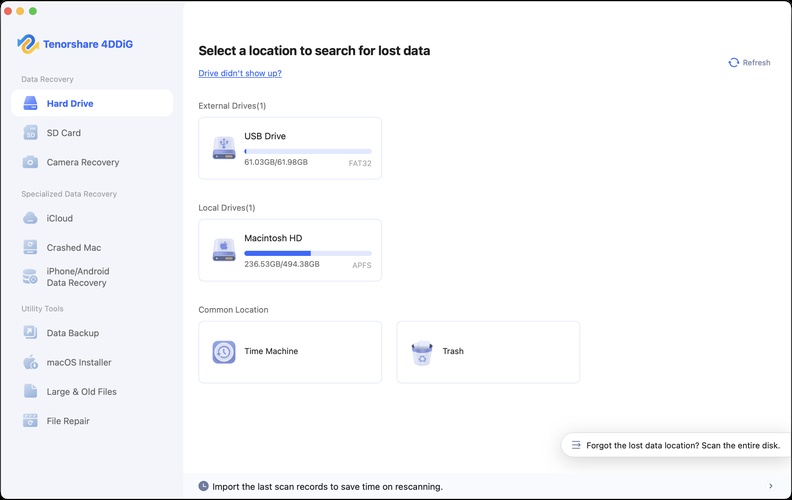
  • Download and open 4DDiG. Select your Mac's internal drive or the connected storage device where the important files were stored.

    select a mac drive to recover lost files
  • 4DDiG will scan the selected drive for your files. Use the file type filters or search to find important documents, photos, videos, and other files.

    find files on mac with 4ddig
  • Preview the files found by the scan and select the ones you want to recover. Click the "Recover" button to restore them.

    preview and recover files
  • Save the recovered files to another drive or a safe location before sending your Mac for display repair.

    save recovered files
Important:

Do not save recovered files to the same drive. Use another drive or a safe location such as OneDrive or Google Drive to reduce the risk of overwriting other recoverable data.

How to Prevent White Spots on a Mac Screen

You can reduce the risk of physical display damage with a few simple habits:

  • Check the keyboard for objects before closing your MacBook.
  • Avoid putting pressure on the lid or display.
  • Do not place heavy objects on a closed MacBook.
  • Use a suitable protective sleeve when carrying your MacBook.
  • Keep liquids away from your Mac.
  • Clean the display with the appropriate materials and methods.
  • Avoid pressing the screen with your fingers or other objects.

These precautions are especially useful for preventing pressure-related damage and accidental screen damage.

Conclusion

White spots on a Mac screen can be caused by dirt, pixel problems, or display damage. What you should do depends on the cause, and spots that do not go away may need repair. If you have important files without a usable backup, recover them first. 4DDiG Mac File Recovery can scan supported Mac storage for lost files before you send your Mac for repair.

FREE DOWNLOAD

Secure Download

FREE DOWNLOAD

Secure Download

William Bollson (senior editor)

William Bollson, the editor-in-chief of 4DDiG, devotes to providing the best solutions for Windows and Mac related issues, including data recovery, repair, error fixes.

(Click to rate this post)

You rated 4.5 ( participated)