macOS Golden Gate Bugs and Fixes: 10 Known Issues in 2026

5 mins read

Updated on 2026-09-17 19:34:13 to Mac Update

macOS 27 Golden Gate brings a redesigned experience, but some users may still encounter unexpected issues after upgrading. However, not every issue means macOS 27 has a bug. Some problems may disappear after indexing, syncing, or other background tasks finish.

This guide covers the most common macOS Golden Gate bugs and fixes, with practical steps to help you identify the cause and restore normal performance.

how to back up mac with time machine

How to Back Up Your Mac Before Troubleshooting Golden Gate Issues?

Before making major changes to your Mac, back up important files. This is especially important before reinstalling macOS, erasing a disk, or downgrading to an earlier version.

Apple recommends using Time Machine to automatically back up your files. You can also use iCloud to keep supported files and data synced across your devices.

how to back up mac with time machine

If you already have a recent backup, verify that you can access the files you need before starting more advanced troubleshooting.

10 macOS Golden Gate Known Issues & Fixes

The following macOS Golden Gate known issues cover common problems users may experience after upgrading to macOS 27. Some are temporary post-update behavior, while others are related to app compatibility, system settings, or specific features.

1. macOS Golden Gate Running Slow

One of the most common complaints after a major macOS update is slower performance. Your Mac may take longer to open apps, switch between windows, or respond to system controls.

This does not always indicate a macOS bug. After an upgrade, macOS may continue indexing files, processing Photos, or completing other background tasks.

Try these fixes:

  • Wait for background processes to finish, especially shortly after the upgrade.

  • Open Activity Monitor and check for processes using unusually high CPU or memory.

  • Update apps that may not yet be optimized for macOS 27.

  • Temporarily disable third-party utilities that modify system behavior.

If performance remains poor after these steps, test the Mac in Safe Mode to determine whether startup software is contributing to the problem.

2. Apps Crashing or Not Working on macOS Golden Gate

Some apps may stop working correctly after upgrading to macOS 27. The cause is often related to outdated software, extensions, or compatibility changes rather than macOS itself.

This can be especially relevant for older apps that depend on Intel-based components. Apple continues to support Intel apps through Rosetta on Apple silicon Macs, but developers may still need to update their software for newer macOS releases.

You can usually resolve app compatibility problems with the following steps:

  • Update the affected app to its latest version.

  • Check whether the app or developer has announced macOS 27 compatibility information.

  • Remove or update related extensions and background utilities.

  • Reinstall the app if the problem continues.

If only one app is affected, focus on that app before treating the issue as a system-wide macOS problem.

3. Mission Control Not Working on macOS Golden Gate

Mission Control and Spaces may behave unexpectedly on macOS 27. Some users have reported issues such as broken animations, missing windows, or problems moving full-screen apps between displays.

mission control not working on mac

Try these troubleshooting steps:

  • Test Mission Control with the default trackpad gestures.

  • Disconnect external displays and test again.

  • Temporarily disable third-party mouse or window-management utilities.

  • Update those utilities to versions that support macOS 27.

One example is Mac Mouse Fix, where some users have reported that actions assigned to Spaces and Mission Control stop working on Golden Gate, while other mouse functions continue to work.

If Mission Control works normally with a standard trackpad but fails through a third-party mouse utility, the utility is a more likely source of the problem.

4. macOS Golden Gate Battery Draining Fast

Some users may notice faster battery drain after upgrading to macOS 27, especially shortly after installation.

This is often temporary because macOS may continue background tasks such as indexing, synchronization, and app updates after the upgrade.

macos battery draining fast

To reduce battery drain, try the following:

  • Check Battery and Activity Monitor for apps using excessive energy.

  • Update apps that run in the background.

  • Review Login Items and remove unnecessary background apps.

  • Give macOS time to complete post-update background tasks.

If one application consistently uses excessive energy, check that app before assuming the operating system is responsible.

4DDiG Mac Data Recovery Software

Still seeing problems after an update? 4DDiG can scan your Mac for recoverable files before you continue troubleshooting.

5. Wi-Fi Keeps Disconnecting on Golden Gate

Some users may experience Wi-Fi connection problems after updating to macOS 27. The issue may come from network settings, VPN software, security tools, the router, or the Mac itself.

Try these fixes:

  • Restart your Mac and Wi-Fi router.

  • Test another Wi-Fi network.

  • Temporarily disable VPN or network security software.

  • Forget the affected Wi-Fi network and reconnect.

If Wi-Fi works normally on another network, the problem may be related to the original network rather than Golden Gate itself.

6. External Display or Screen Problems

External display problems after upgrading to macOS 27 is another problem, especially when connecting monitors or display accessories.

Before replacing hardware, check whether the issue comes from macOS settings, connected accessories, or third-party display tools.

Check the following troubleshooting steps:

  • Disconnect and reconnect the display.

  • Check the cable, adapter, and port.

  • Open "System Settings > Displays" and check the display configuration.

  • Test the display without third-party display utilities.

  • Update macOS and display-management software.

If the issue appears only when using an external display, compare the behavior with the built-in Mac display. This can help separate a system-wide problem from a display or configuration issue.

7. macOS Golden Gate System Crashes or Restarts

Unexpected crashes or restarts after upgrading to macOS 27 can come from both software and hardware-related problems.

Incompatible software, system extensions, storage problems, and hardware issues can also trigger crashes.

macos system crashes

Try these fixes:

  • Disconnect unnecessary external devices.

  • Remove recently installed utilities or system extensions.

  • Test the Mac in Safe Mode.

  • Run Apple Diagnostics if you suspect a hardware problem.

Avoid immediately erasing the Mac unless simpler troubleshooting has failed. A reinstall or erase can introduce unnecessary data-loss risks.

8. macOS Golden Gate Uses Too Much Memory

You may notice high memory usage or frequent slowdowns after upgrading to macOS 27.

High RAM usage does not automatically mean macOS has a memory leak. macOS uses available memory to improve performance, and individual apps can also consume large amounts of RAM.

macos uses too much memory

To reduce memory usage, try these steps:

  • Close apps that use excessive memory.

  • Update apps with unusually high memory usage.

  • Disable unnecessary browser extensions.

  • Reduce the number of apps running at startup.

If one application consistently consumes excessive memory, update or reinstall that app before changing system settings.

9. macOS Golden Gate Uses Too Much Storage

After upgrading, your Mac may appear to have less free storage than expected. System Data may also temporarily take up more space.

Temporary files, caches, indexing data, and applications can increase storage usage after an upgrade.

macos system data

To free up storage space, try these steps:

  • Open "System Settings > General > Storage".

  • Identify large files and applications you no longer need.

  • Empty the Trash.

  • Remove unnecessary downloads.

  • Check old backups and large media files.

Avoid manually deleting unknown files from system folders. macOS manages many system files automatically, and removing the wrong files can create additional problems.

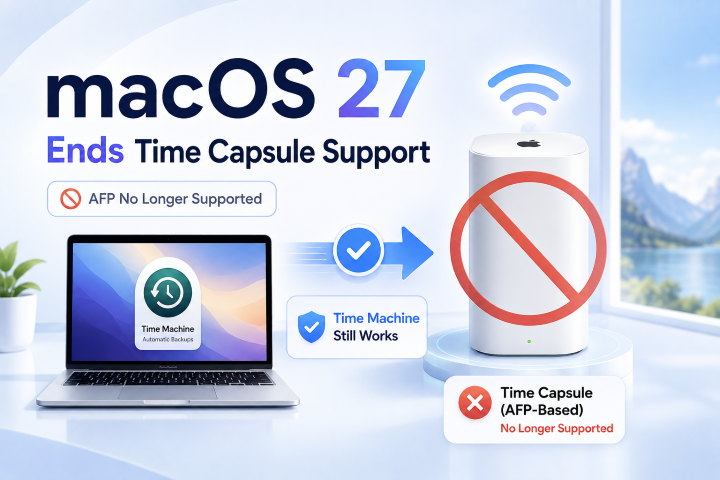
10. Time Machine or Backup Problems

Time Machine problems can appear after a macOS upgrade. A backup may take longer, fail to complete, or become unavailable.

These problems are usually related to the backup disk, available storage, network connection, or compatibility changes after the update.

Try these fixes:

  • Check the available space on the backup disk.

  • Make sure the backup disk is connected correctly.

  • Check the network connection for network-based backups.

  • Temporarily disable VPN or third-party security software.

  • Check whether the backup disk is supported by Time Machine.

Before erasing, reinstalling, or downgrading macOS, make sure your important files exist in a usable backup.

How to Recover Files If Golden Gate Causes Data Loss?

Some macOS Golden Gate problems can lead to file loss after failed updates, downgrades, or reinstallations. In this case, check available backups before attempting recovery first.

If you don't have a backup available, 4DDiG Data Recovery can scan your Mac drive and connected storage devices, including USB drives and SD cards, to help find and recover files lost after a macOS 27 update or accidental deletion.

SCAN FOR LOST FILES

Secure Download

SCAN FOR LOST FILES

Secure Download

  • Download and install 4DDiG on your Mac. Select the drive where you lost files to start the scan.

    select a drive to recover lost files on Mac with 4DDiG
  • 4DDiG automatically scans the selected location for lost files. You can check scan results while the process continues or wait until the scan completes.

    preview recoverable files after macOS update with 4DDiG
  • Browse the scan results by file type or search for specific files such as photos, videos, documents, or other data. Then click the "Recover".

    preview and recover lost files after macOS Golden Gate issues
  • Restore the selected files and save them to another drive or storage location. Avoid saving them back to the same drive where the files were lost.

    save recovered files after macOS Golden Gate data loss

Conclusion

Most macOS Golden Gate bugs can be handled by identifying the cause before making major system changes. Many issues come from compatibility problems, background processes, or system settings rather than macOS itself.

Before trying advanced fixes, make sure your important files are backed up. If Golden Gate causes unexpected file loss and no backup is available, 4DDiG Data Recovery can scan your Mac storage and help recover missing files.

William Bollson (senior editor)

William Bollson, the editor-in-chief of 4DDiG, devotes to providing the best solutions for Windows and Mac related issues, including data recovery, repair, error fixes.

(Click to rate this post)

You rated 4.5 ( participated)