Modern Warfare 4 Beta Not Working? Try These Fixes

5 mins read

Updated on 2026-09-04 10:10:40 to game

Running into launch errors, connection failures, or endless loading while trying to access the Modern Warfare 4 Beta? In many cases, these issues are related to incomplete installations, missing content packs, outdated drivers, or requirements such as TPM 2.0 and Secure Boot rather than hardware limitations.

This guide covers the most common reasons why the Modern Warfare 4 Beta may fail to launch and provides step-by-step fixes, starting with server and access checks before moving to file repair, driver updates, and advanced PC settings. Check the basic requirements first, then move through the troubleshooting steps below to get back into the Beta.

1. Modern Warfare 4 Beta Not Working? Check These First

Check the official server status

First, check Activision Online Services and the online status of your platform. When the beta first goes live, servers frequently fill to capacity. You may sit in a queue or see connection timeouts even with a perfect internet connection.

  • Close the Beta completely and wait a few minutes before trying again.
  • Check Activision service updates and your platform status for Xbox, PlayStation, Steam, or Battle.net.

Check your internet connection

If the services are online but you cannot connect, restart the router and your PC or console. Use a wired connection if possible, temporarily disable a VPN or proxy, and test another network if one is available. A connection that works through another network points to a local router, DNS, or ISP problem.

Activate your Beta access

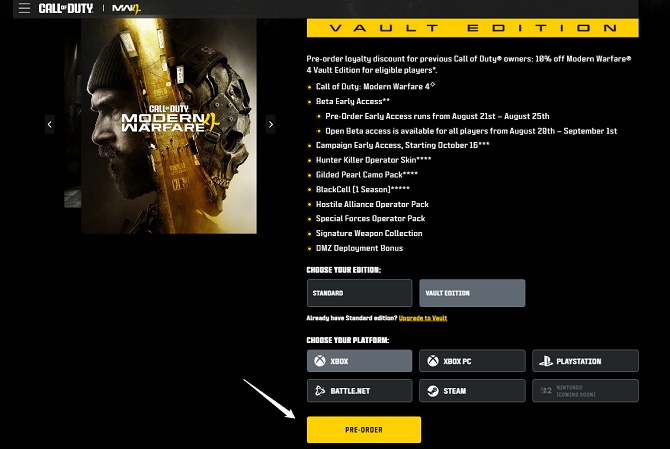
Early Access requires the correct entitlement, code, platform, and account. Confirm that your Beta code was redeemed on the Activision Account linked to the platform you are using. If the Beta is not visible, sign out of the launcher, restart the device, and sign in again with the purchasing or redeeming account.

2. Why Is the COD MW4 Beta Not Working?

When the Modern Warfare 4 Beta not working persists after the basics, the root cause is usually one of the issues below. Matching the symptom to the cause saves time.

Possible cause Typical symptom
Missing update Version mismatch or update loop
Incorrect installation Beta absent or launch button unavailable
Missing content pack Game starts but cannot enter matchmaking
PC security requirement TPM 2.0 or Secure Boot error
Corrupt files or outdated drivers Crash, freeze, black screen

Activision explicitly requires TPM 2.0 and Secure Boot for online modes. Without them the client may launch but refuse multiplayer. Missing Multiplayer or Warzone packs (especially on Xbox) produce a working title screen that cannot queue. Outdated GPU drivers or half-downloaded files are the leading causes of MW4 beta crashing and freezes.

⚡ 3. How to Fix Call of Duty MW4 Beta Not Working

Fix 1: Install the Latest Beta Update

The first thing to check is whether your MW4 has the latest patch installed. Beta builds are frequently updated throughout the testing period, with patches introducing bug fixes, gameplay adjustments, and stability improvements. Running an older build may prevent you from accessing the Beta properly or cause issues that have already been fixed in a newer update.

On Steam:

  • Open Steam. Go to your Library. Find Modern Warfare 4 Beta.

  • Right-click the game and select Properties.

    click properties in steam
  • Open the Updates tab and make sure automatic updates are enabled.

  • If an update is available, Steam will download and install it automatically.

On Xbox Series X|S:

  • Open My games & apps. Select Modern Warfare 4 Beta.

  • Press the Menu button. Choose Manage game and add-ons.

  • Check for available updates and install them.

If you need more details about the MW4 Beta, this guide covers everything you need to know.

Fix 2: Verify the Integrity of Game Files

Use file verification when the Beta crashes at startup, freezes after an update, or shows a black screen. It replaces missing or corrupted files without immediately downloading the complete game again.

Steam:

  • Open Steam and go to your Library.

  • Find Modern Warfare 4 Beta, right-click it, and select Properties.

  • Open Installed Files. Click Verify integrity of game files.

    verify integrity of game files

Wait for Steam to complete the scan and repair any missing or corrupted files.

Battle.net:

Launch the Battle.net app. Select the Modern Warfare 4 Beta page.

Click the Settings icon next to the Play button. Choose Scan and Repair.

Xbox App (PC)

  • Open the Xbox App and find Modern Warfare 4 Beta.

  • Open the game menu and select Manage. Go to Files.

  • Select Verify and Repair if the option is available.

After the repair is complete, restart the game and check whether the launch error or loading issue has been resolved.

Fix 3: Check TPM 2.0 and Secure Boot status

PC players need both TPM 2.0 and Secure Boot enabled for online Beta play. Activision also provides the Call of Duty Secure Attestation Wizard to verify whether a PC meets these requirements.[web:88]

  • Press Windows + R, type tpm.msc, and press Enter.

  • Confirm that TPM is ready for use and that the specification version is 2.0.

    tpm status
  • Press Windows + R, type msinfo32, and press Enter.

  • Confirm that BIOS Mode is UEFI and Secure Boot State is On.

    secure boot status

If either setting is disabled, enable Secure Boot and TPM in BIOS or UEFI. BIOS menus differ by motherboard. Back up important files and check the manufacturer’s instructions before changing boot settings.

Bonus Tip: Can't Enable Secure Boot on MW4 Beta? Convert MBR to GPT First

If Windows reports Legacy BIOS mode or the system disk uses MBR, Secure Boot may not be available until the disk and boot configuration support UEFI. First confirm the disk style in Windows Disk Management and back up important data. Do not convert a system disk casually: an incorrect boot configuration can prevent Windows from starting. 4DDiG Partition Manager’s Convert MBR to GPT function can help prepare a system disk for UEFI and Secure Boot.

  • Download and install 4DDiG Partition Manager on your PC. Open the program, then select Convert Disk from the left-side menu and choose Convert MBR to GPT to start the process.

    FREE DOWNLOAD

    Secure Download

    mbr to gpt
  • Choose the disk you want to convert and click Continue to enter the conversion interface.

    choose disk to convert
  • If the selected disk is your system disk, the program will automatically download the required PE components. Once the download is complete, a confirmation window will appear. Make sure all important files are saved and that your computer has a stable power supply. Click Sure to restart your computer and boot into the PE environment.

    click sure
  • After your computer starts in the PE environment, open 4DDiG Partition Manager again and select Convert MBR to GPT.

    select mbr to gpt again
  • Select the target disk and click Continue to begin the conversion process.

    select target disk again
  • Once the conversion is complete, you will see a success message. Follow the on-screen instructions to restart and configure your computer boot settings. Incorrect boot settings may prevent your system from starting properly.

    follow guide to boot pc

After the conversion, restart the computer, switch the firmware boot mode to UEFI, enable Secure Boot.

Fix 4: Reinstall the Standalone Beta

Reinstalling should be a later step, not the first response to a Modern Warfare 4 Beta stuck on loading screen problem. Use it when verification fails repeatedly, required content is missing, or the wrong package was installed.

  • Uninstall the Beta from the platform where it was installed.

  • Restart the PC or console. Search for Modern Warfare 4 Beta as a separate product and install it.

    reinstall mw4 beta
  • Restart the launcher and allow shader preloading to finish on PC.

More FAQs About COD MW4 Beta

1. Why is the Beta stuck on “Checking for Updates”?

The likely causes are server congestion, a missing update, incomplete content packs, or a network problem. Restart the launcher and router, verify the installation, and check the Xbox App’s Manage section for missing packs.

2. How do I redeem my Beta code for Modern Warfare 4?

Open the official Call of Duty redemption page, sign in to the correct Activision Account, enter the code, select the intended platform, and then restart the platform launcher. If Early Access does not appear, confirm that the code was not already used and that the selected platform matches your installation.

3. Why is the Beta not showing in my Xbox App library?

Search for Modern Warfare 4 Beta manually in the Xbox App or Microsoft Store. The Beta is a separate download, and community reports indicate that installing only the main Call of Duty application or an add-on may not be enough. You can also open the official Xbox Store page in a browser and select Install to hand the request to the Xbox App.

Conclusion

When the Modern Warfare 4 Beta not working, begin with the Beta schedule, server status, account access, and standalone installation. Then install the latest update, verify the files, and check your network. PC players should confirm TPM 2.0 and Secure Boot before changing BIOS settings.

If Secure Boot is blocked by an MBR/Legacy configuration, 4DDiG Partition Manager’s Convert MBR to GPT function may help prepare the system for UEFI, but back up your data and follow the disk-conversion instructions carefully. Reinstall the Beta only after these checks fail, and contact Activision Support with the exact error, platform, and screenshots.

FREE DOWNLOAD

Secure Download

William Bollson (senior editor)

William Bollson, the editor-in-chief of 4DDiG, devotes to providing the best solutions for Windows and Mac related issues, including data recovery, repair, error fixes.

(Click to rate this post)

You rated 4.5 ( participated)