Roblox Error 403: Quick and Effective Ways to Fix the Authentication Error

5 mins read

Updated on 2026-09-04 10:10:39 to game

Encountering Roblox error 403 indicates a permission denial or session conflict between your local client, browser credentials, and server permissions. This access glitch typically surfaces alongside prompt notifications stating “an error was encountered during authentication Roblox”.

Fortunately, resolving this issue requires no complex technical wizardry. Follow this comprehensive walkthrough to diagnose root causes and apply proven solutions to restore uninterrupted access quickly.

⚡ Quick Preliminary Checks

  • Check Roblox Server Status: Visit status.Roblox.com to verify whether system-wide outages or server maintenance are currently affecting authentication operations.

  • Restart the Roblox Player & PC: Log out of your account, shut down the Roblox client, terminate background processes via Task Manager, and reboot your computer.

  • Switch Your Network Connection: Connect your PC to a mobile hotspot or alternative Wi-Fi network to quickly rule out local ISP routing conflicts, DNS blockages, or router misconfigurations.

1.What is Error Code 403 Roblox?

Understanding the error code 403 Roblox meaning is the first step toward effective troubleshooting. In standard web networking, HTTP 403 Forbidden signals that a server understands your request but explicitly refuses to authorize access.

roblox error 403

When applied to the Roblox ecosystem, it means the game server cannot validate your account session or security token. Rather than a total platform crash, it represents an intentional security restriction triggered when your local request fails verification criteria.

❓ Common Causes of Roblox Error 403

Several underlying technical factors can trigger this error prompt on your system:

  • Corrupted Local Cache Files: Over time, accumulated temporary app data, session logs, and cached web files can become corrupted, corrupting authentication handshakes.
  • Strict Security Controls: Overprotective Windows Defender Firewall rules or third-party antivirus software can inadvertently block outbound Roblox client connections.
  • VPN & Proxy Routing Conflicts: Active Virtual Private Networks or proxy services alter your IP address mid-session or route traffic through suspicious nodes, triggering anti-cheat and security filters.
  • Third-Party Extension Interference: Browser extensions, particularly ad-blockers, custom script runners, or Roblox enhancement tools, can modify login headers and prevent successful token validation.
  • Residual Installation Artifacts: Incomplete software updates or leftover files from past installations can cause version mismatches between client binary files and authentication servers.

⚡ 2.How to Fix Error Code 403 Roblox?

If preliminary checks do not clear the issue, work through these definitive, step-by-step methods designed to resolve Roblox error 403 authentication failed issue across all system configurations.

Fix 1: Disable Firewall Temporarily

Aggressive security policies can intercept security verification responses, leading to an unexpected error during authentication Roblox notification. Testing connectivity with your firewall disabled helps confirm whether local security rules are the culprit.

  • Press Windows Key + S, type 'Windows Defender Firewall', and press Enter.

  • In the left-hand navigation pane, select 'Turn Windows Defender Firewall on or off'.

  • Select 'Turn off Windows Defender Firewall' for both Private and Public network settings.

    disable firewall
  • Click OK to apply changes, then launch Roblox to check if the error is resolved.

Note:

Remember to re-enable your firewall immediately after testing and add Roblox as an allowed app exception if this step fixes the issue.

Fix 2: Disable VPN, Proxy, and Browser Extensions

Network obfuscation tools often mask essential headers, resulting in a warning due to IP reputation mismatches or header stripping.

  • Open your VPN client software and terminate any active encryption connections.

  • Press Windows Key + I to open Settings > Network & internet > Proxy. Under 'Manual proxy setup', toggle off 'Use a proxy server'.

    disable proxy
  • Then, open your browser's extension management page, disable ad-blockers and Roblox-related scripts, then restart your browser.

Fix 3: Clear Roblox Cache

Stale temporary app data and corrupted cache files are among the most frequent causes of persistent Roblox error 403 problems. While manual deletion works, residual system clutter can remain scattered across hidden directories. To ensure a thorough system cleanup without accidentally removing important personal files, 4DDiG Partition Manager provides a reliable, automated solution.

While known primarily for advanced disk cloning and partition management, 4DDiG Partition Manager features a dedicated Windows Clean module. This utility scans system drives to safely target system temporary files, junk caches, and application residual data, eliminating corrupt session files while keeping pre-installed Windows apps untouched.

  • Download and install 4DDiG Partition Manager from its official platform, then launch the software. Navigate to the 'Windows Clean' module. Click Start Scan button to initiate a comprehensive system scan.

    FREE DOWNLOAD

    Secure Download

    windows clean
  • Review the scanned junk categories and click 'Clean' to wipe out cached system clutter safely.

    select items to clean
  • After cleaning, reboot your computer and launch Roblox.

    clean successfully

Fix 4: Reinstall Roblox Completely

When basic troubleshooting steps fail to fix Roblox error 403 authentication failed errors, executing a full reinstallation ensures all corrupt client binaries are replaced.

  • Open Control Panel > Uninstall a program, search for 'Roblox', and click Uninstall.

    uninstall roblox
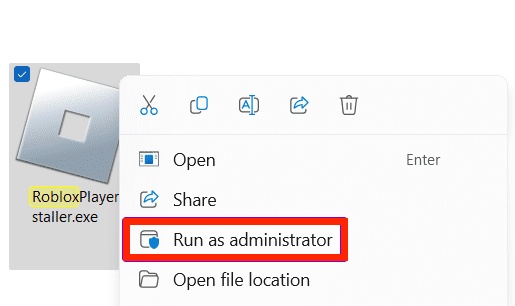
  • Press Windows Key + R, type '%localappdata%' and press Enter. Locate the 'Roblox' folder and delete it completely.

    delete roblox folder
  • Visit Roblox.com, log into your account, select any experience, and click Play to prompt a fresh installation download.

More FAQs about Roblox Error 403

1.What does it mean authentication failed?

An authentication failure indicates that Roblox game servers could not verify your login security token. This happens when saved login credentials expire, session cookies corrupt, or network proxies alter authentication data sent between your PC and server.

2.How to bypass error code 403 Roblox?

To bypass this barrier effectively, systematically eliminate network and client obstacles: disable VPNs/proxies, turn off browser ad-blockers, clear leftover AppData cache, and restart your network router. For persistent issues, clearing system junk with 4DDiG Partition Manager or performing a clean reinstallation ensures normal authorization resumes.

Conclusion

Dealing with Roblox error 403 can be frustrating, but it is straightforward to resolve with the right troubleshooting workflow. By verifying server status, adjusting firewall policies, disabling active VPNs, and clearing cached session data, you can quickly restore access to your account.

To maintain peak system performance and prevent recurring cache glitches, we highly recommend utilizing 4DDiG Partition Manager. Its built-in Windows Clean feature removes system clutter safely and keeps your PC optimized for uninterrupted gaming sessions.

FREE DOWNLOAD

Secure Download

Ehtsham Ahmed (senior editor)

Ehtsham Ahmed, the content writer for 4DDiG, is dedicated to offering workarounds for Windows Data Recovery, Windows Troubleshooting, iDevices System Repair, etc.

(Click to rate this post)

You rated 4.5 ( participated)