Battlefield 6 Not Launching on PC? Try These Fixes

5 mins read

Updated on 2026-09-04 10:10:40 to game

When Battlefield 6 not launching on PC, the issue usually traces back to a handful of common culprits — drivers, game files, or system settings standing between you and the battlefield. This guide walks through the most reliable fixes, such as verifying game integrity, updating critical components like GPU drivers and other practical fixes. Each step is designed to isolate the cause and get the game running with minimal trial and error.

Quick Preliminary Checks

Before trying advanced solutions, start with these simple checks:

  • Restart your PC and launcher: Close the EA app or your game launcher completely, restart Windows, and try launching Battlefield 6 again.
  • Run BF6 as Administrator: Right-click the Battlefield 6 executable or shortcut and select Run as administrator. This can resolve problems caused by insufficient permissions.

1. Why Battlefield 6 Won’t Launch?

There are several reasons why Battlefield 6 may fail to start on a Windows PC. Identifying the possible cause can make troubleshooting much easier.

Corrupted or Missing Game Files

This can happen after an interrupted update, failed installation, or unexpected system shutdown. If an important game file is damaged, the launcher may fail to start the game correctly.

Outdated or Incompatible Graphics Drivers

An outdated, incompatible, or recently updated graphics driver can also cause launch problems. Battlefield 6 relies heavily on the GPU driver, so driver conflicts may result in crashes or a game that never opens.

Windows Security or EA Anti-Cheat Issues

Certain protection settings may prevent the game executable or its anti-cheat components from running normally. Similarly, problems with EA Anti-Cheat can stop the game before you even reach the main menu.

Corrupted Cache or Disabled Secure Boot

Corrupted shader caches, temporary files, or BIOS security settings such as Secure Boot may contribute to startup issues. These problems can interfere with the game's initialization process and prevent it from launching properly.

⚡ 2. How to Fix Battlefield 6 Not Launching?

Fix 1: Verify Integrity of Game Files

Damaged, missing, or corrupted game files can prevent Battlefield 6 from starting correctly. Fortunately, you can use the EA app’s repair feature to check the game files and replace any that are damaged.

  • Open the EA app on your PC, go to Library, and find Battlefield 6.

  • Click the three-dot menu next to the game and select Repair.

    repair battlefield 6 files
  • If damaged or missing files are detected, allow the app to download and replace them.

  • Once the repair is complete, restart the EA app, launch Battlefield 6, and check whether the problem is resolved.

Fix 2: Roll Back Your Graphics Driver

Graphics driver updates are designed to improve performance and compatibility, but a new driver can occasionally create conflicts with certain games. If Battlefield 6 stopped launching after you recently updated your NVIDIA, AMD, or Intel graphics driver, rolling back to the previous version may resolve the issue.

  • Press Windows + X and select Device Manager.

  • Expand Display adapters, right-click your graphics card, and select Properties.

  • Open the Driver tab and click Roll Back Driver if the option is available.

    roll back driver
  • Follow the instructions shown on the screen.

  • After that. restart your PC after the rollback is complete and try launching Battlefield 6 again.

If the Roll Back Driver option is unavailable, you can download and install a previous stable driver version from your graphics card manufacturer’s official website.

Fix 3: Disable Windows Exploit Protection for bf6.exe

Windows Exploit Protection is designed to protect your computer from certain security threats, but specific protection settings can sometimes interfere with individual applications. If these settings are preventing bf6.exe from running correctly, configuring them specifically for the game may help.

  • Press the Windows key and search for Windows Security.

  • Open Windows Security, select App & browser control, and click Exploit protection.

  • Go to the Program settings tab and select Add program to customize.

    add program to customize
  • Choose Exact file path and locate the Battlefield 6 executable, such as bf6.exe.

  • Add the executable to the list and adjust the relevant exploit protection setting that may be interfering with the game.

  • Save the changes and try launching Battlefield 6.

Avoid disabling exploit protection globally. If changing the setting does not fix the battlefield 6 launch error, restore the original settings to keep your system protected. If you meet Battlefield 6 black screen issue, you can also try this fix.

Fix 4: Enable Secure Boot in BIOS

Secure Boot is a Windows security feature that helps ensure only trusted software can run during the system startup process. If it is disabled, certain games and their anti-cheat components may not work correctly.

⚠ Avoid Boot Errors: Convert the System Disk to GPT First

Secure Boot requires UEFI mode, while many older Windows installations still use Legacy BIOS with an MBR system disk. Enabling UEFI directly in this situation may result in a boot failure. With 4DDiG Partition Manager, you can convert MBR to GPT without formatting the drive, then switch to UEFI and enable Secure Boot for Battlefield 6.

  • Install and open 4DDiG Partition Manager. Choose Convert Disk, then Convert MBR to GPT.

    FREE DOWNLOAD

    Secure Download

    convert mbr to gpt
  • Select the physical disk that contains Windows and the boot partition and click Continue button.

    select disk
  • If the chosen disk is the system disk, 4DDiG will download the PE component. After successful download, a prompt window will appear. Ensure there is no unsaved files and power is sufficient or connected well. Click "Sure". The computer will restart and enter the PE environment automatically.

    click sure to proceed
  • After the program starts in the PE environment, select "Convert MBR to GPT" to proceed.

    select mbr to gpt again
  • Select your system disk, click ”Continue”.

    click continue to covert
  • After completing conversion, please follow the instructions below to boot your computer, otherwise your computer may not boot properly.

    covert to gpt successfully

Now, you can enable secure boot in the BIOS without risking startup issues.

  • Restart your PC and enter the BIOS/UEFI settings using the key specified by your motherboard or PC manufacturer.

  • Look for a Secure Boot option under the Security, Boot, or Advanced section.

  • Set Secure Boot to Enabled, save your changes, and exit BIOS/UEFI.

    enable secure boot
  • Allow Windows to start normally. Try launching Battlefield 6 again.

BIOS interfaces differ between manufacturers, so avoid changing unrelated settings if you are unfamiliar with UEFI/BIOS configuration.

Fix 5: Clear Shader and Cache Folders

Cache and shader files can occasionally become corrupted after a game or graphics driver update. Clearing the affected cache allows the game to create fresh files when it starts again.

  • Completely close Battlefield 6 and the EA app.

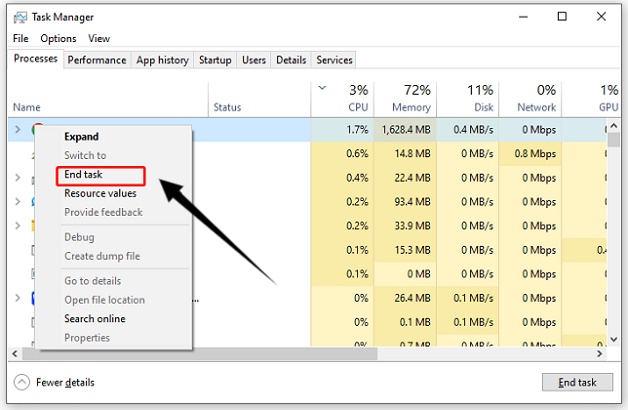
  • Open Task Manager with Ctrl + Shift + Esc. Check that no Battlefield or EA-related processes are still running.

  • Here, clear the relevant Battlefield 6 shader cache and also clear the EA app cache using its built-in App Recovery or cache-clearing option.

  • Once the process is completed, restart your PC. Open the EA app again and launch Battlefield 6.

The first launch after clearing shader files may take slightly longer because the game needs to rebuild its shader cache. Avoid interrupting the process while this happens.

Fix 6: Reinstall EA Anti-Cheat

If Battlefield 6 still will not start after trying the previous fixes, EA Anti-Cheat could be damaged, incomplete, or incorrectly configured. Reinstalling EA Anti-Cheat gives the system a fresh installation of the required components and can resolve launch problems related to the anti-cheat service.

  • First of all, close Battlefield 6 and the EA app.

  • Now open the folder where EA AntiCheat is installed, find and launch the EA AntiCheat Installer.

    find ea anticheat installer
  • Select Battlefield 6 from the game list and choose the option to Uninstall or repair EA Anti-Cheat.

  • After that, open the EA AntiCheat Installer again, select Battlefield 6, choose Install to reinstall EA Anti-Cheat.

  • Restart your PC after the installation finishes. Open the EA app and launch Battlefield 6.

If the game starts normally after reinstalling the anti-cheat component, the previous installation was likely causing the launch problem.

Conclusion

When BF6 won’t launch, start with the simple solutions, such as restarting your PC, running the game as administrator, and repairing its files. If those do not work, move on to driver rollback, security settings, cache cleanup, and EA Anti-Cheat reinstallation.

It is also worth keeping your Windows installation and storage environment in good condition. Unnecessary temporary files and limited disk space can interfere with gaming and software operations. 4DDiG Partition Manager can help convert MBR to GPT before enabling secure boot. With these fixes, you should be able to identify the cause of the battlefield 6 not launching problem and get back to playing.

FREE DOWNLOAD

Secure Download

Sawart Mashab (senior editor)

Sawart Mashab, the content writer for 4DDiG, is adept at creating informative and practical solutions related to Windows and macOS issues, data recovery, file repair, and RAID storage.

(Click to rate this post)

You rated 4.5 ( participated)