How to Fix Battlefield 6 Error Code 1:8600?

5 mins read

Updated on 2025-11-26 17:57:51 to Windows Fix

Few things frustrate gamers more than seeing Battlefield 6 Error Code 1:8600 pop up just as you’re ready to jump into a Battlefield 6 match. This network-related error stops players from connecting to game servers, often occurring mid-session or at startup. But don't worry, this article explains what the error means, what causes it, and how to fix it effectively without risking your data or settings.

error 18600

1. What is Battlefield 6 Error Code 1:8600?

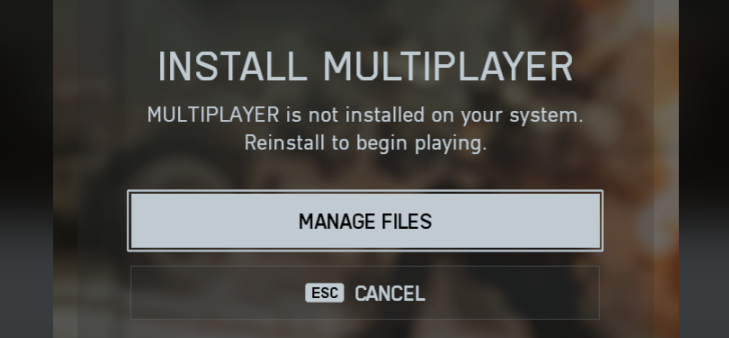
Battlefield 6 Error Code 1:8600 is primarily a connection-based issue that occurs when the game client fails to maintain a stable link with EA’s servers. In most cases, players see a message like “Connection failed: Error Code 1:8600” when trying to join multiplayer sessions.

This is usually because of interruptions in network communication or mismatched authentication between the EA App and the game servers. While the issue looks like a typical disconnection problem, it can persist even when your internet seems fine, making it confusing for players. The error effects both PC and console users and can appear intermittently depending on the server's status or client version.

2. Common Causes about Battlefield 6 Error Code 1:8600

Understanding what triggers Battlefield 6 Error Code 1:8600 is the first step toward fixing it. Below are the most frequent reasons:

  • Unstable Internet Connection: A weak or fluctuating connection can break the game’s link to EA servers.
  • External USB Conflicts: Certain USB storage devices or peripherals may interfere with game data access.
  • EA App Authentication Error: A temporary login glitch in the EA App can cause connection failure.
  • Corrupted Game Files: Damaged or missing Battlefield 6 files may prevent proper communication with servers.
  • Admin Restrictions: If Battlefield 6 doesn’t have administrator privileges, it may fail to connect to network services.

3. How to Fix Battlefield 6 Error Code 1:8600?

Below are the most effective ways to fix Battlefield 6 Error Code 1:8600 across PC, Xbox, and PlayStation platforms. Follow each method step-by-step and test the game after completing each fix.

Fix 1: Check Internet Connection

A poor or unstable internet connection is the most common cause of error 1:8600 in Battlefield 6. Try switching from Wi-Fi to a wired Ethernet connection for more reliability.

  • Restart your router and modem by unplugging them for 30 seconds. If you use an Ethernet connection, disconnect the wires from the PC and router as well.

  • Power on your router and reconnect your device in Windows Settings, and go to "Network and Internet" and ensure your internet speed is stable by doing an online speed test.

    navigate to network and internet

A stable connection ensures Battlefield 6 communicates smoothly with EA servers, minimizing the risk of disconnections.

Fix 2: Unplug the external USB drive

Sometimes, Battlefield 6 conflicts with external USB drives, causing unexpected read/write errors. These issues can interrupt background authentication processes and lead to the Battlefield 6 error code 1:8600. Disconnecting unnecessary USB devices often helps the system focus on the main storage path.

  • First, you should shut down your PC or console.

  • Unplug any external hard drives, USB sticks, or hubs not related to game storage.

    unplug hard drives
  • After that, restart the device and relaunch Battlefield 6.

Fix 3: Log out of the EA App, then log in again.

The EA App manages your login credentials and online verification for Battlefield 6. Sometimes, a temporary token error or expired session causes the 1:8600 code. Logging out and signing back in can refresh your authentication details and restore server communication.

  • Open the “EA App” on your PC and click on your “Profile” icon from the top-right, then select “Log Out”.

    log out ea app
  • Close the app completely, reopen it, and log in again using your credentials.

  • Launch Battlefield 6 and check if the error persists.

Refreshing your EA session often resolves mismatched login states, causing server disconnections.

1-Click Backup with 4DDiG Windows Backup before Fixing Battlefield 6 Error Code 1:8600

Game updates, repair tools, or system optimizations can sometimes lead to data loss or corrupted saves. Therefore, Before making major changes like repairing game files, it’s wise to back up your data. 4DDiG Windows Backup offers a fast, one-click way to safeguard your Battlefield 6 files and entire system partitions effortlessly.

This tool allows users to create incremental backups of disks or partitions without interrupting daily tasks. This proactive approach minimizes risk and ensures you can restore your setup instantly if something goes wrong.

FREE DOWNLOAD

Secure Download

  • Install the 4DDiG Windows Backup after downloading it and launching it. Click the "Create a Backup Task" button to begin.

    create a backup task
  • Choose the partitions that you will back up by clicking them, and click the "File" icon to select where you want to store the backup. Then, click "Start Backup" and authenticate by clicking "Confirm".

    select partitions to backup
  • Track the progress in the 4DDiG window, and you can close the software after the backup is complete.

    backup successfully

Fix 4: Start the Game with EAAntiCheat.GameServiceLauncher.exe as Admin

Sometimes, Battlefield 6’s Anti-Cheat service fails to start properly, resulting in authentication breakdowns. Running the EAAntiCheat.GameServiceLauncher.exe as an administrator ensures that all related processes have full system privileges, and you do not get the Battlefield 6 error code 1:8600 Steam again.

  • Go to your Battlefield 6 installation folder in File Explorer and locate “EAAntiCheat.GameServiceLauncher.exe”.

  • Right-click this file and select “Run as administrator”.

  • Once launched, reopen Battlefield 6 and test multiplayer connectivity.

Fix 5: Verify Game Files

If the Battlefield 6 installation is missing or corrupted files, the game might fail to connect properly to online servers. Verifying integrity can fix both connectivity and in-game crashing problems.

  • Open “Steam” and go to “Library", then right-click “Battlefield 6”, then select “Properties” and go to “Installed Files”.

    verify integrity of game files
  • Click “Verify Integrity of Game Files” and let Steam scan for missing or damaged data.

Verifying files ensures Battlefield 6 runs with a clean, error-free configuration for stable online play, so the error will not appear again.

More FAQs about Battlefield 6 Error Code 1:8600

1.Why can’t I connect to the Battlefield 6 beta?

This usually happens due to overloaded servers or beta access restrictions. Wait for official confirmation or server maintenance to complete before reconnecting.

2.Why can’t I connect to Battlefield 6 servers?

Server outages, internet instability, or corrupted cache files can all cause connection issues. Restarting your router and verifying the game files often resolves this.

3.Why isn’t Battlefield 6 working?

If Battlefield 6 fails to launch entirely, try running it as an administrator, disabling overlays, or updating your graphics drivers.

Conclusion

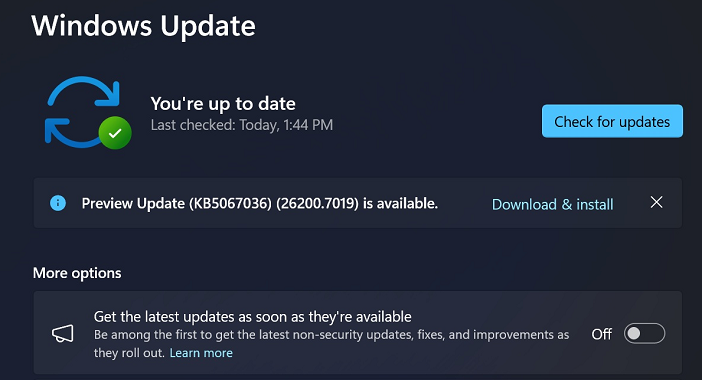
The Battlefield 6 Error Code 1:8600 can be incredibly frustrating, especially when it blocks your access to multiplayer matches. Thankfully, the fixes cover all major causes of this issue. Always start with basic checks before diving into advanced methods, and remember to keep your game and EA App updated.

For complete peace of mind, use 4DDiG Windows Backup to protect your system and game data before troubleshooting. It guarantees that even if a fix goes wrong, your settings and saves are fully recoverable with one click.

FREE DOWNLOAD

Secure Download

William Bollson (senior editor)

William Bollson, the editor-in-chief of 4DDiG, devotes to providing the best solutions for Windows and Mac related issues, including data recovery, repair, error fixes.

(Click to rate this post)

You rated 4.5 ( participated)