How to Fix Battlefield 6 “An Undefined Error Occurred”?

5 mins read

Updated on 2026-03-09 12:05:44 to Windows Fix

Are you trying to play Battlefield 6 but an undefined error occurred battlefield 6 keeps showing up on your screen? Many players see this issue when launching the game or trying to connect online. The good news is that this error is common and easy to fix in most cases.

In this guide, we’ll explain the issue in simple words and show you easy steps to fix it, so you can get back to Battlefield 6 without frustration.Let’s get started.

1. What Does “An Undefined Error Occurred Battlefield 6” Mean?

The message “An Undefined Error Occurred Battlefield 6” is a general error that does not explain the exact problem. It usually appears when the game fails to connect to Battlefield 6 servers or cannot communicate properly with EA services. This error can show up while launching the game, logging in, or joining a match.

bf6 undefined error

In simple words, it means Battlefield 6 tried to do something online, but something went wrong in the background. The issue can be on the server side, your internet connection, or your system, which is why the game shows a vague error instead of a clear reason.

Common Causes of BF6 Undefined Error

There are several common reasons why Battlefield 6 an undefined error occurred:

  • Server issues: Battlefield 6 servers may be down, overloaded, or under maintenance.
  • Internet problems: A weak or unstable internet connection can stop the game from connecting properly.
  • Corrupted game files: Missing or damaged game files can cause connection errors.
  • EA App or Steam cache issues: Old or broken cache data can interfere with the game.
  • Firewall or antivirus blocking the game: Security software may block Battlefield 6 by mistake.

⚡ 2. How to Resolve “An Undefined Error Occurred Battlefield 6”?

Fix 1: Restart Your PC

Sometimes the error appears due to a temporary system or network glitch. Restarting your PC refreshes background services, clears temporary memory, and often fixes small issues that stop Battlefield 6 from connecting properly.

  • Close Battlefield 6 completely and exit the EA App or Steam.

  • Shut down your PC. Wait 30 seconds, then turn it back on.

  • Launch Battlefield 6 again to verify if the error is fixed.

Fix 2: Check Battlefield 6 Server Status

If Battlefield 6 servers are down or busy, the game cannot connect and may show an undefined error. In this case, the issue is not on your end. Here’s how you can Battlefiedl 6 server status if facing bf6 undefined error:

  • Visit EA Help server status pages or Battlefield official social channels.

  • Look for any “Server Maintenance” or “Outage” notices.

    check bf6 server status
  • If servers are offline, wait until they are back online.

If many players are reporting errors, it’s likely a server problem, not your PC.

Fix 3: Verify Game Files Integrity

Corrupted or missing game files can prevent Battlefield 6 from working correctly. Verifying files checks and repairs them automatically.

On EA App

  • Open the EA App and go to My Collection. Find Battlefield 6.

    go to my collection in ea
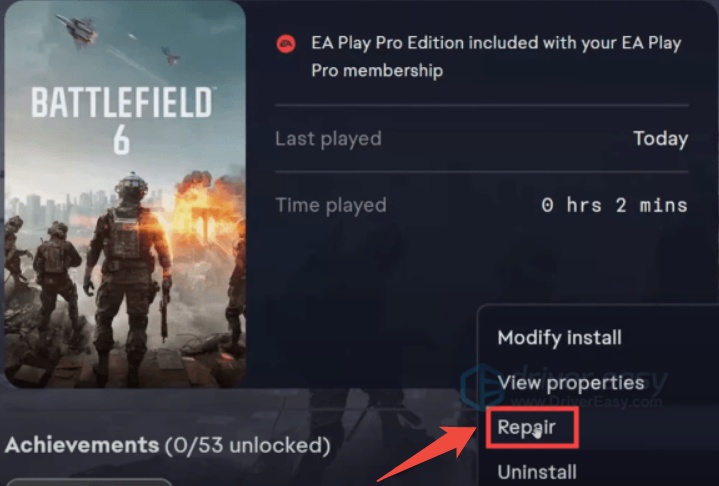
  • Click the three dots (…) next to it. Select Repair.

  • Wait for the process to finish, then restart the game.

On Steam

  • Open Steam and go to Library. Right-click Battlefield 6 > Properties.

  • Go to Installed Files. Click Verify integrity of game files.

    verify integrity of game files
  • Wait until Steam finishes checking and repairing files.

Fix 4: Clear Cache on EA App/Steam

Cache files can become outdated or corrupted and cause connection problems. Clearing the cache forces the launcher to rebuild fresh data. Here’s how to fix an undefined error in BF6 using EA or Steam:

Clear EA App Cache

  • Open the EA App. Go to Help > App Recovery.

    click app recovery
  • Then click Clear Cache and restart your PC.

Clear Steam Cache

  • Make sure the game, Steam, and the EA App are completely closed. Press the Windows key + R to open the Run window.

  • In the text box, type: %localappdata%\Battlefield 6. Press Enter or click OK.

  • A folder will open. Inside this folder, double-click to open the Cache folder. Select everything inside it and press the Delete key to remove all the contents here.

Note:

Do not delete the main Battlefield 6 folder, only delete what is inside the Cache folder.

Fix 5: Update Drivers and Windows

Outdated Windows files or graphics drivers can cause compatibility and connection issues with Battlefield 6. Keeping everything updated helps avoid this error.

Update Windows

  • Press Windows + I to open Settings. Go to Windows Update.

  • Click Check for updates, and install all pending updates.

    check for windows updates

If Windows has lots of missing updates, use 4DDiG Partition Manager’s “Quick Install Windows” feature to update your system faster and more safely. With its Quick Install Windows feature, you can install Windows 10 or the latest Windows 11 versions directly to your drive, no bootable USB or installation media needed.

  • Launch 4DDiG Partition Manager on your PC. From the main interface, click on Quick Install Windows.

    FREE DOWNLOAD

    Secure Download

    click quick install windows
  • Choose the Windows version you want to install and select your target hard drive. Keep the default GPT partition style for modern systems, or switch to MBR if your system is older. You can also adjust the language and edition if needed. After confirming everything is correct, click Start, then select Sure to proceed.

    select windows version and other options
  • The installation will begin. Once the process finishes, your PC will have a fresh, updated Windows installation ready for use.

    quick install successfully

Update Driver

  • Right-click the Start button and select Device Manager.

  • Navigate to Graphics Driver, expand Display adapters. Right-click your graphics card name and elect Update driver.

    update driver
  • Click Search automatically for drivers. Wait while Windows searches for and installs any available driver updates.

    search automatically for drivers
  • Then, restart your computer if prompted.

More FAQs about Battlefield 6

1. Why is Battlefield 6 not connecting?

Battlefield 6 may fail to connect due to server issues, unstable internet, firewall or antivirus restrictions, or corrupted game files. Checking server status, restarting your PC, and verifying game files usually fix this problem.

2. Why can't I play Battlefield 6 on Steam?

If Battlefield 6 won’t launch on Steam, it could be due to missing or corrupted game files, outdated drivers, or Steam cache problems. Verifying game files, clearing Steam cache, and updating graphics drivers often resolve the issue.

3. How to fix Battlefield 6 crashing?

Crashes can happen because of outdated Windows, old drivers, corrupted files, or background software conflicts. Restarting your PC, updating Windows and drivers, clearing cache, and repairing game files can prevent crashes and stabilize the game.

Conclusion

The “an undefined error occurred Battlefield 6” message can be frustrating, but in most cases, it’s easy to fix with the right steps. Restarting your PC, checking server status, verifying game files, clearing cache, and keeping Windows and drivers updated usually solve the problem. For a faster and safer Windows update or reinstall, 4DDiG Partition Manager’s quick i nstall Windows feature can help you.

FREE DOWNLOAD

Secure Download

William Bollson (senior editor)

William Bollson, the editor-in-chief of 4DDiG, devotes to providing the best solutions for Windows and Mac related issues, including data recovery, repair, error fixes.

(Click to rate this post)

You rated 4.5 ( participated)