A Closer Look at Windows 11 KB5094126: Updates Introduced and Issues Users are Facing

5 mins read

Updated on 2026-07-02 12:06:24 to Windows Fix

The newly released Windows 11 KB5094126 is a cumulative update for Windows 11 24H2 and 25H2 designed to patch ongoing security vulnerabilities and enhance system stability. However, while meant to significantly improve your operating system, many users have encountered severe post-installation bottlenecks.

Therefore, this comprehensive guide breaks down everything included in Windows 11 KB5094126, details widespread user-reported bugs such as boot loops and Blue Screens of Death (BSOD), and provides actionable, step-by-step troubleshooting methods to keep your PC running flawlessly without any data loss.

1. What’s New in Windows 11 KB5094126?

Windows 11 KB5094126 focuses heavily on hardening core OS security and refining user interface responsiveness. The key improvements include:

  • Shared Audio over Bluetooth LE:
    This update introduces Shared Audio, allowing users to stream audio to two Bluetooth LE Audio devices simultaneously. This feature is designed for shared listening experiences and is accessible through Quick Settings on supported hardware.
  • Multi-App Camera Improvements:
    The update improves camera sharing capabilities, enabling multiple applications to access the camera more reliably at the same time. This is especially useful for video conferencing, streaming, and hybrid work scenarios.

2. Reported Windows 11 KB5094126 Issues

Despite its security benefits, deployment across diverse hardware configurations has triggered notable system stability issues. If your PC exhibits any of the following symptoms after upgrading, you are not alone.

Boot Failure after Installing

The most critical issue tied to this update is a persistent boot loop. Affected systems repeatedly load into the 'Preparing Automatic Repair' screen or hang indefinitely on the spinning Windows logo. This typically stems from corrupted system boot configurations or driver conflicts initiated during the final phase of the update installation.

BSOD or Black Screen

Users have reported encountering a Blue Screen of Death (BSOD) with stop codes. In other instances, the PC boots into a completely black screen with only a visible mouse cursor, indicating that the update failed to initialize the explorer.exe shell.

OneDrive or File Explorer Issues

For some users, File Explorer becomes completely unresponsive or crashes when opening specific folders. Furthermore, OneDrive synchronization frequently fails, triggering endless processing loops that spike high CPU usage, causing significant system stuttering and overheating.

Extended Readng: How to Fix OneDrive SharePoint Sync Not Enough Free Space for Files? Fixed!

⚡ 3. How to Fix Windows 11 KB5094126 Updating Issues?

If your system is already experiencing installation errors or failing to install the update properly, use these proven technical remedies to restore functionality.

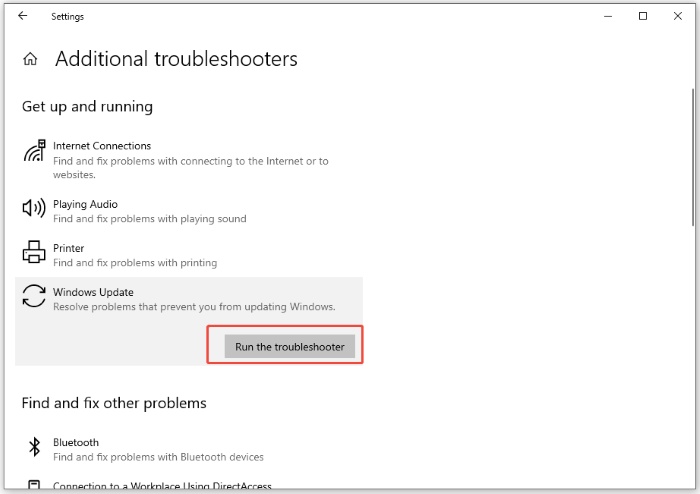
Fix 1: Run Windows Update Troubleshooter

  • Press the Windows Key + I simultaneously to open the Settings.

  • Go to Update & Security section, then scroll down the right-hand pane and click on 'Troubleshoot'.

    troubleshoot section
  • Click on the “Other troubleshooters” option to view the full list of automated diagnostic tools.

    other troubleshooters
  • Locate the “Windows Update” entry and run the troubleshooter.

  • Wait patiently while the utility scans for pending registry errors, corrupted database structures, or stuck download caches. If a fix is found, click 'Apply this fix' and reboot your PC.

Fix 2: Free up space on the EFI System Partition

The error code 0x800f0922 may associated with low storage availability on the EFI System Partition. When free space drops below approximately 10MB, Windows may not have enough room to complete update processing.

  • To verify the partition status, open Disk Management by right-clicking the Start menu and locate the EFI System Partition to check its capacity and usage.

  • Then, run Command Prompt as administrator and mount the ESP using the following command:

    mountvol X: /S

  • After the drive is mounted, access the X: volume through File Explorer or the command line and review its contents. Remove outdated boot records or unnecessary files to increase available space, ideally freeing at least 100MB.

Finally, unmount the partition and retry Windows Update to install KB5094126 again.

Extra Tip: Ensure a Smooth Windows Update with 4DDiG Partition Manger

A stable Windows Update experience depends not only on the update itself, but also on whether your system has enough free space and optimized storage conditions. Cleaning unnecessary files and managing disk usage in advance can help reduce installation issues and improve overall update reliability.

In this case, 4DDiG Partition Manager can help streamline the cleanup process. Its Windows cleanup feature removes junk and temporary files to free up space, while ensuring your personal data remains completely safe.

  • Download and install 4DDiG Partition Manager. Launch it and select Windows Clean module. Choose the types of files and click Start Scan button to begin scanning.

    FREE DOWNLOAD

    Secure Download

    windows clean
  • After the scan is complete, the tool lists items that can be safely removed. You can choose the categories you want to clean and click Clean to continue.

    select items to clean
  • Once the process is complete, the tool will display the total space that has been reclaimed, ensuring sufficient storage is available for a smoother KB5094126 installation and more stable post-update performance.

    clean successfully

Fix 3: Run System File Checker and DISM

Some post-KB5094126 issues may be caused by corrupted system files. Running SFC and DISM helps restore Windows system integrity before further troubleshooting.

  • Press the Windows Key, type cmd into the search bar, right-click on Command Prompt from the results, and select “Run as administrator”.

  • In the black terminal window, type the following DISM command precisely and press Enter:

    DISM.exe /Online /Cleanup-image /Restorehealth

    dism command
  • Allow the deployment image tool to scan Microsoft servers and repair your local component store.

  • Once completed successfully, type the following command and press Enter: sfc /scannow

    sfc command
  • Wait for the verification phase to finish. If it states 'Windows Resource Protection found corrupt files and successfully repaired them', type 'exit' and restart your PC.

Fix 4: Install manually from the Microsoft Update Catalog

When post-update issues persist, the problem is often tied to how the update was delivered or patched on top of the existing system. Reinstalling it through the Microsoft Update Catalog applies a clean standalone package that can override problematic update components.

  • Open your web browser and navigate to catalog.update.microsoft.com. In the search box located in the upper-right corner of the web page, type KB5094126 and press Enter or click Search.

  • Review the generated list to locate the update package that precisely matches your Windows architecture.

    Kb5094126 in update catalog
  • Click the Download button on the far right side of that specific row.

  • In the new popup window that appears, click the hyperlinked .msu file path to begin saving the standalone installer package to your Downloads folder.

  • Once the download finishes, open your Downloads folder, double-click the downloaded .msu file, confirm the installation prompt, and click 'Restart Now' when prompted.

Conclusion

Navigating the landscape of modern operating system updates requires a proactive strategy. While Windows 11 KB5094126 introduces key security patches, the risk of dealing with boot failures or file system bugs is always present. Securing your environment with an independent backup utility guarantees complete peace of mind.

For ongoing optimization, pair your backup strategy with an advanced disk management suite like 4DDiG Partition Manager. Beyond partition management, its comprehensive system optimization toolset can help clean out lingering post-update installation artifacts, ensuring your Windows 11 system remains secure, responsive, and completely stable.

FREE DOWNLOAD

Secure Download

William Bollson (senior editor)

William Bollson, the editor-in-chief of 4DDiG, devotes to providing the best solutions for Windows and Mac related issues, including data recovery, repair, error fixes.

(Click to rate this post)

You rated 4.5 ( participated)