How to Transfer Files from PC to PC?

5 mins read

Updated on 2026-08-26 09:40:03 to Windows Fix

Photos, videos, documents, work projects, downloads, and other personal data can quickly add up, making manual transfers feel overwhelming. Fortunately, there are several simple ways to how to transfer files from one computer to another, depending on how much data you have and whether you have an internet connection or external storage.

In this guide, we’ll explain different methods for transfer files from PC to PC, including Windows Backup, USB drives, cloud storage, direct connections, and disk cloning.

1. How to Transfer Files from PC to PC?
There isn't one solution that works for everyone. The best method depends on your file size, available hardware, internet speed, and whether you want to transfer only personal files or an entire Windows installation.

Method 1: Use the Windows Backup App

Windows provides built-in backup and transfer features that can make moving files to a new Windows PC relatively straightforward. Microsoft's current PC-to-PC transfer experience works during setup of a new Windows 11 PC and can transfer files and some settings without requiring an external drive.

  • First of all, connect both PCs to the same Wi-Fi or LAN network and keep both computers connected to power during the transfer.

  • Now, update the old PC through Windows Update.

  • After that, open the Windows Backup app on the old PC and select Transfer to a new PC.

    transfer to a new pc
  • On the new PC, follow the setup instructions to begin pairing.

  • Enter the displayed one-time code when prompted.

  • Select the files and folders you want to transfer and click Start transfer on the new PC.

  • Wait for the process to finish before disconnecting either computer.

Method 2: Use an External Drive or USB Flash Drive

If you want a simple USB file transfer, an external SSD, hard drive, or USB flash drive is one of the most practical options. Microsoft also recommends external storage for moving files between Windows computers.

This method works particularly well when you have a large amount of data and don't want to upload everything to the internet.

  • Connect the USB flash drive or external hard drive to your old PC.

  • Open File Explorer, locate the files and folders you want to move, select the files, and choose Copy.

  • Open your external drive and paste the files there. Wait for the copying process to finish.

    copy file to external drive
  • Once the process is completed, safely Eject the drive.

  • Now connect it to your new PC and open the drive in File Explorer.

  • Select the required files and copy them to the appropriate folders on the new computer.

For large transfers, an external SSD is generally more convenient than a small flash drive because it provides more storage and can offer faster transfer speeds.

Method 3: Use Cloud Storage

Cloud services such as OneDrive and Google Drive provide another convenient way to move files between computers. OneDrive can synchronize files across PCs and make them available through File Explorer once you sign in with the same account.

  • Install or open OneDrive or another cloud storage service on the old PC.

  • Sign in to your account and upload or move the files you want to transfer into the cloud folder. Wait until the files finish syncing.

  • Now set up the same cloud service on your new PC.

  • Sign in using the same account and allow the files to synchronize by hitting the Sync button.

    synchronize files in onedrive
  • Open the cloud folder and confirm that your files are available.

How to Recover Onedrive Files Deleted from Recycle Bin

Method 4: Direct Cable Transfer

Depending on the hardware available, you can use Ethernet or a purpose-built USB to USB transfer cable. A proper PC-to-PC transfer cable is designed specifically for this purpose and includes the necessary electronics.

For Ethernet transfer:

  • First of all, connect both PCs with an Ethernet cable.

  • On the old PC, find the folder you want to transfer. Right-click the folder and select Properties.

  • Open the Sharing tab and click Share. Select Everyone and click Add.

  • Now, choose Read/Write if you also want to edit the files from the other PC, click Share, and then click Done.

  • On the new PC, open File Explorer and click Network on the left.

  • Select the old PC and open the shared folder. Copy the files to your new PC.

For a USB transfer cable:

  • Connect the USB transfer cable to both PCs and install the transfer software that comes with the cable.

    connect 2 pc with usb transfer cable
  • Open the software on both computers.

    • Select the old PC as the source.
    • Select the new PC as the destination.
  • Choose the files or folders you want to transfer and start the transfer.

  • Wait until the process is complete and then check the files on your new PC.

Advanced Option: Clone Your Entire Drive to a New PC

If you don't just want to send files from PC to PC but want to migrate a complete drive, disk cloning can be a more comprehensive option. A cloning tool can copy the contents of a source drive to another drive, which is particularly useful when upgrading or replacing storage.

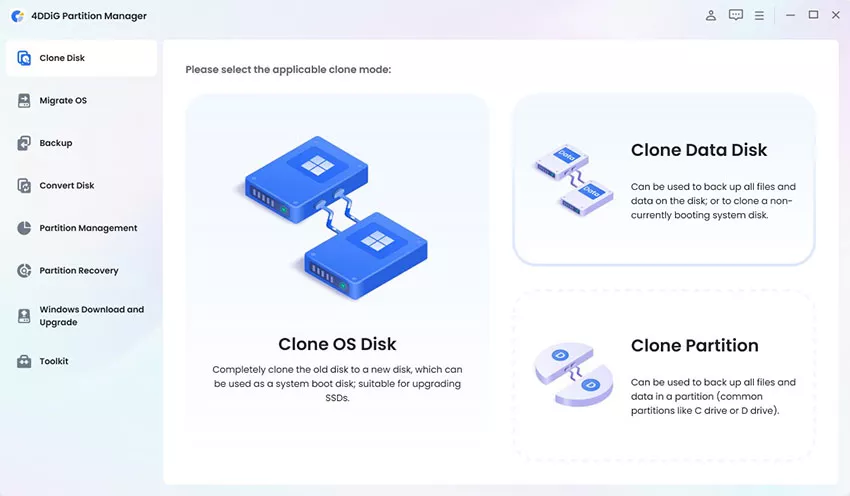
4DDiG Partition Manager includes a disk cloning function that can clone a source disk or partition to a target disk.

  • Connect the SSD or hard drive you want to use for the clone to your computer. Then, install and open 4DDiG Partition Manager. From the main screen, select Clone Data Disk.

    clone data disk
  • Choose the disk you want to clone as the source disk, and then select the destination disk that will store the copied data. Click Next to continue.

    select source and target disk
  • Preview the target disk layout. Once the layout looks correct, click Start.

    click start
  • Cloning will erase all existing data on the destination disk. Double-check the selected disk and layout, and then click Sure to confirm.

    click sure
  • Once the process is complete, all data from the source disk will have been copied to the destination disk.

    clone successfully
✔ Related Article: How to Transfer Programs from One Computer to Another?

More FAQs About File Transfer

1. How to transfer file from PC to Windows in VMware?

If Windows is running inside VMware, you can generally transfer files using shared folders, drag-and-drop, or copy-and-paste, depending on the VMware configuration. For larger transfers, configure a shared folder between the host operating system and the virtual machine, then copy the required files into it.

2. Can I transfer files without internet?

Yes. You don't need an internet connection to transfer files from PC to PC. An external hard drive, USB flash drive, Ethernet connection, or compatible USB transfer cable can transfer files locally without uploading them to the internet.

3. How do I transfer files between Windows and Mac?

For Windows-to-Mac transfers, you can use an external drive with a compatible file system, cloud storage such as OneDrive or Google Drive, or a local network connection. Cloud storage is convenient for smaller amounts of data, while an external SSD can be more practical for large transfers.

⚡ Conclusion

The best way to transfer files from PC to PC depends on what you're moving and what equipment you have available. Windows Backup is convenient for supported Windows-to-Windows transfers, while an external SSD or USB drive works well when you need an offline solution. Cloud storage is convenient when both computers have internet access, and Ethernet or a proper USB transfer cable can provide a direct connection.

If you're migrating an entire drive rather than just personal files, 4DDiG Partition Manager provides a practical cloning option for moving data to another disk. Choose the method that fits your storage size, connection speed, and migration needs, and always verify important files after the transfer is complete.

FREE DOWNLOAD

Secure Download

William Bollson (senior editor)

William Bollson, the editor-in-chief of 4DDiG, devotes to providing the best solutions for Windows and Mac related issues, including data recovery, repair, error fixes.

(Click to rate this post)

You rated 4.5 ( participated)