Windows 11 KB5124010 Update Issues: Fix Problems and Optimize Your PC

5 mins read

Updated on 2026-10-04 11:07:04 to Windows Fix

Installed the latest Windows 11 KB5124010 preview and now facing slower performance, missing features, or unexpected errors? You are not alone. This optional September 2026 non-security update brings useful improvements but has also triggered some issues.

This guide walks you through exactly what the update changes, the most common problems users encounter, proven ways to fix them, and a practical method to reclaim storage taken by leftover update files so your PC runs smoothly again.

1. What's New in KB5124010?

Windows 11 KB5124010 is an optional cumulative preview update released on September 22, 2026, for Windows 11 versions 24H2 and 25H2. It delivers production-quality improvements that Microsoft plans to include in the October security update.

  • File Explorer refinements: The Home page now remembers which sections were expanded or collapsed, cloud-file thumbnails in the Details pane load more reliably, and a long-standing address-bar bug that cleared typed text has been corrected. Preview handling for web-downloaded files has also been improved.
  • Copilot key remapping: Users with a dedicated Copilot key can reassign it to function as the Right Ctrl key or the Context Menu key directly inside Settings, preserving legacy shortcuts and accessibility workflows.
  • Bluetooth reliability upgrades: Microsoft fixed a mismatch where the radio could be off while Settings still showed it enabled, resolved audio-streaming crashes with error code 0x139, improved microphone compatibility with certain Classic accessories, and enhanced LE Audio performance and connection-status accuracy.
  • Accessibility and recovery enhancements: A new “Open apps maximized” setting automatically maximizes windows as they open. Windows Recovery Environment can now reuse eligible Wi-Fi profiles already saved in the operating system, simplifying recovery scenarios that previously required manual network configuration.

In addition, the update addresses File History backup failures that appeared after the September security patches and resolves cases where the built-in Camera stopped working in the Camera app and other applications.

And KB5124010 is the final non-security preview for Windows 11 version 24H2 before that release reaches end of support.

💡 Windows 11 24H2 End of Support: Date, Risks, and Upgrade Guide

2. Common Problems Reported After Installing KB5124010

While many systems install the preview without incident, several KB5124010 update problems have been documented by Microsoft and reported by users.

  • Game crashes and anti-cheat conflicts: Multiple Reddit threads report sudden crashes to desktop, failed launches, after the update. Most frequently affected include WARDOGS, Fallout: New Vegas, and several Easy Anti-Cheat games such as Battlefield.
  • Wi-Fi and network connectivity breakage: Several users described their PCs suddenly showing “Can’t connect to this network” after the update, even though other devices on the same network worked normally. Standard driver resets and network troubleshooters often failed; removing the preview resolved the problem.
  • Domain trust failures on Credential Guard machines: Domain-joined devices that use Credential Guard and Machine Identity Isolation may lose their secure channel with an on-premises Active Directory domain. Interactive sign-in then fails.
  • USB Audio Class 1.0 device failures: Certain USB audio devices report Error Code 10 in Device Manager or produce no sound at all.
  • Sudden reduction in free disk space: Temporary Windows Update packages, downloaded components, and residual cache folders can occupy hundreds of megabytes to several gigabytes. Users frequently notice the system drive approaching capacity limits shortly after the preview installs.

3. How to Fix KB5124010 Update Problems?

Method 1: Run Windows Troubleshooters

Windows includes automated troubleshooters that detect and repair many update-related faults without requiring command-line knowledge.

  • Open Settings, select System, then Troubleshoot, and choose Other troubleshooters.

  • Run the Windows Update troubleshooter first. Allow it to complete its checks and apply any recommended fixes.

    run windows update troubleshooter
  • Restart the computer after the troubleshooters finish and test whether the original symptoms have disappeared.

If audio devices are affected, also run the Playing Audio or Hardware and Devices troubleshooter.

Method 2: Repair Corrupted System Files

When the troubleshooter cannot resolve the issue, underlying system-file corruption may be preventing normal operation. The Deployment Image Servicing and Management (DISM) tool together with System File Checker can restore missing or damaged components.

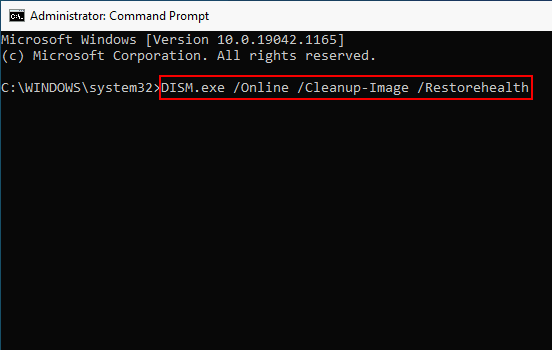
  • Open an elevated Command Prompt or Windows Terminal by right-clicking the Start button and choosing Terminal (Admin) or Command Prompt (Admin).

  • Type the following command and press Enter:

    $ DISM /Online /Cleanup-Image /RestoreHealth
  • Wait for the process to finish. Then run:

    $ sfc /scannow
  • Once System File Checker reports completion, restart the PC and verify that the problem has been resolved.

Method 3: Uninstall the Update

If the issues continue or you prefer to wait for the fully tested October release, removing the preview is straightforward and reversible.

  • Open Settings > Windows Update > Update history, then select Uninstall updates.

    uninstall updates
  • Locate the entry labeled “2026-09 Preview Update (KB5124010)” and click Uninstall.

  • Confirm the action when prompted and allow the system to restart. Features introduced by the preview will no longer be available until they arrive in a later cumulative update.

⚡ Low Disk Space after KB5124010? Clean up Windows Update Files

Even when the update itself installs cleanly, residual files from the download and installation process frequently remain on the system drive. The built-in Disk Cleanup utility can reclaim some of this space, yet it often leaves deeper residual data untouched and requires multiple manual steps.

4DDiG Partition Manager includes a dedicated Windows Clean module that scans for junk files, residual update data, temporary system files, and other safe-to-remove items in a single pass.

  • Download and install 4DDiG Partition Manager, then launch the application with administrator privileges if prompted.

    FREE DOWNLOAD

    Secure Download

  • In the left-hand panel, select the Windows Clean option. Choose the categories of files you want the tool to examine, then start the scan.

    start scan
  • When the scan finishes, review the listed results. Files identified as safe for deletion are usually pre-selected; expand any category if you prefer to inspect individual entries before proceeding.

    select items to clean
  • Click Clean button. The utility removes the selected files and reports the amount of space recovered on completion.

    clean successfully

By clearing residual update data quickly, you restore free space and help keep overall system performance consistent.

Conclusion

The Windows 11 KB5124010 preview delivers meaningful improvements. At the same time it can introduce domain-trust problems on protected enterprise machines, or USB audio device failures. Most issues respond well to the built-in Windows Update troubleshooter, DISM and System File Checker repairs, or a simple uninstall of the preview package.

When leftover update files leave the system drive cramped, the Windows Clean function inside 4DDiG Partition Manager provides a fast, focused way to reclaim storage without navigating multiple system utilities.

FREE DOWNLOAD

Secure Download

Sawart Mashab (senior editor)

Sawart Mashab, the content writer for 4DDiG, is adept at creating informative and practical solutions related to Windows and macOS issues, data recovery, file repair, and RAID storage.

(Click to rate this post)

You rated 4.5 ( participated)