How to Install Windows 11 Without USB

5 mins read

Updated on 2026-07-27 18:42:59 to Windows Fix

Install Windows without USB sounds difficult when you don't have a flash drive or DVD, doesn't it? Maybe your USB drive is missing, your new SSD has arrived, or you simply want to reinstall Windows without creating bootable media.

The good news is that you don't always need a USB drive to get the job done. In this guide, we'll show you how to install Windows 11 without a USB step by step, so you can choose the method that works best for your situation and get your PC running again.

1. Can You Install Windows Without a USB?

Yes, you can install Windows without a USB drive in many situations. If your current Windows installation is still working, you can reinstall or upgrade Windows using an ISO file or the built-in Reset This PC feature.

However, there are situations where this isn’t possible. You cannot use these methods if:

  • Your computer is brand new and has no operating system installed.
  • Your hard drive or SSD is completely empty.
  • Windows won’t boot and the Windows Recovery Environment (WinRE) isn’t available.
  • Your system files are too damaged to start the installer.

In these cases, you’ll usually need a bootable USB drive, DVD, or another recovery method to install Windows.

2. How to Install Windows Without a USB?

There are several ways to install Windows without external installation media. Below are the easiest methods for most users.

Method 1: Install Windows via an ISO File

If your computer can still boot into Windows, installing from an ISO file is one of the simplest methods.

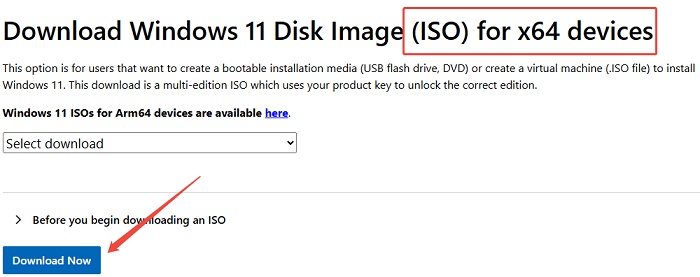
  • Visit Microsoft’s official website and download the latest Windows 11 ISO file.

    download windows iso file
  • After the download finishes, locate the ISO file in File Explorer. Now, right-click it and select Mount. Windows will create a virtual DVD drive containing the installation files.

    mount iso
  • Open the mounted drive and double-click setup.exe. The installer will ask whether you want to keep personal files and apps. Choose the option that best matches your needs.

  • Now complete the installation by following the on-screen instructions.

Note:

Your computer will restart several times before Windows 11 finishes installing.

This is the fastest and easiest solution because it doesn’t require creating bootable media.

Method 2: Use the Built-in “Reset This PC” Feature (Best for Reinstalling)

If you’re reinstalling Windows to fix system problems, Reset This PC is an excellent option. It reinstalls Windows while giving you the choice to keep your personal files or erase everything.

  • Open Settings and go to: System > Recovery. Click Get Started under Reset this PC.

    start resetting pc
  • Select one of these options:

    • Keep my files – reinstalls Windows while keeping your personal files.

    • Remove everything – performs a fresh installation by removing files, apps, and settings.

      keep my files
  • Windows will ask you to choose:

    • Cloud Download – downloads a fresh copy of Windows from Microsoft.
    • Local Reinstall – uses existing Windows files already stored on your computer.
  • Confirm your choices and allow Windows to complete the reset process.

Your computer will restart several times before the installation finishes.

Method 3: Install Windows on Another Drive by Cloning

If you want to move Windows installation to new drive, you don’t always have to reinstall Windows from scratch. Instead, you can clone your current Windows installation to the new drive. This copies Windows, your installed programs, settings, and personal files, allowing you to continue using your PC without starting over.

This is one of the easiest ways to install Windows on another drive. You can do this using the Clone OS Disk feature in 4DDiG Partition Manager.

Note:

All existing data on the destination drive will be erased, so if you have important data on it, please back up first.

  • First of all, launch 4DDiG Partition Manager and select Clone OS Disk from the available tools.

    select cloning os disk
  • Now choose your new SSD or hard drive as the destination. Make sure it has enough storage space for your current Windows installation.

    choose source and target disk
  • Click Start to begin copying Windows and all system data to the new drive. The process may take some time depending on the amount of data being transferred.

    start to clone
  • After cloning finishes enter your BIOS settings and set the cloned drive as the first boot device.

After that, restart your computer. Windows should boot normally from the new drive without requiring a fresh installation.

What If Your PC Won’t Boot?

If your computer won't start Windows, you can still reinstall Windows using the Windows Recovery Environment (WinRE).

  • Turn on your PC. As soon as the Windows logo appears, press and hold the Power button until the PC turns off. Repeat this process 2–3 times. Windows should automatically open WinRE.

  • On the Choose an option screen, click Troubleshoot. Select Reset this PC.

    reset this pc
  • Choose Keep my files if you want to keep your personal files, or Remove everything if you want a fresh start.

  • Follow the on-screen instructions to complete the reset. Your PC will restart several times while Windows is being reinstalled.

Tip:

If WinRE doesn't open automatically, you may need to use a Windows installation USB or recovery drive to repair or reinstall Windows.

More FAQs

1. Is It Possible to Install Windows 11 Without a Flash Drive?

Yes. If Windows is already installed on your computer, you can reinstall it using an ISO file, the Reset This PC feature, or by cloning your current installation to another drive.

2. Can I Install Windows 11 Without a Product Key?

Yes. Windows 11 can be installed without entering a product key during setup. If you choose I don’t have a product key, Windows will continue installing normally. You can activate Windows later using a valid product key or a digital license linked to your Microsoft account.

⚡ Conclusion

Install Windows without USB is possible in many situations, whether you’re reinstalling Windows using an ISO file, repairing your system with Reset This PC, or upgrading to a larger SSD. The best method depends on your goal and whether your current Windows installation is still working.

If you’re replacing your storage drive, 4DDiG Partition Manager offers a simple way to clone your operating system instead of reinstalling Windows from scratch. By choosing the right method, you can save time, keep your files, and get your computer running again without needing a USB drive or DVD.

FREE DOWNLOAD

Secure Download

William Bollson (senior editor)

William Bollson, the editor-in-chief of 4DDiG, devotes to providing the best solutions for Windows and Mac related issues, including data recovery, repair, error fixes.

(Click to rate this post)

You rated 4.5 ( participated)