2026 Guide: How to Download and Install Microsoft Office 2024

5 mins read

Updated on 2026-06-15 15:28:32 to Office Recovery

Office 2024 files may not open properly in older versions of Office. To ensure compatibility with newer file formats and benefit from the latest security updates, many users are considering upgrading to the latest version.

This article explains how to download, install, and activate Office 2024. Whether you're installing Office for the first time or upgrading from an older version, we'll walk you through each step.

What Is Office 2024?

Office 2024 is a perpetual-license version of Microsoft Office released in October 2024. It includes Word, Excel, PowerPoint, and Outlook. Once purchased, you can continue using it without paying a monthly subscription fee, making it a cost-effective option for long-term use.

Things to Check Before Downloading Office 2024

Before you begin the installation, make sure the following requirements are met.

System Requirements

To run Office 2024, your computer should meet the following requirements:

  • Operating System: Windows 11 or Windows 10
  • Processor: 1.1 GHz or faster, dual-core recommended
  • Memory: 4 GB RAM or more
  • Storage: At least 4 GB of available disk space
  • Display: 1280 × 768 resolution or higher

Prepare a Microsoft Account

A Microsoft account is required to install Office 2024. If you already use Outlook.com or Hotmail, you can sign in with the same account.

Check Your Internet Connection

Since the installation files are several gigabytes in size, a stable internet connection is recommended.

How to Download Office 2024

  • Open your browser and go to setup.office.com.
  • Sign in with your Microsoft account. sign in to microsoft
  • Select your country and language, choose "English (United States)," and click "Redeem."
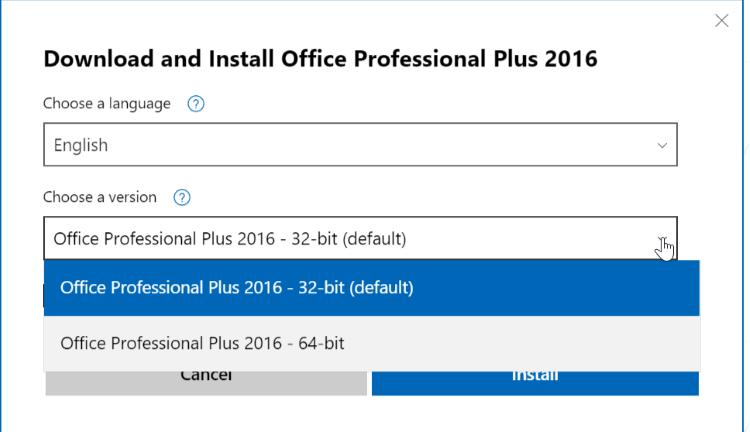
  • Click "64-bit" to start downloading the installer.

How to Install Office 2024

  • Double-click the downloaded Setup.exe file.
  • Click "Yes" when prompted by User Account Control.
  • The installation will begin automatically and typically takes 5–15 minutes.
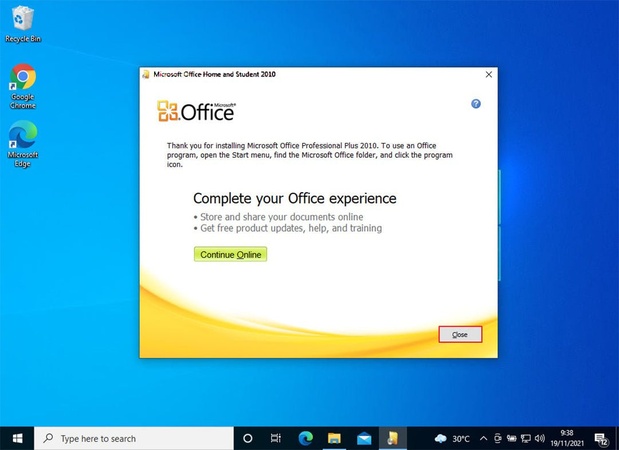
  • Once you see the "You're all set" message, click "Close."

First Launch and Activation

  • Launch Word, Excel, or another Office app from the Start menu.
  • When prompted, enter your Office product key. enter product key to activate office
  • Select your privacy settings and click "Accept."
  • When the message "You're all set" appears, the activation process is complete.

Bonus Tip: How to Recover Lost Office Files

Even if your Office files are lost due to accidental deletion, formatting, system crashes, or other unexpected issues, 4DDiG file recovery can help restore them. Simply select the drive where the files were stored, start a scan, and browse the recoverable results.

The built-in preview feature allows you to verify file contents before recovery, making it easier to find the files you need. Compatible with Windows 11/10/8.1/8/7, 4DDiG supports NTFS, FAT32, exFAT, and other major file systems. The recovery process is simple and only takes a few steps:

Office File Recovery

Secure Download

Office File Recovery

Secure Download

  • Open Tenorshare 4DDiG and choose the hard drive or partition where your deleted Office files were originally stored, then begin a scan.

    launch 4ddig and enter interface
  • While the scan is in progress, you can use the "File Type" filter or the "Search" feature to quickly find the specific files you're looking for.

    click type to see all files 4ddig
  • After a few minutes, the recovered files will start to appear. You can preview Excel, Word, or PowerPoint documents by double-clicking them before restoring.

    preview and recover the files
  • Finally, select the Office files you want to recover and choose a location to save them. For extra safety, you can also save them to a cloud storage service such as OneDrive or Google Drive.

    save the recoverable files

Frequently Asked Questions

Can I download Microsoft Office for free?

Yes, you can use Office Online for free through your web browser. However, its features are limited compared to the desktop version. Advanced features such as macros and complex formatting tools are not available, so purchasing Office 2024 is recommended for professional or business use.

How Do I Upgrade from Office 2019 to Office 2024?

There is no direct upgrade path from Office 2019 to Office 2024. You'll need to purchase Office 2024 separately and install it using the steps outlined in this guide. Your existing documents, templates, and personal files can still be used after upgrading.

What's the difference between the free and paid versions of Microsoft Office?

The free version runs in a web browser and provides access to basic productivity features. The paid version includes the full desktop apps, offline access, macro support, advanced analysis tools, and many additional features designed for work and professional use.

Conclusion

Downloading and installing Office 2024 is simple, as long as your device meets the system requirements, you have a Microsoft account, and a stable internet connection.

It's also worth preparing for possible data loss. A tool like 4DDiG can help recover lost Office documents and add an extra layer of security when working with important files.

William Bollson (senior editor)

William Bollson, the editor-in-chief of 4DDiG, devotes to providing the best solutions for Windows and Mac related issues, including data recovery, repair, error fixes.

(Click to rate this post)

You rated 4.5 ( participated)