2026 Guide: How to Download and Install Microsoft Office 2019

5 mins read

Updated on 2026-06-11 09:38:15 to Office Recovery

Some users prefer using Office 2019, an older version, due to issues with the latest Office. However, downloading and installing Office 2019 can be complex and prone to errors. This article provides a detailed guide on how to download and install Office 2019.

About Office 2019

Office 2019 is a one-time purchase version of Microsoft Office, released in 2018. You don’t need a subscription—once purchased, you can use it indefinitely without extra fees.

For older operating systems, Office 2019 is often more stable. However, since official support has ended, you will be responsible for security updates and any potential risks.

How to Download Office 2019

A Microsoft account is required to download and install Office 2019. You cannot complete the process without signing in. The same account is also needed if you want to reinstall it later.

  • Go to the Microsoft Account dashboard and click Sign In.
  • Enter your email address and password to complete the sign-in process.
  • Click the dot menu in the top-left corner, then select "All Apps."
  • Find the Office 2019 icon and select Install to download the setup file.
sign in to microsoft

How to Install Office 2019

Double-click the Office 2019 setup file on your desktop.

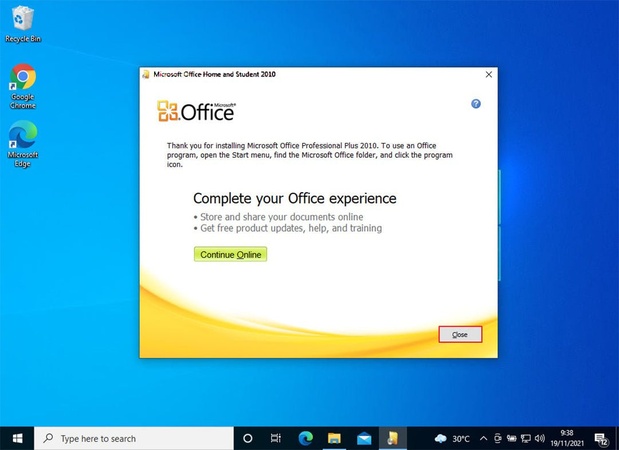
Locate the Office 2019 setup file on your desktop and double-click it to start the installation. The installation will run automatically. Once it's finished, check to make sure Office 2019 has been installed correctly.

how to install microsoft office

How to Unmount Office 2019

Office 2019 also supports offline installation. You can create an ISO installation disk and mount it to install Office 2019.

  • After installing Office 2019, unmount the ISO file. Double-click the "This PC" icon on your desktop to see all connected drives.
  • Right-click the mounted disk image and select "Eject" to unmount it.

How to Enter the Office 2019 Product Key

To activate Office 2019, you need an internet connection, a Microsoft account, and a valid product key.

After installation, open Word, Excel, or PowerPoint. When prompted, enter your product key to complete activation.

Troubleshooting Office 2019 Download Issues

If you are unable to download Office 2019, try the following solutions:

Use a Different Browser

If downloading doesn't work in a specific browser, switch to another one like Edge, Chrome or Firefox. Browser features or cached data may interfere with the download.

If the issue persists, try clearing your cache or disabling extensions.

Temporarily Disable Security Software or Firewall

Security software or firewalls can also block Office 2019 downloads. You can temporarily disable them, but be sure to turn them back on immediately after the download is complete.

Check Your Internet Connection

An unstable internet connection can prevent downloads as well. Make sure your connection is stable, switch to a wired connection if possible, or try restarting your router.

Use Office Troubleshooter

Microsoft offers official troubleshooting tools for Office installation and download issues. These tools can be especially useful when uninstalling existing Office versions before reinstalling.

Lost Word, Excel, or PowerPoint Files? Here's How to Recover Them

If you accidentally delete Excel, Word, or PowerPoint files, using a recovery tool right away can help get them back.

4DDiG file recovery supports all major Office file types and can recover data from external hard drives, USB drives, and SD cards. It’s a reliable way to restore important Office documents quickly.

Office File Recovery

Secure Download

Office File Recovery

Secure Download

  • Launch Tenorshare 4DDiG, select the hard drive or partition where your deleted Office files were stored, and start a scan.

    launch 4ddig and enter interface
  • As the scan runs, use the "File Type" filter or the "Search" function to quickly locate the files you need.

    click type to see all files 4ddig
  • Wait for a few minutes, your lost files will appear. You can preview them before recovery by double-clicking Excel, Word, or PowerPoint files.

    preview and recover the files
  • Next, choose the Office files you want to restore and select a destination to save them. Consider saving them to a cloud drive like OneDrive or Google Drive for added security.

    save the recoverable files

Frequently Asked Questions

Can I still use Microsoft Office 2019?

Yes, you can use Office 2019 if it is installed. However, official support has ended, so security updates and technical support are unavailable. Use it knowing the security risks.

What if I don't have a product key for Office 2019?

Check your purchase email, package card, or linked Microsoft account. If these methods fail, contact Microsoft support with proof of purchase to request a reissue.

Can I use both Office 2019 and Office 2024?

Generally, Office 2019 and Office 2024 cannot coexist. However, if there are no overlapping apps, you may use both versions.

Conclusion

Office 2019 can be easily installed once you download the setup file from the official site. A product key is required for activation. If you encounter download issues, check your internet connection and security software.

If you accidentally delete important Word, Excel, or PowerPoint files, Tenorshare 4DDiG can help, which supports recovery from different storage devices.

William Bollson (senior editor)

William Bollson, the editor-in-chief of 4DDiG, devotes to providing the best solutions for Windows and Mac related issues, including data recovery, repair, error fixes.

(Click to rate this post)

You rated 4.5 ( participated)