How to Fix Vanguard Error 1067 on Windows?

5 mins read

Updated on 2026-04-30 18:36:31 to Windows Fix

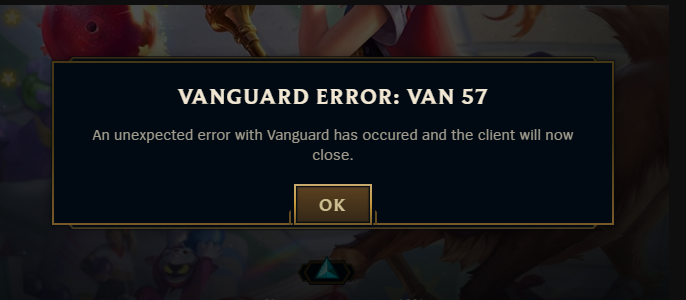
If you are seeing Vanguard error 1067 when launching Valorant or related Riot games, it means the Riot Vanguard service failed to start properly. This error can prevent the game from opening and often appears suddenly after updates or system changes. Now, let’s learn what causes the problem and exactly how to fix it using simple, step-by-step methods that actually work.

1. What is Vanguard Error 1067?

The Vanguard error 1067 means the Riot Vanguard service called VGC stopped unexpectedly. The system message behind it is usually:“Error 1067 the process terminated unexpectedly.”

This error appears when Windows tries to start the Vanguard service but fails. Without this service, Riot games like Valorant cannot run because Vanguard is required for anti-cheat protection.

Common Causes of Vanguard Error 1067

Understanding the cause helps you apply the correct fix instead of guessing.

  • VGC service is disabled or not set to automatic: If the VGC service does not start with Windows, Riot Vanguard cannot run in the background. This directly leads to Vanguard error 1067 when launching the game.
  • Corrupted system files: Damaged or missing Windows system files can interrupt essential services. This often triggers error 1067 the process terminated unexpectedly during startup.
  • Network configuration issues: Incorrect DNS settings or network misconfigurations can block Vanguard from connecting to required services. This results in connection-related failures like van error 1067.
  • Conflicting software: Some background applications interfere with Vanguard services and cause them to crash. This conflict prevents proper initialization and leads to the error.
  • Incorrect system language settings (UTF-8 disabled): If UTF-8 support is disabled, Vanguard may fail to initialize correctly. This can cause compatibility issues that trigger startup errors.

⚡ 2. How to Resolve Vanguard Error 1067?

Below are five proven fixes. Follow them carefully to solve your issue with ease.

Fix 1: Set the VGC (Riot Vanguard) Service to Automatic

This fix ensures the Vanguard service starts automatically every time Windows boots. If the service is disabled or set incorrectly, you will get the Vanguard error 1067 immediately when launching the game.

  • Press “Windows + R”, type “services.msc”, and press “Enter."

  • In the Services window, scroll down and find “VGC," then double-click it to open its properties.

  • Set “Startup type” to “Automatic” and do the same for the service “Virtual Disk”.

    set vgk to automatic
  • Click “Apply”, then “OK” to save these changes and restart your computer

This method can prevent the error code VAN 1067 caused by the service not launching.

Fix 2: Reset Network Settings

Network issues can prevent Vanguard from connecting to required services. Resetting the network removes incorrect configurations and restores default settings. This fix is useful if the Vanguard error 1067 League of Legends or Valorant appears after network changes.

  • Press “Win + I” to open your Settings and go to Network & Internet.

  • Go to the “Status” tab, then select the "Network Reset" option.

    click network reset
  • Confirm the operation and let the computer restart to completely reset your network settings.

    click reset now

Fix 3: Uninstall Bonjour/Audinate and Run SFC Scan

Certain background services, like Bonjour, can conflict with Vanguard. At the same time, corrupted system files can also trigger error 1067 the process terminated unexpectedly. This method removes conflicting software and repairs system files.

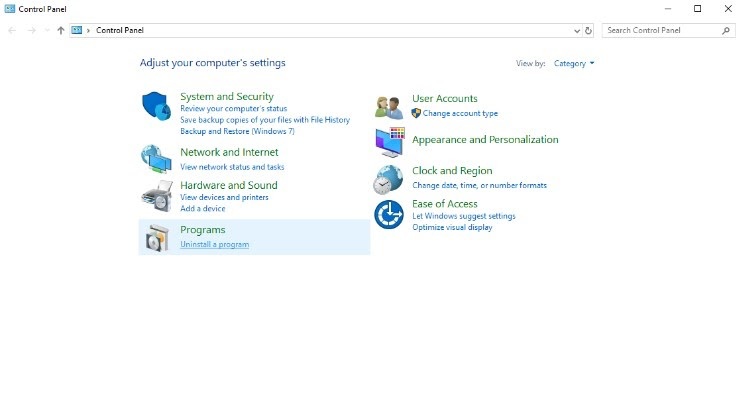
  • Open Control Panel, then click "Uninstall a Program" under the "Programs" option.

  • Find Bonjour and Audiante in the list, right-click it, and select “Uninstall."

    uninstall bonjour
  • When the uninstallation is complete, search for "Command Prompt" in the Start menu and right-click it to choose "Run as Administrator."

  • Type “sfc /scannow” and press Enter, and wait for the scan to complete.

    run sfc command

Removing Bonjour eliminates software conflicts, while sfc /scannow scans and repairs corrupted Windows files.

Fix 4: Enable Unicode UTF-8 in Windows Settings

Incorrect language settings can prevent Vanguard from starting correctly. Enabling UTF-8 ensures proper system encoding, which resolves some cases of Vanguard error 1067.

  • Open Settings by pressing “Win + I” then go to Time & Language.

  • Click Language & Region, then scroll down and click “Administrative language settings."

    administrative language settings
  • Click “Change system locale” and check the box “Beta: Use Unicode UTF-8 for worldwide language support”. Click “OK” and restart your computer.

    use utf 8

This setting ensures proper character encoding across the system. It fixes compatibility issues that can trigger error 1067 the process terminated unexpectedly.

Extra Tip: Improve Game Performance with a Quick Windows Cleanup

Before reinstalling or retrying Vanguard, cleaning your system can remove hidden issues. Junk files, leftover services, and disk errors can affect how background services run. A clean system reduces the chance of repeated errors.

Many users use tools like 4DDiG Partition Manager to clean and optimize their system before installing or running games.

  • Install and open 4DDiG Partition Manager, then go to the "Windows Clean” function. Here, select all the junk file types and click “Start Scan”.

    FREE DOWNLOAD

    Secure Download

    click start scan
  • Wait till the scan is complete, and once it is completed, choose the files that you want to clean, then click the "Clean" button and proceed by clicking "Sure" in the pop-up.

    click sure to proceed
  • Apply the cleanup and wait for the process to finish. Then restart your PC to check if the Riot Vanguard error is gone.

    clean successfully

This removes unnecessary files and stabilizes the system environment. It helps prevent recurring issues like Riot Vanguard error and improves overall performance.

More FAQs about Riot Vanguard Error

1. How to fix corrupted Vanguard Valorant?

Reinstall Riot Vanguard completely. Uninstall it from Programs, restart your PC, and launch Valorant again to reinstall it automatically. This ensures a clean setup.

2. How to fix the Vanguard connection error?

Reset your network settings, disable VPNs, and ensure firewall settings allow Vanguard. Connection errors are often related to DNS or blocked services.

Conclusion

The Vanguard error 1067 is mainly caused by service failures, system conflicts, or incorrect settings. By enabling the VGC service, resetting your network, removing conflicting software, and adjusting system settings, you can fix the issue effectively.

Keeping your system clean also plays an important role in preventing errors. Tools like 4DDiG Partition Manager help maintain system stability and reduce the chances of encountering Vanguard errors again.

FREE DOWNLOAD

Secure Download

William Bollson (senior editor)

William Bollson, the editor-in-chief of 4DDiG, devotes to providing the best solutions for Windows and Mac related issues, including data recovery, repair, error fixes.

(Click to rate this post)

You rated 4.5 ( participated)