ARC Raiders ARMR0002 Error: Fix Matchmaking Has Failed Issues

5 mins read

Updated on 2026-03-05 16:45:33 to Windows Fix

If you launch the game only to see matchmaking fail repeatedly, it can feel incredibly frustrating, especially when everything else seems fine on your system. Many players encounter the ARC Raiders ARMR0002 error during login or queue attempts, preventing them from entering matches at all. Don’t worry, here is the complete guide for the causes and troubleshooting steps of this error.

1. What is the ARC Raiders ARMR0002 Error?

The ARC Raiders ARMR0002 error is a network-related issue that blocks players from connecting to matchmaking services. Players usually see messages such as matchmaking has failed ARC Raiders or encounter endless loading loops before being kicked back to the menu. When this error occurs, the game fails to communicate properly with ARC Raiders servers, resulting in repeated connection attempts that never succeed.

arc raiders armr0002 error

Common Causes of ARC Raiders ARMR0002 Error

Here are the most common reasons why you might be getting this error:

  • Temporary server outages or maintenance: ARC Raiders servers may experience downtime during peak hours, patches, or backend updates, which can trigger the ARC Raiders ARMR0002 error even when your setup is correct.
  • Unstable or inconsistent network connection: Fluctuating internet connections, packet loss, or routing issues can prevent proper server communication, causing ARC Raiders matchmaking not working problems despite having internet access.
  • Corrupted or missing game files: Interrupted downloads, failed updates, or disk errors can damage critical files, leading to ARC Raiders matchmaking has failed errors during server authentication.
  • Easy Anti-Cheat service malfunction: If Easy Anti-Cheat fails to initialize or validate correctly, ARC Raiders cannot complete matchmaking, resulting in repeated ARC Raiders error ARMR0002 messages.

2. How to Fix ARC Raiders ARMR0002 Error?

It is best to start with simple solutions that address temporary glitches, then move on to deeper fixes involving system and network settings. The methods below target the most common causes of ARC Raiders' matchmaking errors and are safe to try in order.

Fix 1: Relaunch ARC Raiders

Sometimes the error is caused by a temporary handshake failure between the game client and the servers. Relaunching the game forces ARC Raiders to reestablish a fresh connection, which can instantly resolve matchmaking issues.

  • Fully close the ARC Raiders game from its interface. Open “Task Manager” and ensure ARC Raiders is not running in the background. If it is running, then right-click its process and click “End Task”.

    close arc raiders in task manager
  • Restart the game and attempt matchmaking.

If the error message disappears after relaunching, the issue was likely a temporary session error.

Fix 2: Restart PC and Router or Modem

Restarting your PC and networking equipment clears cached connections and refreshes your IP session, which can restore stable server communication. This fix is highly effective for players experiencing ARC Raiders matchmaking not working without any obvious reason.

  • Shut down your PC completely, and turn off your router and modem.

    restart router
  • Wait at least thirty seconds. Power on the modem first, then the router

  • Start your PC and launch ARC Raiders

This method resolves many cases caused by unstable routing or temporary ISP issues.

Fix 3: Verify the Integrity of Game Files

Corrupted or missing game files can break communication with Easy Anti-Cheat and ARC Raiders servers. Verifying game files ensures that every required file is present and correctly installed.

  • Open Steam and go to your Library, then right-click “ARC Raiders” and select “Properties”.

    click properties of arc raiders
  • Choose “Installed Files” and click “Verify integrity of game files."

    verify integrity of game files
  • Wait for the scan to complete, then restart the game.

If damaged files are detected, Steam will automatically replace them. After verification, retry matchmaking to see if the error is resolved.

Fix 4: Change DNS Settings

Switching to a public DNS service improves routing reliability and reduces connection timeouts. This fix is particularly helpful if the ARC Raiders matchmaking has failed message occurs inconsistently.

  • Open “Control Panel” and go to “Network and Sharing Center", then click “Change adapter settings”.

  • Right-click your active network and select “Properties," then check the "Use the following DNS server address" option. Type "8.8.8.8" in your "Preferred DNS Server” and click “OK” to save.

    change dns settings

After switching DNS, many players report smoother connections and fewer errors.

Fix 5: Reinstall Easy Anti-Cheat via the Game Folder

Easy Anti-Cheat plays a critical role in authenticating players during matchmaking. If it becomes corrupted or fails to initialize properly, ARC Raiders cannot complete the matchmaking process. Reinstalling it directly from the game folder often fixes stubborn cases.

  • Launch Steam and go to your Library. Right-click on ARC Raiders and select Manage. Click on Browse Local Files to open the game’s installation directory.

  • In the game’s folder, find and open EasyAntiCheat_EOS_Setup.exe. After opening the setup, go back to the main directory and navigate to the Installers folder.

    find easyanticheat exe
  • Find and double-click on EasyAntiCheat. Once the installation window opens, complete the installation process.

  • After it finishes, right-click the setup file again and select Run as Administrator to ensure proper installation. Restart your computer to apply the changes.

You may also like: How to Fix Easy Anti Cheat Not Installed?

⚡ Extra Tip: Solving Underlying Partition Errors to Improve ARC Raiders Performance

In some cases, repeated ARC Raiders ARMR0002 error problems are linked to deeper system issues, such as corrupted partitions or damaged file structures. When game files cannot be accessed reliably due to disk errors, matchmaking and authentication failures become more likely.

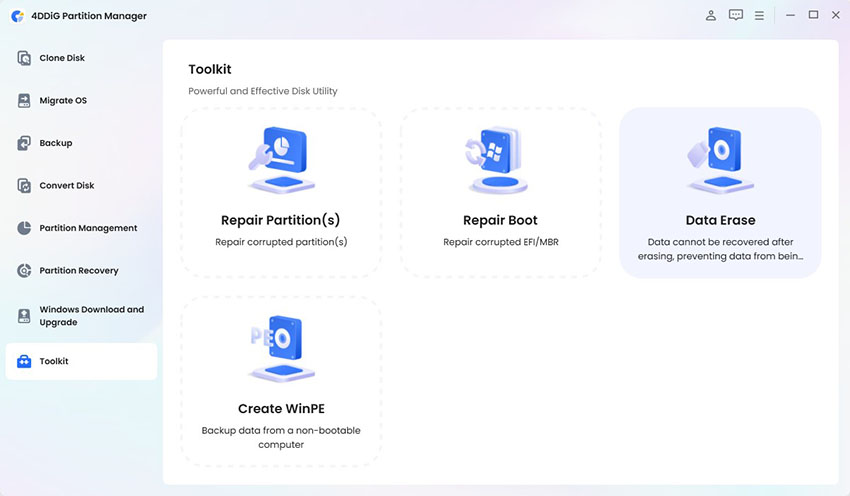
4DDiG Partition Manager offers a powerful partition recovery feature designed to repair damaged partitions without data loss. Beyond recovery, it also helps optimize disk structure, manage partitions, and improve overall system stability. These improvements indirectly support smoother gameplay and reduce unexpected errors.

  • Install and launch 4DDiG Partition Manager on your PC. Select Partition Recovery from the main interface’s left pane and select the disk where you want to perform partition recovery. Click the “Quick Scan” button to begin scanning your disk.

    FREE DOWNLOAD

    Secure Download

    click quick scan
    Note:

    If your desired partition is not found after the Quick Scan, click the “Deep Scan” and "Full Scan" options. These take longer to scan, but find the partitions.

  • When your desired partition is found, click to select it and click "Start Recovery", and then confirm by clicking "Sure”. Note that this partition recovery process will overwrite your existing partitions.

    click sure to recover
  • Let 4DDiG recover your partition automatically with no manual steps required. Once the process is successfully done, click "Finish”.

    partition recovery finished

Additional features include disk cloning, partition resizing, and OS migration, all of which contribute to better system performance and reduced game instability.

Conclusion

The ARC Raiders ARMR0002 error is primarily caused by connectivity issues, corrupted files, or background service failures that interrupt matchmaking. By following the fixes above, most players can restore stable access and eliminate “ARC Raiders matchmaking has failed” messages for good.

When deeper system issues are involved, addressing disk or partition problems becomes essential. Tools like 4DDiG Partition Manager provide a reliable way to repair underlying errors and improve overall performance, helping ensure ARC Raiders runs smoothly without recurring matchmaking failures.

FREE DOWNLOAD

Secure Download

William Bollson (senior editor)

William Bollson, the editor-in-chief of 4DDiG, devotes to providing the best solutions for Windows and Mac related issues, including data recovery, repair, error fixes.

(Click to rate this post)

You rated 4.5 ( participated)