How to Fix 100% Disk Usage Step-by-step?

5 mins read

Updated on 2026-07-29 10:09:36 to Windows Fix

Task Manager can show 100% disk activity even when you have not opened a demanding program. The PC may freeze, apps may take minutes to launch, and the Disk column may remain red while transfer speed is only a few megabytes per second. To learn how to fix 100% disk usage, first identify the process generating the reads and writes, then match the repair to the cause. Disable unnecessary startup apps, free space if the system drive is nearly full, test SysMain, check the drive for errors, and repair damaged Windows files. Do not confuse 100% active time with a drive that has used 100% of its storage capacity.

1. What Causes High Disk Usage in Windows 10/11?

High disk usage means the storage device is busy servicing input/output requests, not necessarily transferring data at its advertised maximum. An older HDD can reach 100% active time at only a few MB/s because seek time and latency become the bottleneck.

Common causes include:

  • Too many programs launching together after sign-in.
  • Windows Update, antivirus scans, indexing, or cloud synchronization running in the background.
  • SysMain preloading frequently used applications on a slower HDD.
  • A nearly full C drive leaving little working space for temporary files, updates, and the page file.
  • Corrupted Windows system files or a damaged component store.
  • File-system errors, unstable storage drivers, or a drive developing bad sectors.
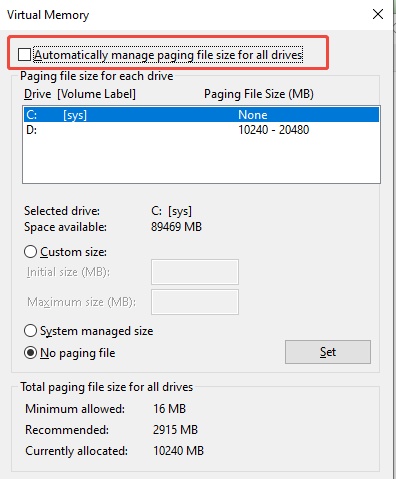
  • Limited RAM forcing Windows to read and write the page file repeatedly.

2. Find What is Causing 100% Disk Usage

Before changing services, confirm what is actually using the drive.

  • Press Ctrl + Shift + Esc to open Task Manager.

  • Select Processes. If Task Manager opens in a compact view, choose More details first.

  • Click the Disk column to sort processes from highest to lowest activity.

    disk usage in task manager
  • Watch the list for one or two minutes. Record the process name rather than ending every process immediately.

  • Select Performance > Disk and check whether the affected drive is an HDD or SSD. Also review active time, average response time, and read/write speed.

This check keeps troubleshooting logical.

⚡ 3. How to Fix 100% Disk Usage Step by Step?

Try the following methods in order. Restart the computer and observe Task Manager after each meaningful change so you know which action worked.

Fix 1: Disable Unnecessary Startup Apps to Fix 100 Disk Usage

Startup apps compete for the disk after sign-in. Cloud drives sync, game launchers update, and communication apps rebuild caches. Disabling nonessential items can reduce the spike without uninstalling them.

  • Open Task Manager with Ctrl + Shift + Esc. Select Startup apps.

  • Sort by Startup impact and review High-impact entries first.

  • Select a nonessential app, such as a game launcher or chat client, and choose Disable.

    disable unnecessary startup
  • Restart Windows and check Disk usage again.

Keep security software, touchpad utilities, audio drivers, and other hardware-related tools enabled unless you know they are optional. Disabling startup does not uninstall an app; you can still open it manually.

Fix 2: Free Up Disk Space

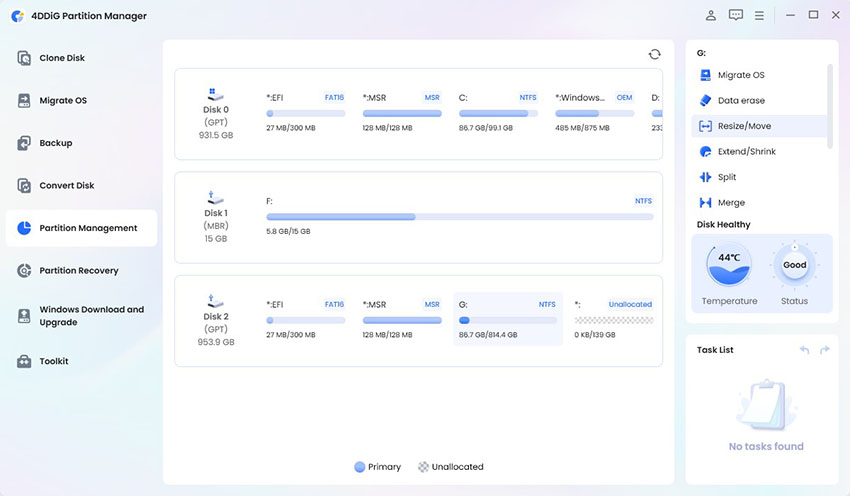
Low free space is not the same as 100% disk activity, but it can slow updates, caches, and virtual memory. 4DDiG Partition Manager Windows Clean groups common system, application junk and browser cachein one review, which is useful when temporary data is scattered across several locations.

  • Install and open 4DDiG Partition Manager. Select the types of junk files you want to clean and click Start Scan button to begin scanning.

    FREE DOWNLOAD

    Secure Download

    windows clean
  • Expand the results and review the listed files instead of deleting everything blindly. Next, click Clean button.

    select items to clean
  • Once complete, restart Windows, and compare free space and disk activity.

    clean successfully

If your system drive is running out of space, you should extend the C drive.

Fix 3: Temporarily Stop SysMain

SysMain preloads frequently used data. On some older HDD systems, its background reads can dominate the disk, so test the service before changing it permanently.

  • Press Win + R, type services.msc, and press Enter. Find SysMain and double-click it.

  • Select Stop and leave the Properties window open.

    stop sysmain
  • If disk usage drops and the PC becomes responsive, set Startup type to Manual for a longer test. If nothing changes, return it to Automatic and start the service again.

Stopping SysMain can make some apps launch more slowly. Use the result as a diagnosis, not as a universal tweak.

Fix 4: Scan for Bad Sectors and Check Disk Health

If 100% activity appears with freezes, read errors, or unusual HDD sounds, check the drive. Bad sectors can trigger repeated retries and high active time at low speed.

  • Launch 4DDiG Partition Manager again and go to Partition Management.

    FREE DOWNLOAD

    Secure Download

  • Click “Bad sector scan” and choose the physical disk that contains Xbox App.

    scan bad sector
  • If the result indicates errors or bad-sector warnings, back up important files immediately.

    scan bad sector
  • For logical partition errors, open Toolkit > Repair Partition(s), select the affected disk, and run the repair.

A software tool cannot restore physically damaged media to reliable condition.

Fix 5: Run DISM and System File Checker

Damaged Windows components can trigger repeated activity. Run DISM before SFC because DISM repairs the component source used by System File Checker.

  • Search for Command Prompt, right-click it, and select Run as administrator.

  • Run command:

    $ DISM /Online /Cleanup-Image /RestoreHealth
  • Wait for the process to complete. Do not close the window if progress appears to pause.

  • Then run:

    $ sfc /scannow
  • Restart the PC after the scan and recheck Task Manager.

Use these commands after an interrupted update or when Windows features fail. They do not replace a hardware check for physical warning signs.

More FAQs About 100% Disk Usage

1. Why is Windows 10 Using 100 Disk Usage but Nothing Is Running?

Windows Update, Defender, indexing, SysMain, OneDrive, the page file, and drivers can run under System or Service Host. Sort Task Manager by Disk, then use Resource Monitor to see file paths. Near-zero throughput with persistent 100% activity calls for a response-time and drive-health check.

2. How Do I Free Up Disk Space on Windows 10?

Open Settings > System > Storage, review Temporary files, uninstall unused apps, empty the Recycle Bin, and move large files. Storage Sense can automate routine cleanup. 4DDiG Partition Manager Windows Clean can review common system and app junk, but freeing space mainly helps when the drive is nearly full.

Conclusion

The reliable way to fix 100% disk usage is to diagnose before changing Windows. Sort Task Manager by Disk, identify the process, and then disable unnecessary startup apps, reclaim space, test SysMain, check disk health, or repair Windows files as appropriate. 4DDiG Partition Manager is useful in this workflow because Windows Clean can consolidate junk-file cleanup, while Disk Health Status and partition repair provide a clearer view of storage-related problems. If the drive reports worsening bad sectors or physical symptoms, protect your files and replace it rather than relying on repeated software fixes.

FREE DOWNLOAD

Secure Download

William Bollson (senior editor)

William Bollson, the editor-in-chief of 4DDiG, devotes to providing the best solutions for Windows and Mac related issues, including data recovery, repair, error fixes.

(Click to rate this post)

You rated 4.5 ( participated)