How to Fix Vanguard Error 84 League of Legends?

5 mins read

Updated on 2026-07-23 18:37:34 to Windows Fix

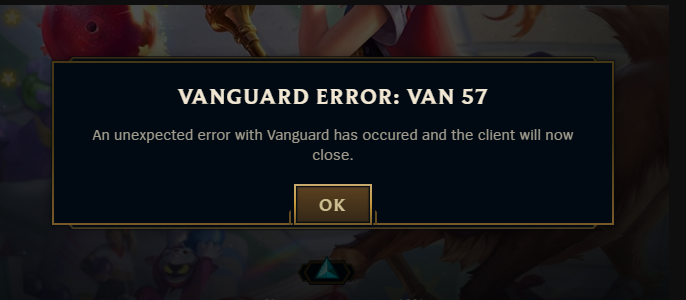
Getting hit with Vanguard Error 84 while trying to launch or play League of Legends can be intensely frustrating. This connection error typically signals a disruption between Riot's Vanguard anti-cheat system and the game servers, usually caused by server outages, corrupted system services, or firewall blockades.

To help you get back on the Rift as quickly as possible, this guide explains what causes the error, and provides step-by-step solutions to fix Vanguard service glitches and firewall conflicts.

1. What is VAN 84 Error in VALORANT?

Riot categorizes the VAN 84 error as a connection problem. League of Legends and VALORANT both use Riot Client and Vanguard. The client cannot maintain its expected connection with Riot services or local Vanguard components. Because the code does not identify the failed link, troubleshooting should separate server incidents from local client, service, and network problems.

van 84 error

Common Causes of Vanguard Error VAN 84

  • Riot service interruption: If many players receive valorant error VAN 84 at the same time, a regional authentication or game-service incident may be responsible.
  • A stuck Riot Client session: Closing the window may leave background Riot processes running with an expired or broken connection.
  • DNS or router instability: Cached records can point the client to an outdated route, while packet loss can break an active session.
  • Killer Prioritization Engine or similar software: Traffic-shaping utilities can classify, delay, or reroute game and anti-cheat traffic.
  • The vgc service is stopped: Vanguard may be installed but unavailable when League starts.
  • Damaged Vanguard installation: Failed updates, security-software interference, or partial removal can leave Vanguard unable to load correctly.

First check Riot’s service-status page for your region. If an incident is listed, wait for recovery and restart Riot Client afterward. Continue only when status is normal or only your PC is affected.

2. How to Fix Vanguard Error 84 in League of Legends

Apply the fixes in order and test League after each one to avoid an unnecessary reinstall.

Fix 1: Completely Exit and Restart Riot Client

Sometimes, Vanguard Error 84 is caused by a simple glitched process running in the background. You can fully terminate all Riot-related background processes first, then launch the game again.

  • Close League of Legends and Riot Client.

  • Right-click the Riot icon in the notification area and select Exit. Open the hidden-icons menu if the icon is not visible.

  • Press Ctrl + Shift + Esc. In Task Manager, end remaining Riot Client or League processes that are still running.

    end riot client task
  • Wait about 15 seconds, then launch Riot Client as usual and sign in again.

The tray process can keep a broken session alive after the window closes. If the error returns immediately, try other methods below.

Fix 2: Disable the Killer Prioritization Engine

If your PC uses a Intel/Killer Wi-Fi or Ethernet card, its built-in "Prioritization Engine" may be the culprit. Designed to optimize gaming traffic, this feature frequently misidentifies Riot's Vanguard network protocols, blocking its live communication with server nodes and triggering Error 84. Disabling this setting resolves network routing conflicts instantly.

  • Open Killer Intelligence Center or Killer Control Center.

  • Open Settings or Quick Settings and switch off Prioritization Engine.

  • Open Task Manager > Startup apps and disable Killer Intelligence Center from starting automatically if the setting keeps returning after reboot.

  • Restart Windows and test League again.

Temporarily disable other bandwidth-prioritization or “network boost” utilities too. If the error stops, uninstall the optimizer but keep the Wi-Fi or Ethernet driver.

Fix 3: Flush the DNS Cache

Flushing your DNS cache purges temporary network data, resetting your system's connection parameters and resolving server-handshake failures instantly.

  • Close Riot Client completely.

  • Search for Command Prompt, right-click it, and choose Run as administrator.

  • Enter ipconfig /flushdns and press Enter.

    flush dns cache command
  • Restart Riot Client and test the connection.

Fix 4: Set the Vanguard Service to Start Automatically

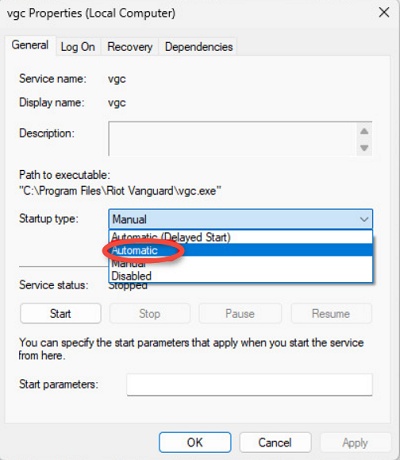
Riot Vanguard relies on a core background service called vgc to maintain a continuous, secure connection with game servers. If this service is disabled or set to start manually, Windows may fail to launch it when you open League of Legends, directly triggering Error 84. Ensuring the vgc service is configured to run automatically prevents startup delays and connectivity drops.

  • Press Windows + R, type services.msc, and press Enter.

  • Find vgc, right-click it and go to Properties > General > Startup type. Set Startup type to Automatic.

    set vgc startup type
  • Select Start if Service status is Stopped, then click Apply and OK.

  • Restart the computer before opening League of Legends.

Fix 5: Reinstall Riot Vanguard

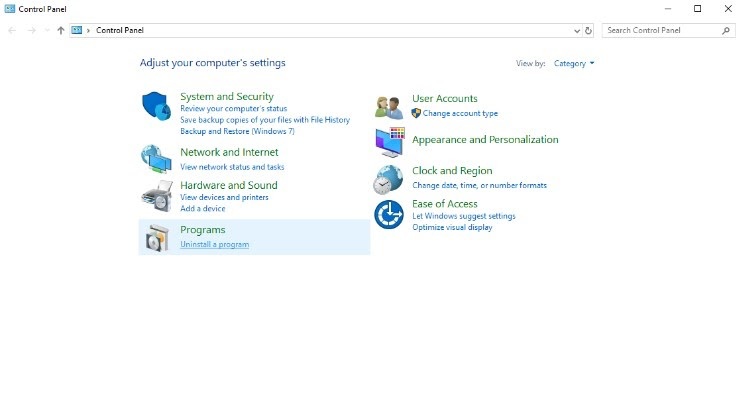
  • Open Settings > Apps > Installed apps. Find Riot Vanguard, open its menu, and select Uninstall. Confirm the removal.

    uninstall riot vanguard
  • Restart the PC to clear the Vanguard driver and service from memory.

  • Launch Riot Client or League of Legends. The client should download and reinstall Vanguard automatically.

  • Restart Windows again when prompted, then test the game.

Do not skip the restarts because Vanguard loads components with Windows. If security software blocks installation, allow Riot Client, Vanguard, and League rather than disabling protection permanently.

⚡ Bonus Tip: Clean Up Windows for a Smoother League of Legends Experience

Technical glitches aren't the only thing that can ruin a match—sluggish system performance and low FPS can be just as frustrating. Over time, Windows accumulates hidden temporary files and unorganized disk sectors that bottleneck your hardware.

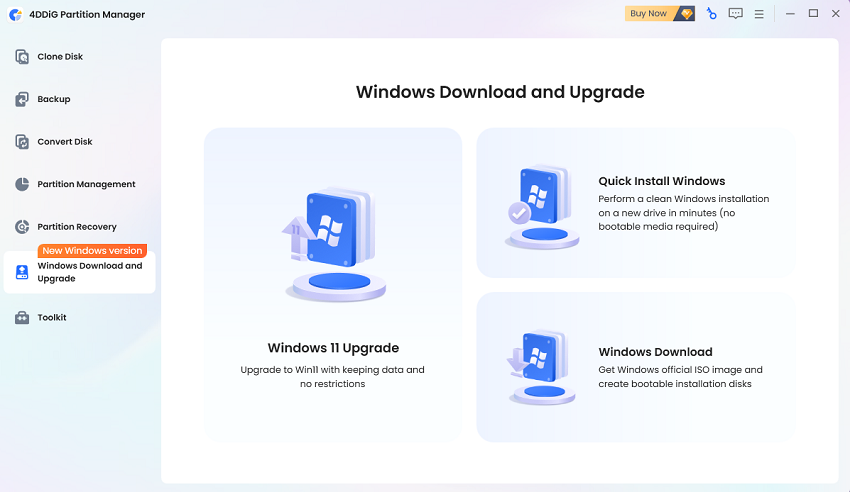
With 4DDiG Partition Manager, you can perform a deep cleanup of your drive, and optimize your system layout. It’s an effortless way to keep your PC lean, reduce input latency, and maintain smooth, uninterrupted gameplay. Here’s how to do a system cleanup:

  • Download and install 4DDiG Partition Manager. Next, select Windows Clean from the left navigation area. Choose the junk-file categories relevant to your system and start the scan.

    FREE DOWNLOAD

    Secure Download

    windows clean
  • After scanning, you can expand the results, review what is selected, and deselect anything you want to keep. Click Clean button.

    select items to clean
  • Review the cleanup summary to confirm the cleared caches and freed storage, then click OK.

    clean successfully

Reviewing categories before deletion gives more control than a broad clean-all action. Use it as maintenance, not as a replacement for checking Riot status, vgc, or the network.

Conclusion

To fix vanguard error VAN 84, first rule out a Riot service incident, then fully restart Riot Client. Disable Killer Prioritization Engine or similar network optimizers if they are installed, flush the DNS cache, and confirm that vgc starts automatically. Reinstall Riot Vanguard only when the earlier checks fail or the service is missing.

Once League reconnects, 4DDiG Partition Manager’s Windows Clean feature can help reclaim update space and reduce background clutter, but it should remain a maintenance step rather than the primary VAN 84 fix. Test after each change so you know which cause actually affected your PC.

FREE DOWNLOAD

Secure Download

William Bollson (senior editor)

William Bollson, the editor-in-chief of 4DDiG, devotes to providing the best solutions for Windows and Mac related issues, including data recovery, repair, error fixes.

(Click to rate this post)

You rated 4.5 ( participated)