How to Back Up Files to OneDrive Step by Step?

5 mins read

Updated on 2026-10-21 14:22:08 to Windows Fix

A document saved on your laptop can disappear with a failed drive, even if you click Save regularly. Learning how to back up files to OneDrive gives your important work a cloud copy you can access from another device.

However, OneDrive synchronizes changes, including deletions; it does not create a complete Windows system image. This guide explains both methods, how to confirm your files reached the cloud, and when a separate computer backup makes more sense.

1. How to Back Up Files to OneDrive on Windows?

Use automatic folder backup for documents you edit daily. Choose manual uploads for a finished project, selected photographs, or files outside the supported folders. Neither option captures everything installed on your computer.

book icon Note

Before backing up files to OneDrive, check the account you intend to use and its available storage.

Method 1: Automatically Back Up PC Folders to OneDrive

Automatic OneDrive backup suits people who routinely save work in familiar Windows folders. Changes upload in the background once the desktop app is configured and running. Microsoft documents the folder backup controls in its support guide.

  • Open OneDrive from the Windows Start menu. Sign in with your intended Microsoft account and complete setup if prompted.

  • Click the OneDrive cloud icon near the taskbar clock. Go to settings > Sync and backup. Select Manage backup.

    manage backup in onedrive
  • Enable the folders you want to protect, such as Desktop, Documents, and Pictures, where available.

    select folders to backup
  • Save your changes or start backup using the button shown in your version. Leave OneDrive running while the first upload completes.

  • Open OneDrive in your browser using the same account. Check the corresponding folders and open an important document to confirm it uploaded successfully..

Remember that synchronized folders are working locations. Microsoft explains that additions, edits, and deletions propagate between the local OneDrive folder and the cloud. An accidental deletion can therefore affect both.

Method 2: How to Back Up Files to OneDrive Manually

Manual uploads let you select exactly what reaches your account. You can back up files to OneDrive through File Explorer for ongoing synchronization, or through a browser for a separate upload of selected content.

  • Press Windows + E and open the OneDrive folder for the correct personal or work account.

    open onedrive folder
  • Create a clearly named destination, such as Completed Projects, to keep uploads easy to find.

  • Copy your chosen files or folder into that location. Copying initially preserves the original folder while you verify the upload.

  • Allow synchronization to finish, then check the uploaded items on the OneDrive website.

The OneDrive copy now participates in synchronization. The original folder outside OneDrive remains separate: later changes there will not automatically update the uploaded copy. To avoid working on two different versions, decide which location you will use going forward.

For browser uploads:

Sign in at onedrive.com, open your destination folder, and select Upload or Add new, depending on the interface. Choose Files or Folder, select the content, and wait for completion. Browser uploads do not continuously monitor the original local folder.

⚡ Bonus Tip: Need a Full PC Backup? Use 4DDiG Windows Backup

A cloud copy of your reports will not, by itself, rebuild your Windows installation after a system drive failure. If your goal is restoring the computer's system and selected partitions, use a dedicated backup archive alongside OneDrive.

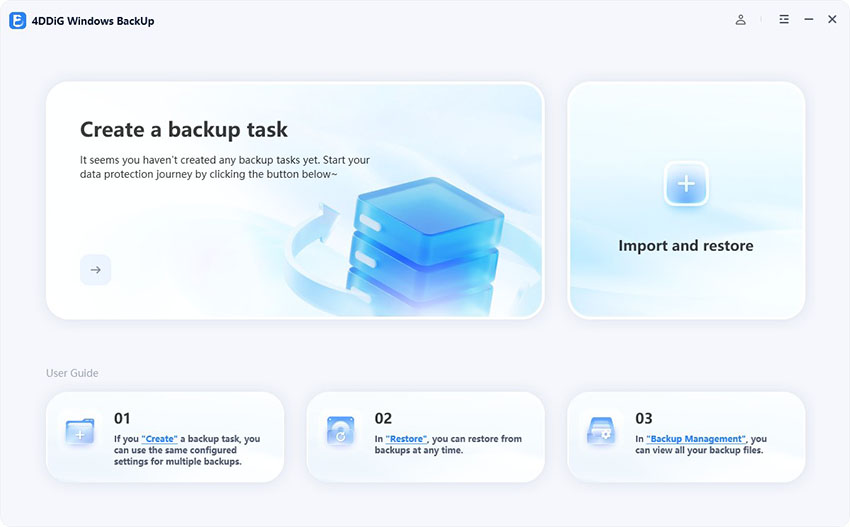
4DDiG Windows Backup provides a Backup Computer workflow for creating such an archive. Its official guide also describes restoration and rescue media for a computer that cannot start normally.

  • Install and open 4DDiG Windows Backup, then connect an external drive with sufficient free space for the archive.

    FREE DOWNLOAD

    Secure Download

  • Choose Create a backup task and use the Backup Computer workflow.

    create a backup task
  • Review the included partitions. Make sure the selection matches what you need to recover, rather than choosing only a personal data partition.

    check the partitions
  • Use the destination control to save the archive on the external drive. Review the task, start the backup, and confirm when prompted.

    confirm to backup
  • Keep the drive attached until completion. Record the archive's location so you can identify it when restoration is needed.

    complete backup

Store the archive on a separate physical drive as a practical precaution against losing both copies together. Before restoring, preserve newer files: restoration can overwrite the destination. Follow the product's rescue USB instructions if you need recovery when Windows will not boot.

More FAQs About OneDrive Backup

1. How to Back Up a Computer to OneDrive?

You can back up a computer to OneDrive in the sense of uploading its personal files or enabling supported folder backup. List your important storage locations first, including custom project folders, so nothing falls outside your chosen method.

2. How to Sync a Folder to OneDrives?

If you wonder how do I sync OneDrive, open its desktop app, sign in, and allow synchronization to run. Account settings that choose which cloud folders appear on your PC do not automatically upload every unrelated local folder.

3. How to Turn Off OneDrive Backup?

To turn off OneDrive backup, open OneDrive settings, select Sync and backup, then Manage backup. Disable the relevant folder and follow the prompts about where to keep its files. Download cloud-only items first if requested. Read the choices carefully before confirming, then check the resulting local and online locations. Stopping folder backup is different from temporarily pausing synchronization.

Conclusion

Knowing how to back up files to OneDrive starts with choosing the right scope. Automatic folder backup keeps supported everyday folders updated, while manual uploads give you control over selected content. Verify the cloud copy before relying on it, and remember that synchronized deletions can affect your files across devices.

For recovery of Windows and its partitions, add a separate archive with 4DDiG Windows Backup. If your next task involves resizing partitions or cloning a disk for an upgrade, consider 4DDiG Partition Manager as a complementary tool. Match each tool to the job rather than assuming cloud storage covers everything.

FREE DOWNLOAD

Secure Download

William Bollson (senior editor)

William Bollson, the editor-in-chief of 4DDiG, devotes to providing the best solutions for Windows and Mac related issues, including data recovery, repair, error fixes.

(Click to rate this post)

You rated 4.5 ( participated)